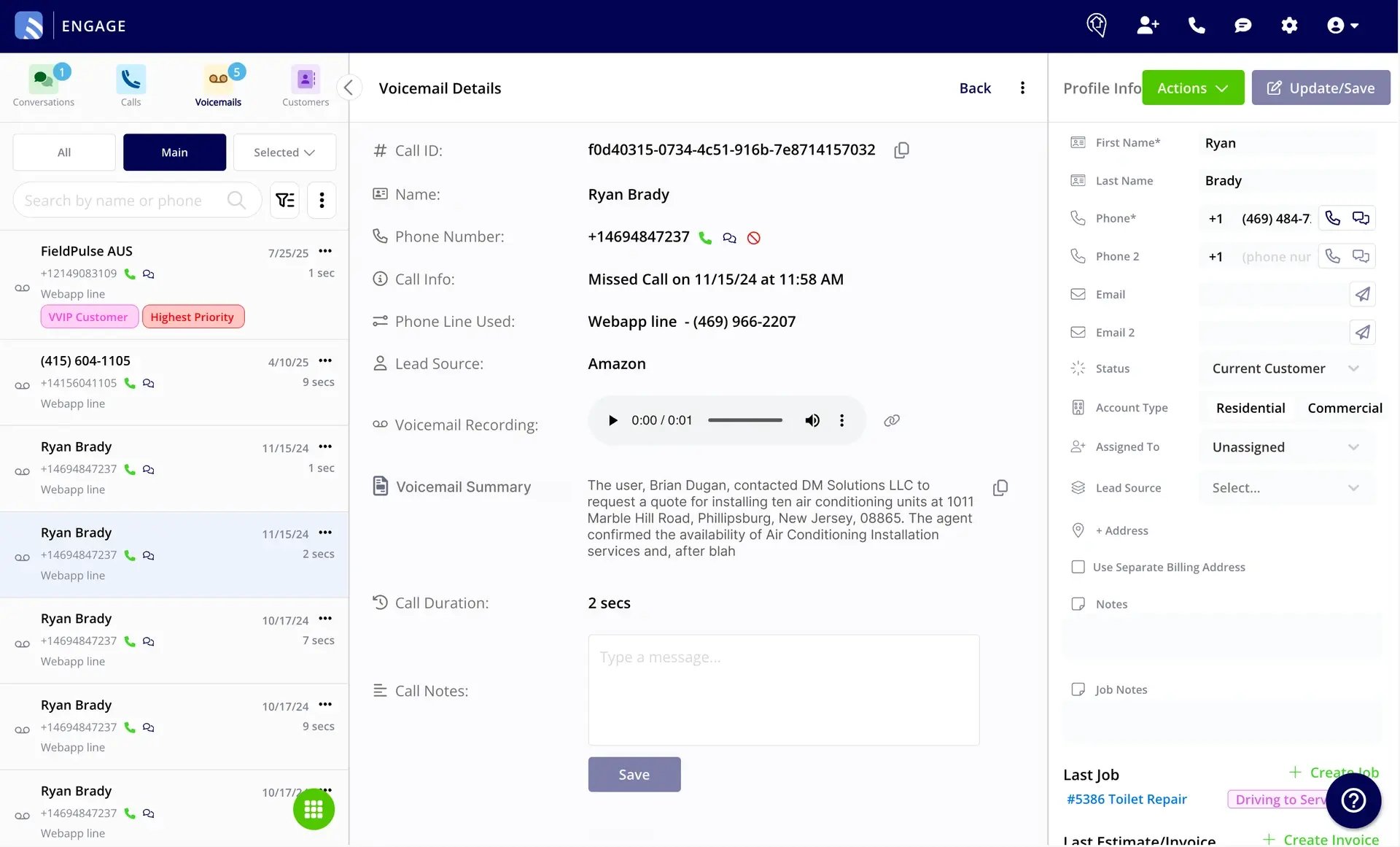
Who uses this: Admins manage the Transcripts and Summaries settings; anyone with Engage permission can view a call’s summary, transcript, or recording. Availability: Requires the Engage add-on. Summaries and recordings show on web and mobile; the full transcript shows on web only.A dispatcher who opens yesterday’s call log should not have to replay the recording to learn what the caller wanted. With transcripts and summaries turned on, every call handled through Engage, answered by a person or by Operator AI, gets an AI-generated transcript and summary shortly after it ends, and every voicemail gets a summary next to its recording.
Overview
A call summary is a short readout of who called, why, what was discussed, and what happens next. The transcript is the full, turn-by-turn conversation. Engage generates both shortly after a call ends, so anyone who opens the call log later (a dispatcher, a technician, the owner) can get up to speed without replaying the recording. Voicemails get the same treatment: an AI summary appears alongside the voicemail recording. Summaries are generated from a fixed default prompt that you cannot edit. You can add your own preferences on top of it, have every call summary posted to the caller’s customer record as a comment, send feedback on summary quality, and turn transcripts and summaries off for any phone line that should not generate them.Before you begin
- You need the Admin role to open the Transcripts and Summaries settings page.
- Transcripts and summaries are managed per account here and turned on or off per phone line under Phone Line Settings Details.
Step-by-step setup
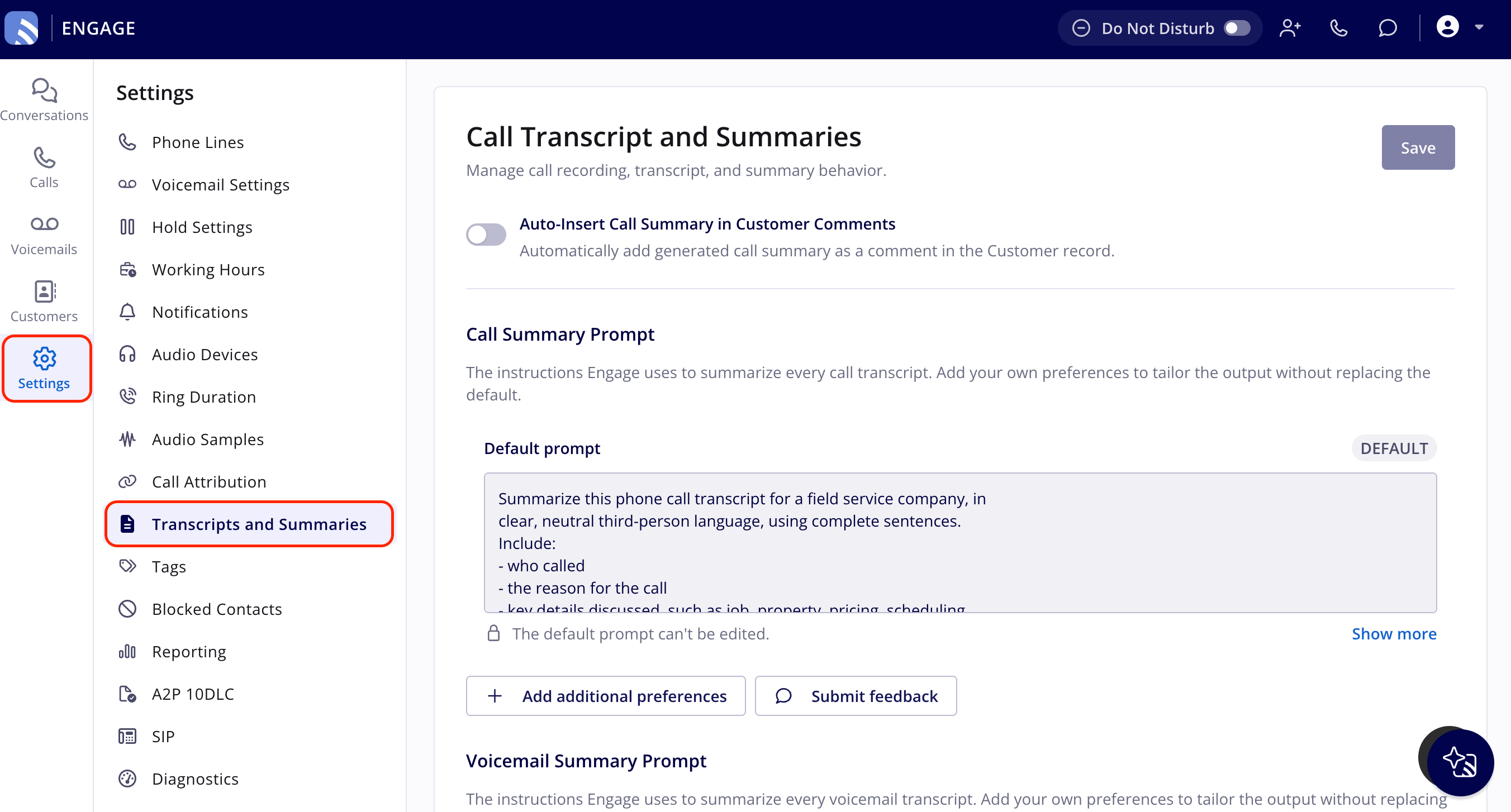
Open the Transcripts and Summaries settings
- In Engage, select Settings in the left navigation bar.
- Select Transcripts and Summaries in the Settings menu.
- Review the Call Summary Prompt (the instructions Engage uses to summarize call transcripts) and the Voicemail Summary Prompt, which follows the same pattern for voicemail summaries.
- Select Save in the top-right corner to apply any change you make on this page.
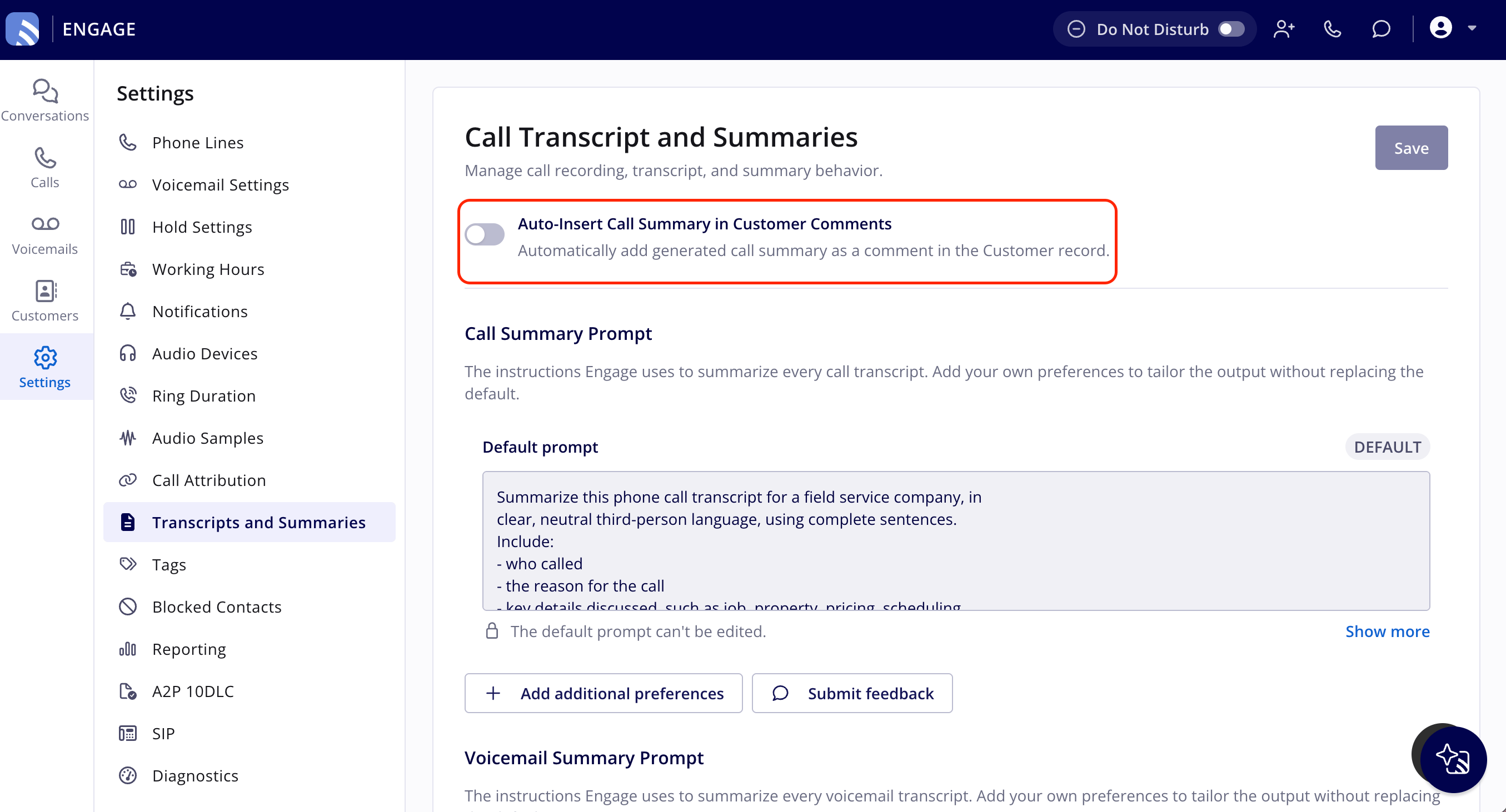
Post call summaries to customer comments
The Auto-Insert Call Summary in Customer Comments toggle is off by default. Turn it on and every generated call summary is added as a comment on the caller’s customer record as soon as it finishes generating, labeled Engage - Call Summary with the date and time of the call.- The setting also applies to Operator AI calls. When it is on, Operator AI call summaries are added to the customer’s comments in addition to the summary Operator AI already writes to the created job’s Job Notes.
- Calls with no linked customer are skipped, because there is no record to post to.
- Turning the toggle off later does not remove comments that were already added; only future calls stop generating one.
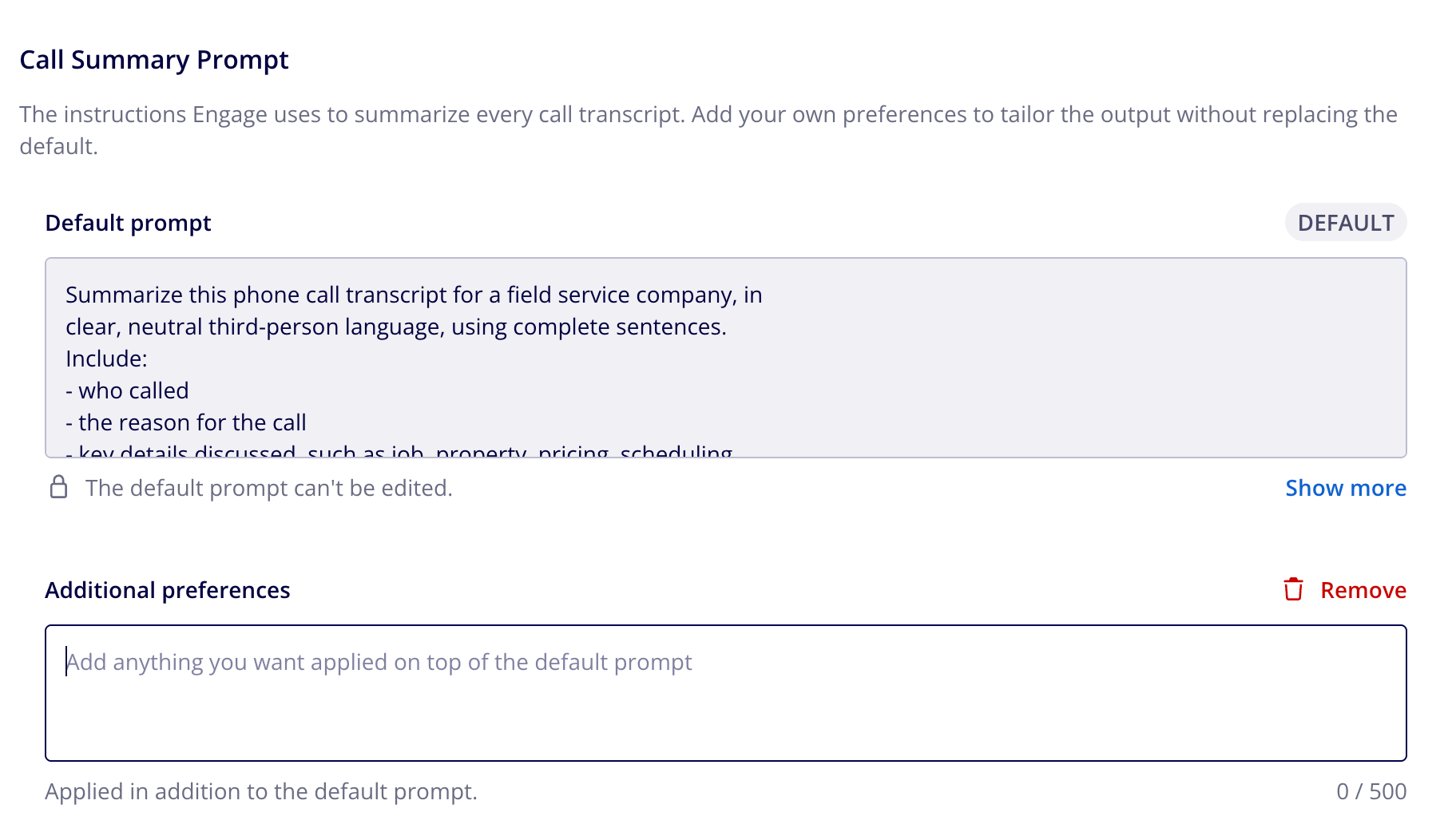
Add your own preferences to the summary prompt
Engage summarizes every call using its default prompt. You cannot edit the default, but you can add preferences that apply on top of it.- Select + Add additional preferences.
- Enter what you want applied on top of the default prompt (for example, a preference for a shorter summary, or a request to always flag emergency calls). Additional preferences are limited to 500 characters, and a live counter shows how much room is left.
- Select Save. From now on, every call summary is generated from the default prompt plus your additional preferences. The default prompt is always applied; your preferences are added on top of it, never in place of it.
Send feedback on a summary
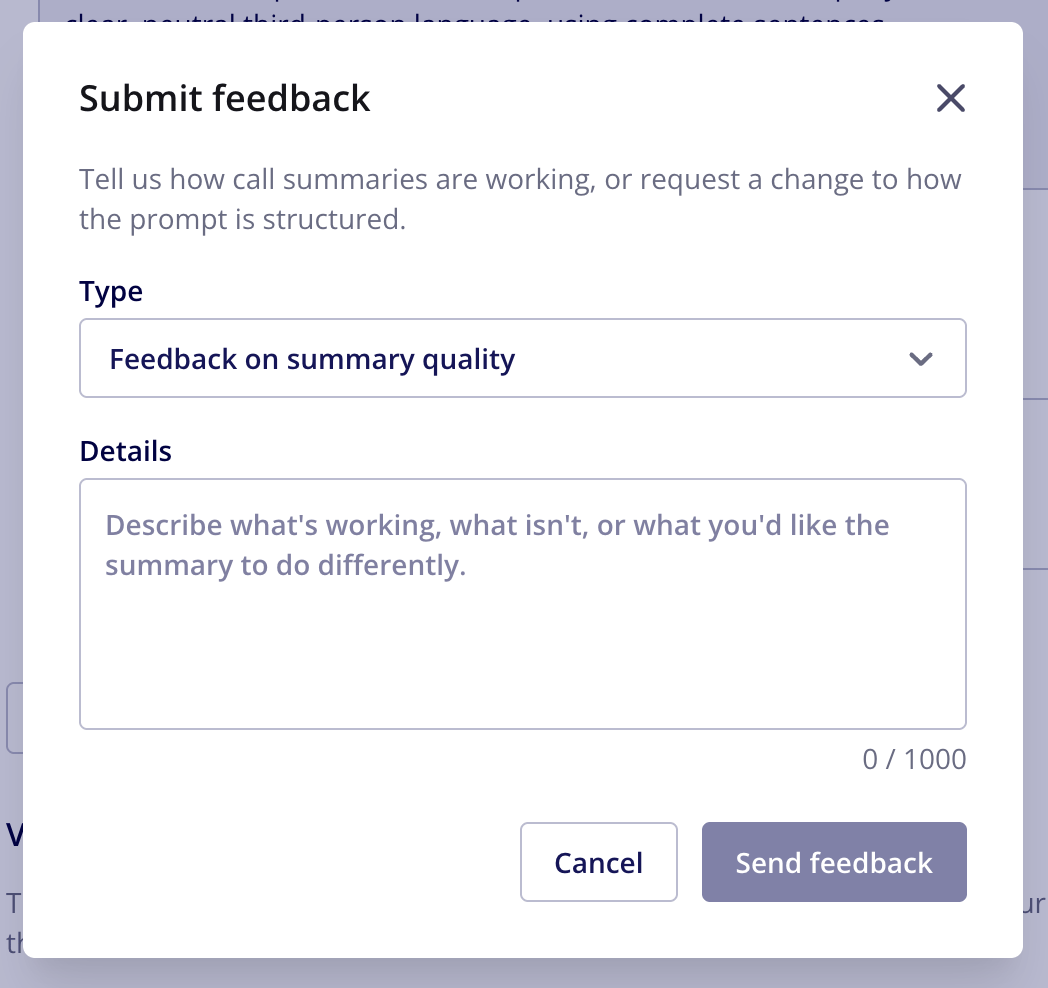
If a summary is not quite right, or you would like the prompt to behave differently, send feedback from the settings page.- Select Submit feedback.
- Choose a type: Feedback on summary quality or Report a problem.
- Describe what is working, what is not, or what you would like the summary to do differently. Details are limited to 1,000 characters.
- Select Send feedback. Select Cancel or the X in the top-right corner to close without submitting.
Turn transcripts and summaries off for a phone line
To stop generating transcripts and summaries for one phone line, turn them off for that line under Phone Line Settings. See Phone Line Settings Details.Settings reference
On web
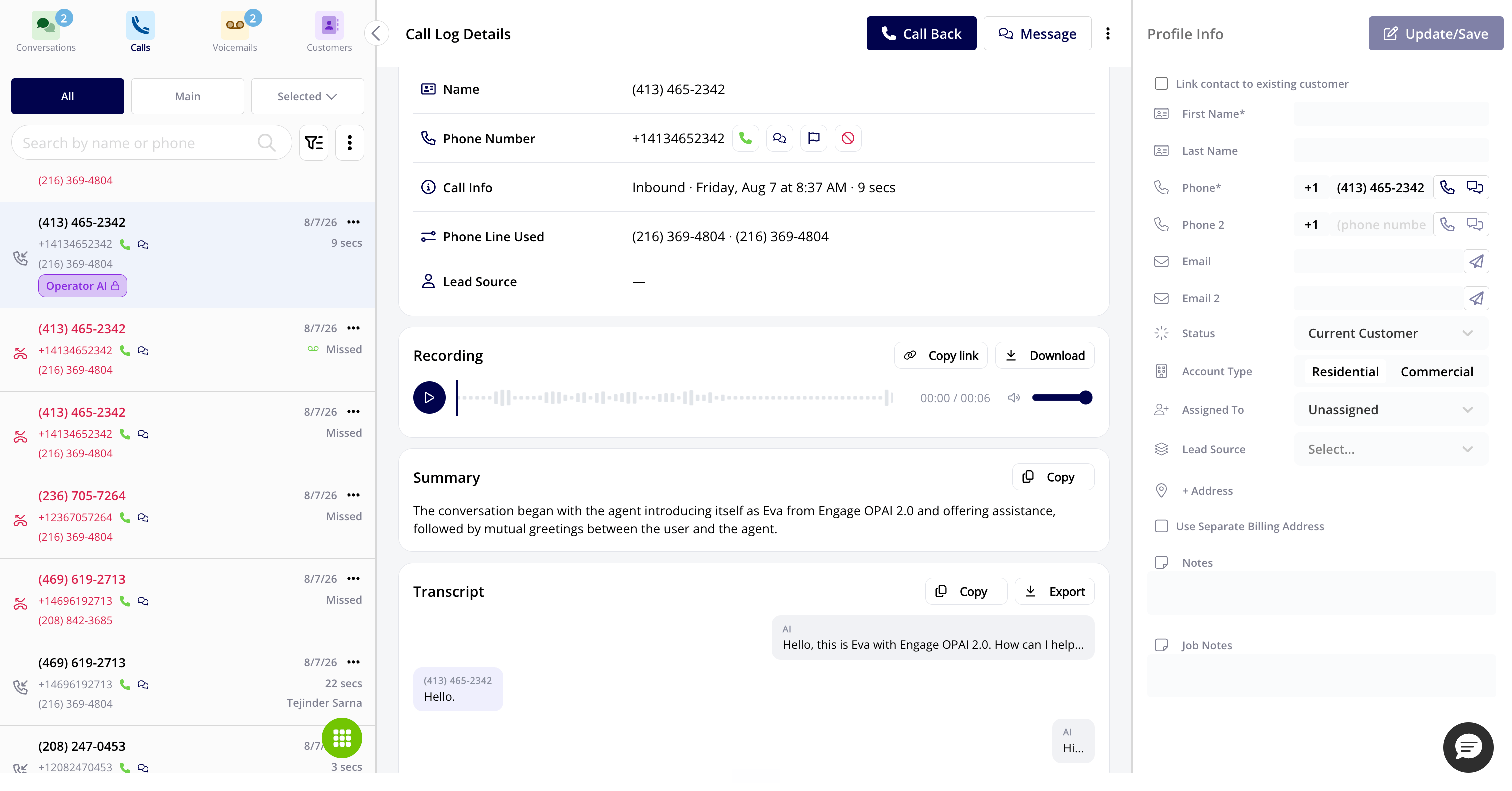
Every call log has Recording, Summary, and Transcript sections, positioned above Call Notes.- Open a call from your Engage call log.
- In the Recording section, use the player’s play/pause control and scrubber. Select Copy link to copy a shareable link to the recording, or Download to save it as an MP3 file.
- In the Summary section, read the AI-generated call summary. Select Copy to copy the full summary to your clipboard.
- In the Transcript section, read the full turn-by-turn conversation. Select Copy to copy the transcript, or Export to download it as a file.
On mobile
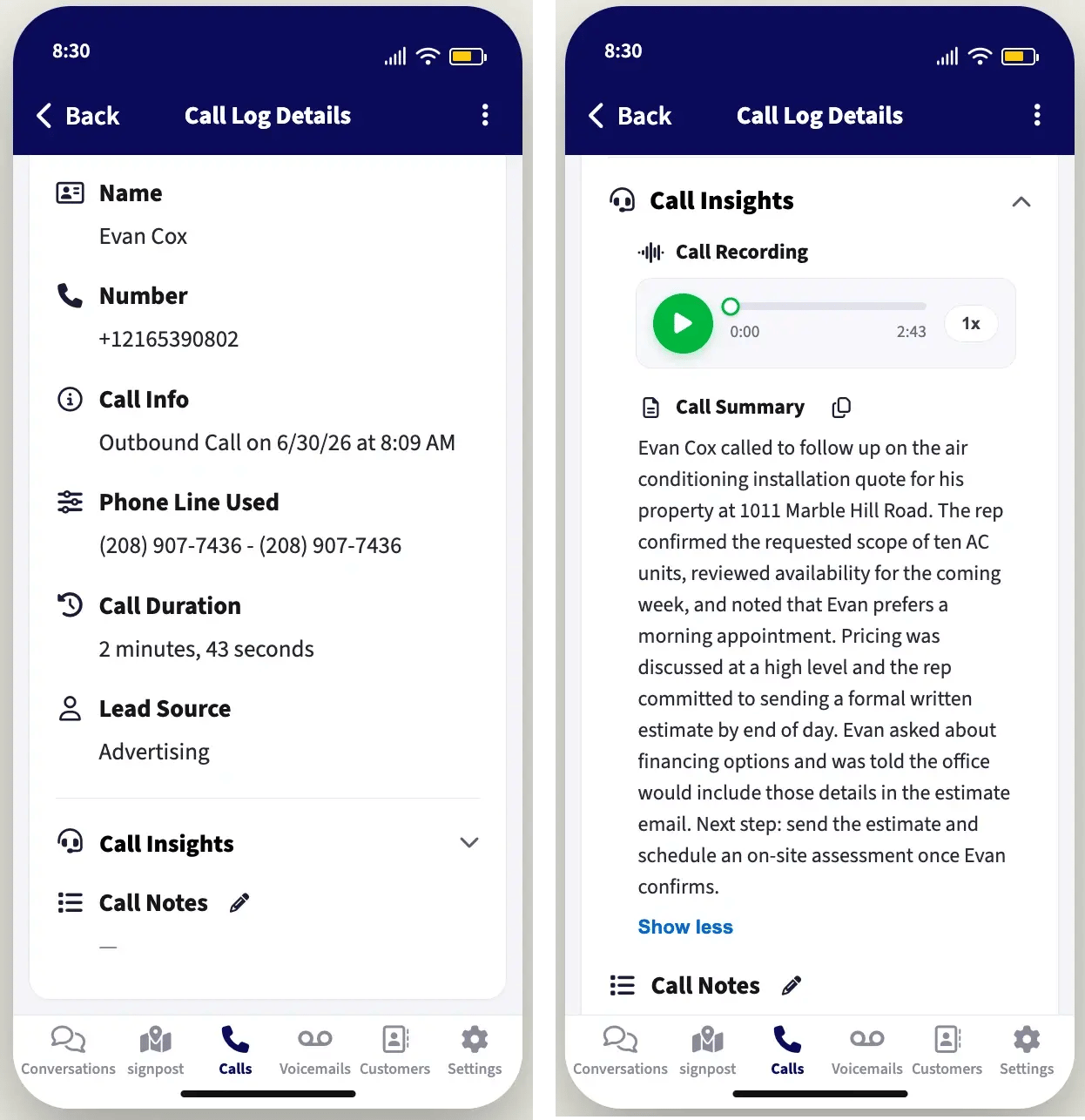
On mobile, the Call Log Details page has a collapsible Call Insights section above Call Notes.- Tap the section to expand it.
- In the Call Recording block, use the player’s play/pause control, scrubber, elapsed and total time, and playback-speed control. The recording can be downloaded as an MP3.
- In the Call Summary block, read the summary text or tap the copy icon to copy it. Summaries are truncated by default; tap Show more to see the full summary, or Show less to collapse it again.
The mobile app shows the call summary and recording only. The full transcript is available on the web app.
Voicemail summaries
Voicemail Details pages, on both web and mobile, show a Voicemail Summary field below the voicemail recording.- On web, the summary appears below the recording and can be copied with the same copy icon used elsewhere on the page.
- On mobile, opening a voicemail shows the summary below the recording. If the summary runs longer than three lines, it is truncated with a Show More button; tap Show Less to collapse it again. The summary can be copied from the mobile app as well.