Who uses this: Admins build the formulas in Company Settings, which only the Admin role can view; technicians and office staff who can create estimates and invoices use a saved formula on a record. Availability: All regions.Formula-Based Quantities saves your company’s measurement math in FieldPulse so a technician enters a few numbers on an estimate or invoice and the material quantity is calculated on the spot. An Admin builds each formula once in Company Settings — tile flooring with an added waste factor, or the number of posts required per foot of fencing — and the technician picks that formula from the Quantity field on the record.
Overview
A formula-based quantity is a saved calculation that turns job measurements into a line item quantity. Each formula is built from three pieces:- Variables — the values a technician enters on the record, such as Width, Length, or Roll Width. Each variable can carry a default value.
- Fixed values — numbers a technician cannot change, such as a waste factor, a standard depth, or a labor multiplier.
- Operators — multiplication, division, addition, subtraction, and parentheses, which set the math.
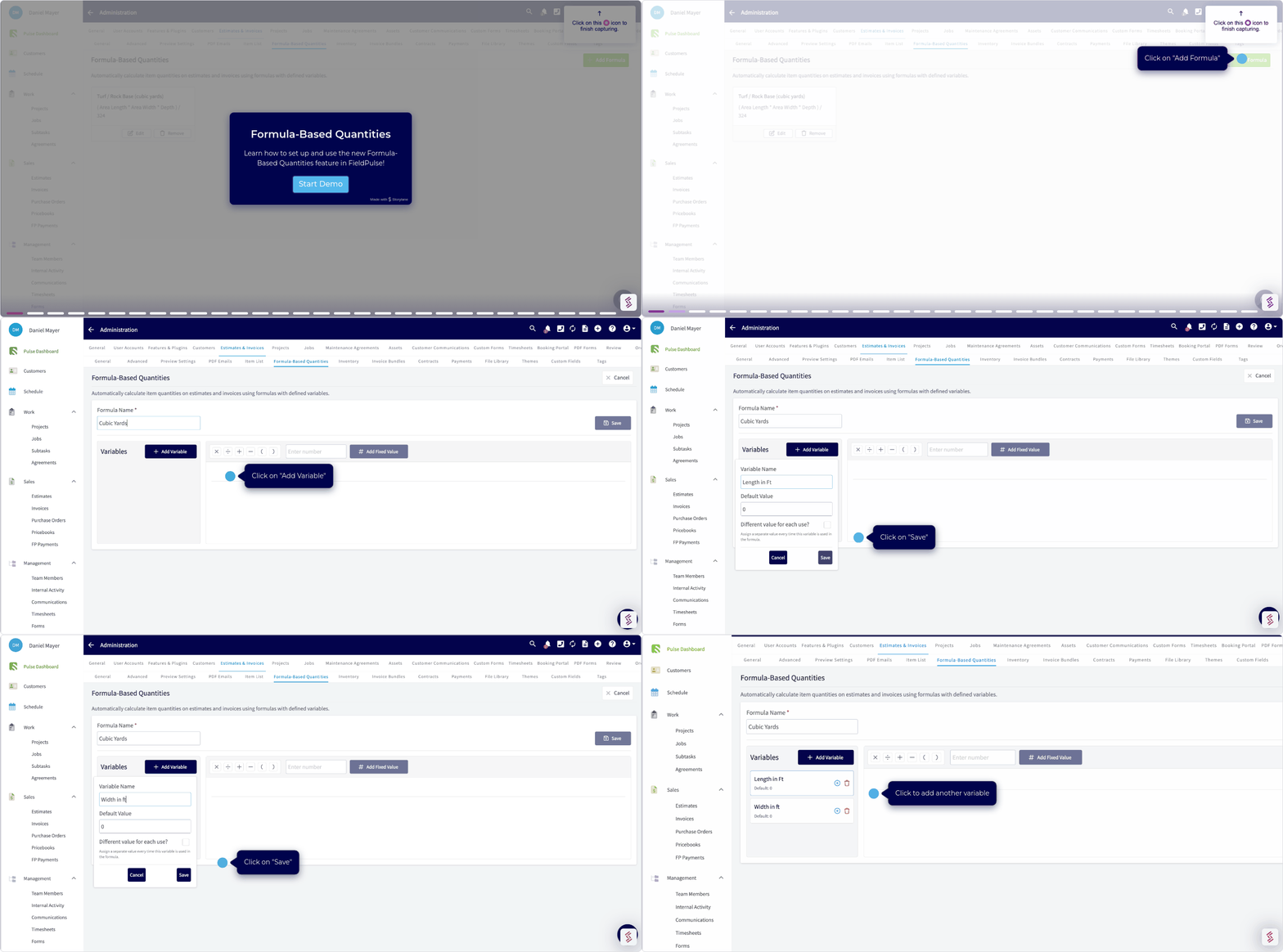
Video walkthrough
Video walkthrough: Setting up and using Formula-Based Quantities
Before you begin
- Confirm your user role is Admin. Only the Admin role can view Company Settings, where formulas are built — see User Roles and Permissions Details.
- Decide which numbers change from job to job and which numbers stay the same. The ones that change become variables the technician enters; the ones that stay the same become fixed values.
- Confirm the team members who will use the formula can create estimates and invoices. Admins and Team Managers hold the Create & send Estimates/Invoices permission by default, and an Admin can enable it for a Service Agent.
Step-by-step setup
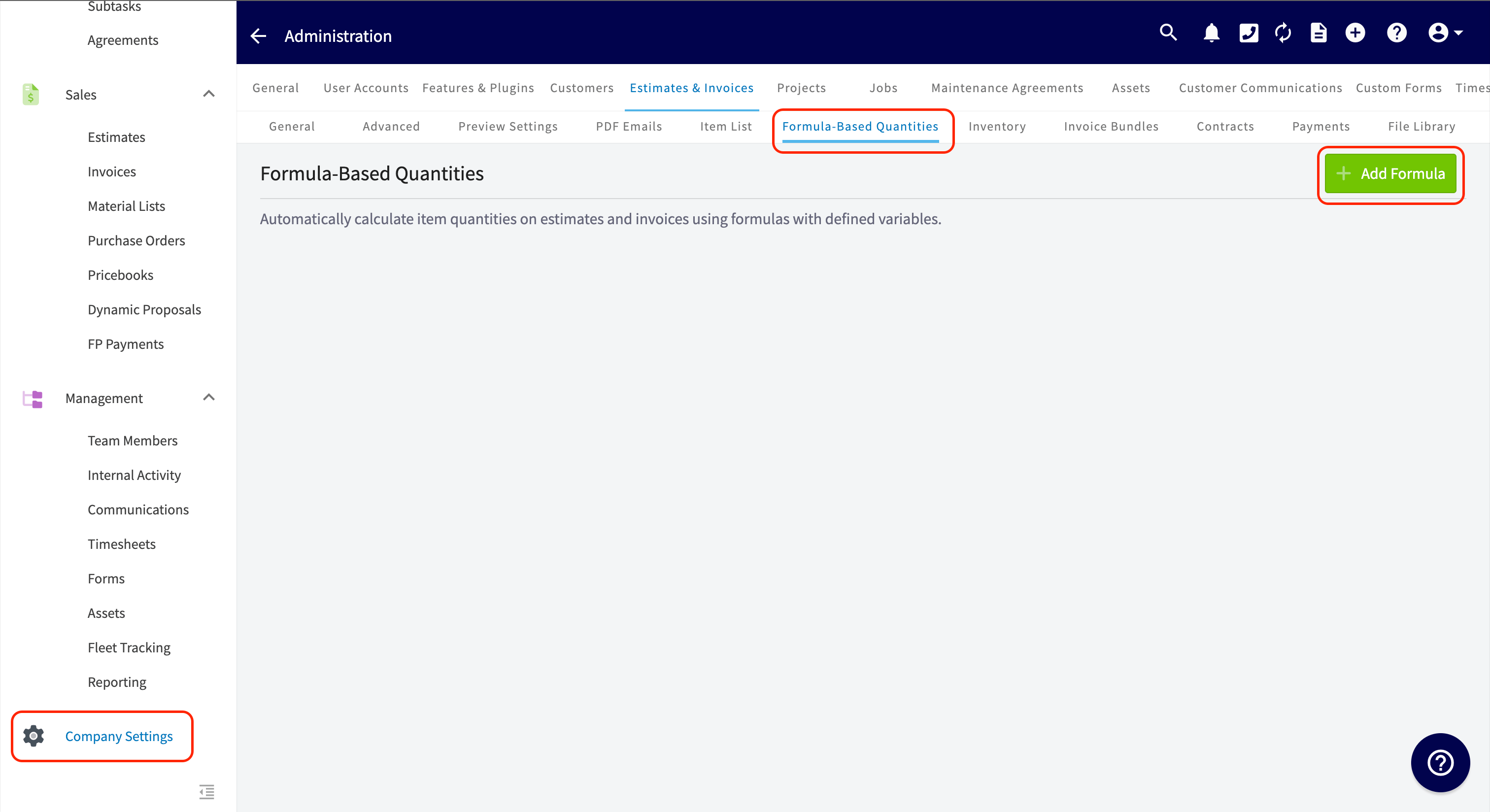
- Select Company Settings in the left-side menu, then select Estimates & Invoices.
-
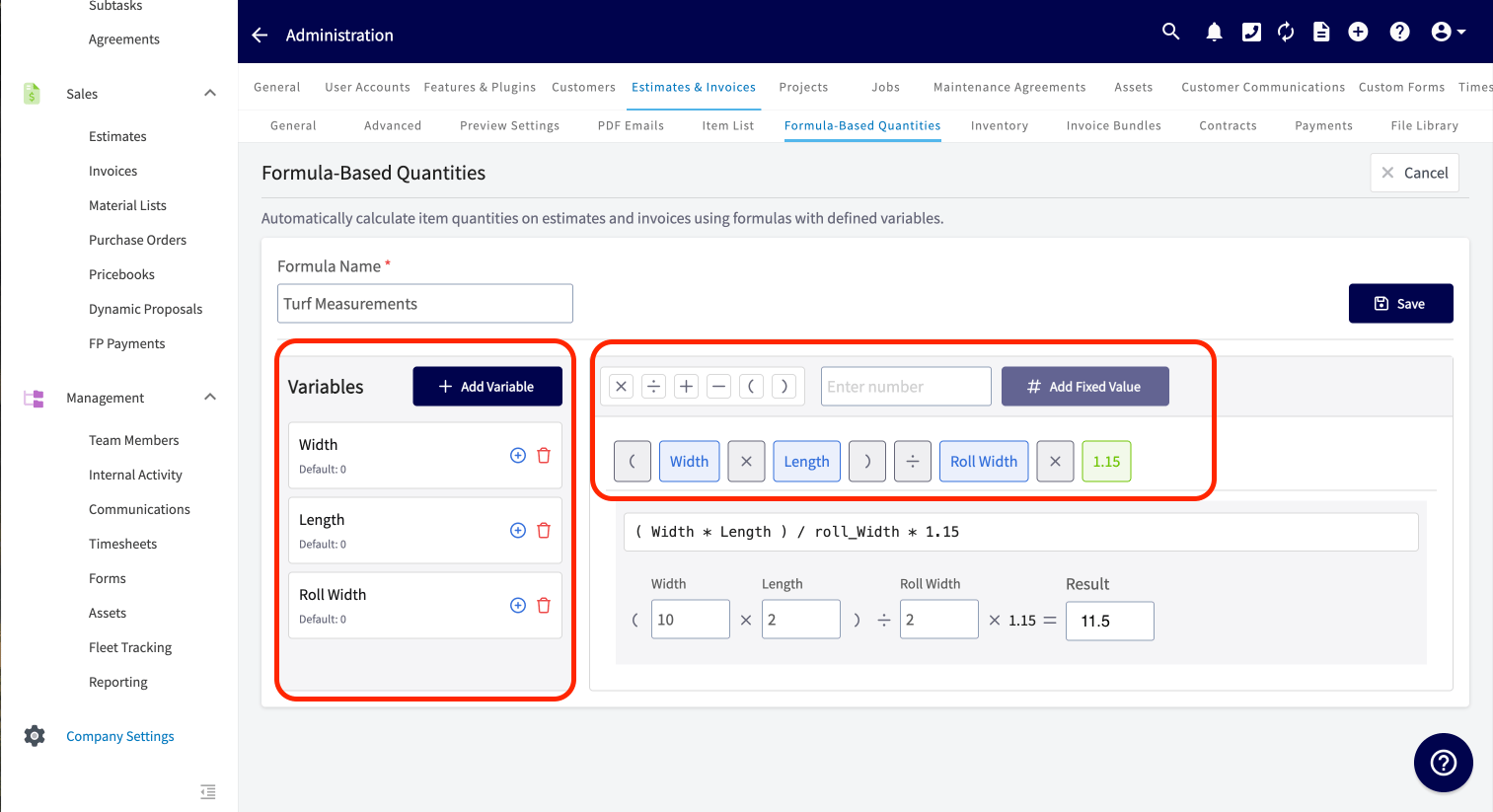
Select the Formula-Based Quantities tab, then select Add Formula.
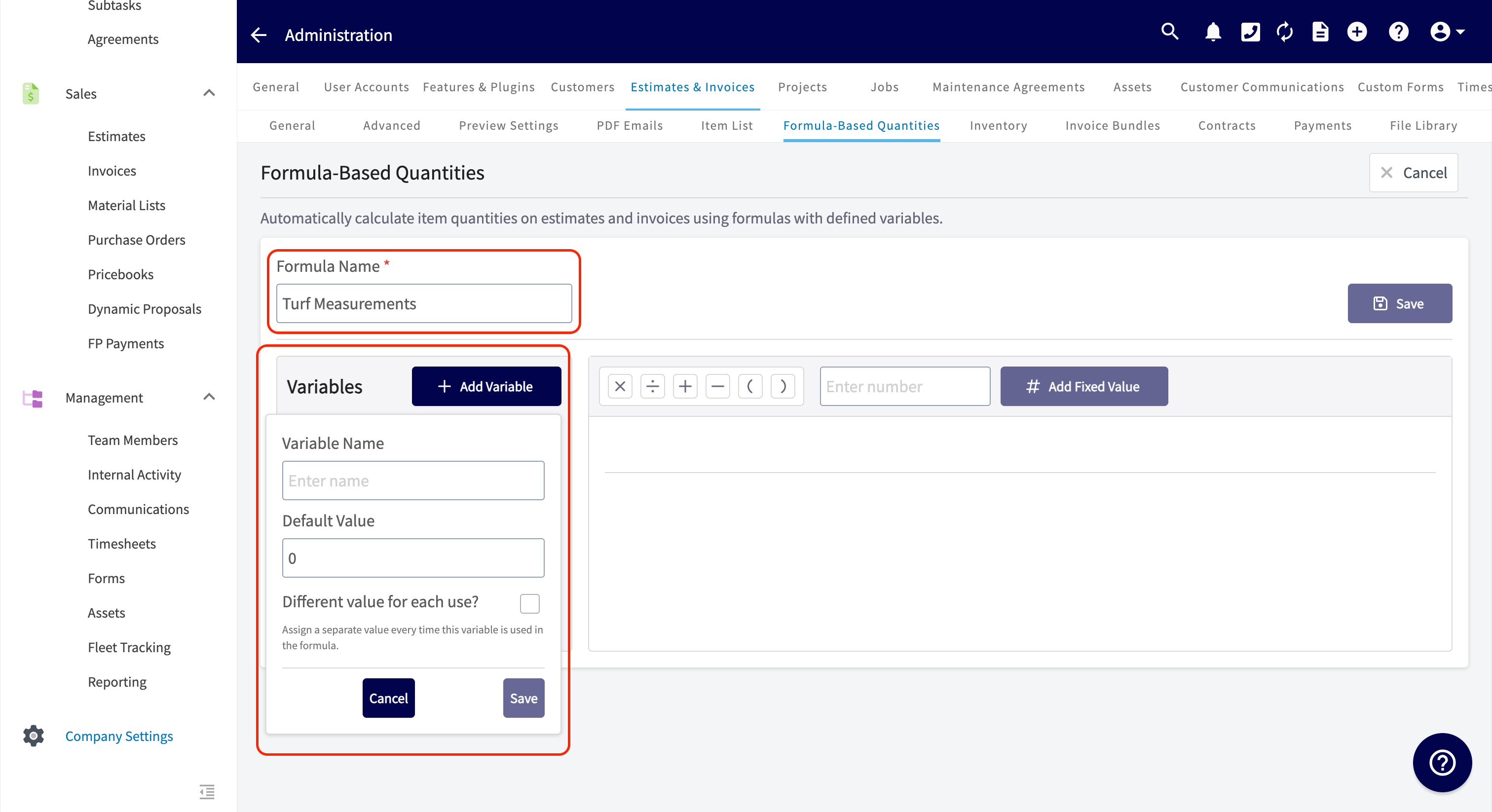
- Enter a Formula Name your technicians recognize. This name appears on material lists, estimates, and invoices when item quantities are entered.
- Select Add Variable and enter a Variable Name.
- Set a Default Value that populates for your technicians. A technician can override this value when needed.
- Check Different value for each use? to assign a separate value every time that variable is used in the formula, even when the entries share the same name. In a formula of Width + Height + Width + Length, for example, this lets the two Width entries take different numbers.
-
Select Save in the variable panel, and repeat for every variable the formula needs.
-
Drag each variable from the Variables list into the formula area on the right, and arrange the variables in the order you want.
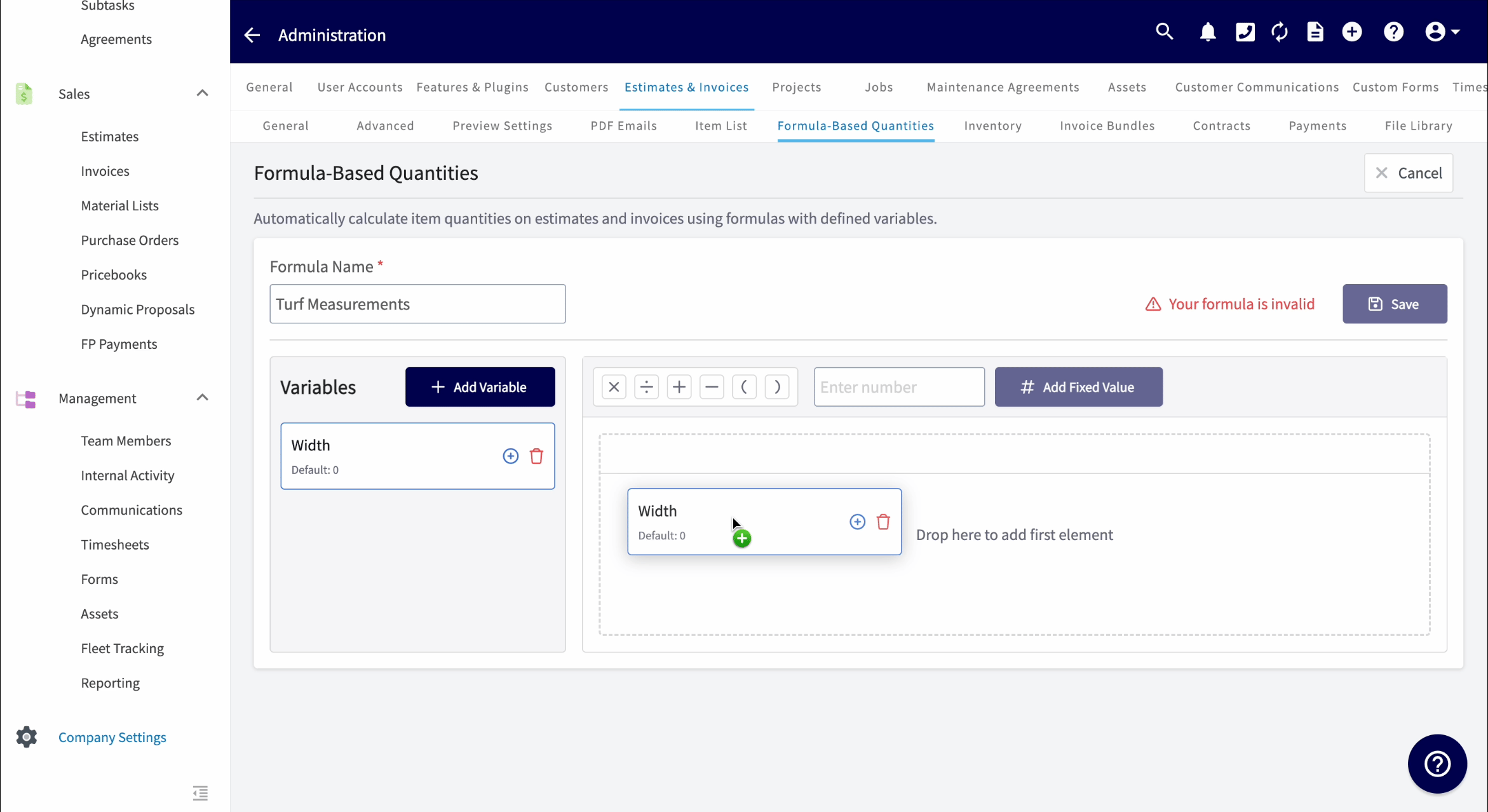
- Add the math your formula needs with the multiplication, division, addition, subtraction, and parentheses buttons.
- To lock in a value a technician cannot change, type the number in the Enter number field and select Add Fixed Value. Fixed values work well for waste factors, standard depths, and labor multipliers.
- Enter test values under the formula to confirm it calculates as expected, then select Save in the top right.
Use a saved formula on a record
Once the formula is saved, it is ready for use when adding items to estimates, invoices, and material lists.- On the estimate, invoice, or material list, add your item.
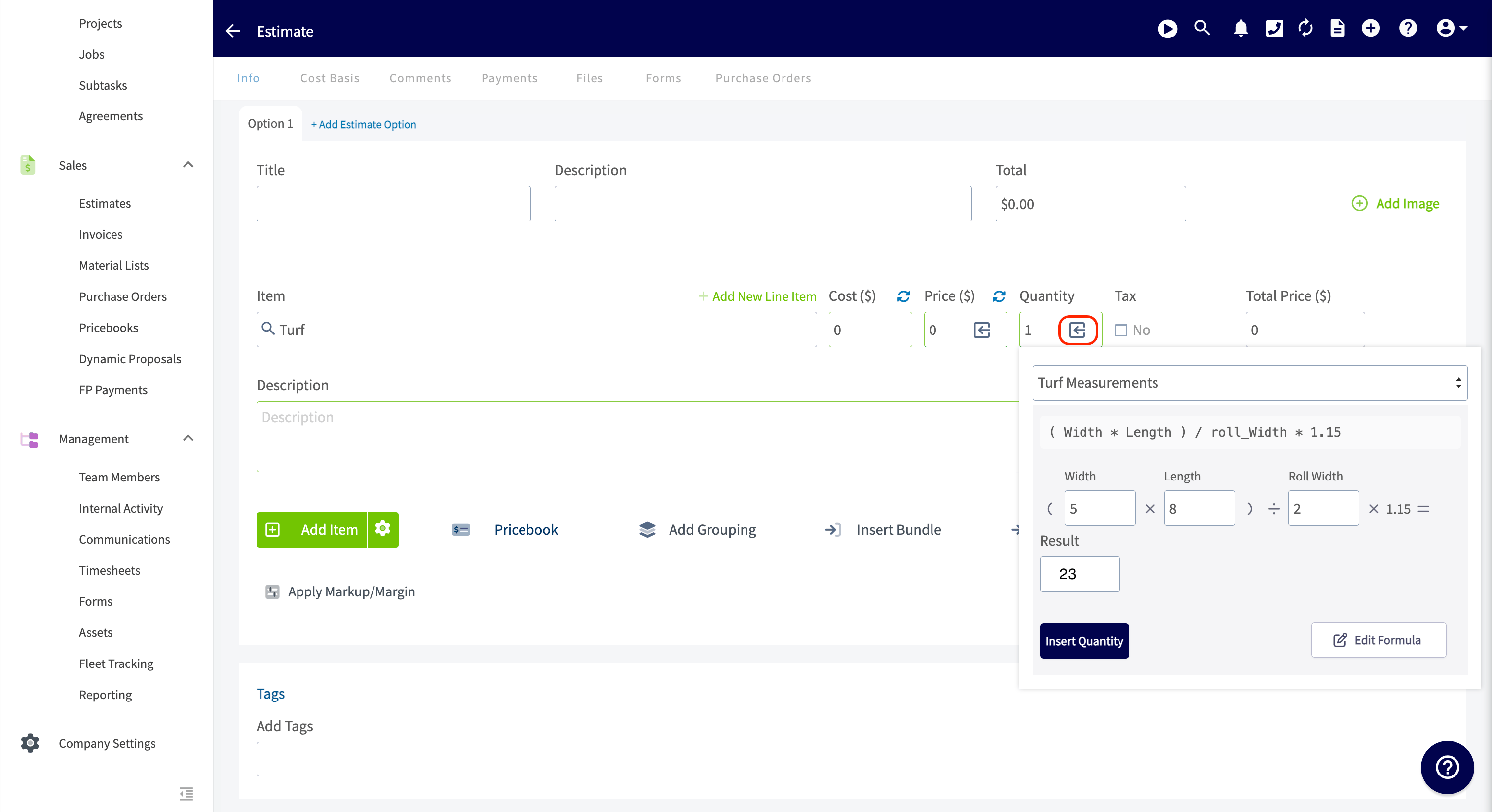
- Select the arrow icon in the Quantity field.
- Choose your formula from the dropdown at the top of the panel.
- Enter the measurements you took on the job. FieldPulse calculates the Result.
- Select Insert Quantity to place the calculated quantity on the record.
Adjust a formula for one record
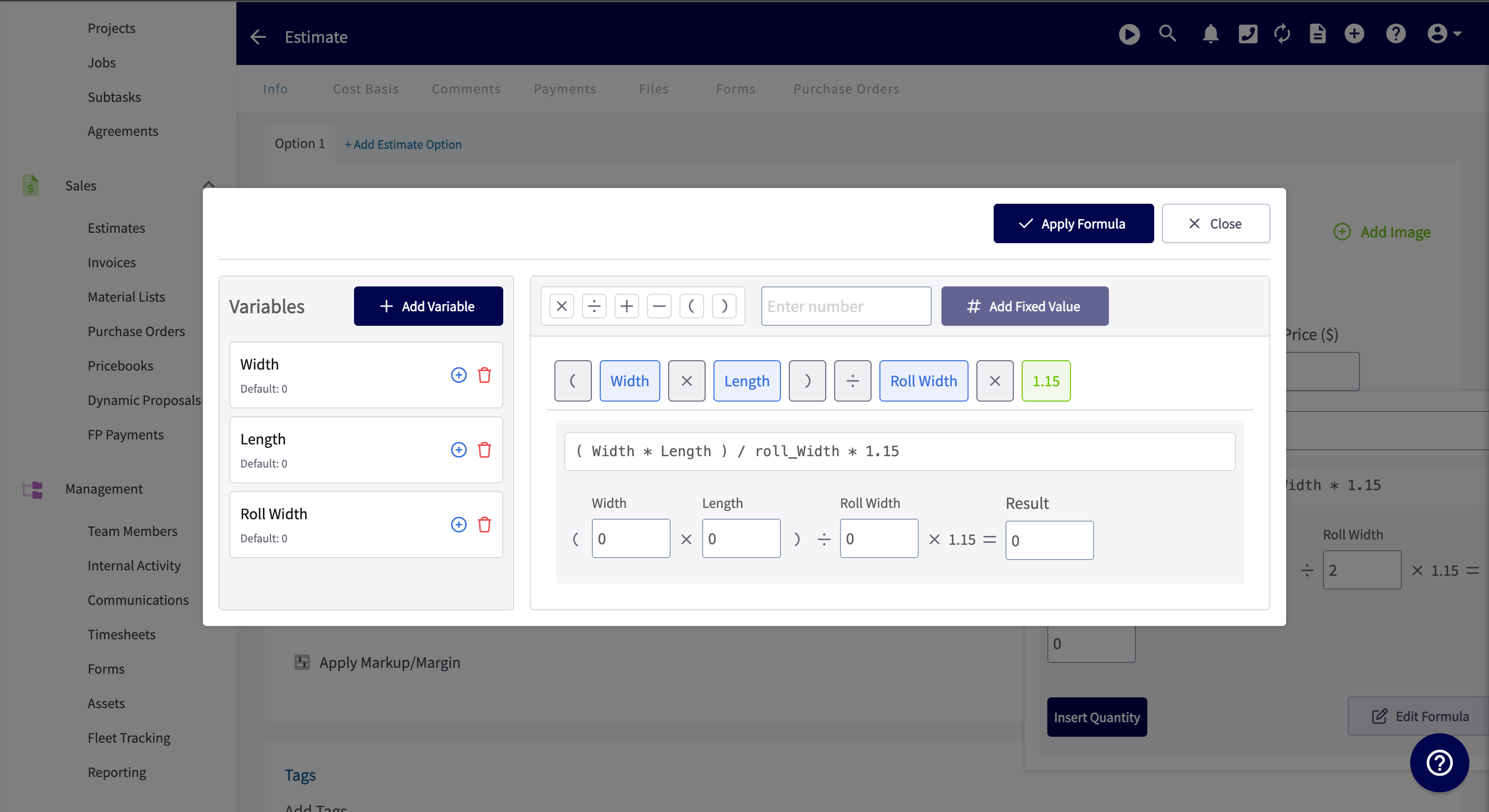
A formula sometimes needs an adjustment on the fly. If your formula measures the length of multiple surfaces, for example, a technician might find a different number of surfaces on each job. Select Edit Formula in the formula panel to change the formula for that record.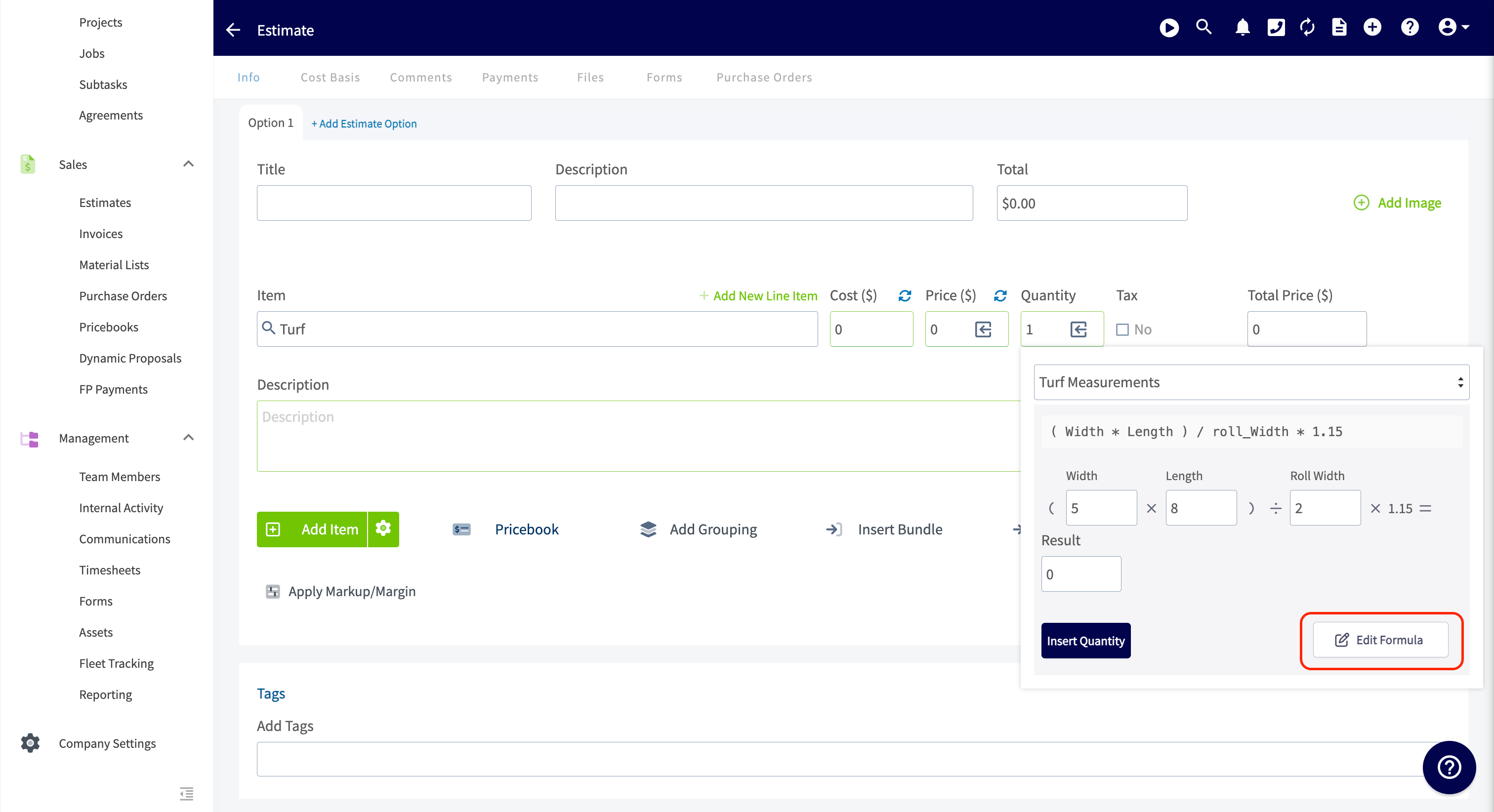
On mobile
Saved formulas are also available on the FieldPulse mobile app. The formula appears on the Add Line Item screen under Main Info, where the technician enters the measurements, selects Insert Quantity, and then selects Add Item to put the line item on the record.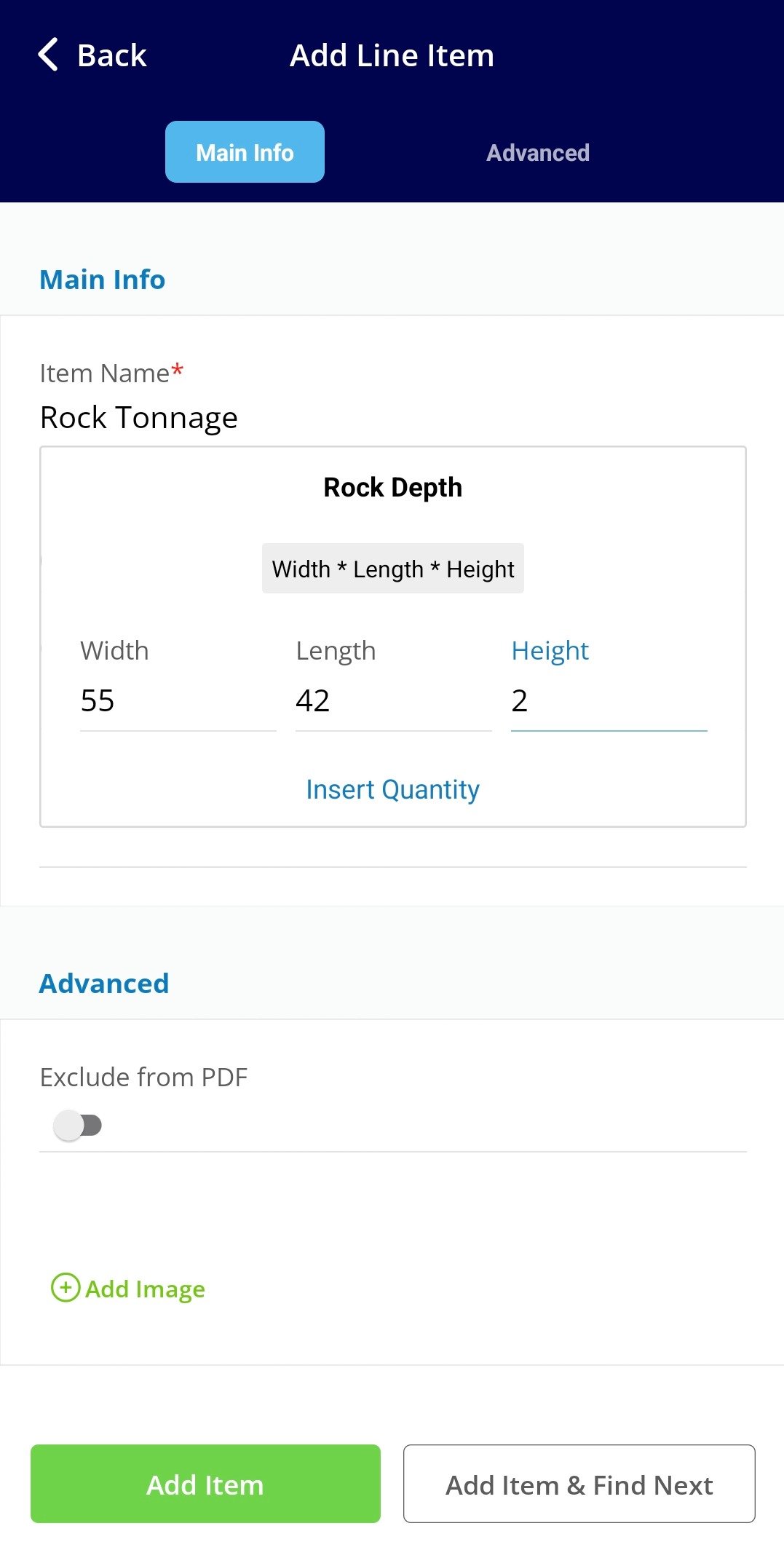
Settings reference
Interactive demo
Take the Formula-Based Quantities interactive demo to see formula-based quantities in action.