
Who uses this: Administrators set record locking up — the locking toggles and the override permission both live in Company Settings, which only Administrators can view. Record locking itself applies to Team Managers and Service Agents. Availability: All regions.Record locking restricts edits to an estimate or invoice once the record reaches a milestone you choose — an estimate that has been converted to an invoice, an invoice that has been finalized, or an invoice that has been fully paid. An Administrator turns locking on once in Company Settings, and can give chosen users the ability to keep editing after a record locks.
Overview
Record locking automatically restricts edits to an estimate or invoice once the record hits a key milestone, which protects the integrity of your financial data by preventing accidental changes. Record locking is configurable in three ways — an estimate that is converted to an invoice, an invoice that is finalized, and an invoice that is fully paid — and you can use any combination of the three depending on the workflow you want to enforce. All three toggles are off by default. Record locking applies to Team Managers and Service Agents. Administrators are never restricted by the lock settings.Before you begin
- Confirm your user role is Administrator. Only Administrators can view Company Settings, where both the locking toggles and the override permission are set.
- Decide which milestones should lock a record — a converted estimate, a finalized invoice, a fully paid invoice, or any combination of the three.
- Decide whether anyone needs to keep editing records after they lock, so you can grant that person override access in the same sitting.
Step-by-step setup
Turn on record locking
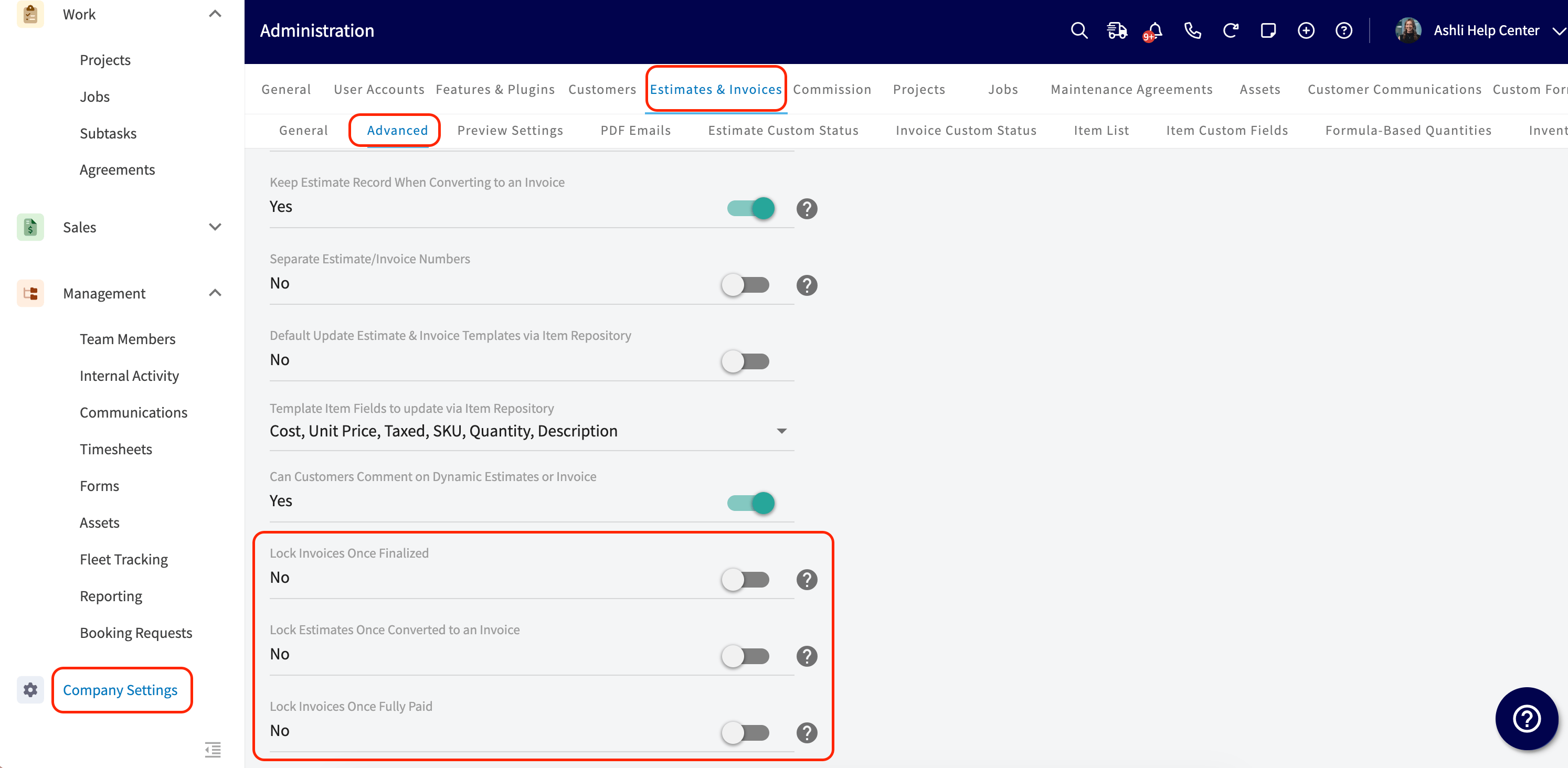
- Select Company Settings in the left-side menu.
- Select Estimates & Invoices in the header.
- Select the Advanced tab.
- Turn on the locking toggles you want to use — Lock Estimates Once Converted to an Invoice, Lock Invoices Once Finalized, Lock Invoices Once Fully Paid, or any combination. See the Settings reference below for what each toggle locks.
Give a user override access
Most teams want at least one person who can still make edits after a record locks, such as a manager who needs to fix a typo after a payment posts. Grant that person the locked-record permissions on their user account.- Select Company Settings in the left-side menu.
- Select User Accounts, then open the Team Manager or Service Agent you want to give override access to.
- Select Edit, then select User Feature Permissions.
- Under Financial and Inventory Management, turn on Ability to Edit Locked Invoices, Ability to Edit Locked Estimates, or both.
- Select Save.
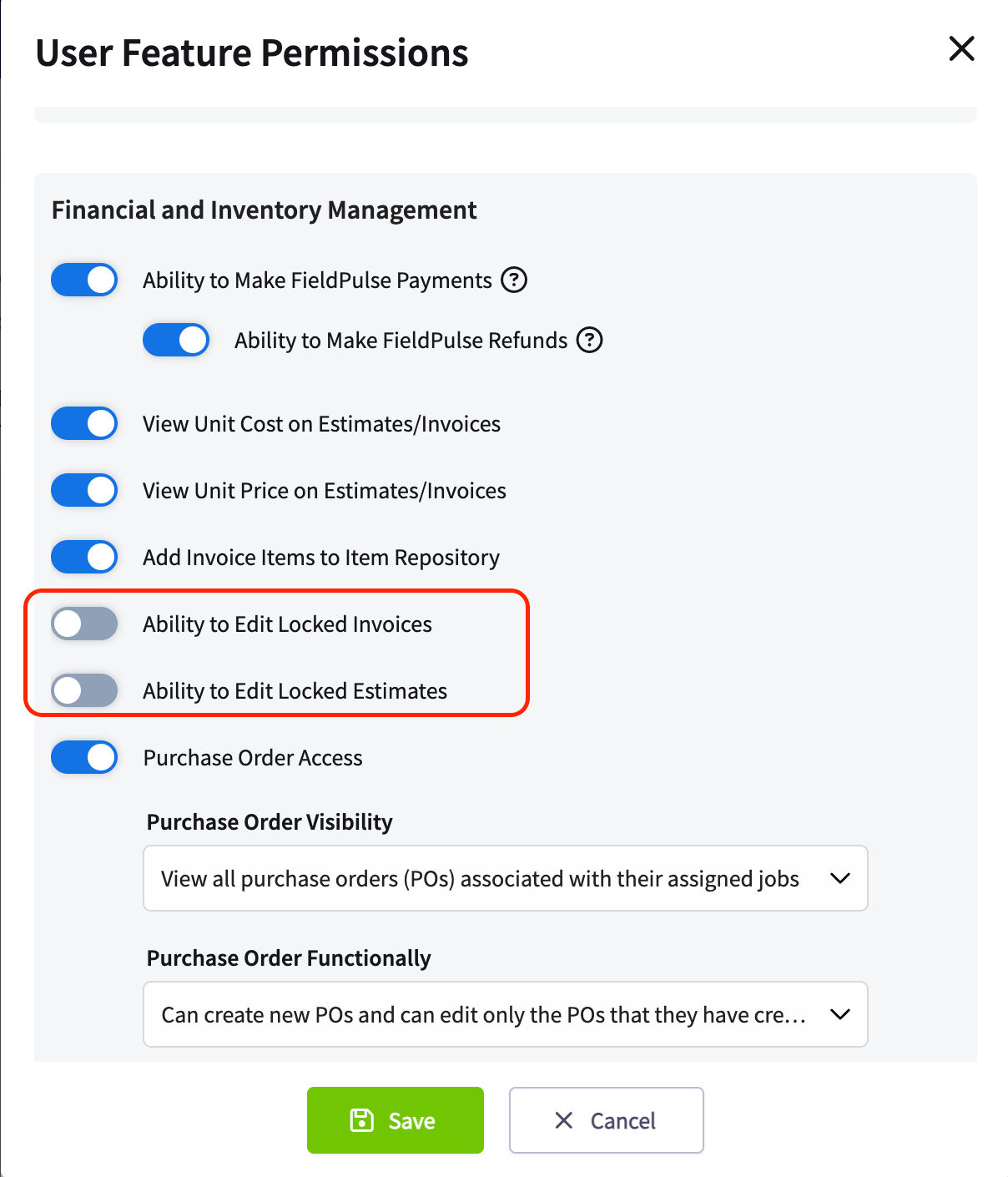
Record locking only applies to Team Managers and Service Agents. Administrators are never restricted by the lock settings, so they do not need these permissions.
Settings reference
The three locking toggles sit together on the Advanced tab under Company Settings > Estimates & Invoices, and all three are off by default.What happens on a locked record
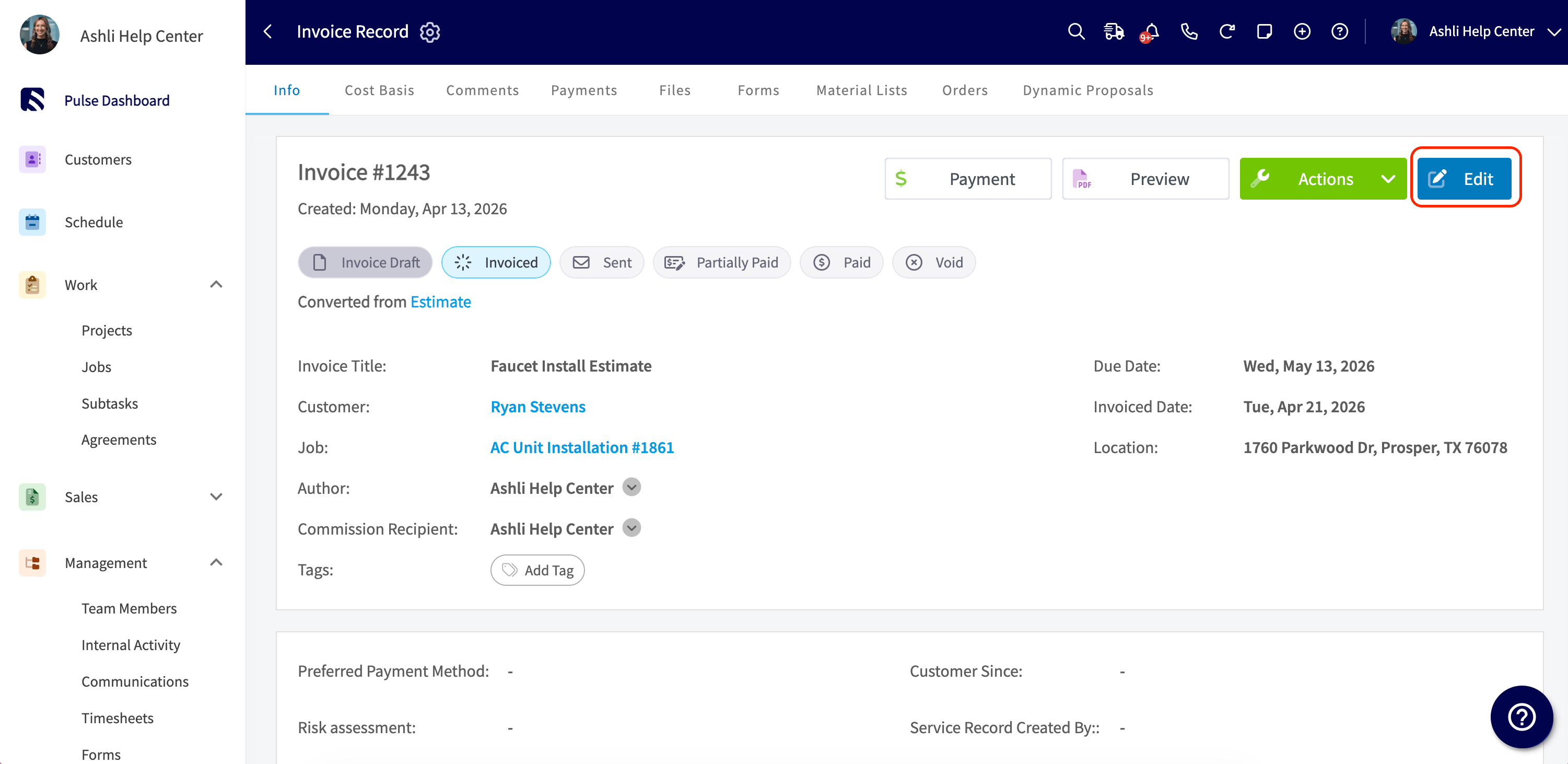
A locked estimate or invoice has no Edit button on the web app or on the mobile app. Web app — locked record on the left, unlocked record on the right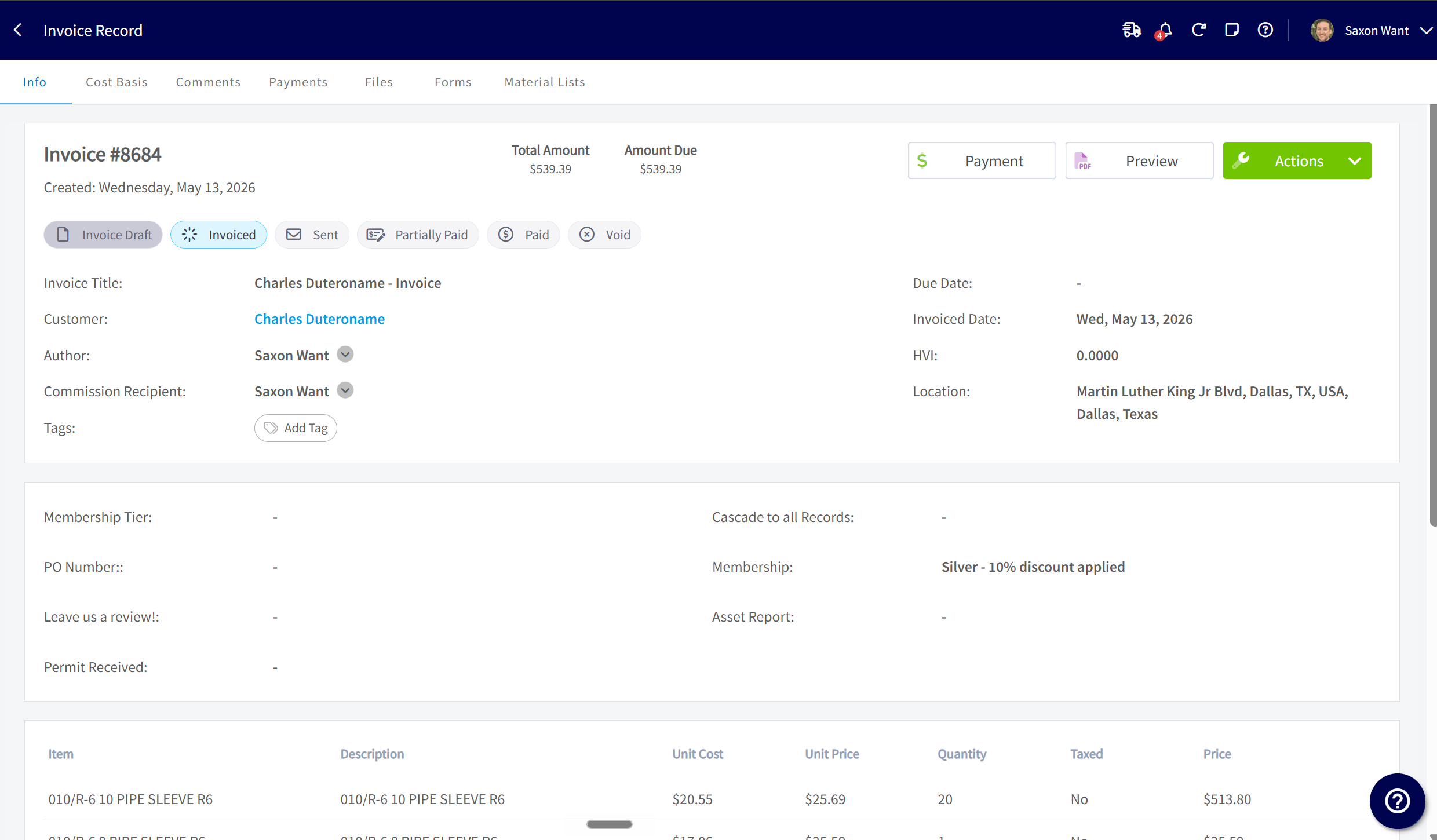
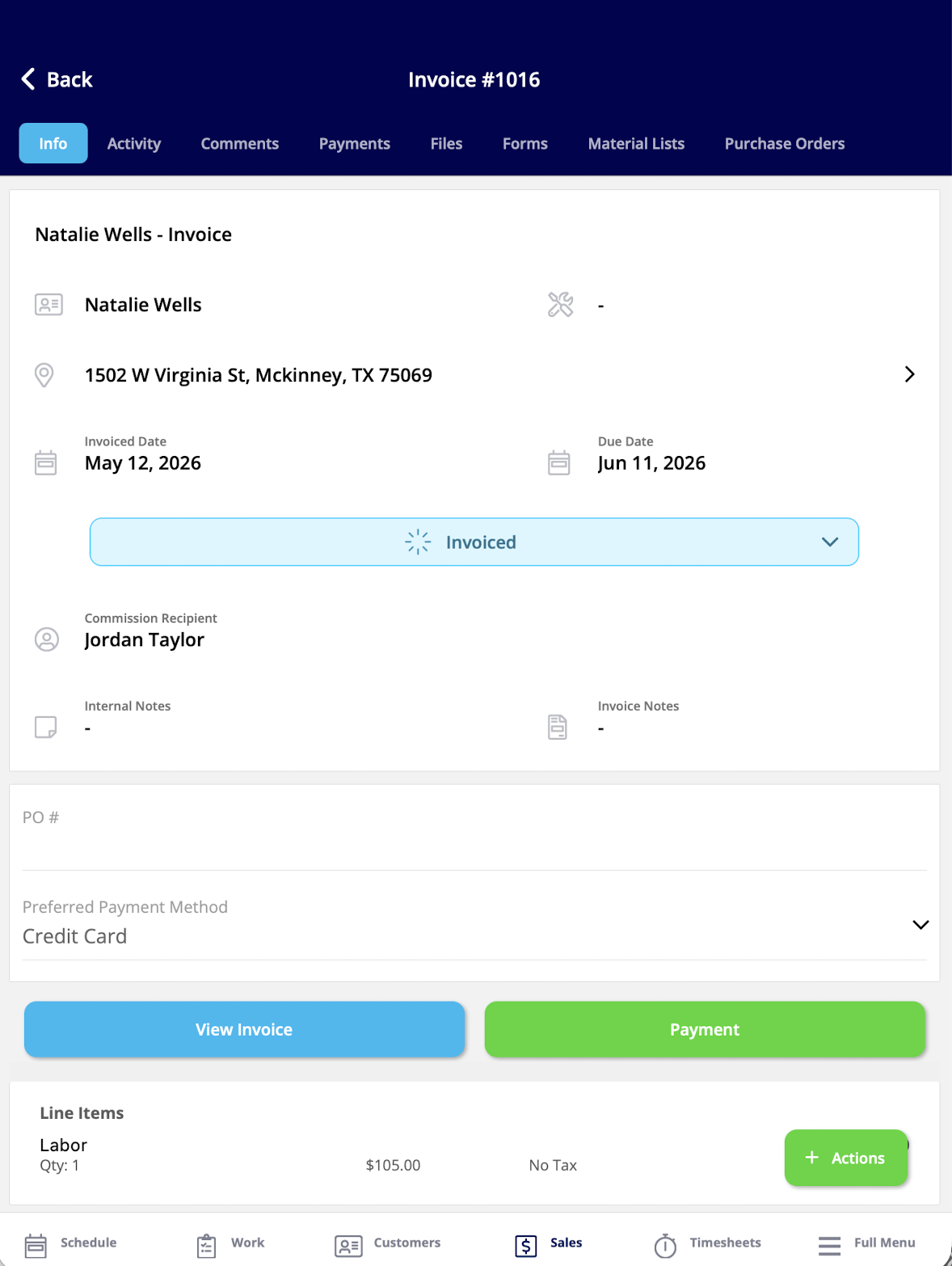
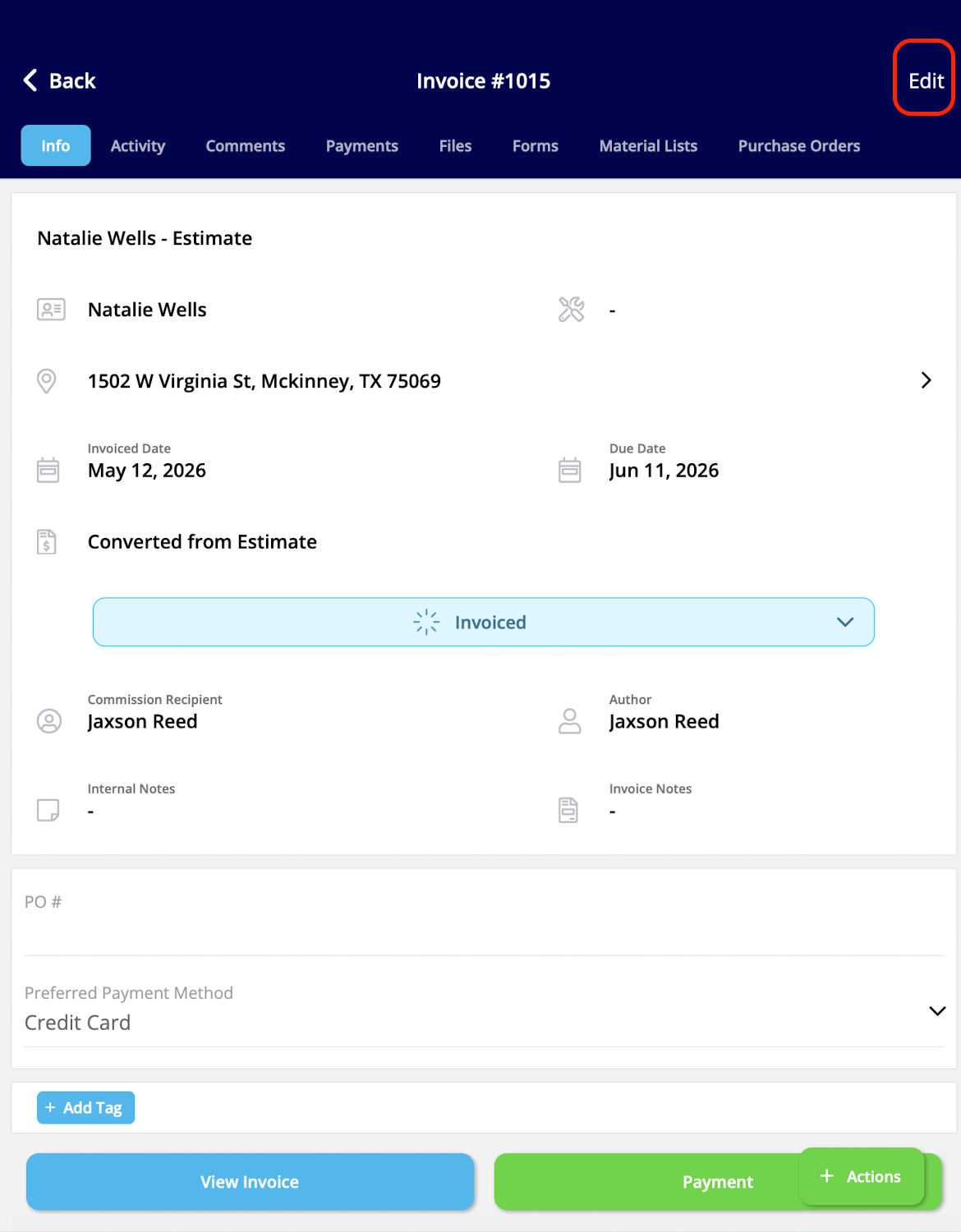
What locking turns off
- The Edit button (top right of the record) is disabled.
- For invoices, customer-facing invoice notes are also locked.
- Line items, pricing, taxes, discounts, notes, and customer details cannot be changed.
- Material lists cannot be added to a locked estimate or invoice.
What stays available
- Editing tags and related customer fields from the view-only record.
- Attaching internal notes and files.
- Adding comments.
- Updating record status and custom fields.
- Viewing the full record, history, and activity.