Who uses this: Admins and Team Managers hold the Create & send Estimates/Invoices permission, it is configurable for Service Agents, and Limited Agents do not have it. Availability: All regions.You send an estimate or invoice to a customer from the record itself in FieldPulse, with no exporting and no separate email program. The steps are the same for both documents — this article uses an invoice as the example, so follow the same steps to send an estimate.
Overview
To send an estimate or invoice, you open the record, preview it, adjust what appears on that one document, and email it to the customer. FieldPulse puts your name in the From Name field of the email, so the customer can reply directly to you. If you use FieldPulse Payments, the same email window also carries a signature request, a payment request, and a text message to the customer’s phone.Video walkthrough
Video walkthrough: sending an invoice to a customer
Before you begin
- Create the estimate or invoice you want to send — you send it from the finished record. See How to Create an Estimate or How to Create an Invoice.
- Set the wording, tax rate, due dates, and customer-facing fields you want on every document in Company Settings > Estimates & Invoices first. The preview settings in the steps below change one document only. See Setting Up Default Estimate & Invoice Settings.
- Upload any photos or files you plan to attach to the original job or estimate, so they are available under Visible Files in the email window. See How to Attach Photos & Files to Estimates & Invoices.
On web
Preview the estimate or invoice
-
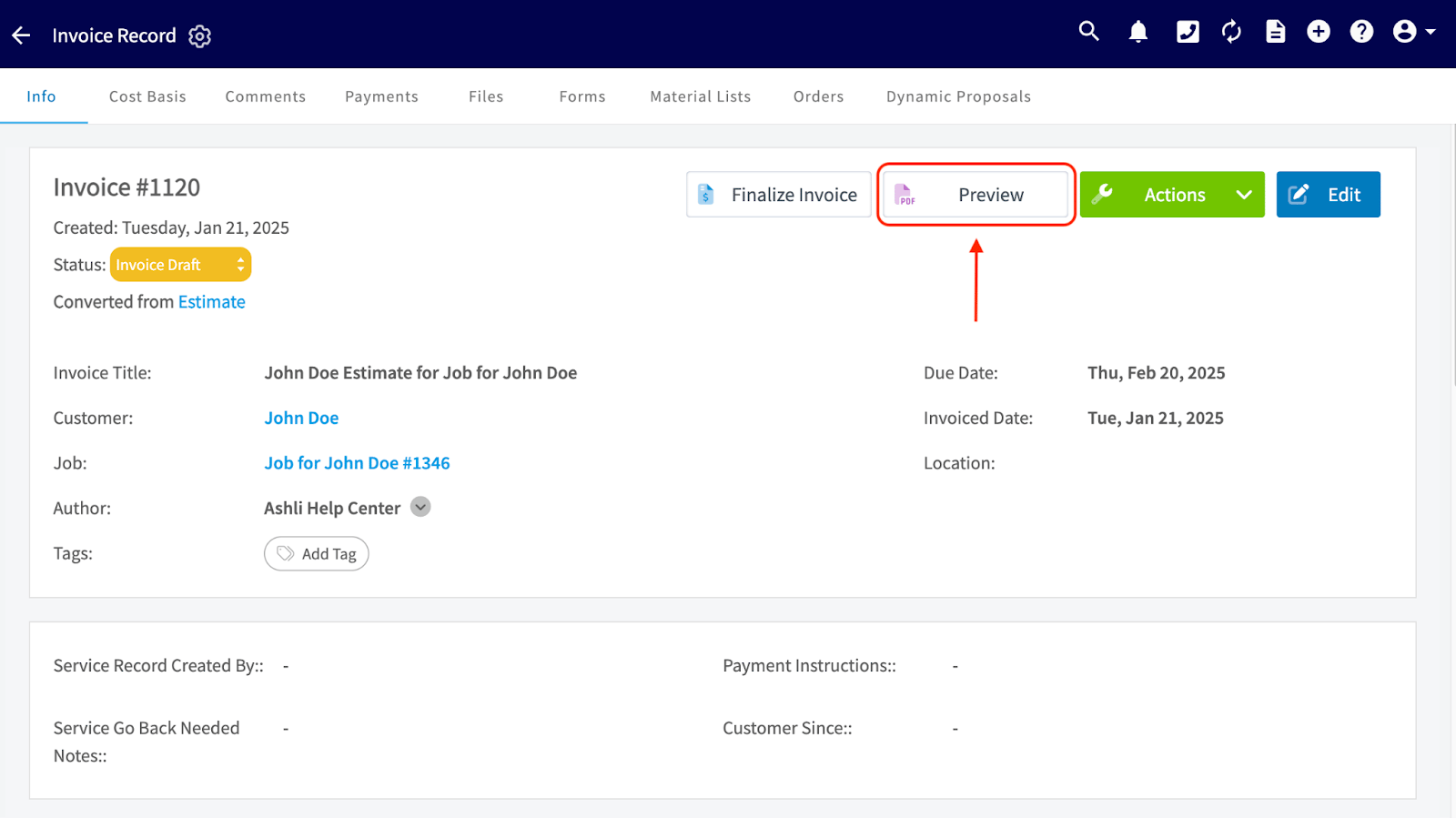
Open the estimate or invoice you want to send, then select Preview on the record.
-
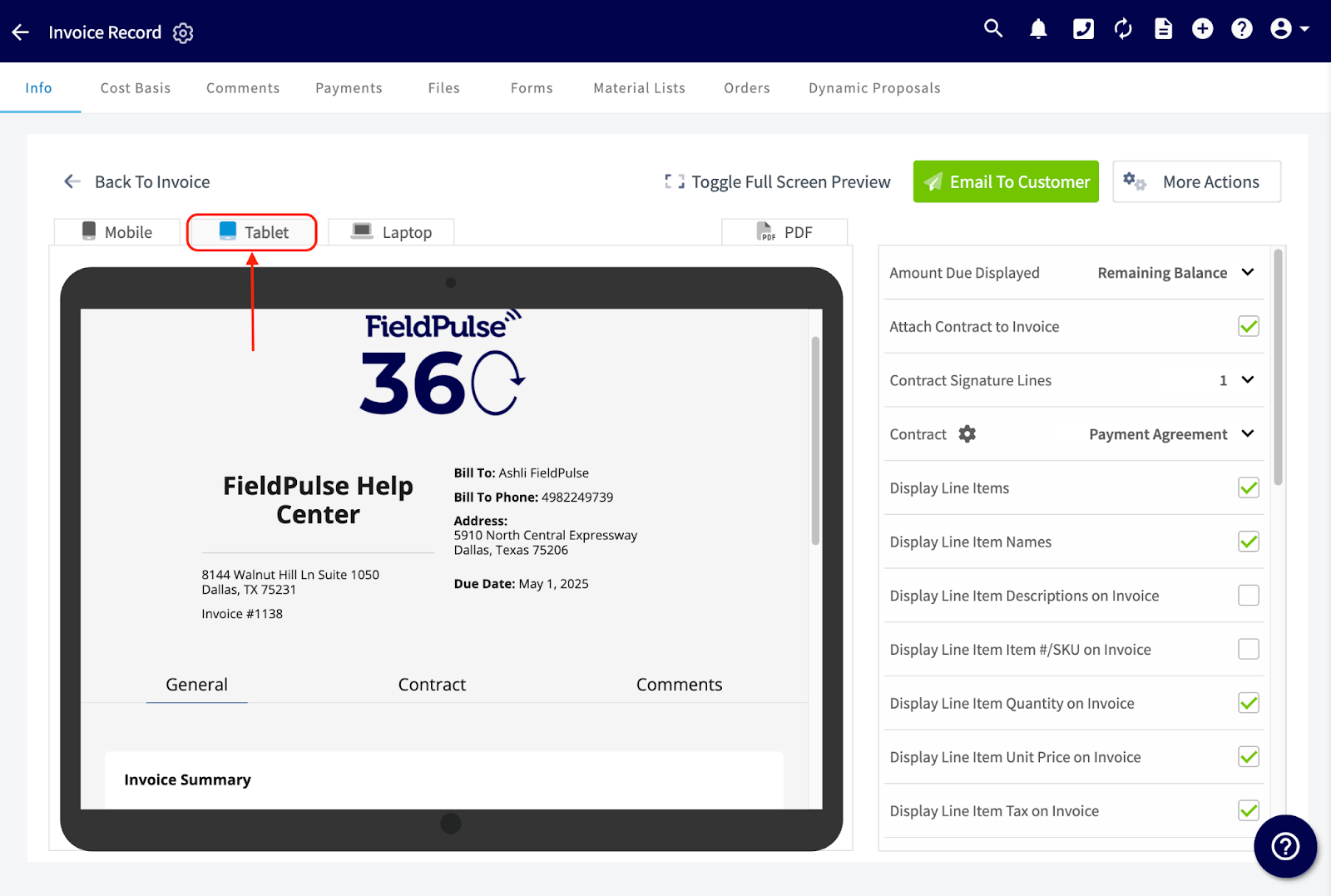
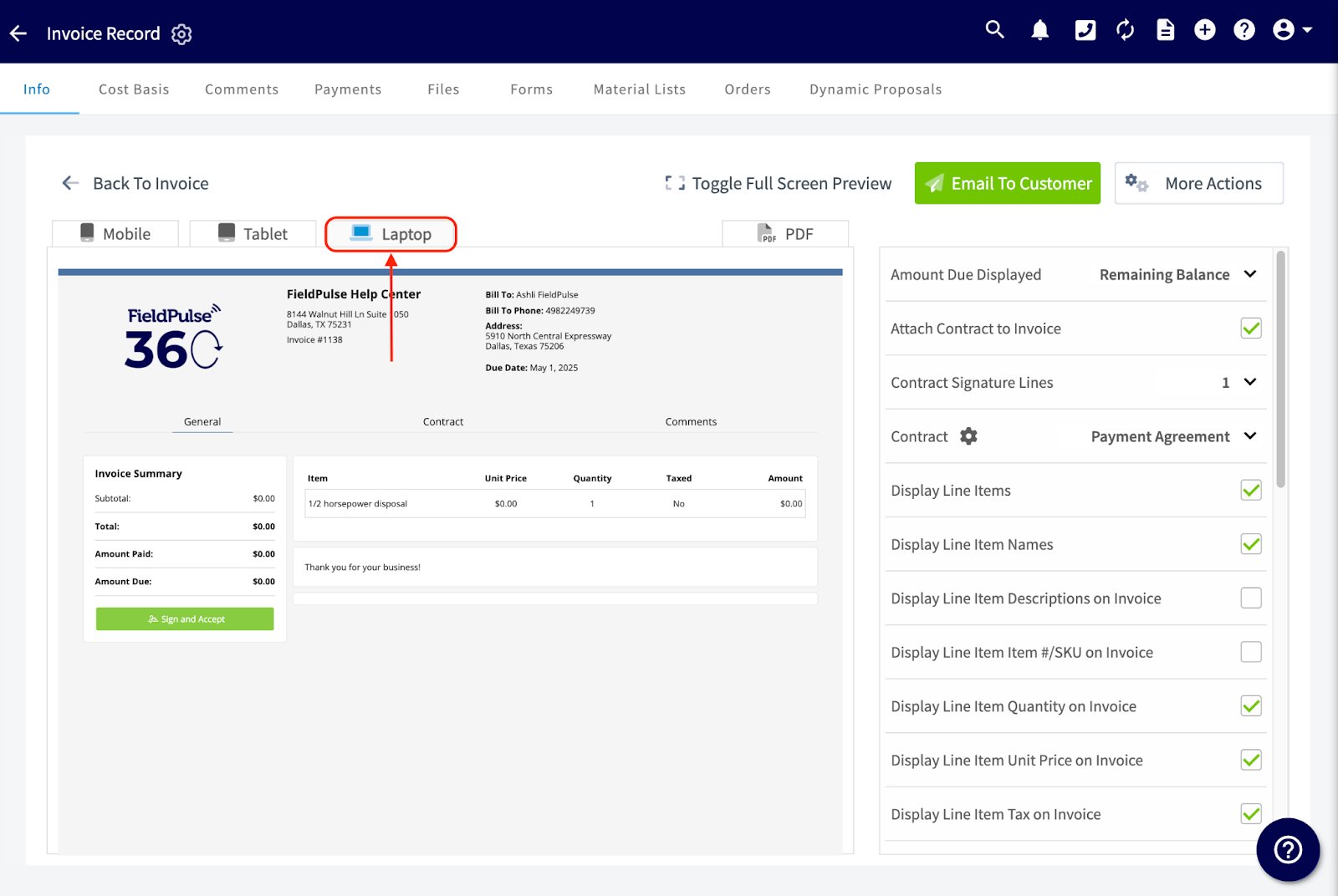
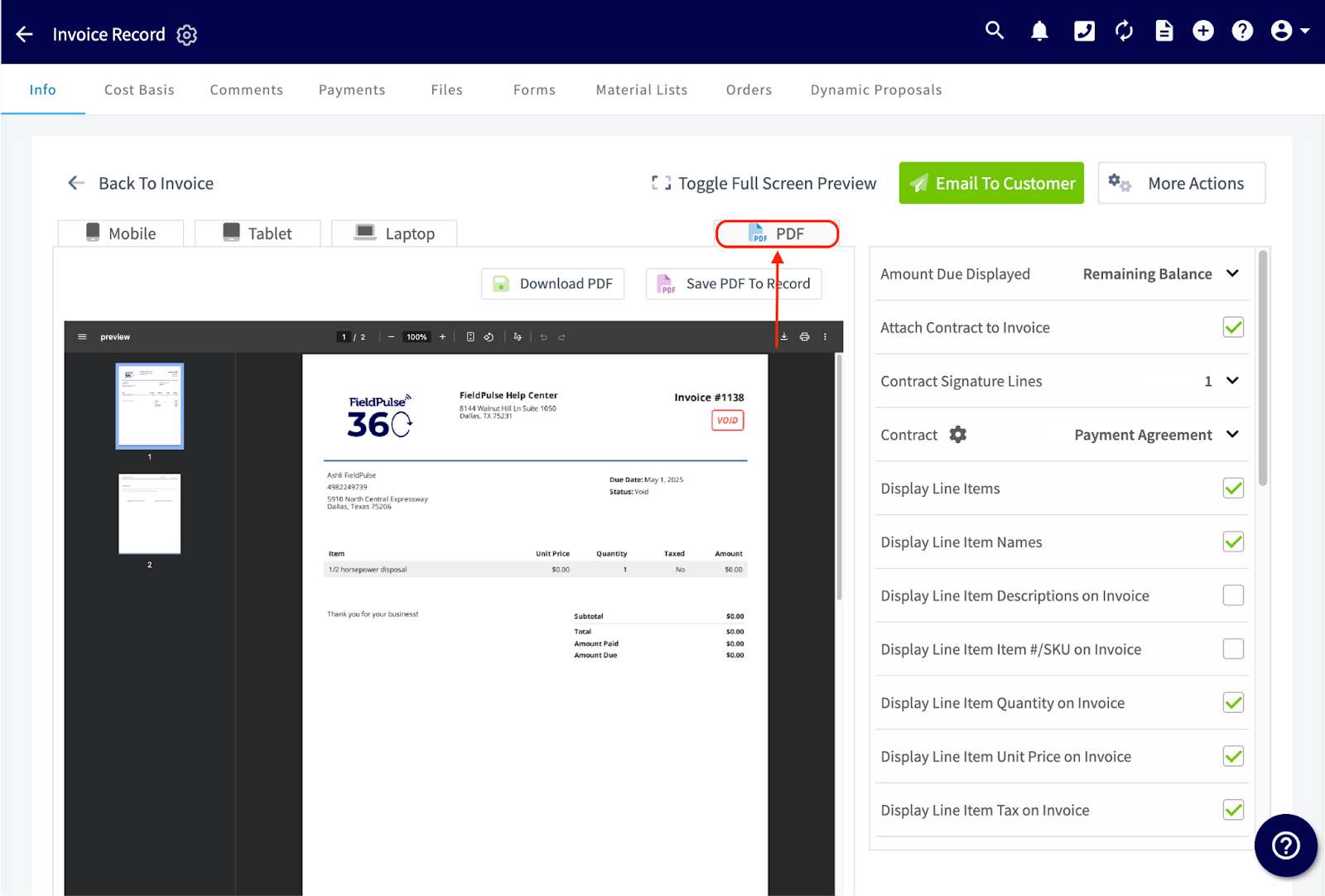
Customize what appears on this one document using the checkboxes on the right side of the preview screen, such as Attach Contract to Invoice, Display Line Items, and Display Line Item Unit Price on Invoice.
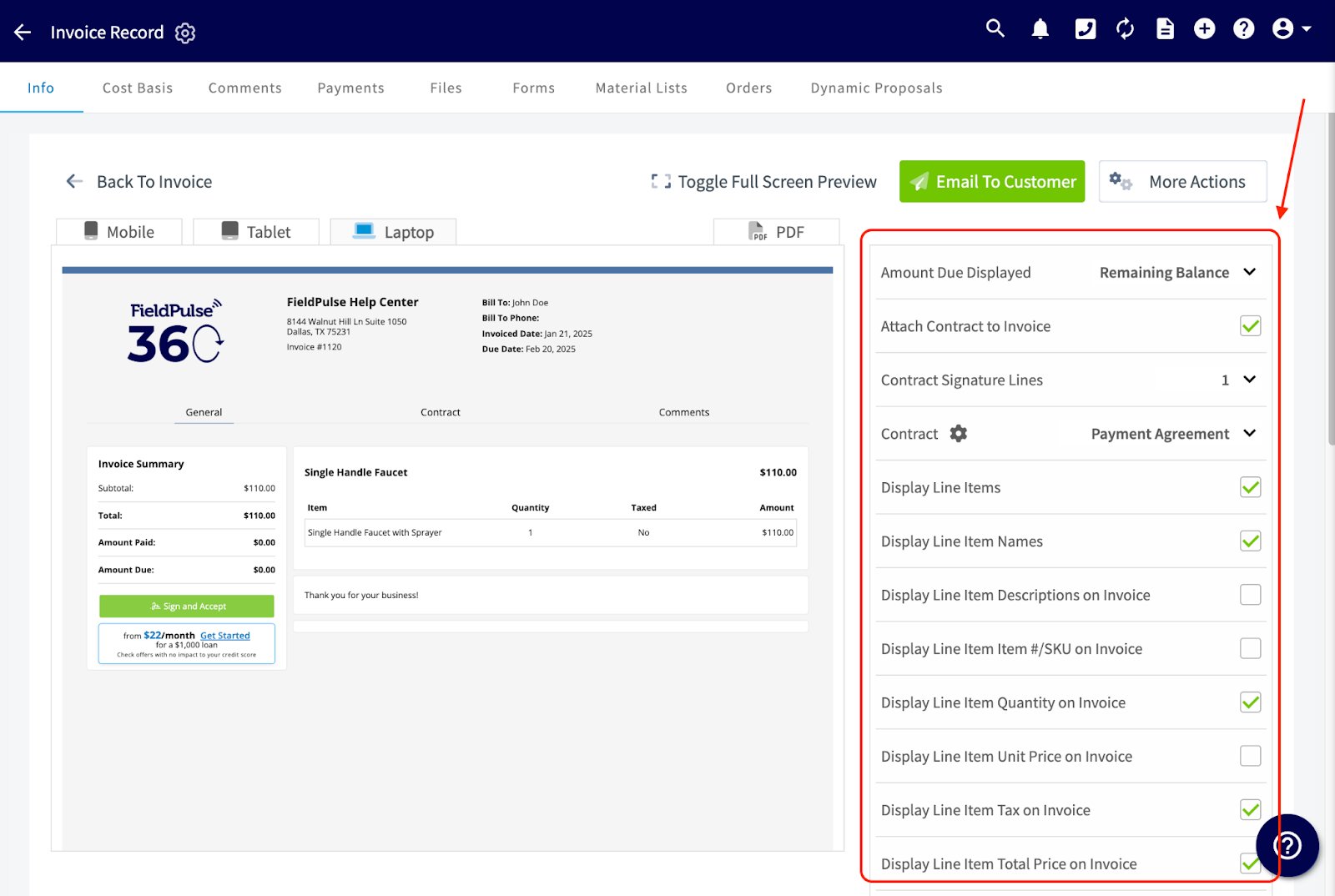 These changes apply to this document only and do not change your default settings. Edit the defaults in Company Settings under the Estimates & Invoices tab.
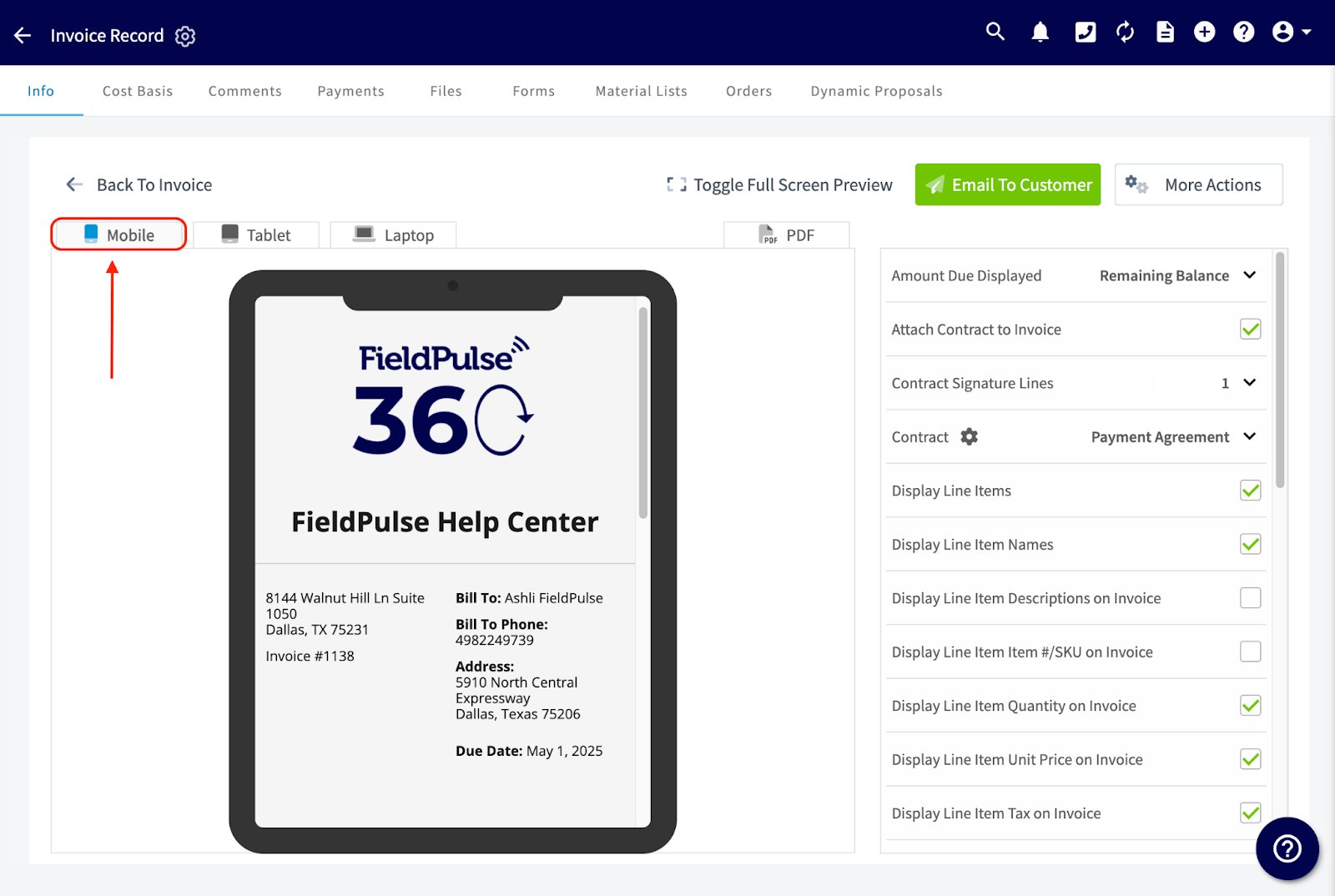
 - Review the document in the Mobile, Tablet, Laptop, and PDF views so it reads clearly no matter how the customer opens it.
Email the estimate or invoice
-
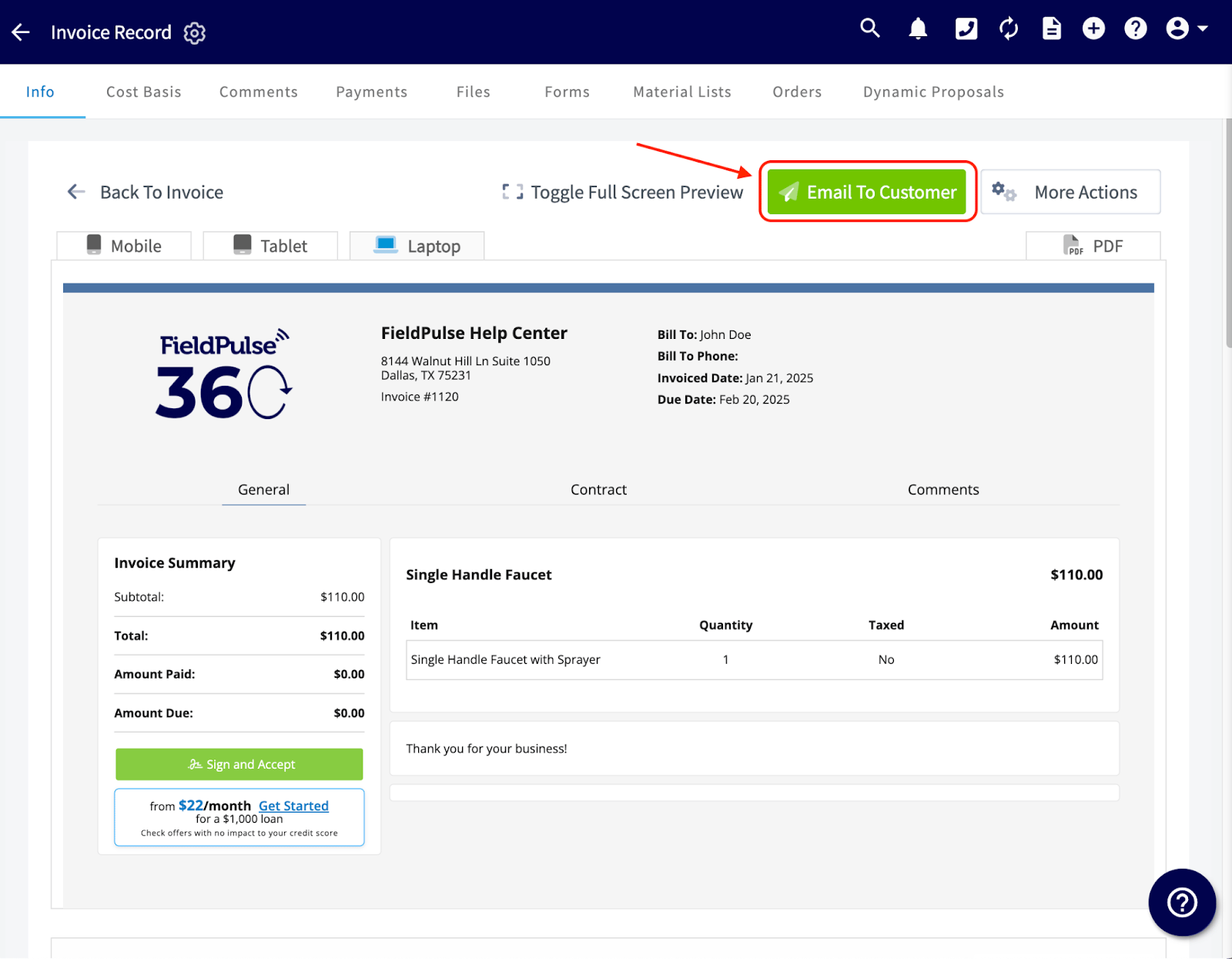
Select Email To Customer at the top of the preview.
-
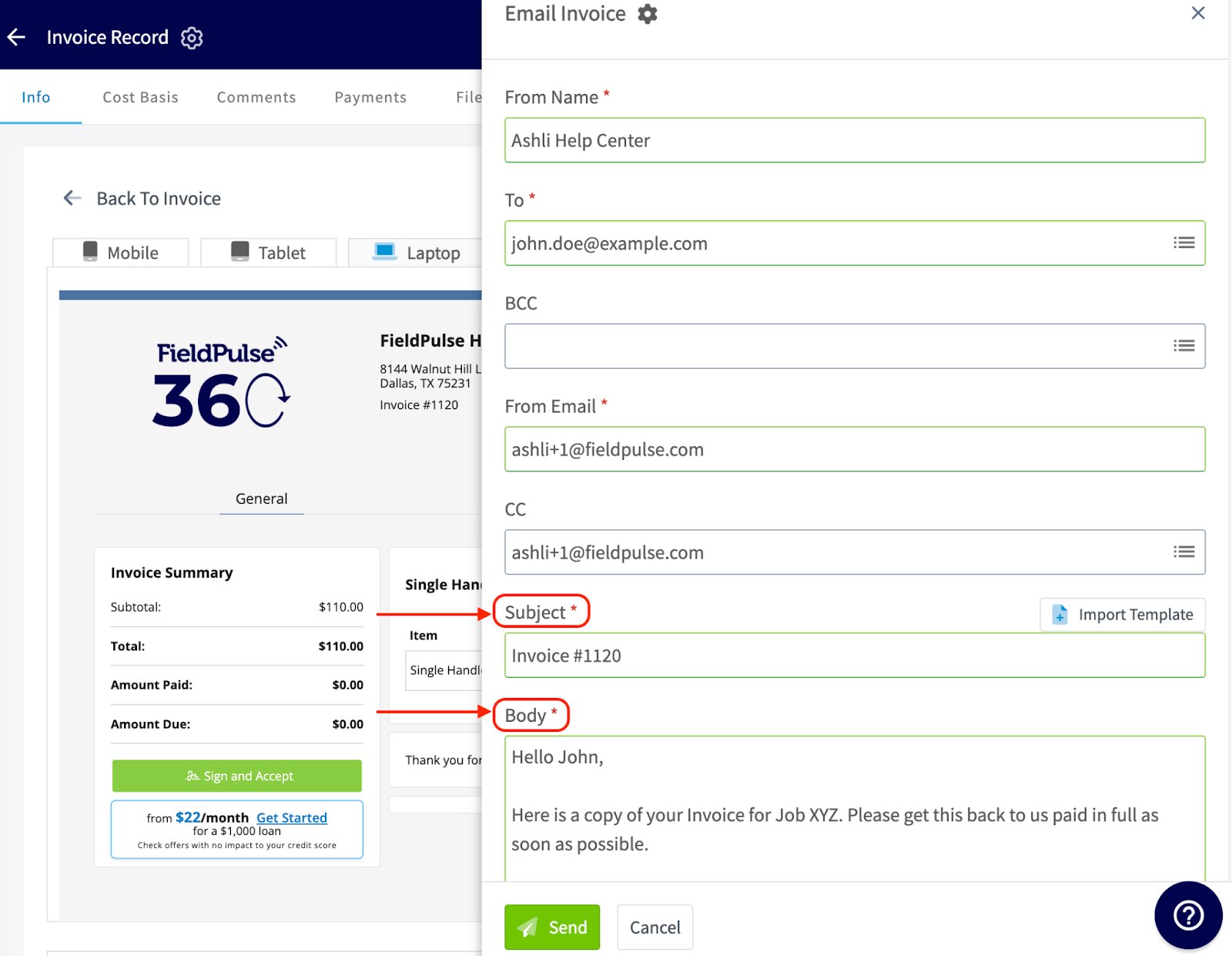
In the Email Invoice window, check the recipient details and adjust the Subject and the Body. FieldPulse fills the From Name field with your name, so the customer can reply directly to you.
-
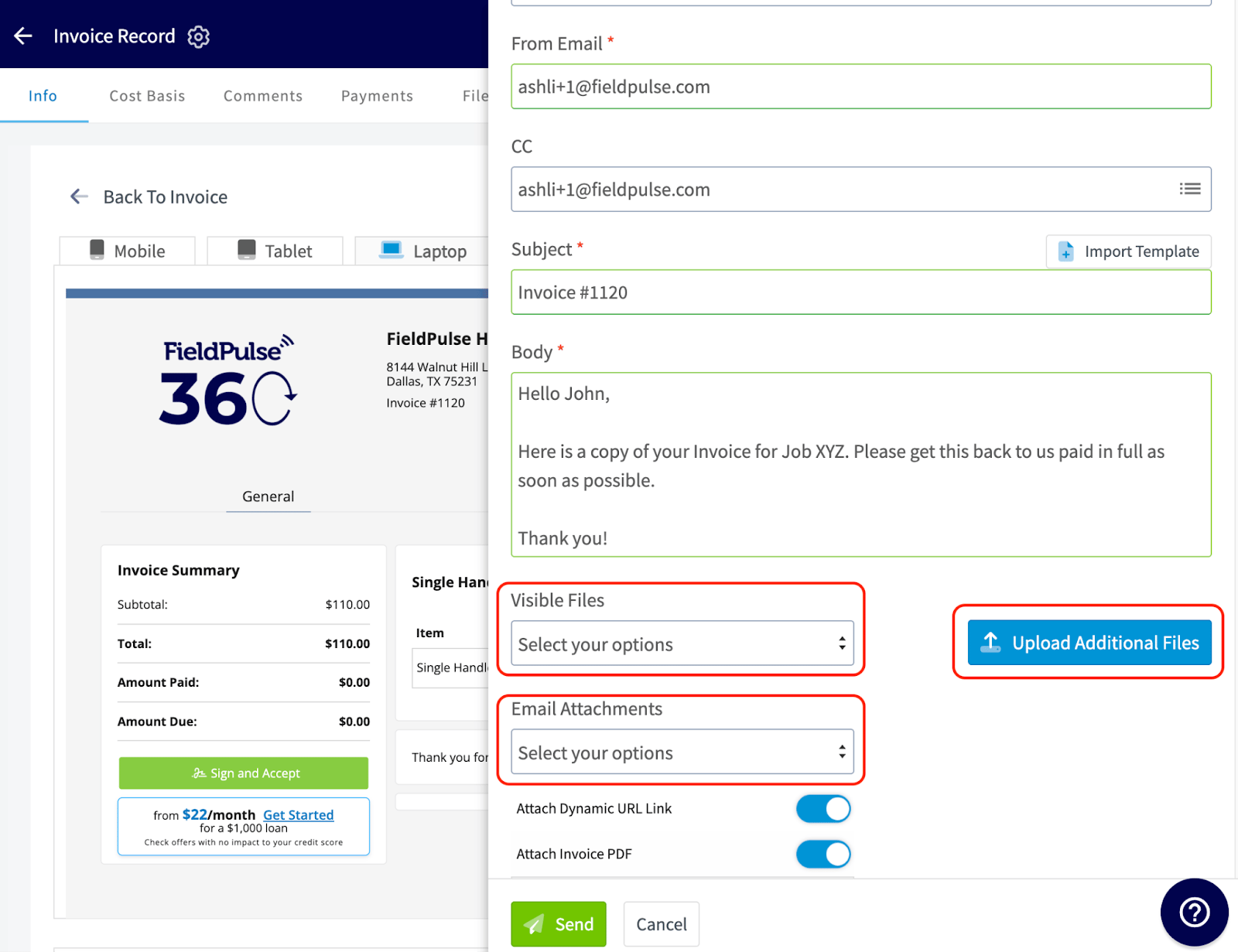
Scroll past the subject and body to the attachments section and add any files you want to send. You have three options:
- Visible Files — files already uploaded to the original job or estimate.
- Email Attachments — other files already on record.
- Upload Additional Files — new files from your device.
Payment, signature, and text options for FieldPulse Payments users
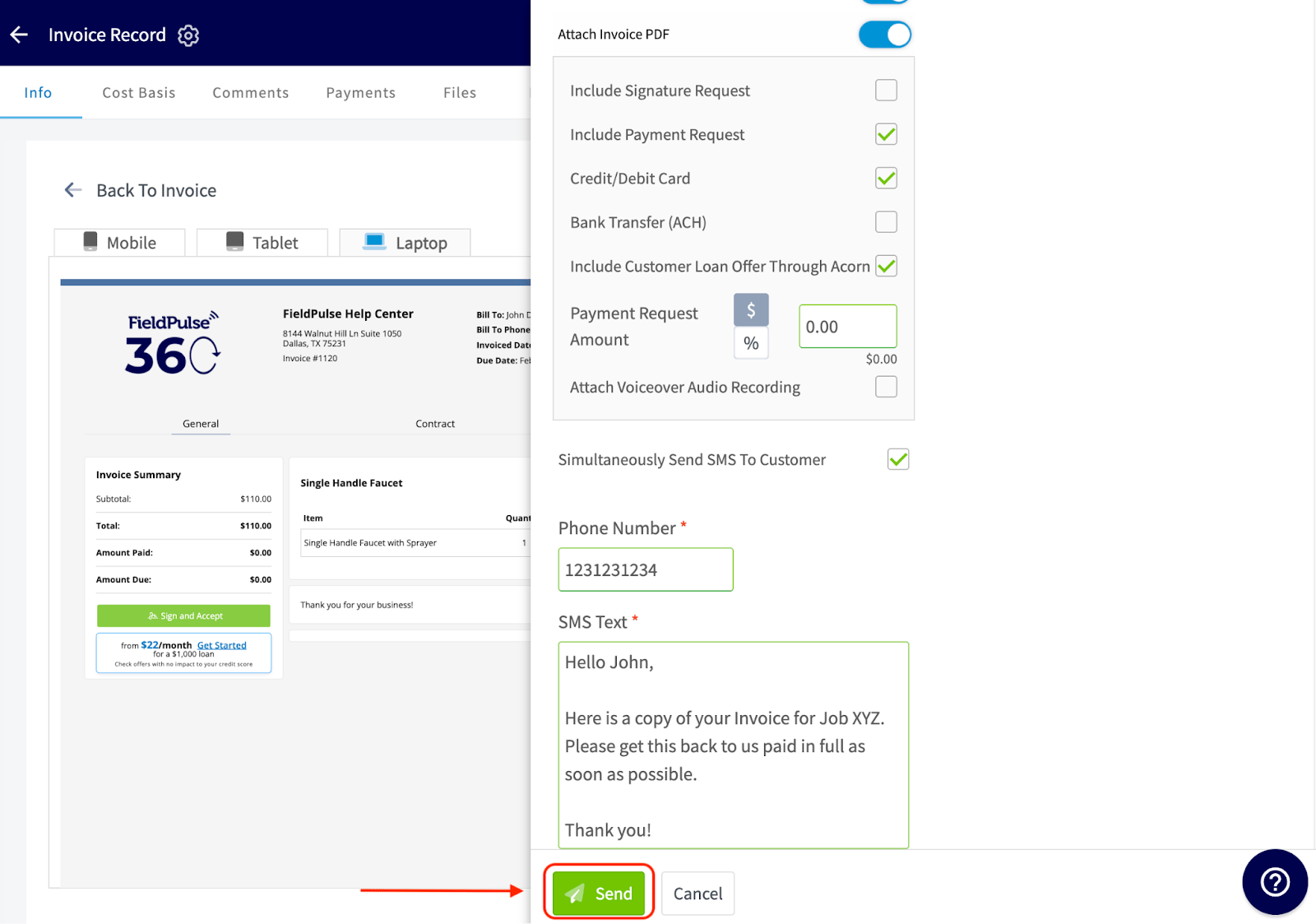
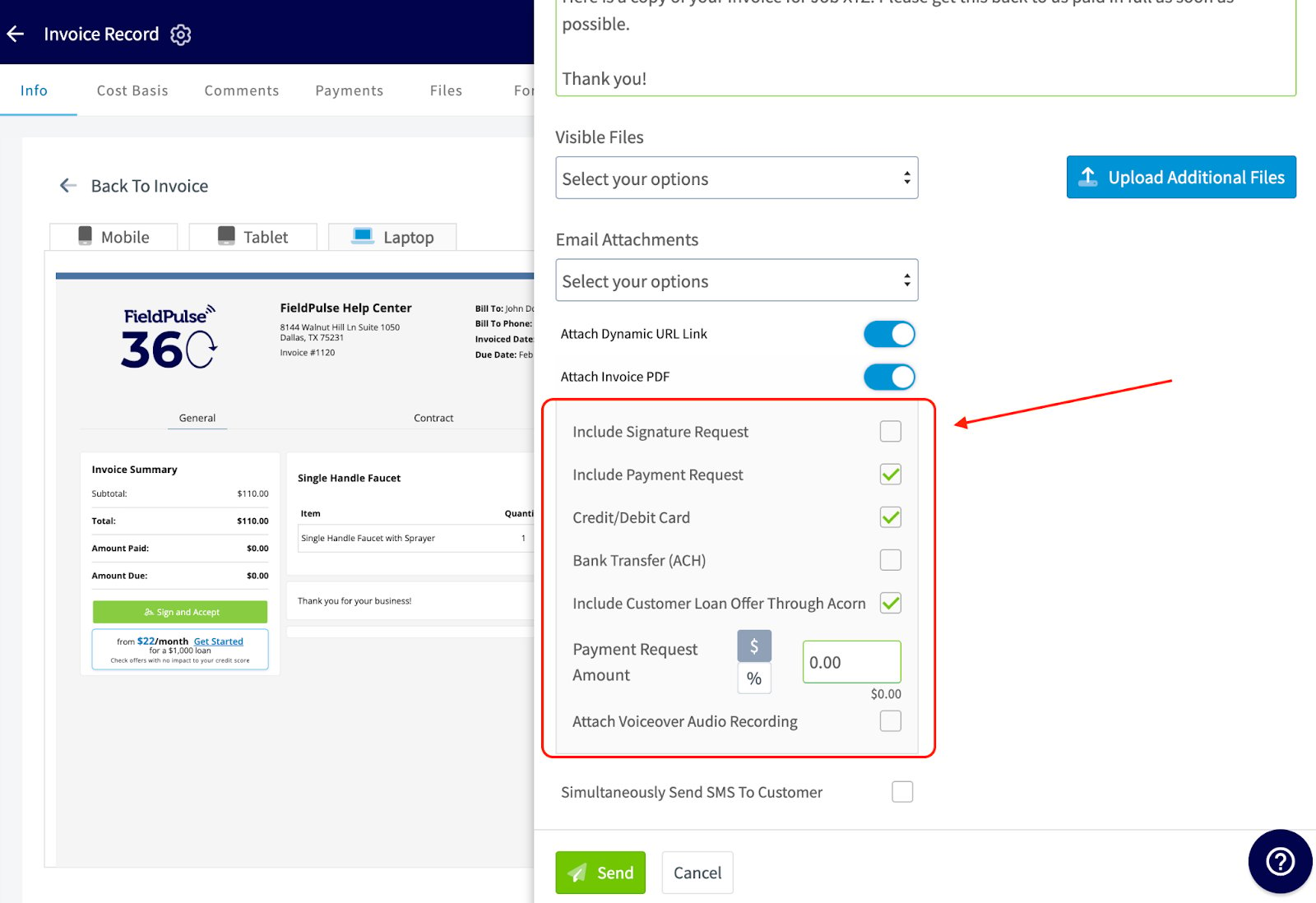
If you use FieldPulse Payments, the email window includes options to:- Request a signature on the document with Include Signature Request. See How to Request a Customer Signature.
- Include a payment request, and set the Payment Request Amount as a dollar amount or a percentage.
- Accept specific payment methods, such as credit and debit cards or bank transfers (ACH).
- Offer the customer a loan through Acorn. See Setting Up Acorn Finance.
- Attach a voice-over audio recording, which walks the customer through the estimate or invoice when an in-person conversation or a phone call is not an option.
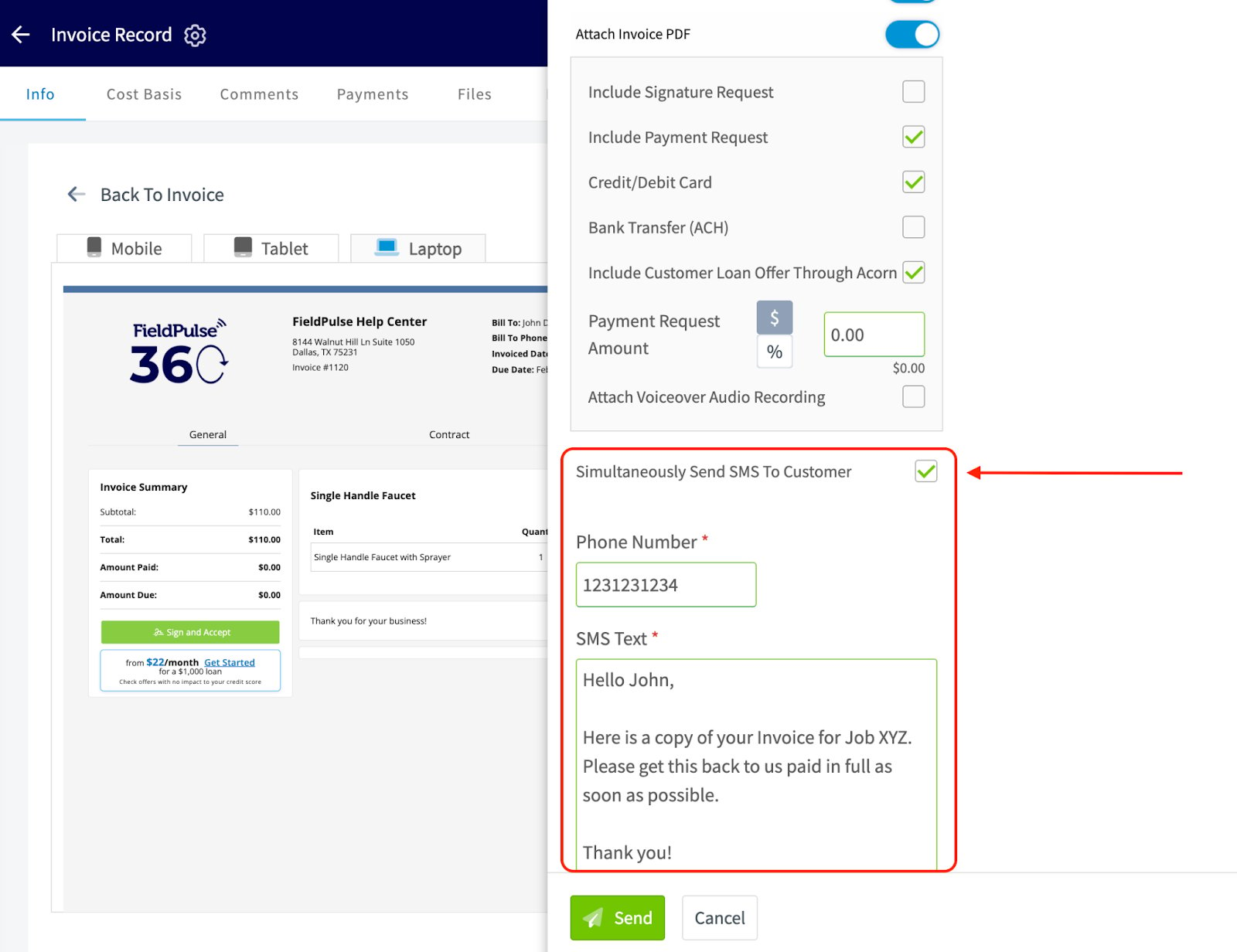
The text message is one-way. Customers cannot reply to that number.
Send the email
Once everything in the email window looks right, select the green Send button.