
Who uses this: Admins have full reporting access, and Team Managers can be given it. Service Agents and Limited Agents do not have reporting access. Availability: All regions.A timesheet report is built from the Timesheets tab in raw data reporting, and it pulls timesheet data — clock-in and clock-out times, durations, notes, and the related job, project, and customer — into one table you can filter, group, and export.
Overview
A timesheet report answers one question about your team’s time — who was clocked in, for how long, and against what work. Use the timesheet report to total logged time by team member, to roll up hours against a job or project, or to pull durations alongside the notes that explain them, so the hours are verified before you run payroll. Common timesheet reports include timesheets by team member, timesheets by job or project, and timesheet duration with notes. Building a timesheet report follows the same path as every other raw data report — choose a date type, set a date range, choose the columns, set filters, then read the table. Timesheet reporting is part of FieldPulse’s dashboards and reporting. For the parts of the reporting flow that are the same on every record type — groupings, saving a report, adding it to your dashboard, and exporting to CSV — see How to Use Raw Data Reporting.Video walkthrough
Video walkthrough: Creating a report in raw data reporting
Before you begin
- Have the timesheets you want to report on recorded in FieldPulse. See How to Use Employee Timesheets.
- Check that your role has reporting access. An Admin has full reporting access; a Team Manager needs Full Reporting access turned on.
Set the date type
- Select Reporting under the Management tab in the left-side menu.
- Select the Timesheets tab, then select Raw Data.
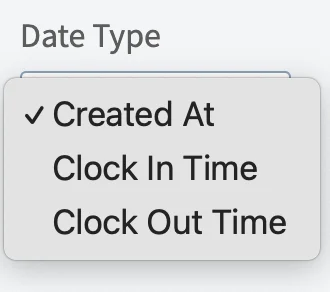
- Select a Date Type. The date type sets which timesheet date the report runs on, so pick the one that matches the pay period you are reconciling.
Set the date range
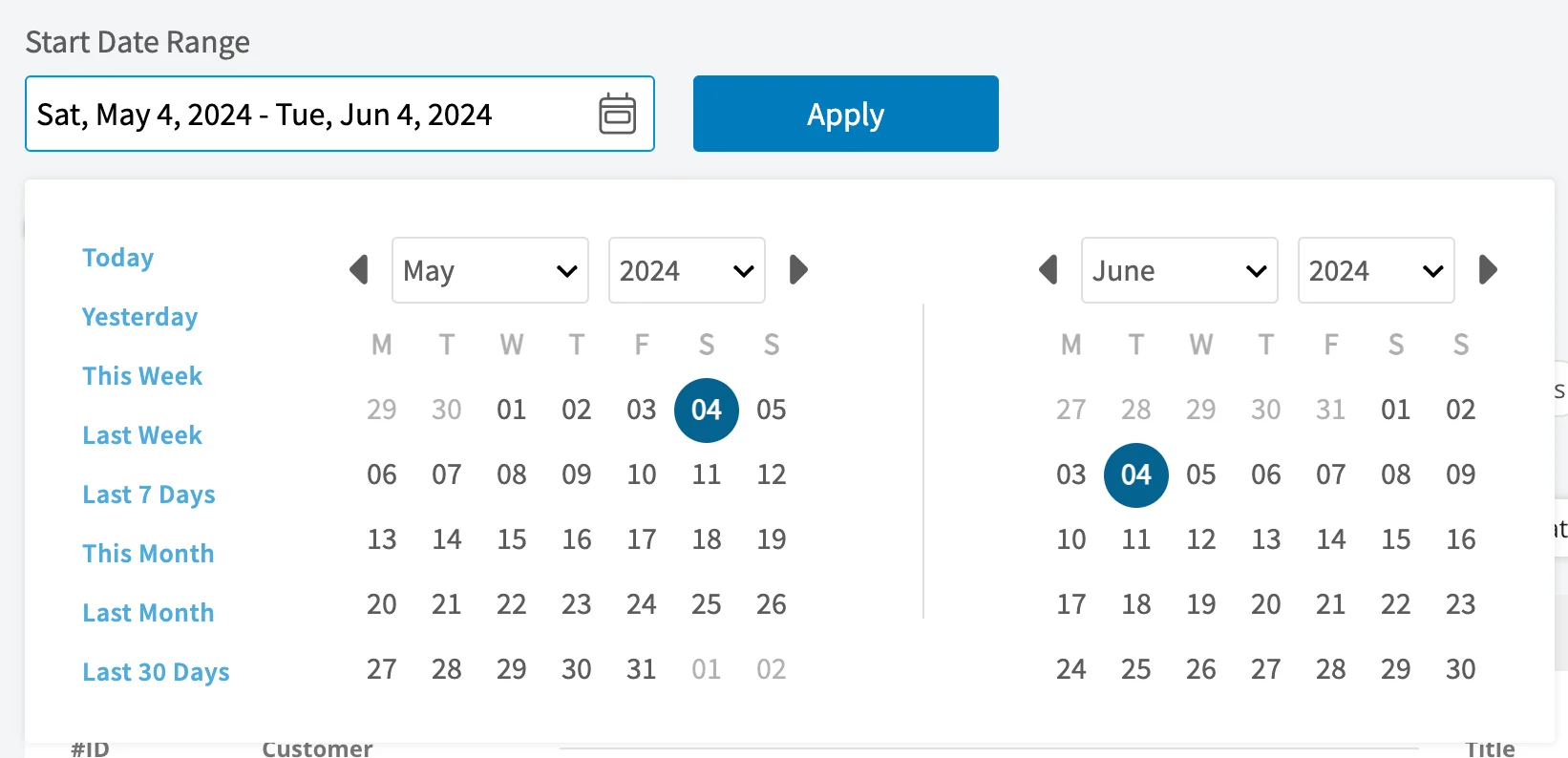
- Select the calendar icon and choose the start date range you want to report on.
- Select Load Data.
Choose your columns
Select Columns to choose which timesheet fields appear in the report table and the order they appear in.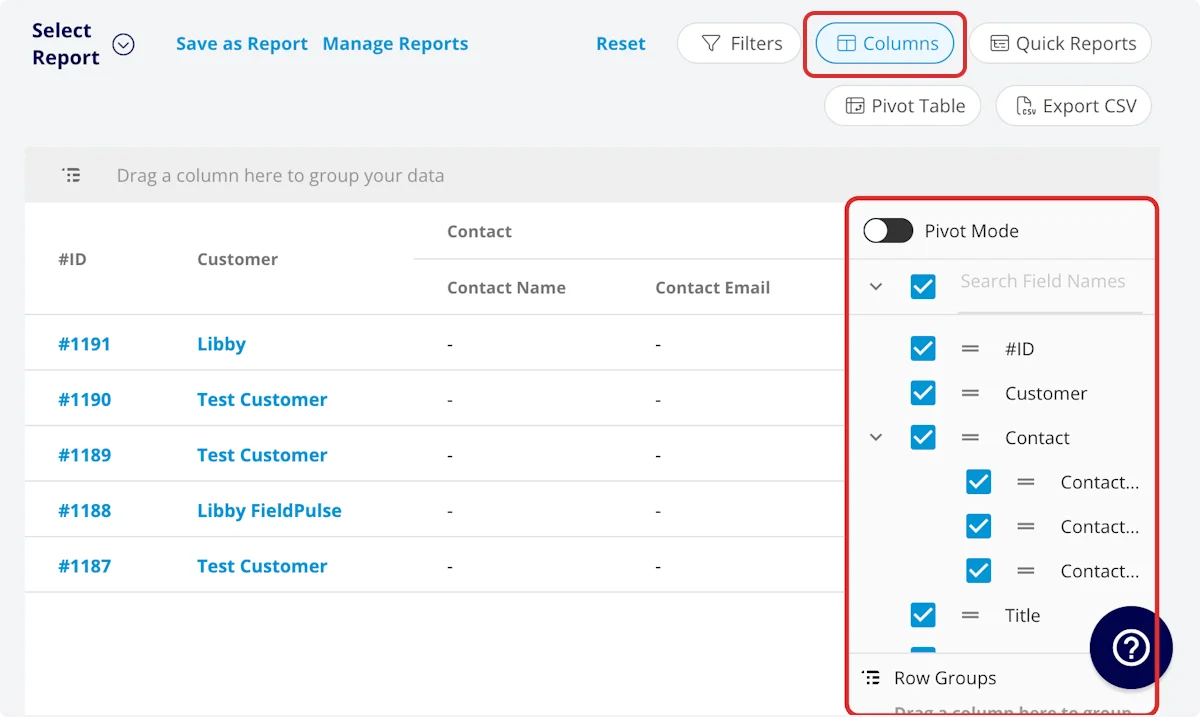
Set your filters
Before running the report, set filters to narrow the results. Select the Filters icon, then choose how you want to filter the report.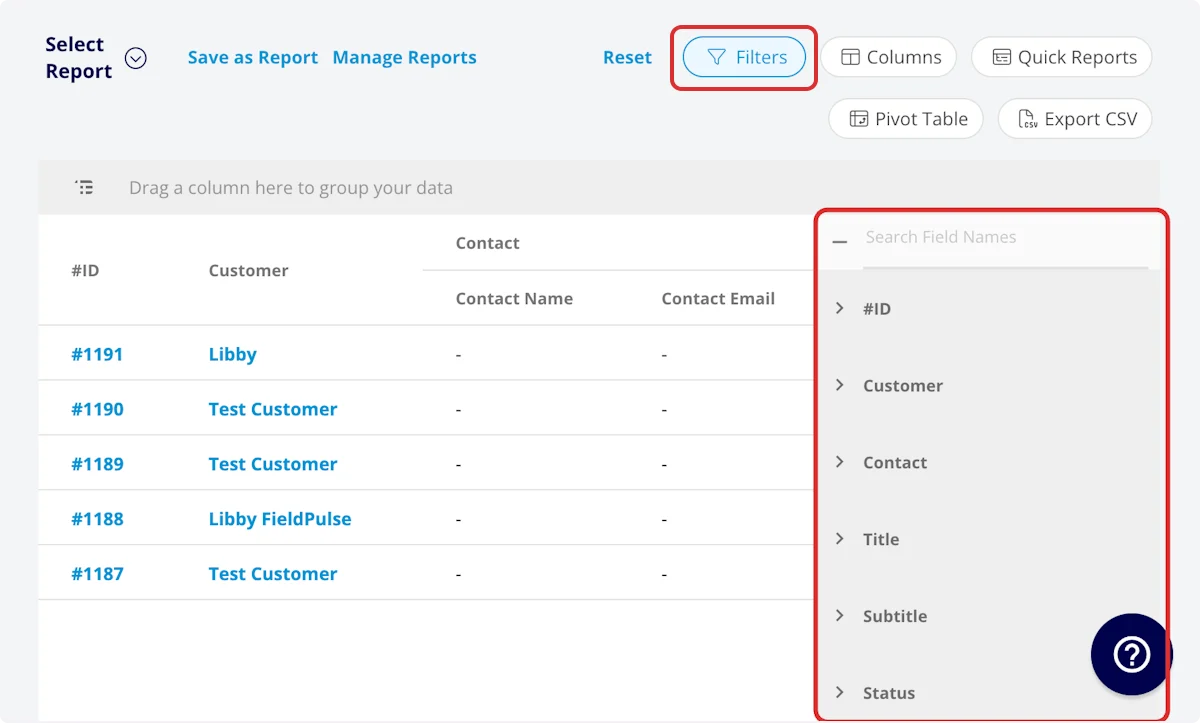
Filter operators
When you filter by contents, choose an operator and then enter the values to filter the data on.Common timesheet reports
These are the column and grouping combinations behind the timesheet reports companies run most often.Timesheets by team member
Use this report to view timesheets sorted by team member. Customize the columns to your needs, but include User, and group by User.Timesheets by job or project
Use this report to view the timesheets related to the same job or project, which gives you the total duration against that job or project. Customize the columns to your needs, but include Parent Job or Parent Project, and group by Parent Job or Parent Project.Timesheet duration with notes
Use this report to view timesheets alongside the related notes, which gives you the context behind each duration. Customize the columns to your needs, but include Duration or Duration Decimal and Clock In Notes, Clock Out Notes, or Related Job Field Notes.Video walkthrough: Building the common timesheet reports by team member, by job or project, and with notes