

Within Engage, you have the ability to create custom tags for all of your Calls, Conversations, and Voicemails. By utilizing tags, it allows you to better organize and manage all of your communication records.Documentation Index
Fetch the complete documentation index at: https://fieldpulse.mintlify.app/llms.txt
Use this file to discover all available pages before exploring further.
Creating Custom Engage Tags
Within Engage, click on the gear icon in the top right corner of your screen. From here the Engage Settings page will open. Click into the Tags tab from the menu on the left to begin creating your tags.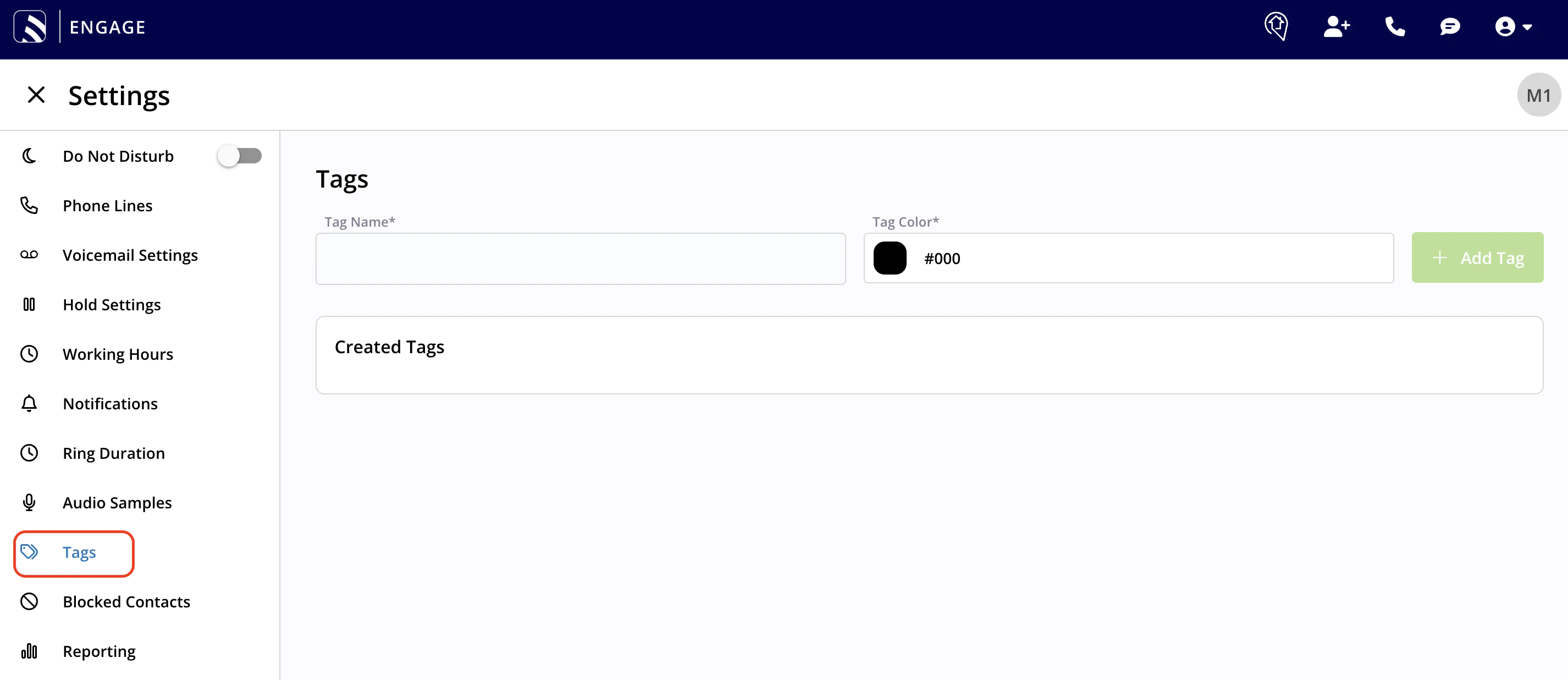
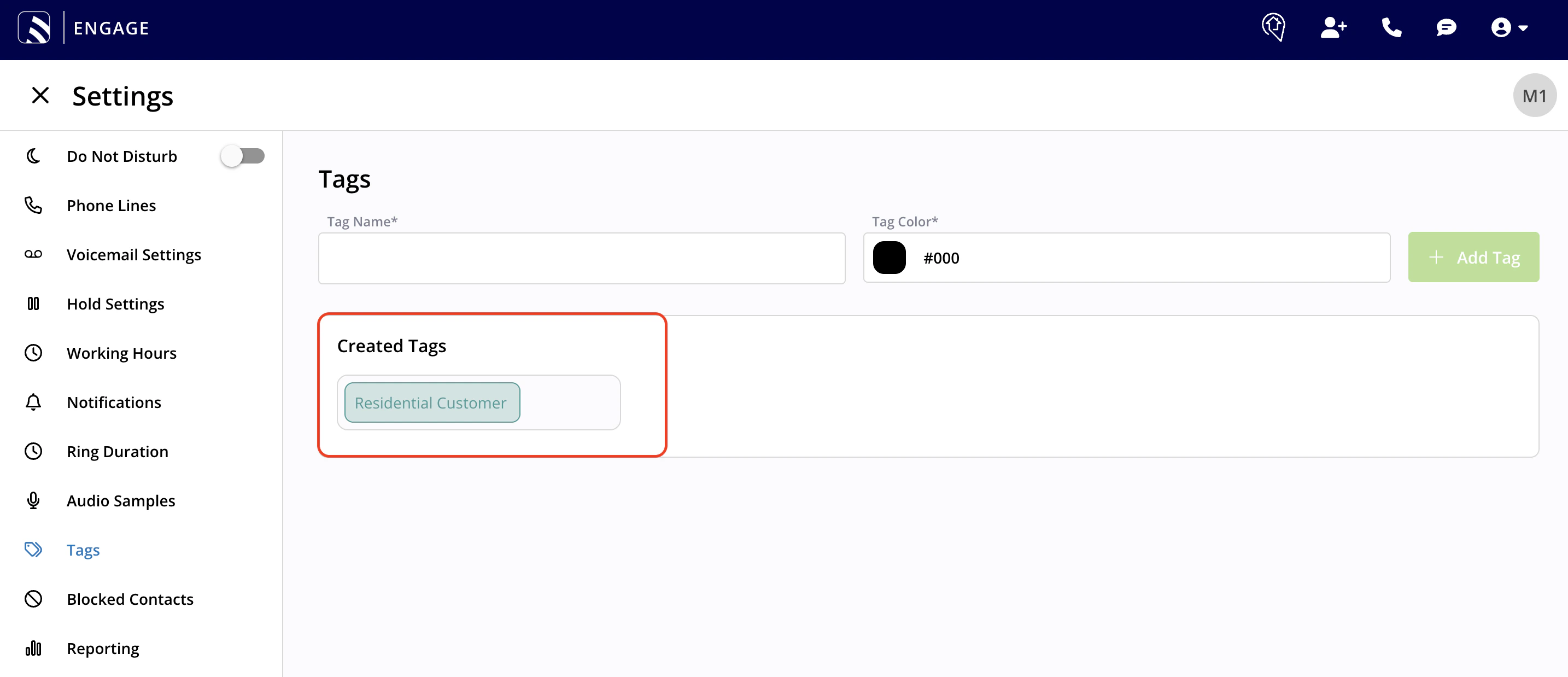
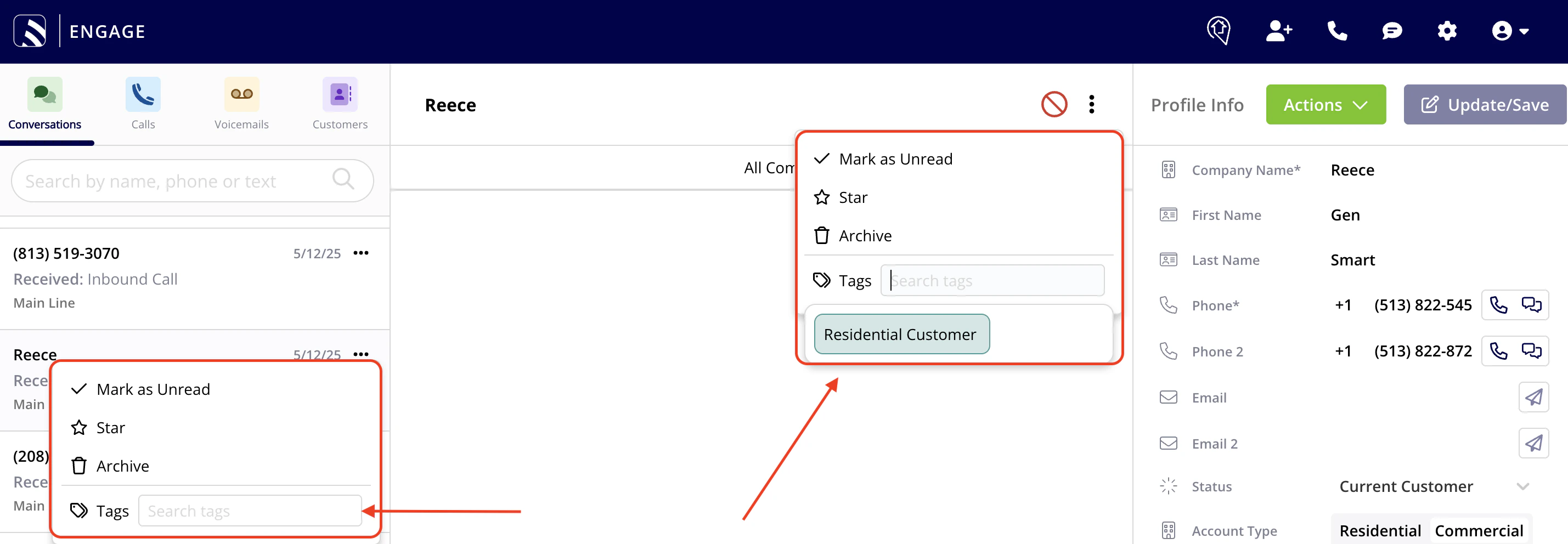
Associating a Tag to a Communication Within Engage
To apply a tag within Engage, utilize the three dots on the communication record. Note in the picture below, there are two different places where you can locate and utilize the three dots on a communication record. These three dots are present on the Conversation, Call, and Voicemail list pages and individual record pages.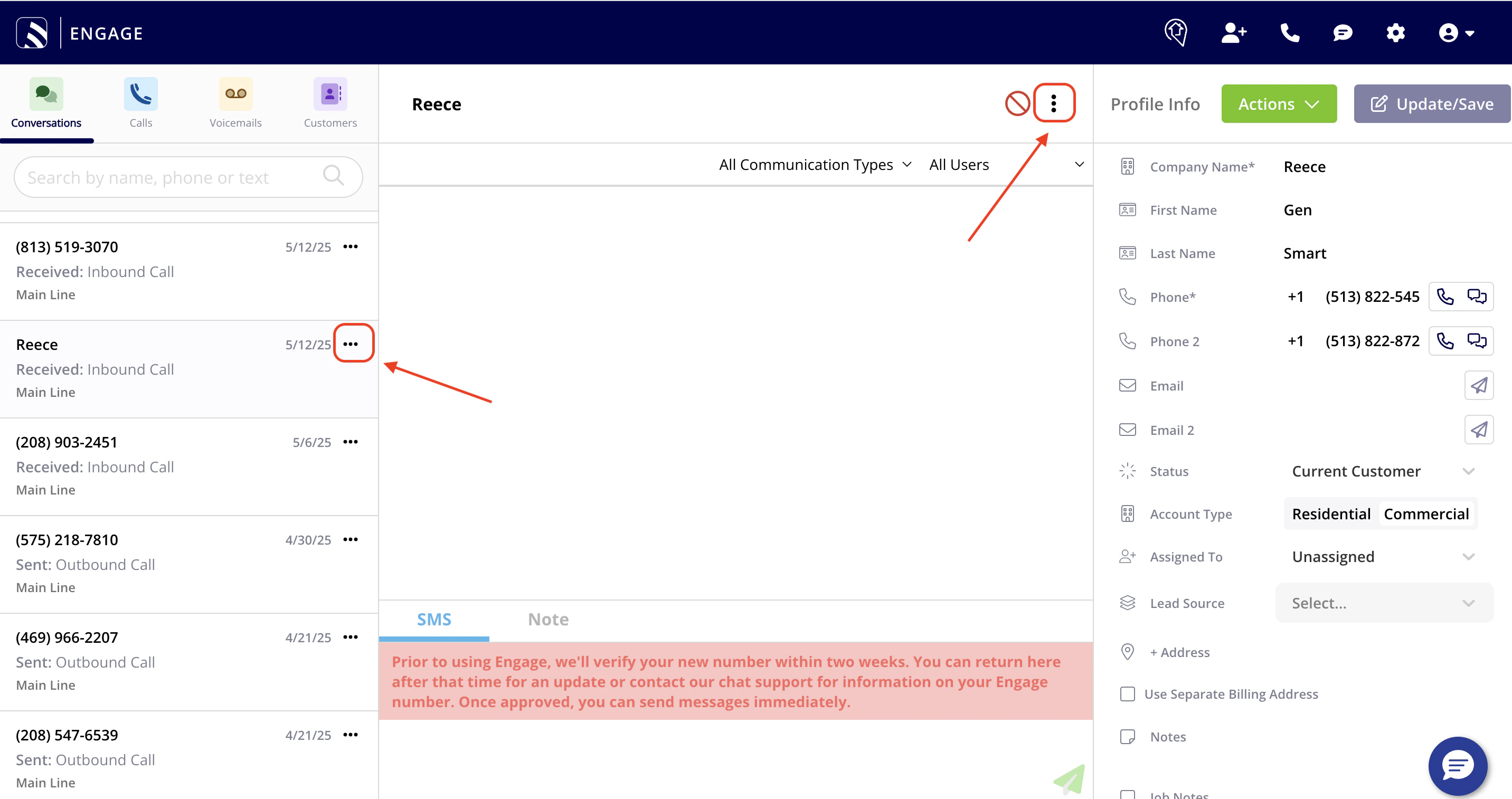

Tag Reporting
Two new columns will be added in reporting:- Call Tags
- Voicemail Tags
FAQs
Why should I utilize tags? Think of tags like Sticky Notes. Tags are a great way to further segment and organize the conversations, calls, or voicemails left by future or current customers of yours. Can I assign more than one custom tag to a record? Yes! Multiple tags can be assigned to each Conversation, Call, and/or Voicemail. I love the idea of tags, but just don’t know where to begin! What are some categories of tags I could create within Engage? Use the below examples for inspiration. Creating tags based off of some of the categories mentioned below will allow you to further organize your communications and allow for a more efficient workflow!- Service Request Type: Installation, Repair, Maintenance, Inspection, Emergency
- Follow-Up Type: Scheduled Appointment, Callback Request, Quote Follow-Up, Review Requested
- Customer Type/Loyalty: Loyal Customer, At-Risk Customer, New Customer
- Customer Size: Residential, Small Business, Large Enterprise
- Customer Preferences: Preferred Contact Method, Best Contact Times, Preferred Language
Have additional questions? Contact us at support@fieldpulse.com or use the chat feature in the bottom right corner of your screen.