

Use the Reporting tab to create reports based on Engage data including: user who answered, call outcome, duration, and more.Documentation Index
Fetch the complete documentation index at: https://fieldpulse.mintlify.app/llms.txt
Use this file to discover all available pages before exploring further.
Create an Engage Report
Date Range

Columns
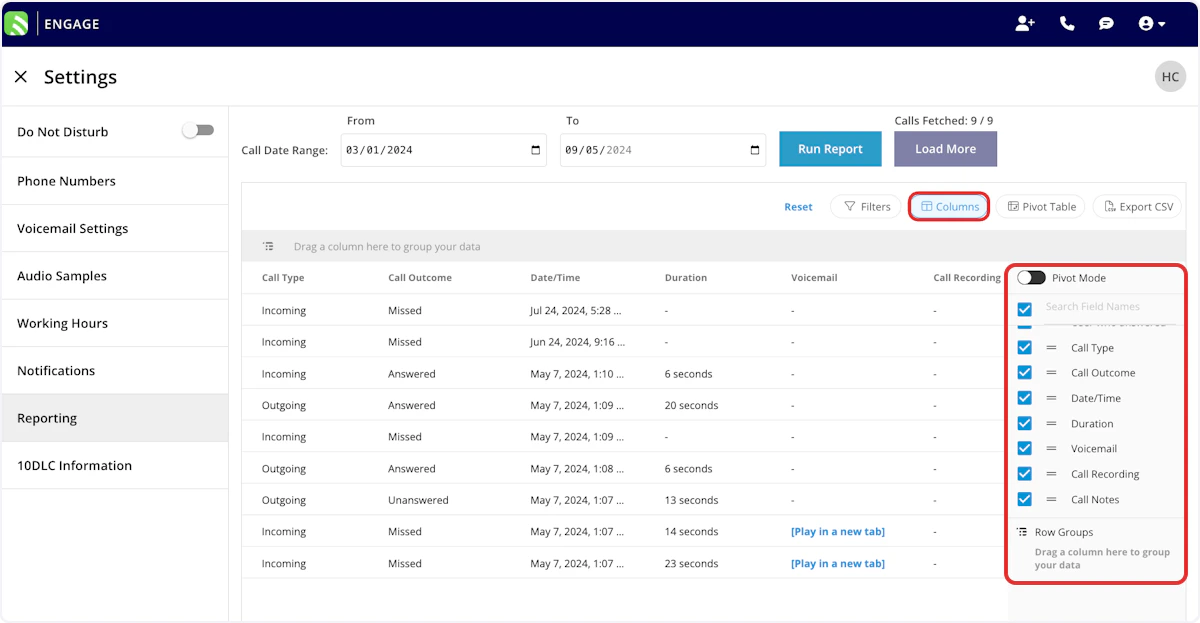
- Customer Phone: Customer phone number
- Customer Name: Customer name
- Existing or New: Existing or new customer
- Phone Line Name: Friendly name of Engage phone line
- Phone Line Number: Engage phone number
- Phone Line Lead Source: Lead source attached to phone line
- User Who Answered: Engage user who answered
- Call Type: Incoming or outgoing
- Call Outcome: Answered, missed, or unanswered
- Date/Time: Date/time of call
- Duration: Call duration
- Voicemail: Click to play voicemail
- Call Recording: Click to play call recording
- Call Notes: Call notes
Filters

- Customer Phone: filter by contents
- Customer Name: filter by contents
- Existing or New: select existing or new
- Phone Line Name: select name
- Phone Line Number: select number
- Phone Line Lead Source: select lead source
- User Who Answered: filter by contents
- Call Type: select type
- Call Outcome: select outcome
- Date/Time: filter by date
- Duration: filter by contents
- Call Notes: filter by contents
| Operator | Retrieves Data | Example | Data Retrieved |
|---|---|---|---|
| Equals | Equal to a specified value | Created By - Equals Tom Gause | For all records created by Tom Gause only |
| Not Equal | Different from a specified value | Tag - Not Equal to HVAC | For all records except those using the HVAC tag |
| Less Than | Lower than a specified value | #ID - Less than 1144 | For all records below #1144 |
| Less Than or Equal To | Lower than or equal to a specified value | Job Date/Time - Less than or equal to 12/13/2023 | For jobs scheduled before or on 12/13/2023 |
| Greater Than | Greater than a specified value | Job Duration - Greater than 60 minutes | For jobs in the In Progress status type for over 60 minutes |
| Greater Than or Equal To | Greater than or equal to a specified value | Job Date/Time - Greater than or equal to 1/1/2024 | For jobs scheduled on or after 1/1/2024 |
| In Range | Including and between two specified values | #ID - Between 1225 and 1236 | For all estimate records with #IDs between 1225 and 1236 |
| Starts With | Begins with a specified value | Title - Annual | For all job records beginning with Annual |
| Ends With | Ends with a specified value | Location - TX | For all job locations ending with TX |
| Blank | No values are in the field | Subtitle | For all job records with blank subtitles |
| Not Blank | Values in the field | Notes | For all job records with values in the notes field |
Have additional questions? Contact us at support@fieldpulse.com or use the chat feature in the bottom right corner of your screen.