

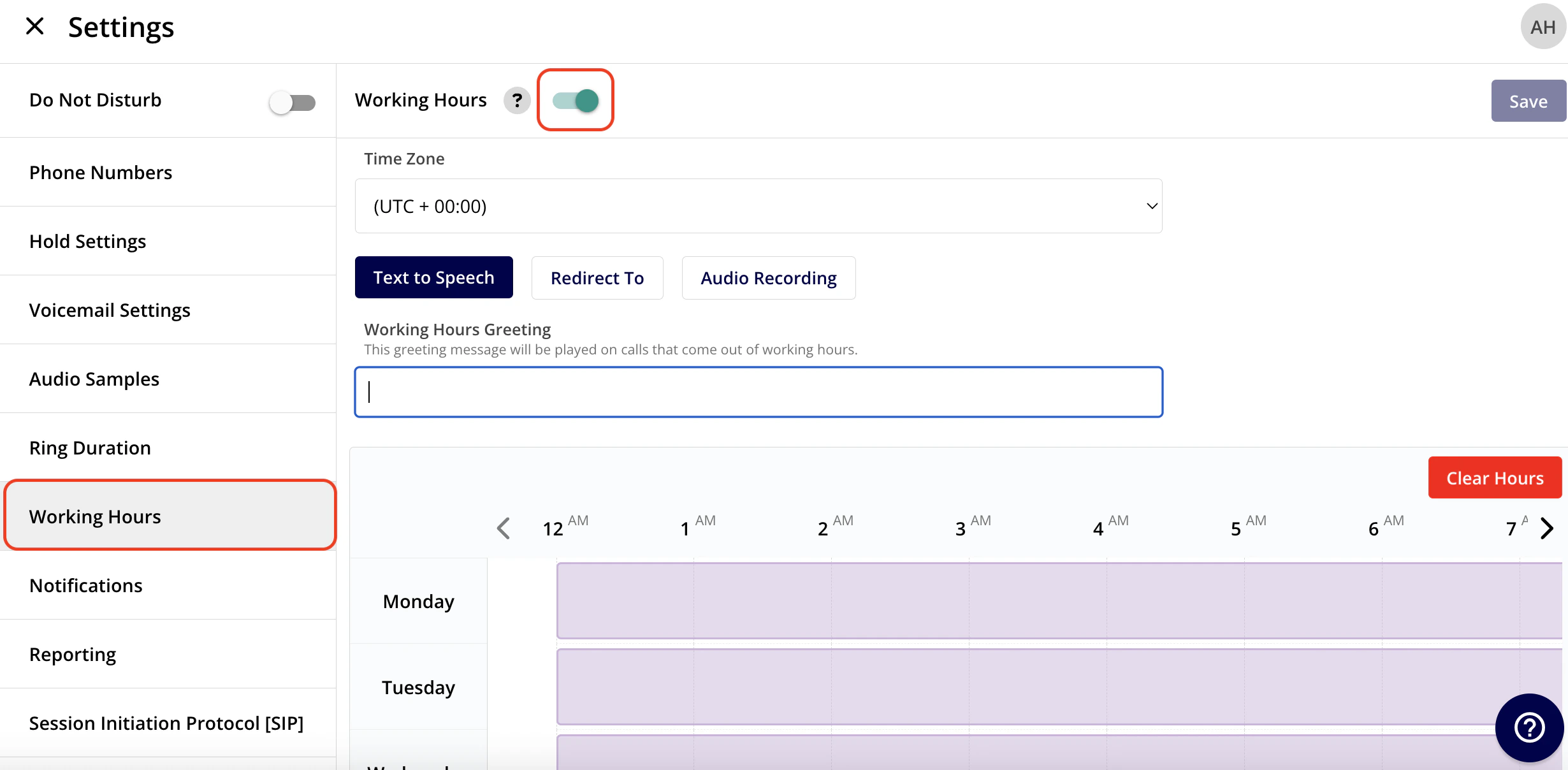
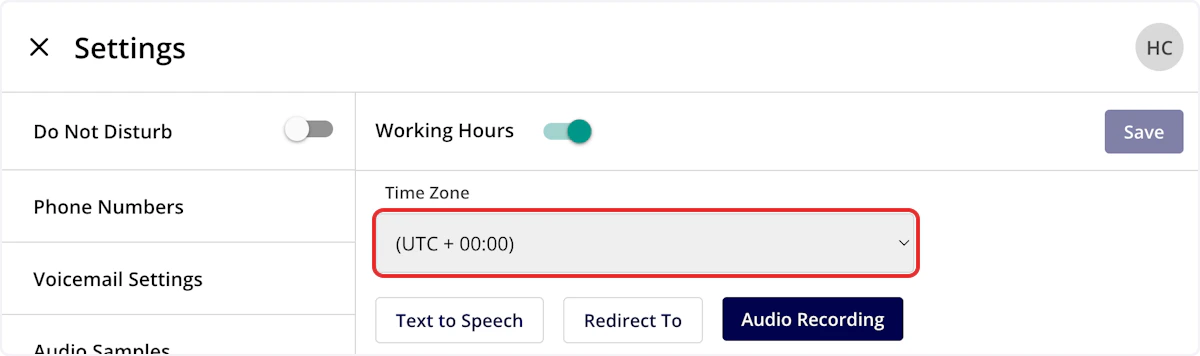
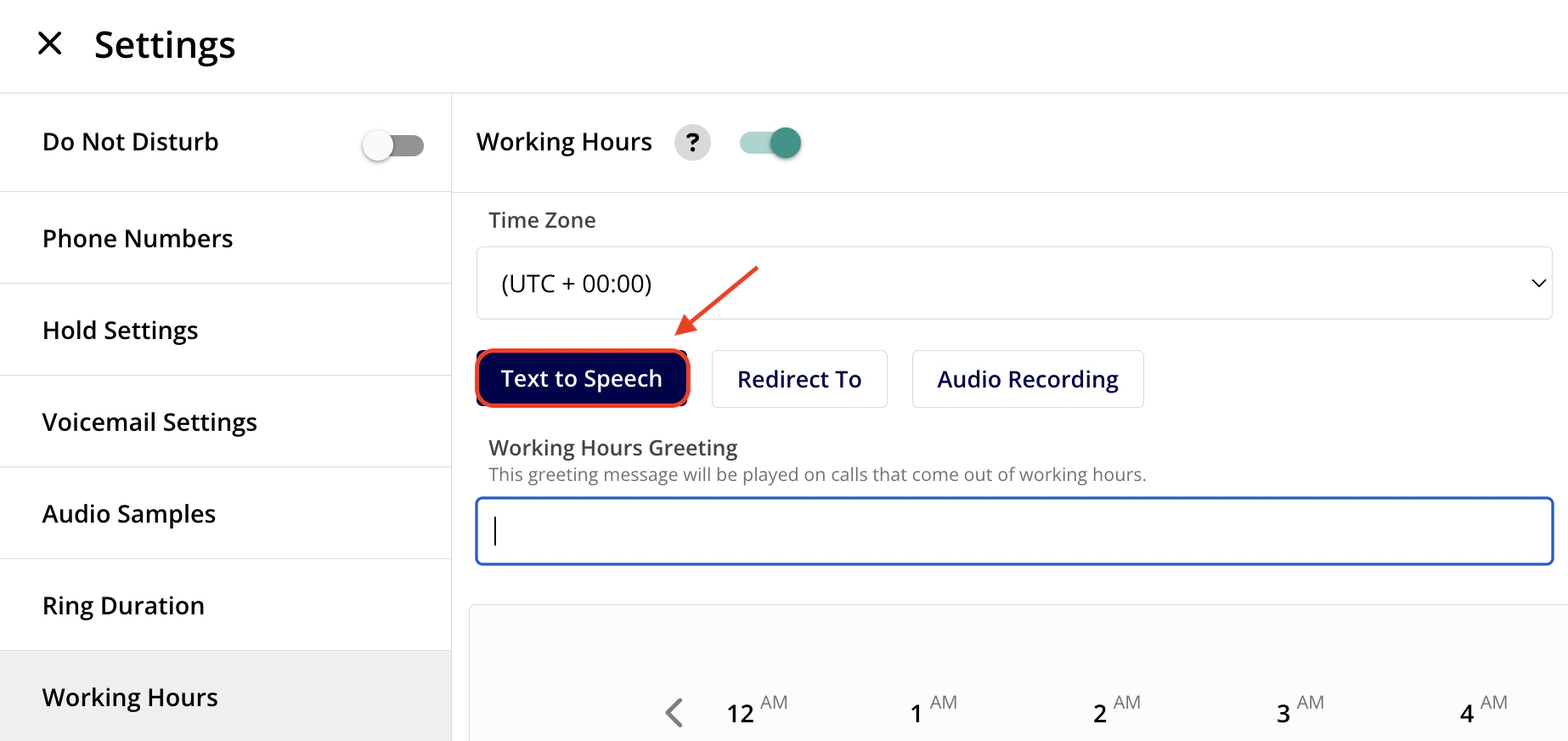
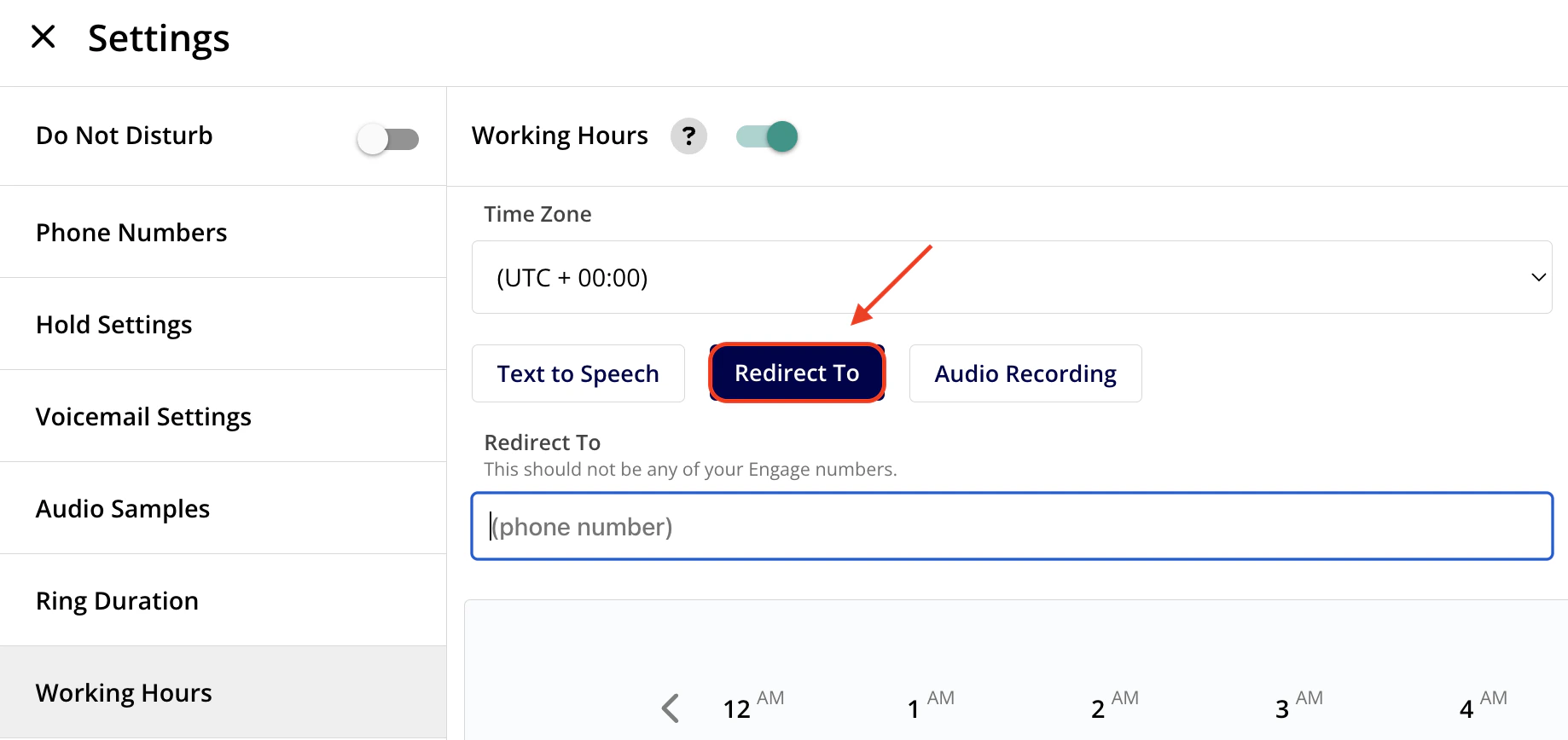
Working Hours allows you to set the hours that your business is available to answer customer communications in Engage. You can adjust your Time Zone, as well as dictate where calls should be directed outside of your working hours.Documentation Index
Fetch the complete documentation index at: https://fieldpulse.mintlify.app/llms.txt
Use this file to discover all available pages before exploring further.
How to Set Up Company Wide Working Hours
To get started, navigate to the Engage Settings by clicking on the gear icon.
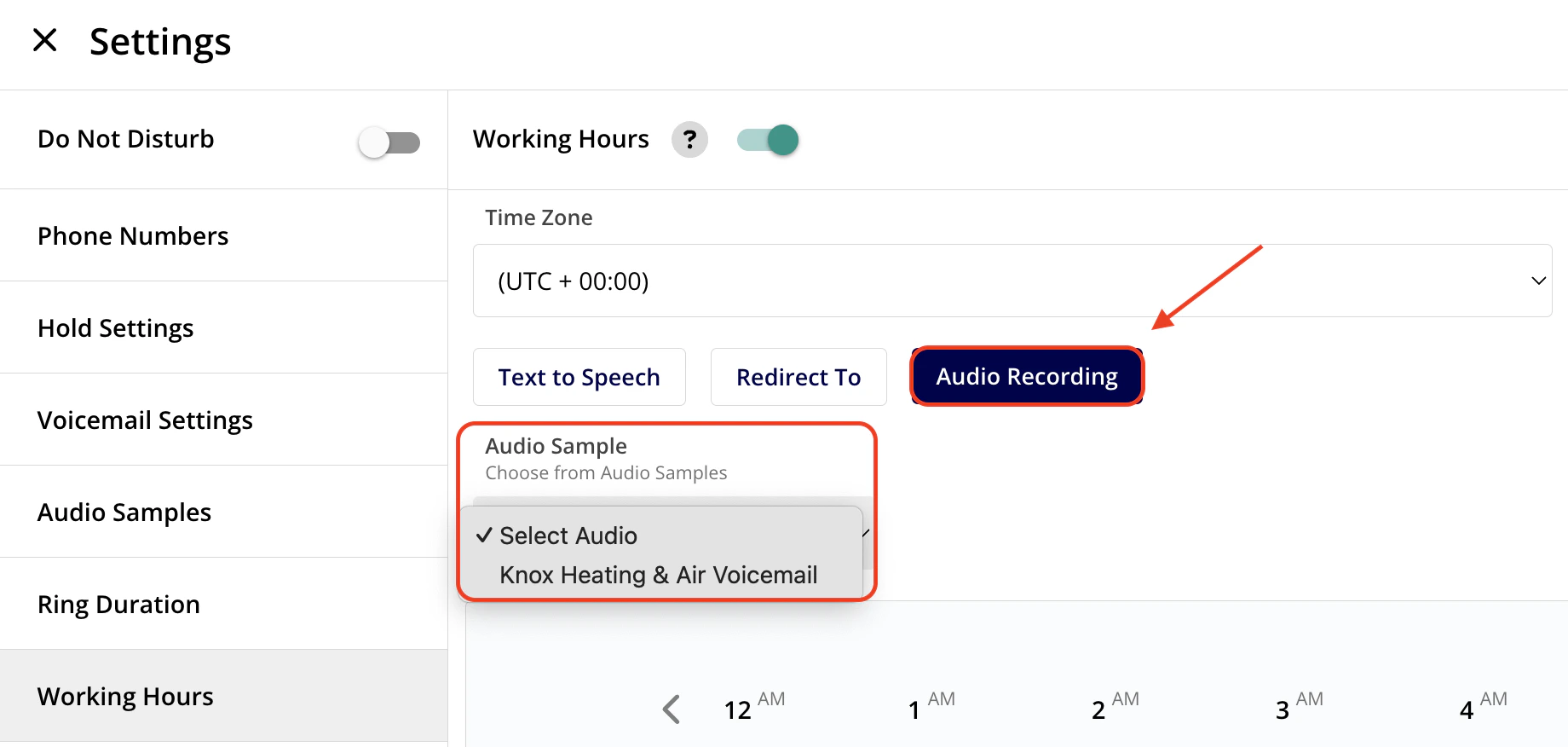
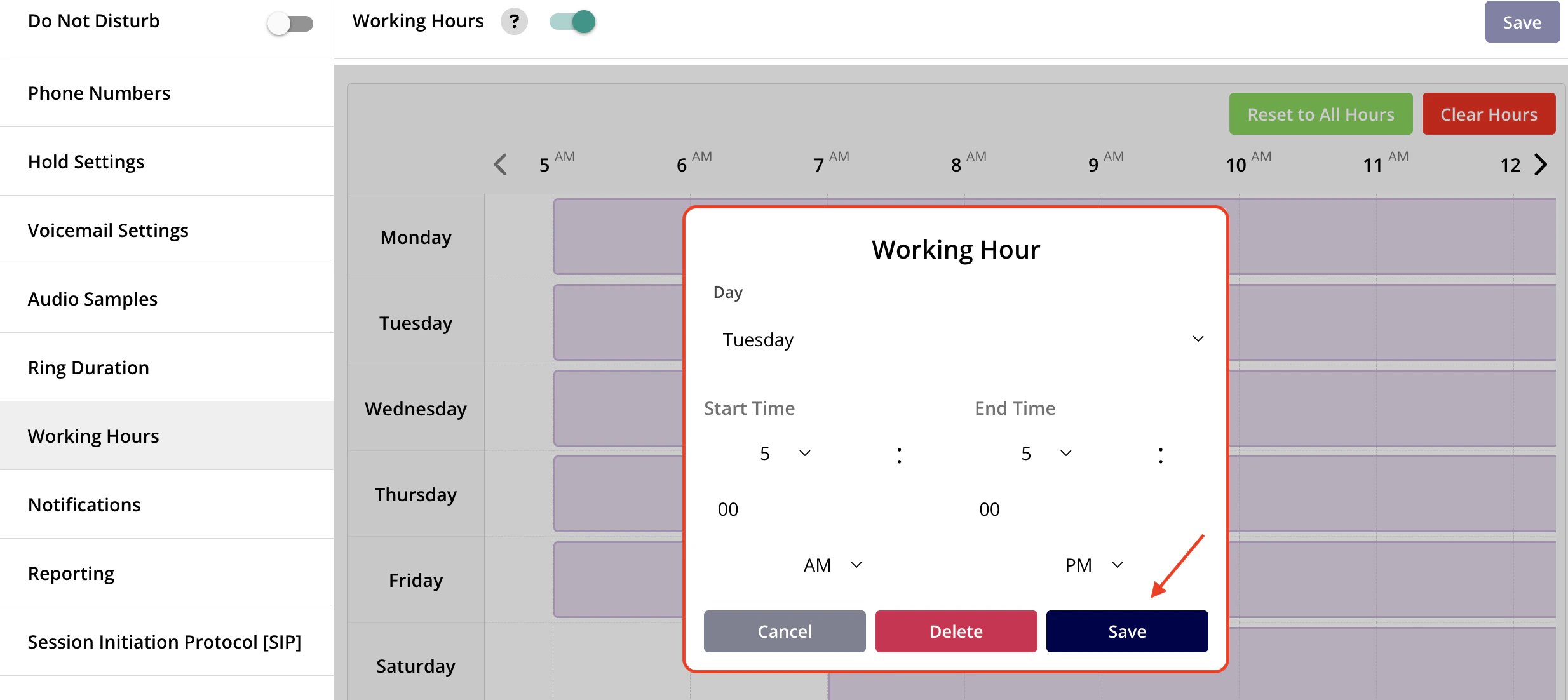
How to Set Up Individual Phone Line Working Hours
Rather than being restricted to a single set of company-wide working hours, each team or department can establish its own working hours schedule. To activate this feature, go to your Engage Settings, navigate to the Phone Lines tab, select the specific line you wish to manage, and under Advanced Settings, enable the Working Hours Schedule. Customize your hours as needed and save your changes.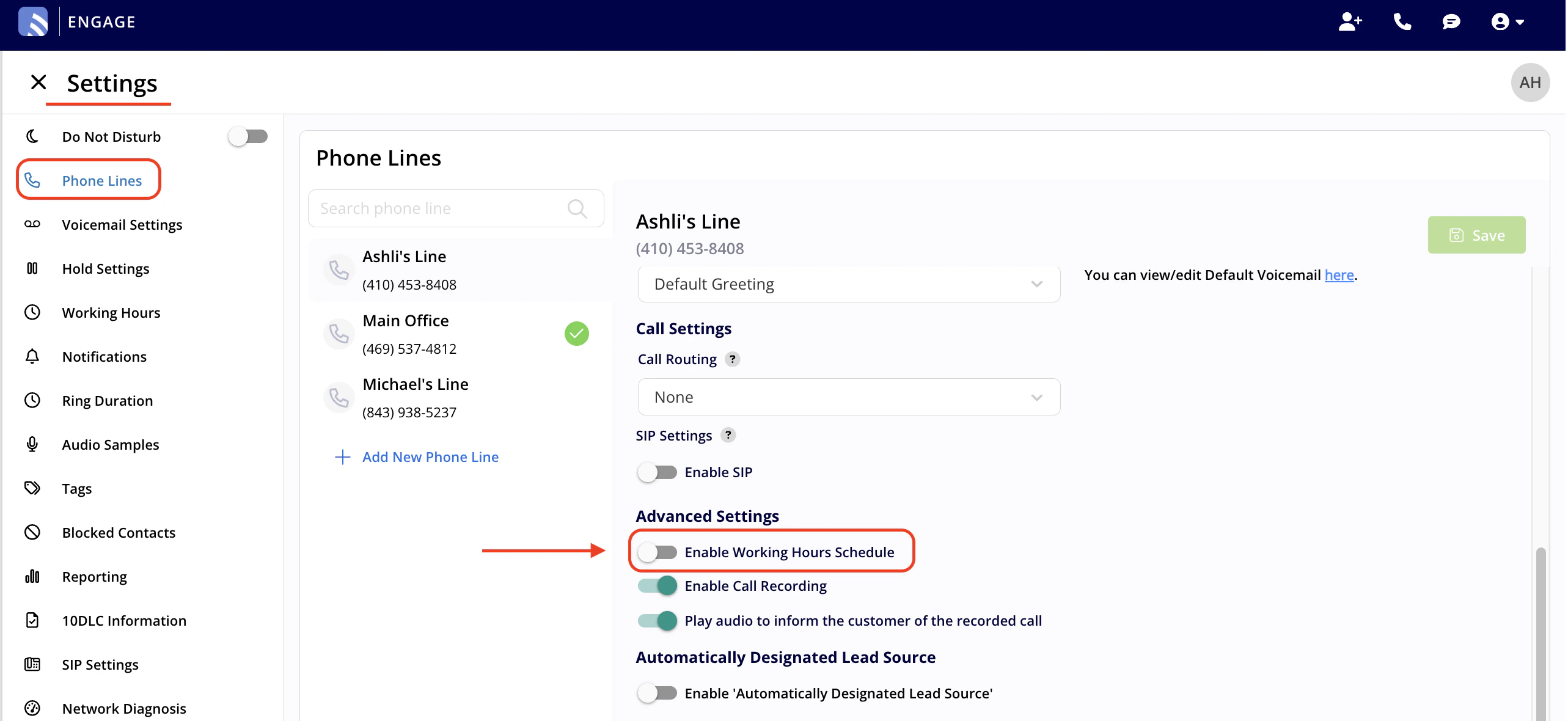
Have additional questions? Contact us at support@fieldpulse.com or use the chat feature in the bottom right corner of your screen.