

What if you could streamline your supplier communications and keep your entire team in the loop? Many businesses currently rely on texting or emailing suppliers, which can result in crucial messages being hidden from the rest of the team and scattered across various platforms. This makes it challenging to track discussions and maintain a clear record of interactions. Supplier Chat addresses this issue by providing a centralized communication platform for businesses in the United States where all conversations with suppliers are stored in one accessible location, ensuring that your entire team can easily track discussions and stay informed.Documentation Index
Fetch the complete documentation index at: https://fieldpulse.mintlify.app/llms.txt
Use this file to discover all available pages before exploring further.
Use Supplier Chat to
- Streamline your purchase order management by sending purchase orders created in FieldPulse via Supplier Chat to your suppliers. This functionality is available on our web and mobile app!
- Ask suppliers a variety of questions including but not limited to the following: inventory, pricing, order status, and more.
Industries
The following are industries you can chat with via Supplier Chat:- Appliances
- Carpet / Flooring
- Doors
- Electric
- Equipment
- Fastener
- Fencing
- Fire & Fabrication
- Glass
- Home Furnishing
- HVAC
- Insulation
- Irrigation
- Locks and Keys
- Lumber
- Other
- Paint
- Plumbing
- Pool
- Rental
- Retail Hardware
- Roofing / Building Supplies
- Specialty Construction
- Steel / Metal
- Stone & Concrete
- Water Softening
- Waterworks
How to Enable Supplier Chat
Start by clicking on Company Settings from the menu on the left hand side of your screenand selecting Features & Plugins. Navigate to Supplier Chat and select Enable.
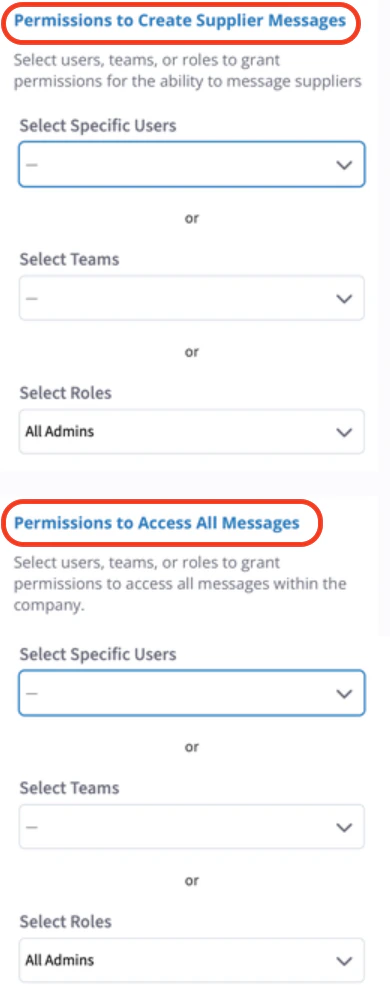
Permissions
Permissions to Create Supplier Messages
This means the user can create a brand new message and reply to messages.Permissions to Access All Messages
This means the user can view all threads and every message.If the user has permission to both Create and Access, that means they can view and send messages in all message threads.
Begin Chatting
To initiate a chat with a supplier, click the truck icon from the navigation menu near the top right of your screen.
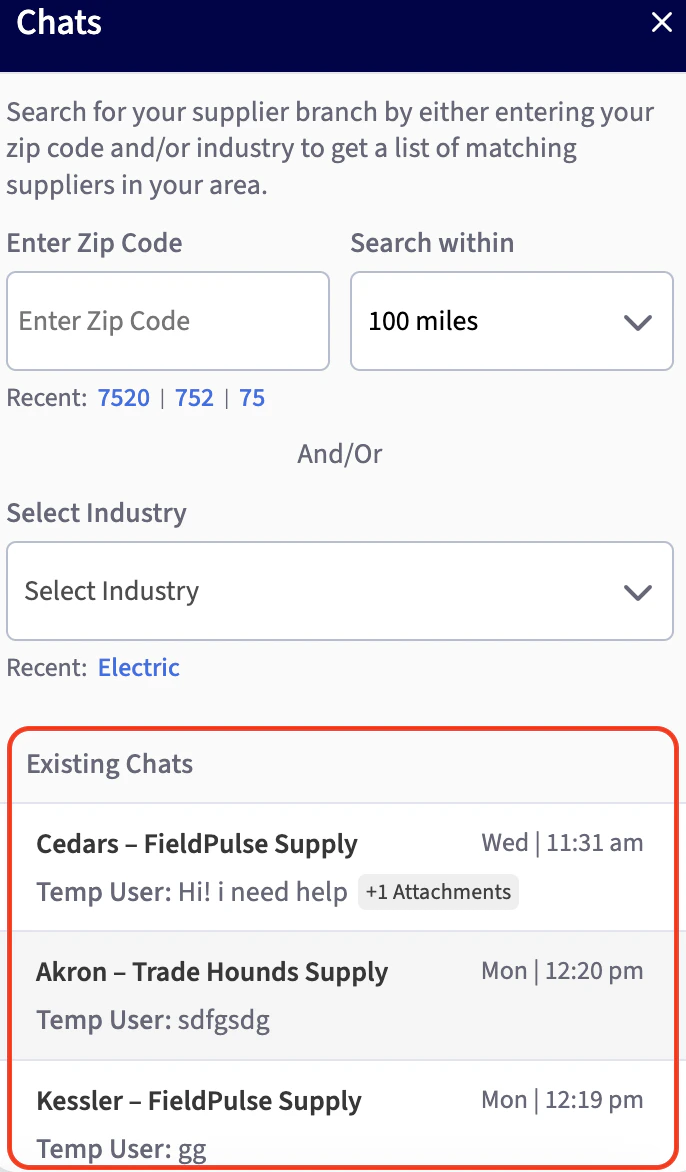
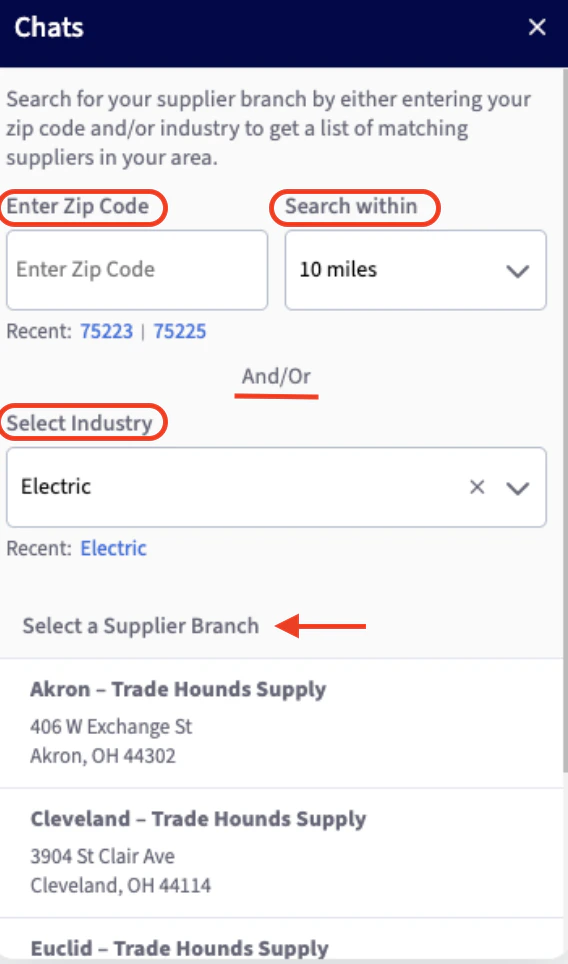



Send Purchase Orders Via Supplier Chat - Web App
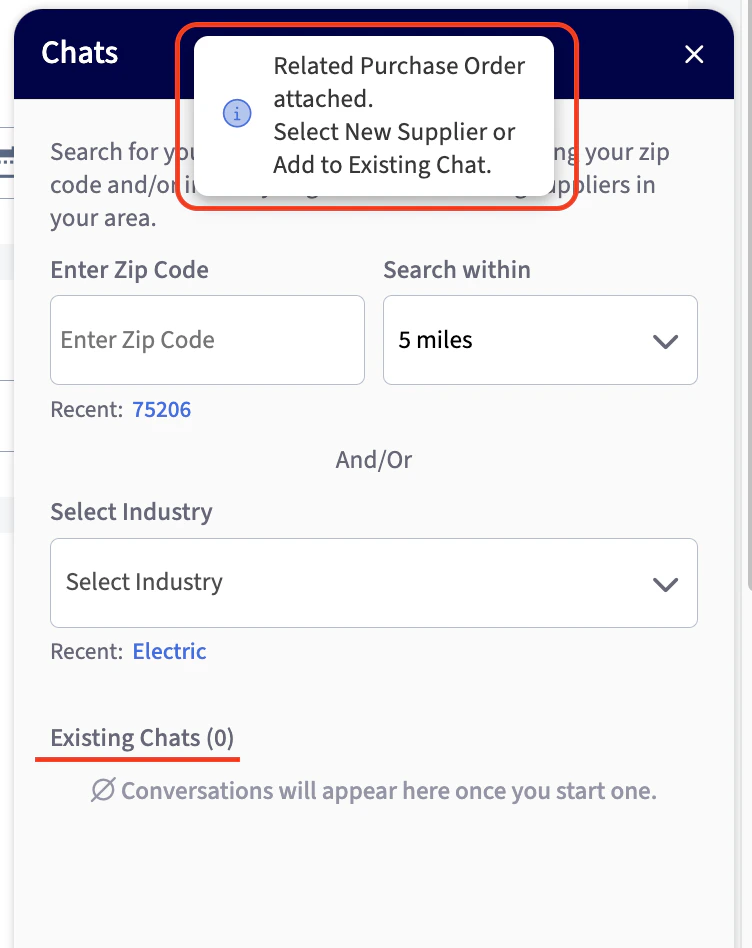
If your supplier uses our Supplier Chat feature, you can send them the purchase orders you create in FieldPulse directly through Supplier Chat. Once you have created your purchase order, simply click the Send via Supplier Chat button to send it to them.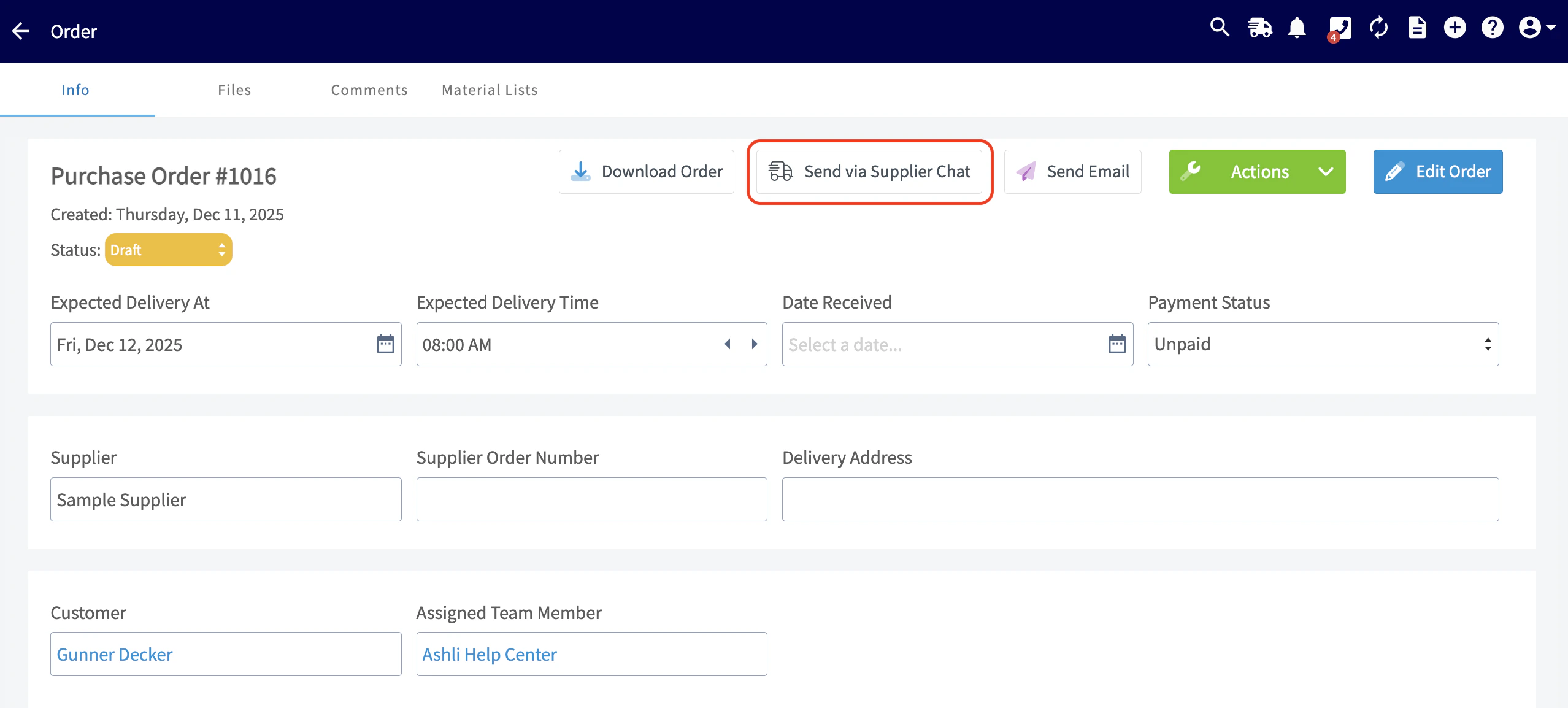
- Attaching it to an existing chat with a supplier.
- Searching for a new supplier and starting a chat with them.
Supplier Chat on Mobile App
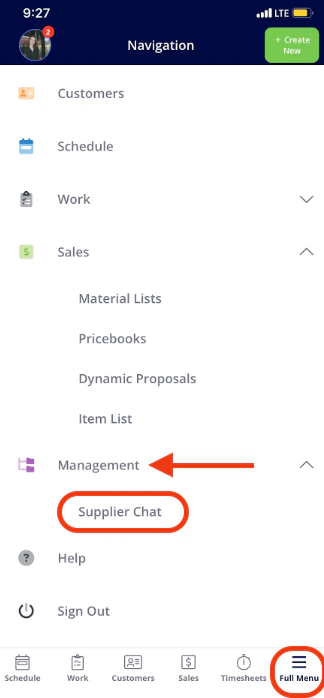
Our Supplier Chat feature, designed to streamline communications with your suppliers and keep your entire team informed, is also available on our mobile app! Note: Access to this feature is based on the user permissions set up within your Company Settings. To use Supplier Chat on the mobile app, follow these steps:- Open the app and go to Full Menu.
- Select the Management tab.
- Tap on Supplier Chat to get started!
Send Purchase Orders Via Supplier Chat - Mobile App
If your supplier uses our Supplier Chat feature, you can send them the purchase orders you create in FieldPulse directly through Supplier Chat. Once you have created your purchase order, simply click the Actions button. From here, select the Send via Supplier Chat button.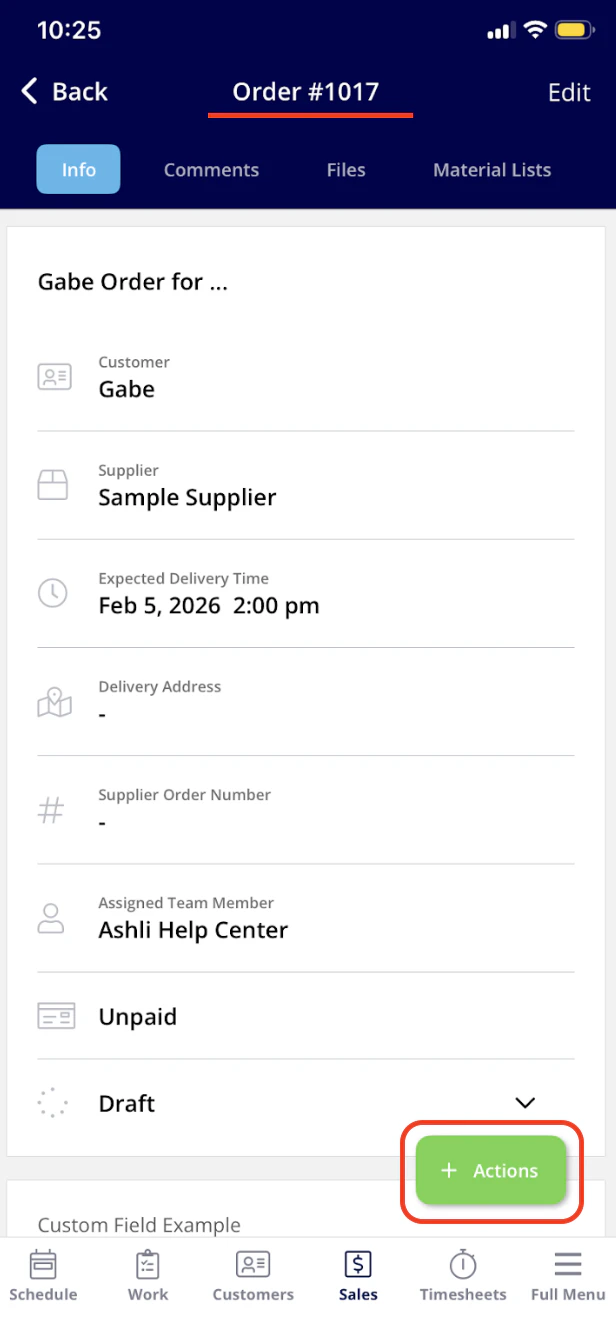
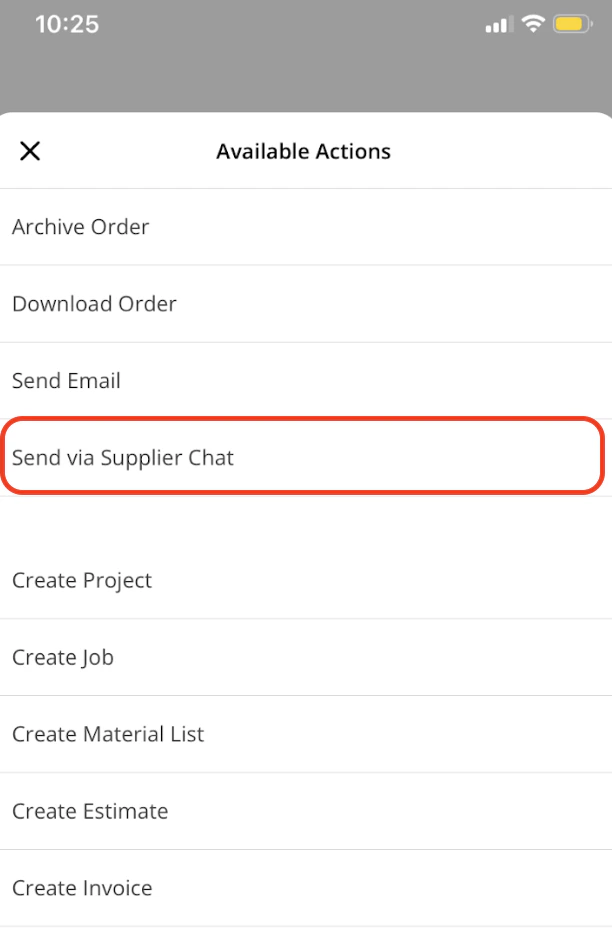
- Attaching it to an existing chat with a supplier.
- Searching for a new supplier and starting a chat with them.

Have additional questions? Contact us at support@fieldpulse.com or use the chat feature in the bottom right corner of your screen.