In this article, we’ll walk you through the steps to integrate FieldPulse with your Reece maX account.Documentation Index
Fetch the complete documentation index at: https://fieldpulse.mintlify.app/llms.txt
Use this file to discover all available pages before exploring further.
Setting Up the Integration
1. Navigate to Company Settings
Log in to FieldPulse and go to Company Settings > Features and Plugins in the top menu, find and enable the Reece maX integration.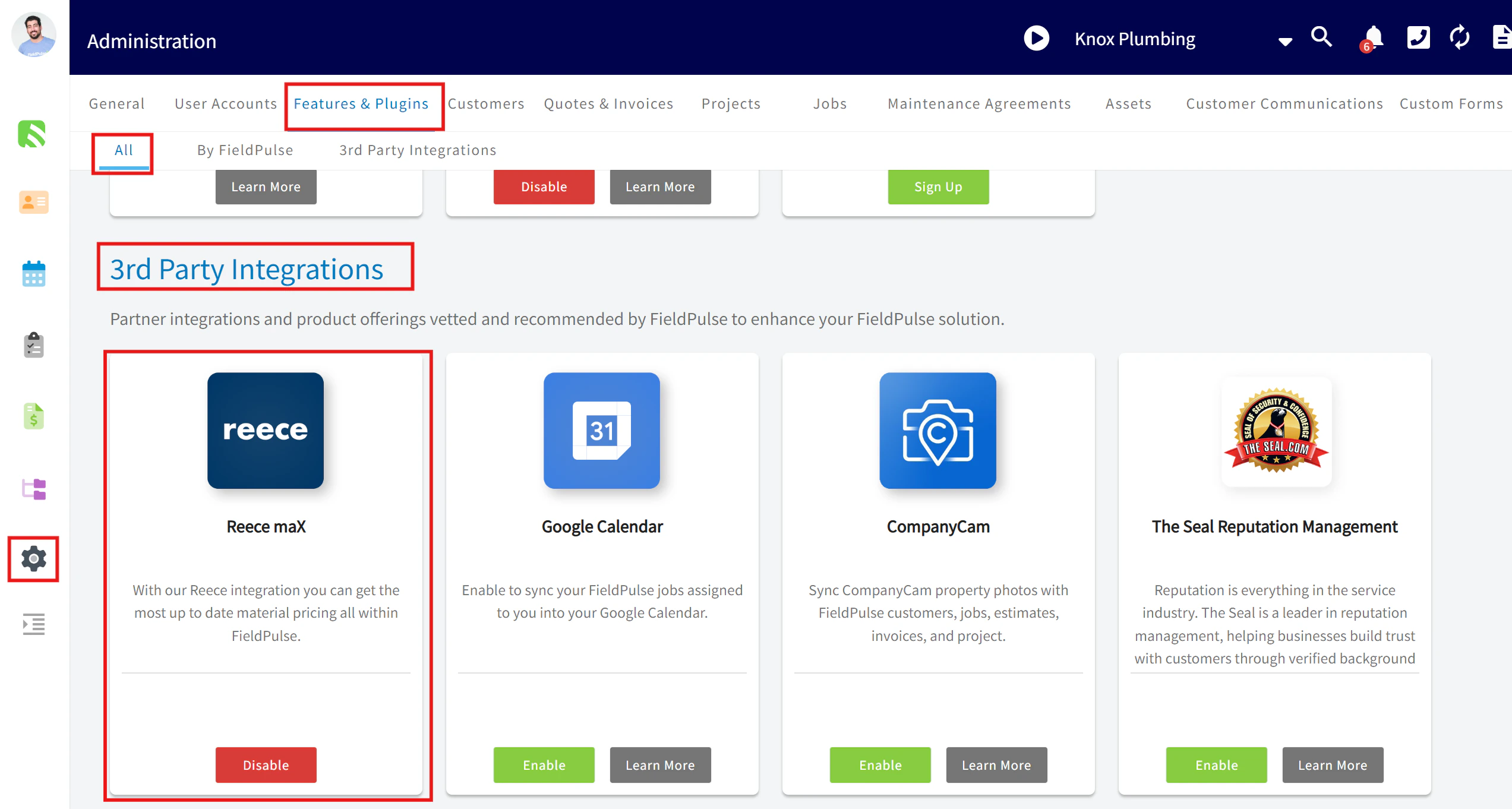
2. Authenticate with Reece maX
After enabling the integration, click the link in the pop-up to authenticate your FieldPulse account with your Reece maX account. This action will redirect you to the Reece maX login page.3. Log In to Reece maX
On the Reece maX page, enter your login details. Upon successful login, the integration between FieldPulse and Reece maX will be activated. Now your systems are connected!Integration Benefits
Reece Purchase Orders
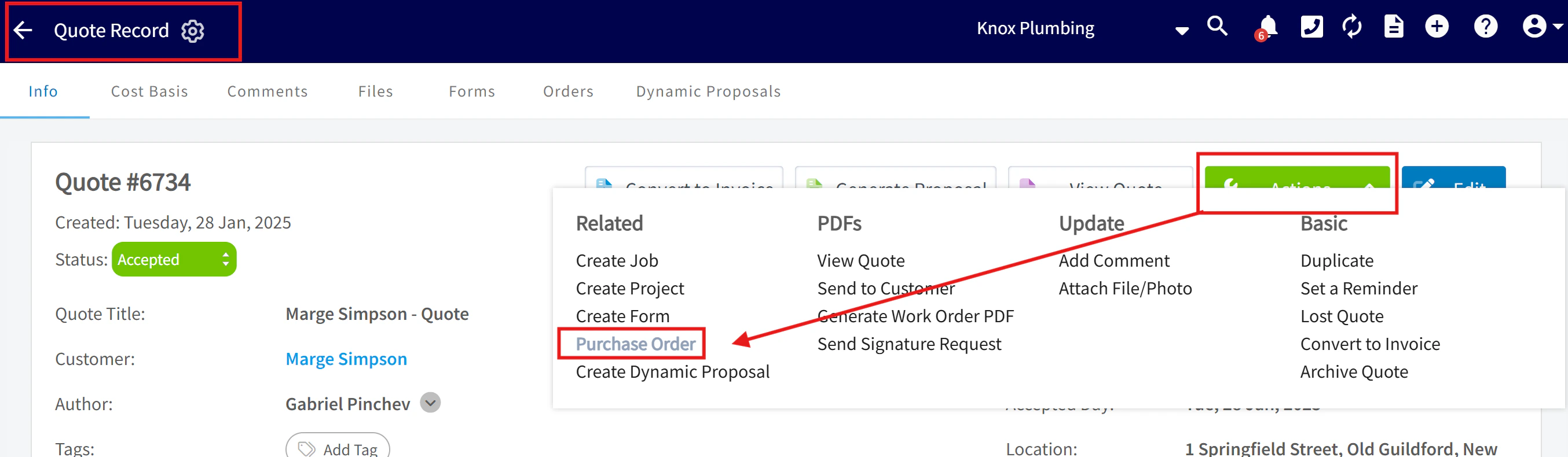
Within FieldPulse, you can create new purchase orders and send them to your chosen Reece branch, eliminating the need for manual transfers.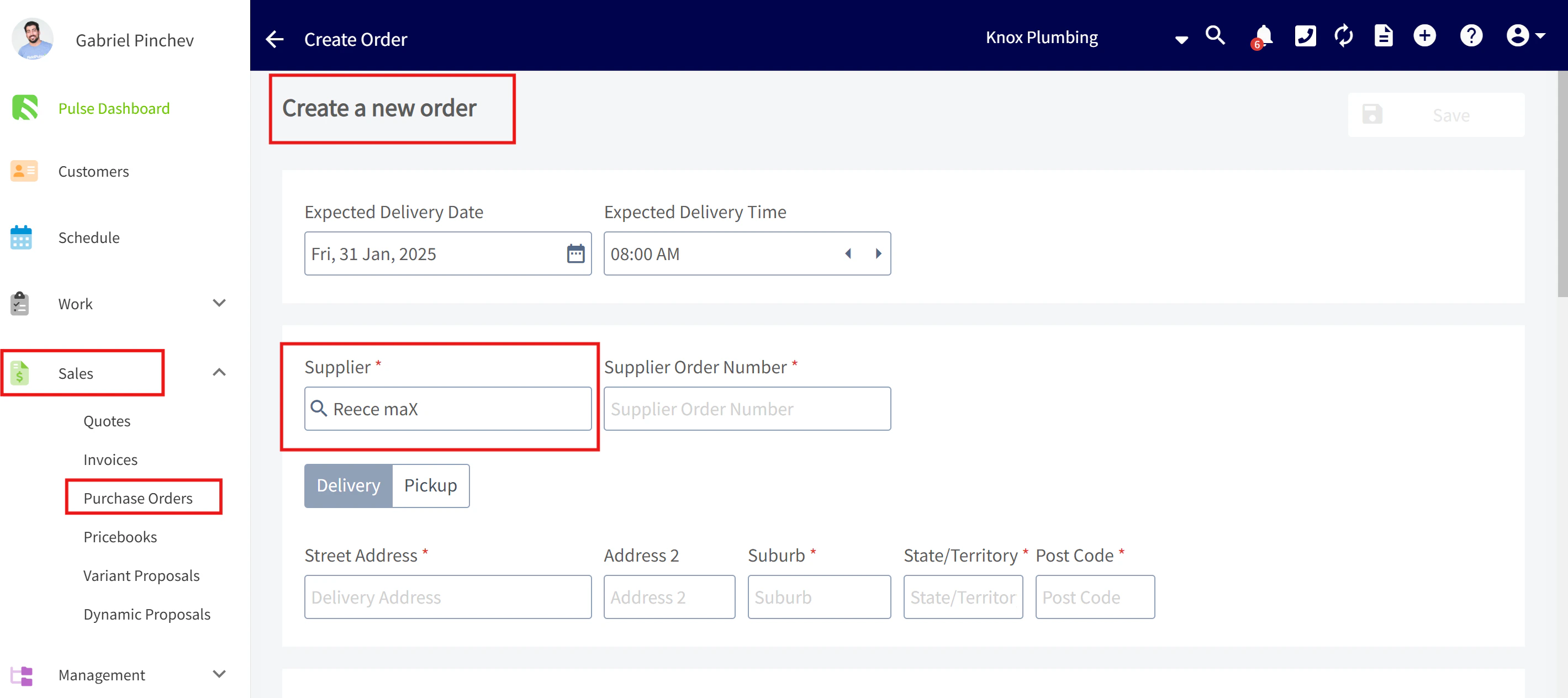
Link Reece Supplier Invoices to your FieldPulse Jobs
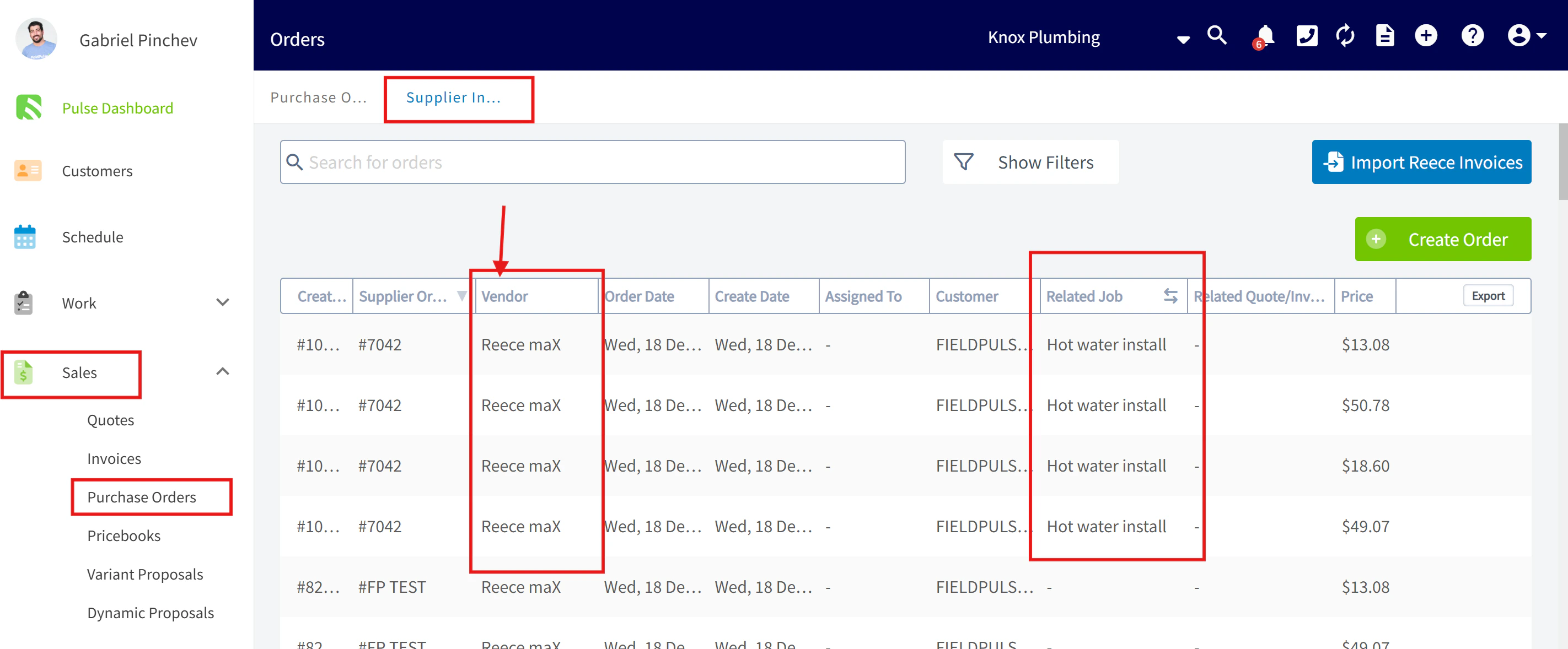
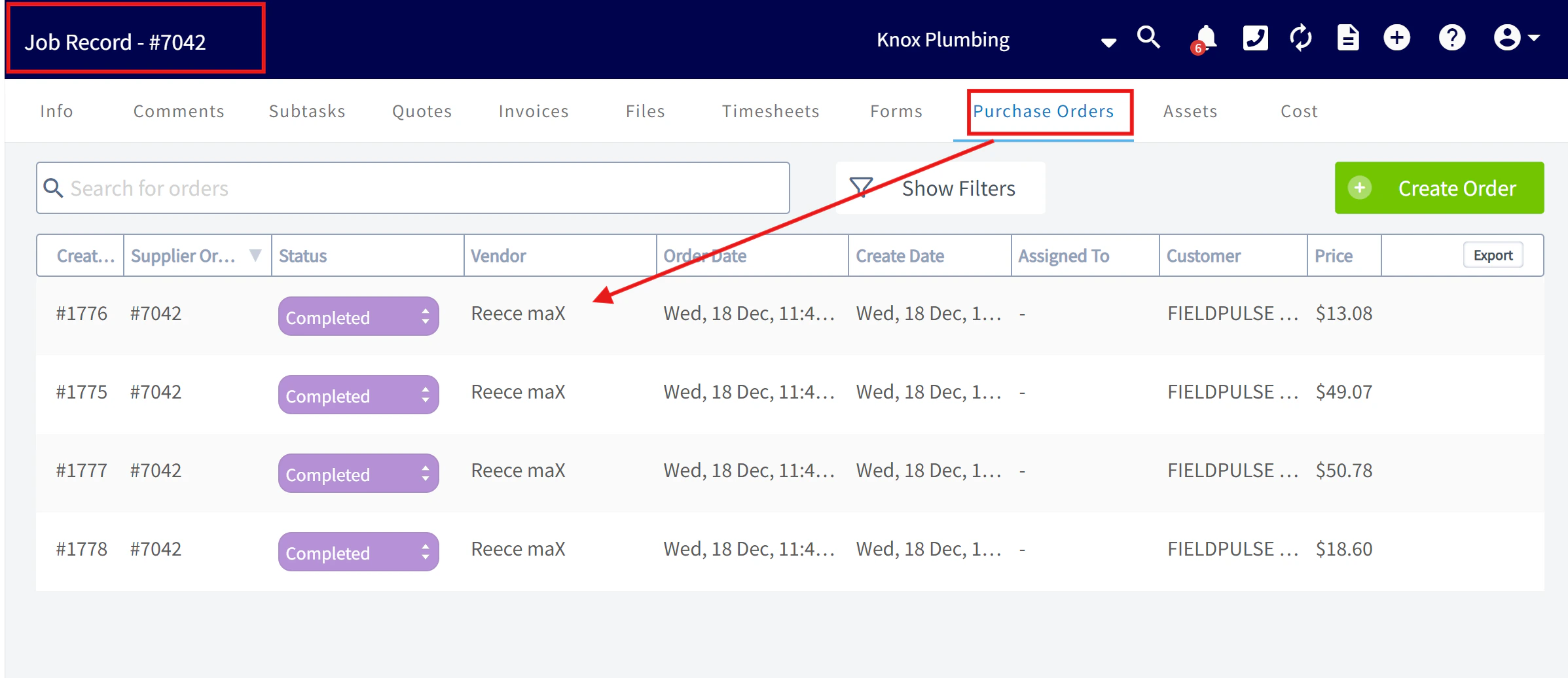
To ensure accurate job costing with your Reece purchases in FieldPulse, follow these steps: 1. Mention your FieldPulse job number when placing an order at Reece, whether in-store, over the phone, or via the maX app.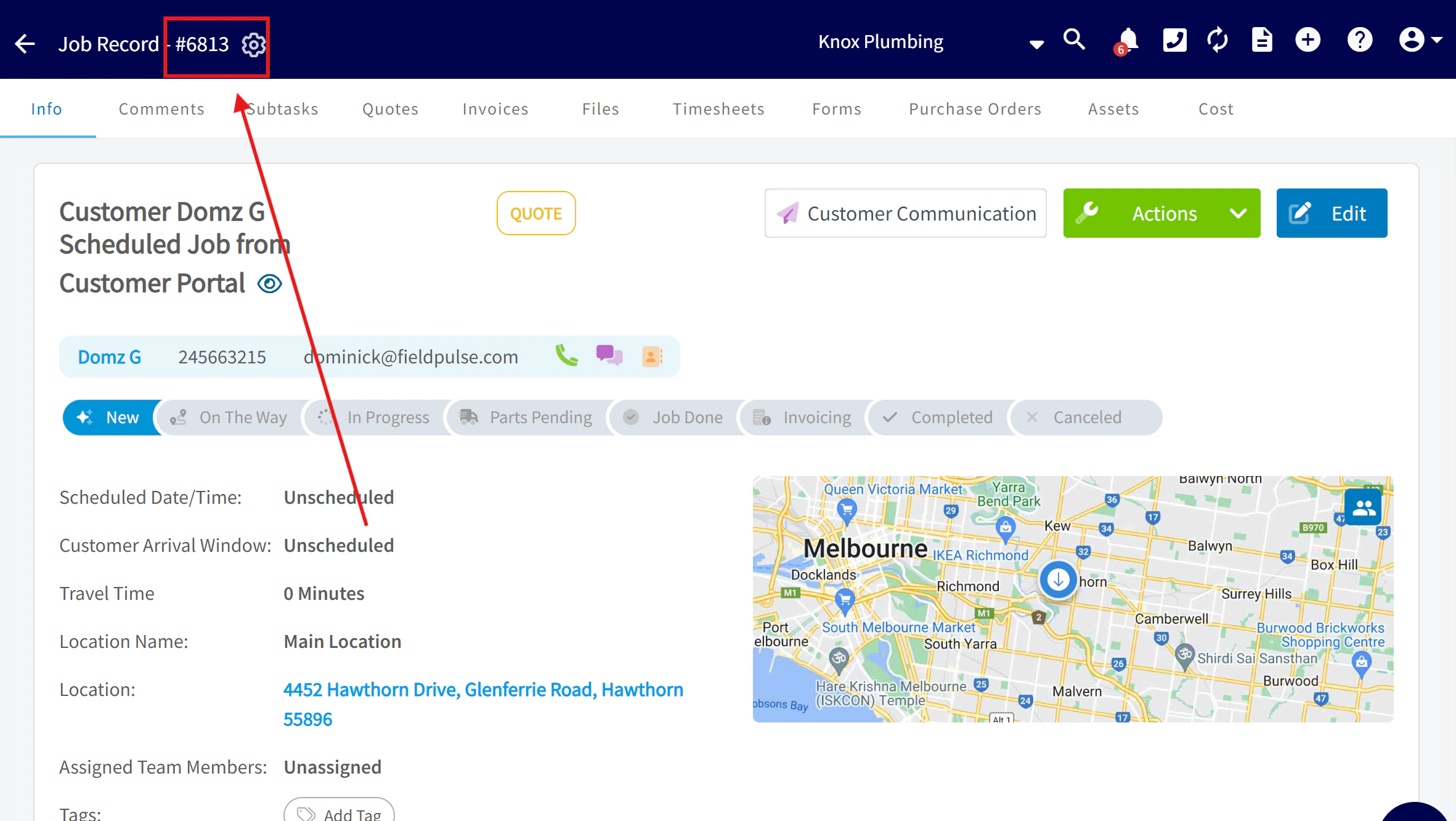
Add Reece items to your Estimates, Invoices, or Purchase Orders
Method 1: Reece Item Search (API Integration)
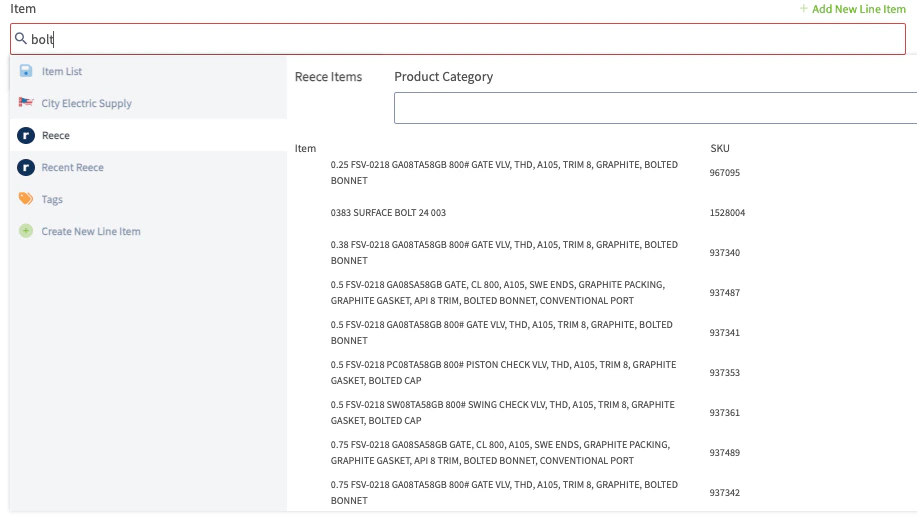
This integration streamlines creating estimates, invoices, and purchase orders by introducing an item search API. Follow these steps to add items directly from the Reeces item API without leaving FieldPulse: 1. Open a new record or edit an existing estimate, invoice, or purchase order. 2. Click on ‘Add Item’ and select the ‘Reece’ subtab. 3. Enter the item name or SKU you’re looking for. This allows you to seamlessly integrate Reece products into your documents directly through FieldPulse.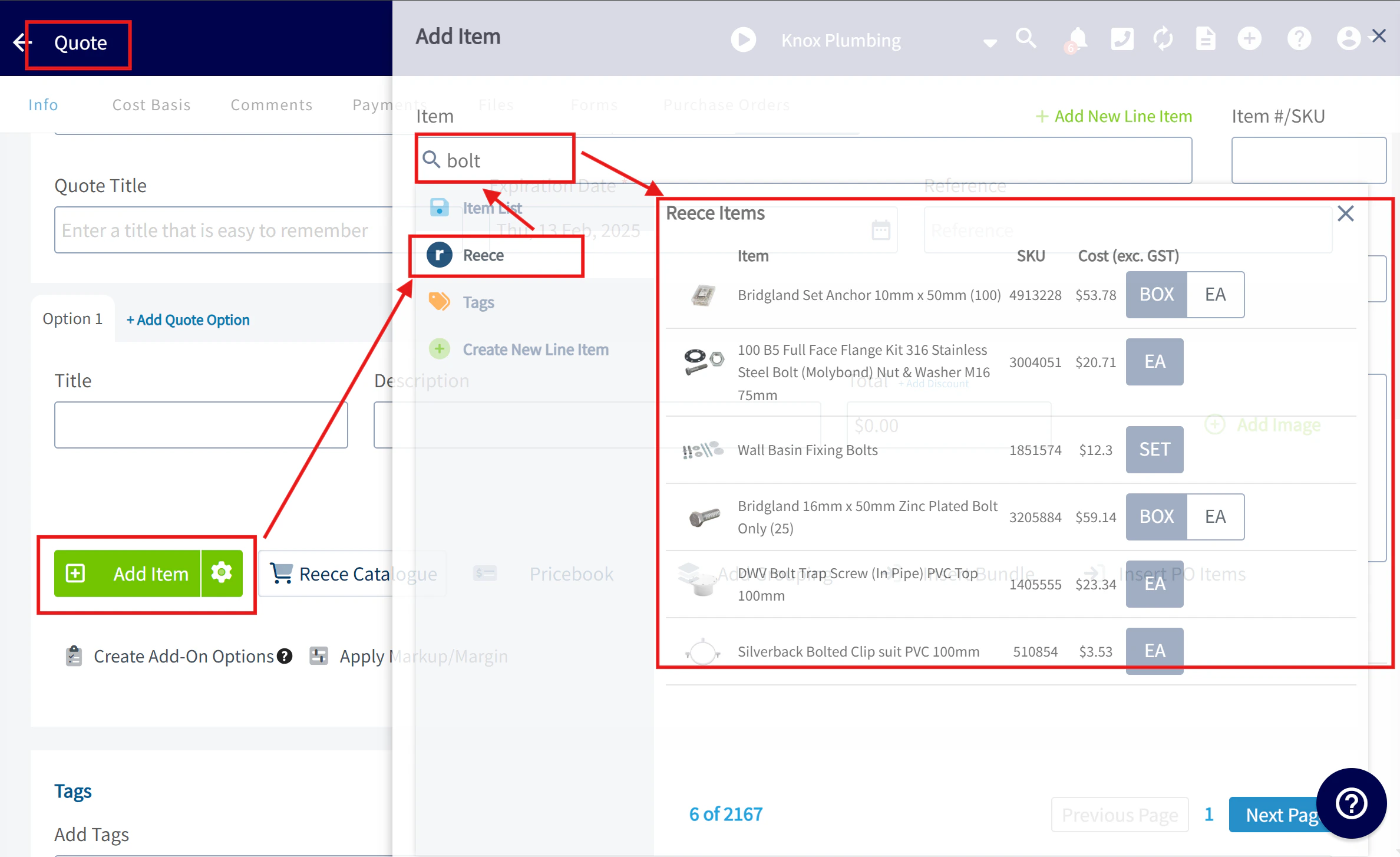
Method 2: Reece maX Catalog Integration ( PunchOut)
The integration provides direct access to the Reece maX from a ‘Reece Catgoue’ button within FieldPulse. Here’s how it simplifies adding items to your FieldPulse records: 1. Click the ‘Reece Catalogue’ button in your FieldPulse estimate, invoice, or purchase order to open the Reece maX site. Log in if needed. Note a new tab is opened. 2. Browse the catalog and add items or branch quotes to your cart as usual in ReecemaX. 3. gate to your cart and select ‘Process Order’. This action will transfer the items from your Reece maX cart into your FieldPulse document. 4. The items are not actually purchased on Reece maX; they are simply copied over to FieldPulse, allowing you to build your records with accurate Reece pricing effortlessly. This “PunchOut” integration ensures that items selected on Reece maX seamlessly populate your FieldPulse documents, enhancing the ease and accuracy of creating estimates, invoices, or purchase orders.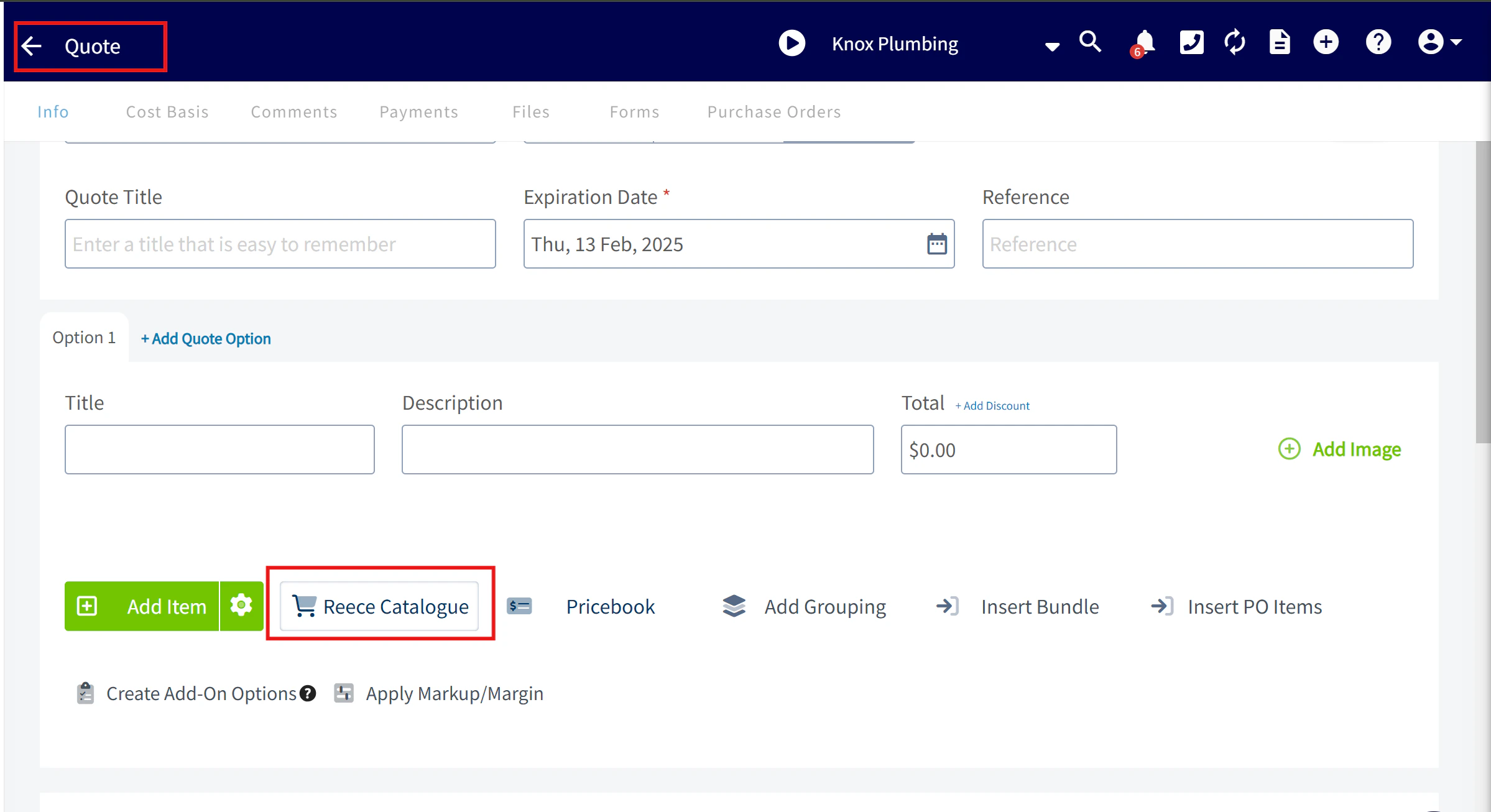
Permission Settings That Will Impact This Integration
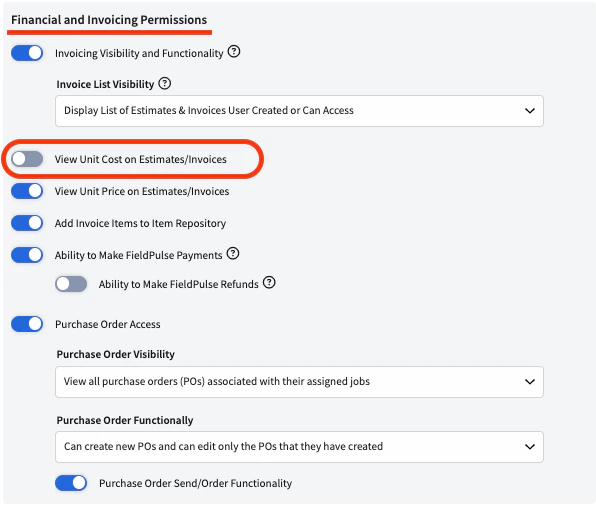
If you do not want your Service Agents to have access to see the cost of items from Reece, ensure that the toggle is off for the ability to View Unit Costs on Estimates/Invoices.