Who uses this: The team member working the job closes it out from the FieldPulse mobile app. Availability: All regions.Finishing a job is more than putting the tools away. From the FieldPulse mobile app, the person on site updates the job status, logs field notes, attaches photos and files, and leaves comments for the office — so the record is current before anyone drives away.
Overview
Completing a job in the field happens in the FieldPulse mobile app. Open the job record, document the work with field notes, photos, files, and comments, change the job status to Completed, and clock out of the job. FieldPulse tracks how long the job spends in each status, and records the job duration when the status changes to Completed.Video walkthrough
Watch the walkthrough, then follow the written steps below.Video walkthrough: Completing a job from the FieldPulse mobile app
Before you begin
- The job has to exist before anyone can work it and close it out. See How to Create a Job to build one, or How to Create Recurring Jobs for work that repeats.
- Every step below happens in the FieldPulse mobile app, on the phone or tablet you carry to the site.
On mobile
Find and open the job
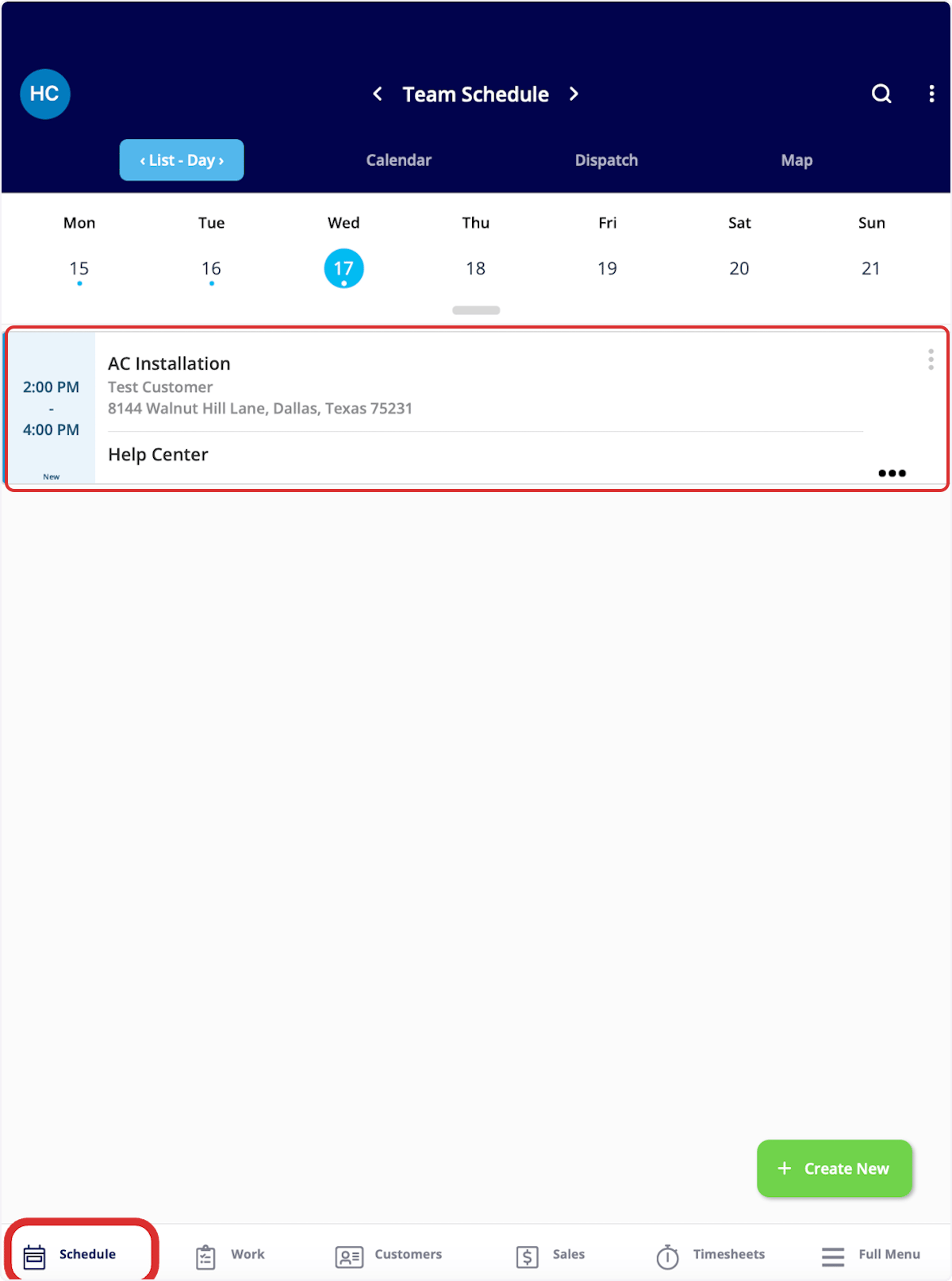
There are several ways to find a job in the mobile app. This example uses the Schedule tab.- Select the Schedule tab in the bottom menu.
- Select the job to open its job record.
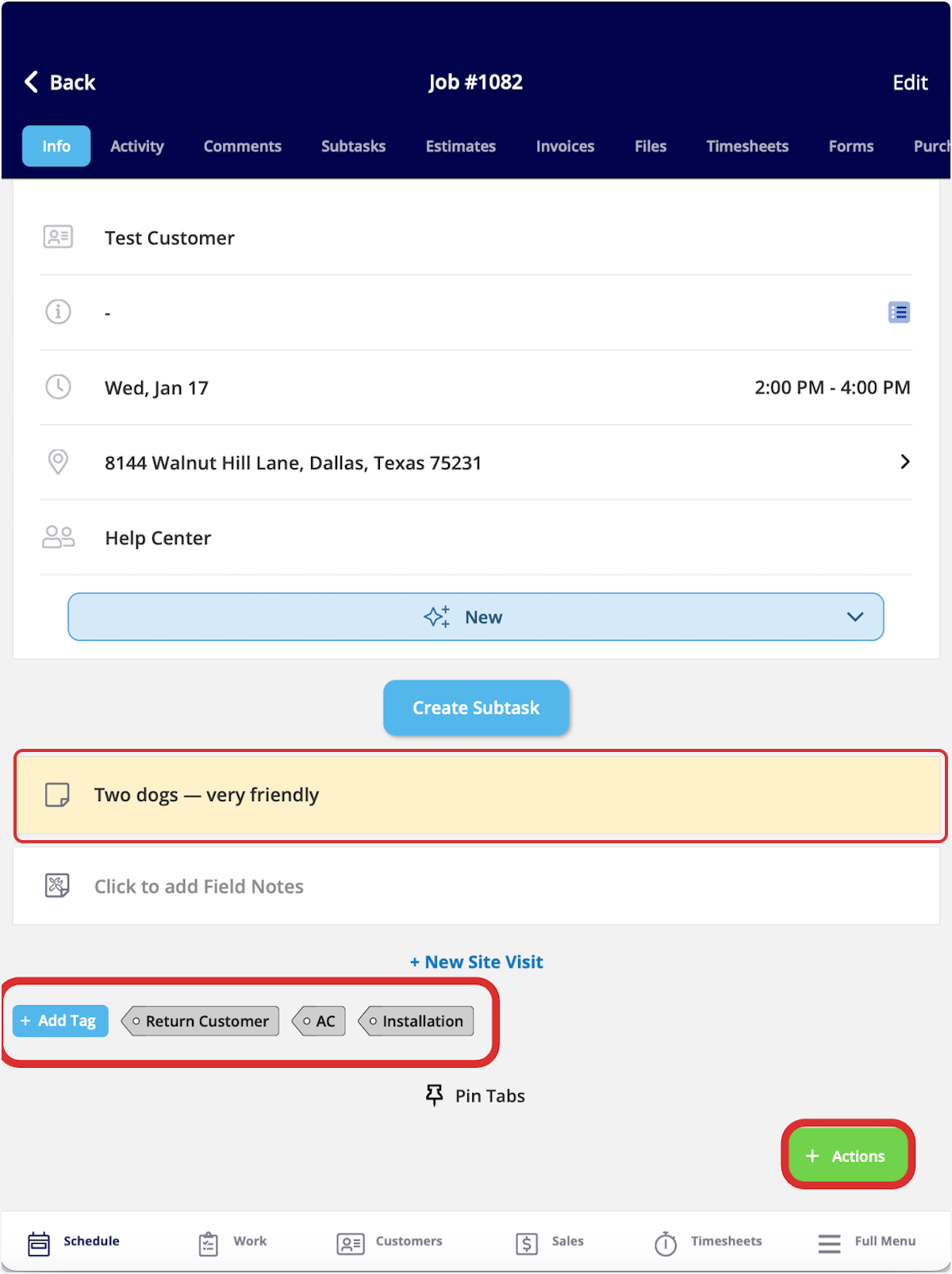
- Customer details — the customer’s name and address
- Notes — internal notes, highlighted in yellow
- Tags — the job’s existing tags, plus + Add Tag to add more
Change the job status
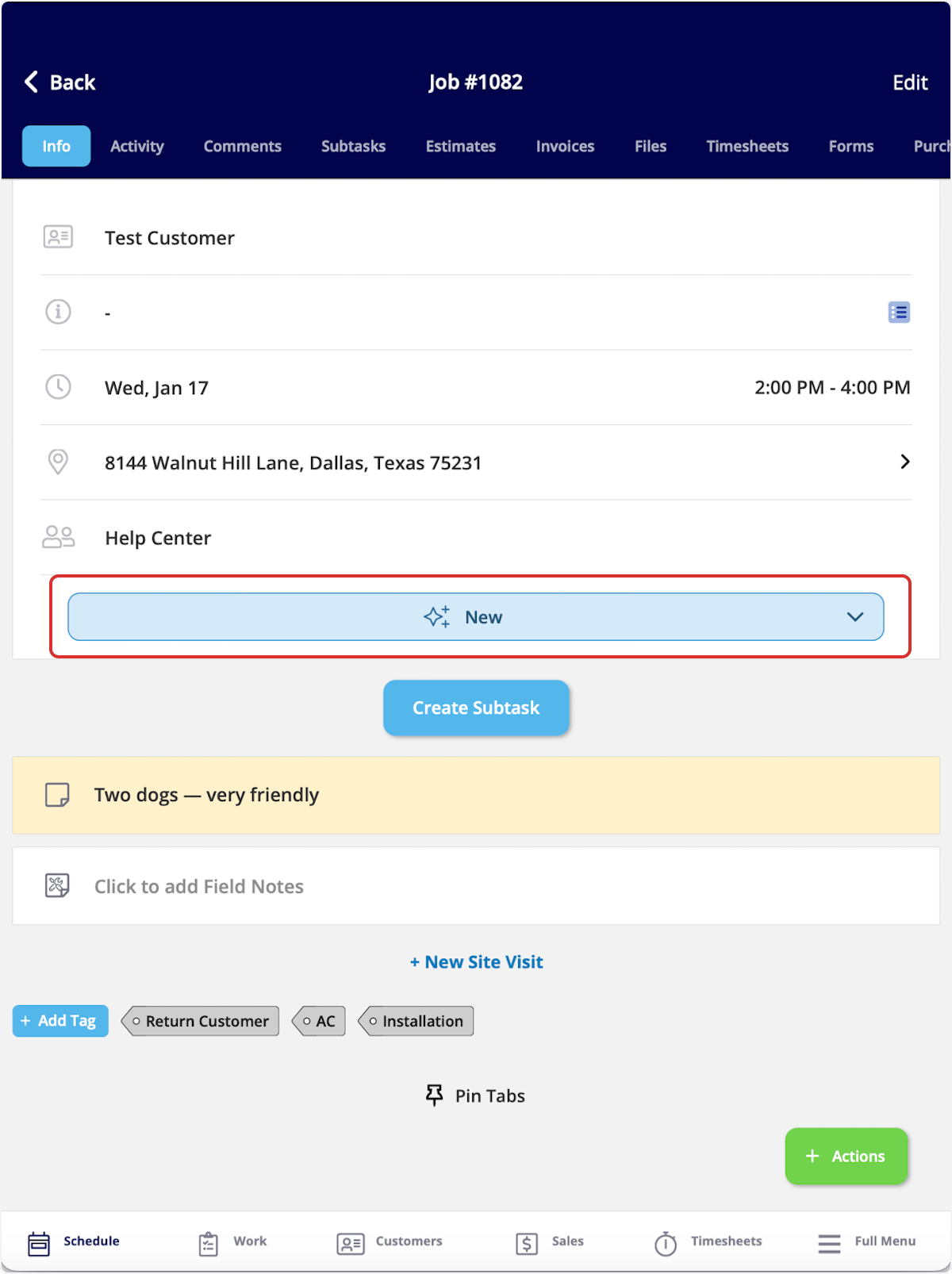
Change the job status from the Info page of the job record, at any point in the work.- Select the current status — New, in the example below.
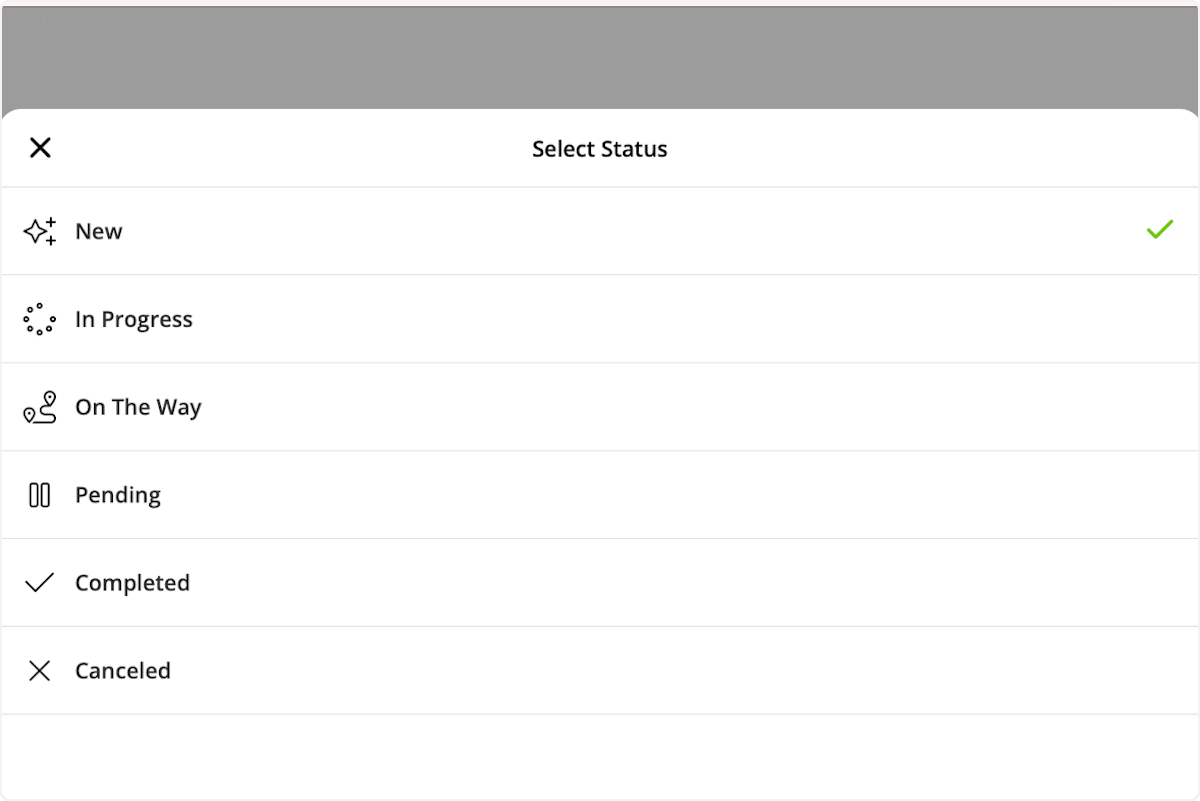
- Select the status you want from the Select Status list.
Navigate to the customer’s location
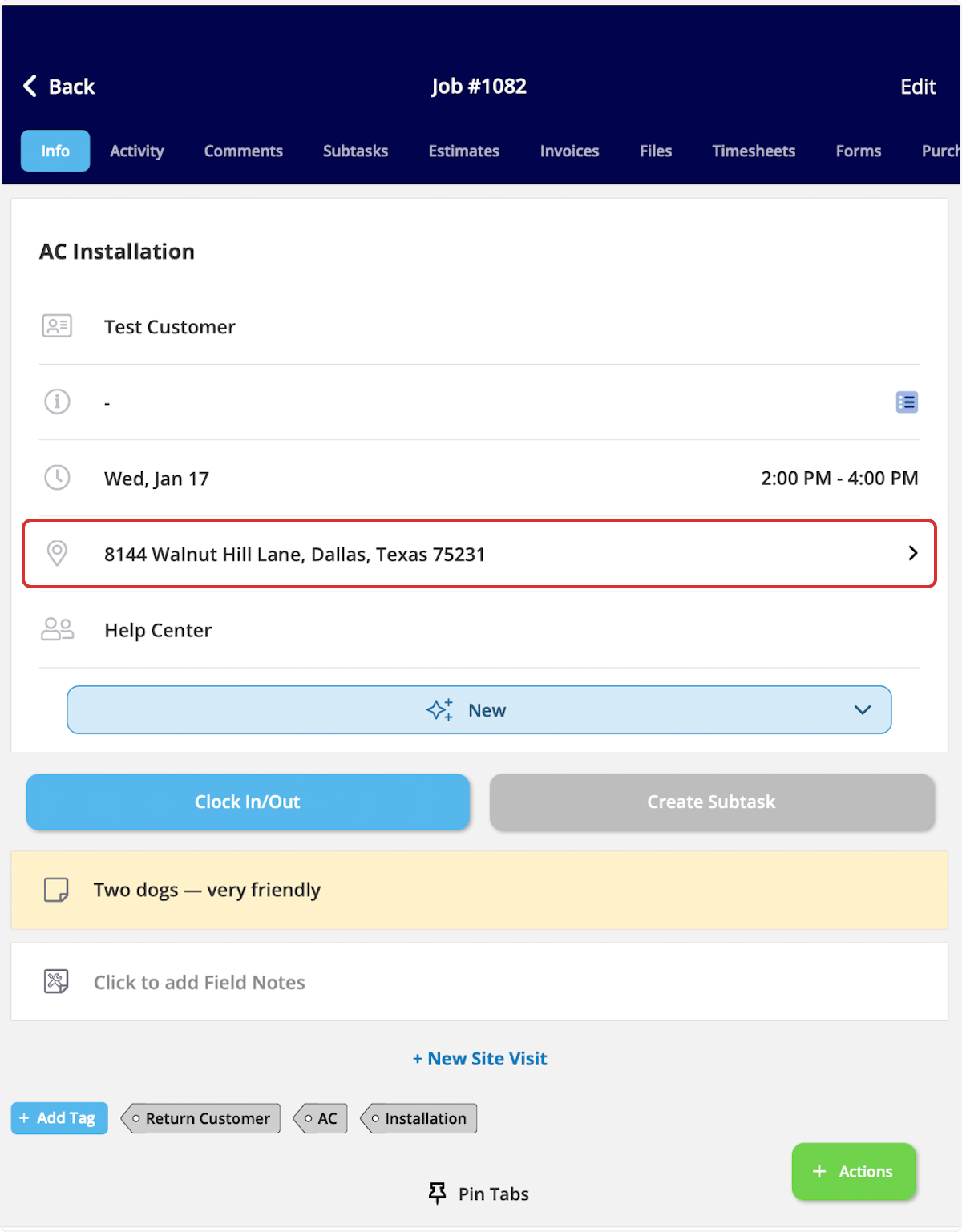
- On the Info page, select the customer’s address. The address opens on a map.
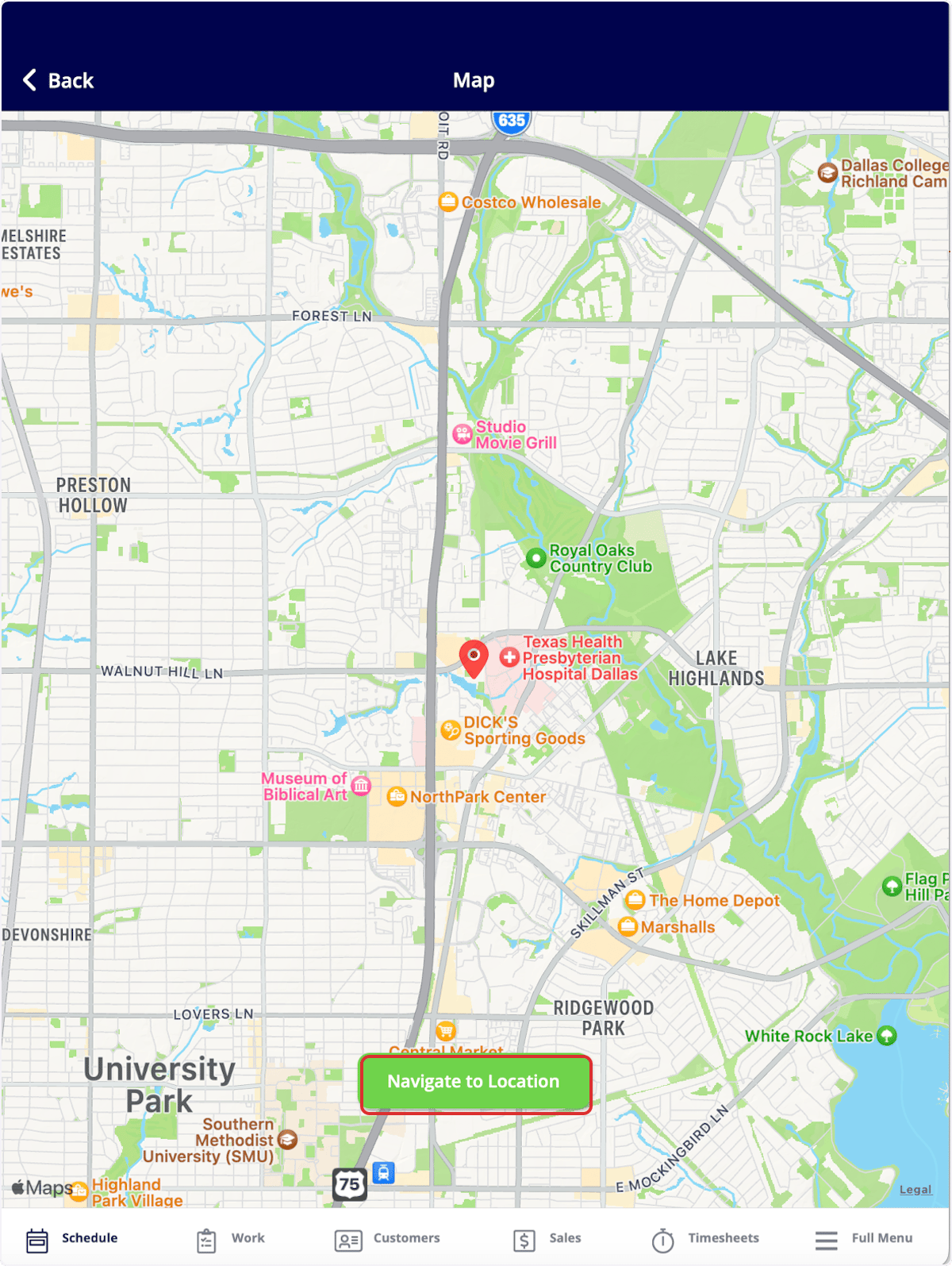
- Select Navigate to Location, then choose your preferred map application for turn-by-turn directions.
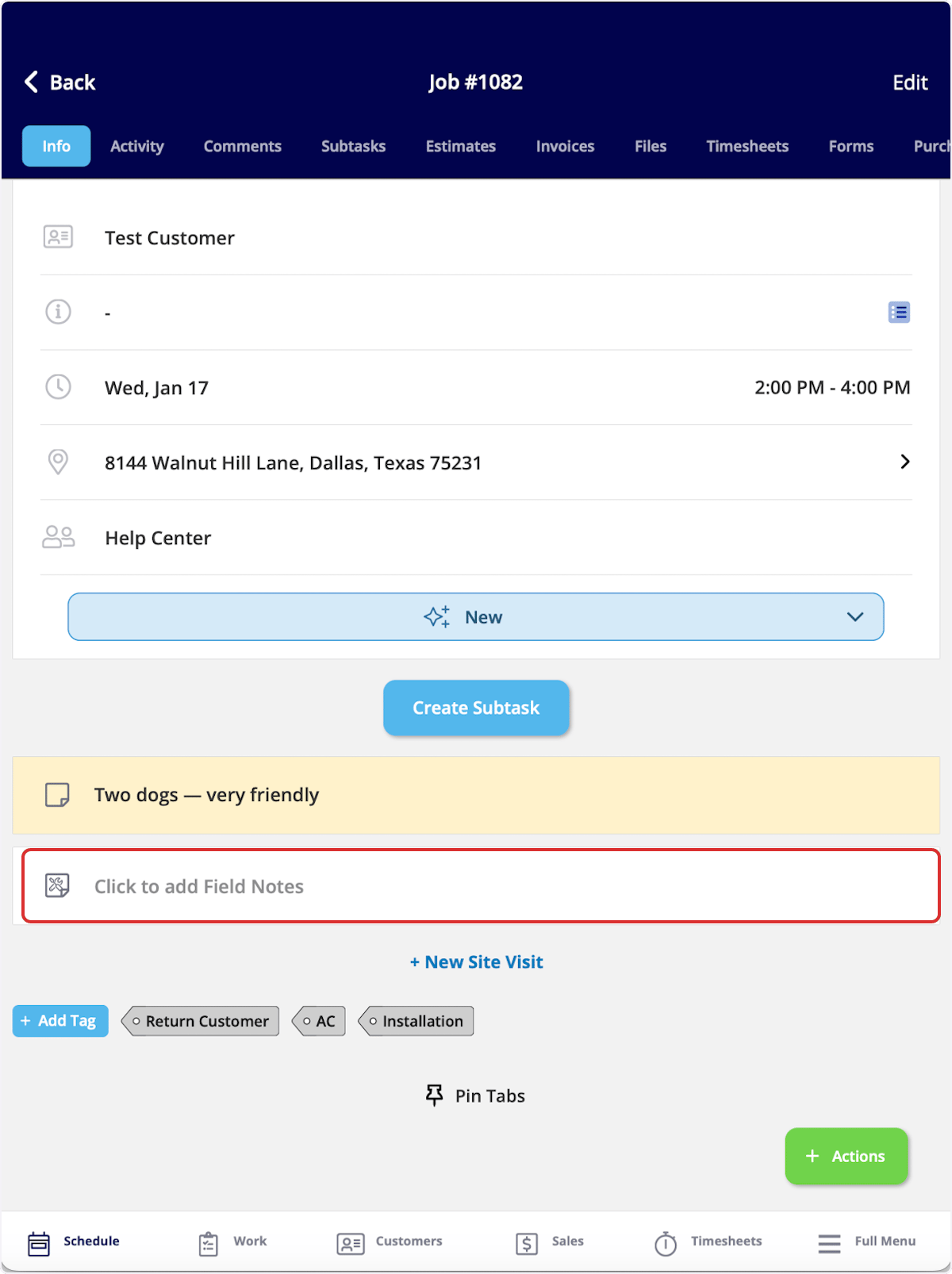
Add field notes
Field notes go on the Info page of the job record.- On the Info page, select Click to add Field Notes.
- Enter your information.
Attach files and photos
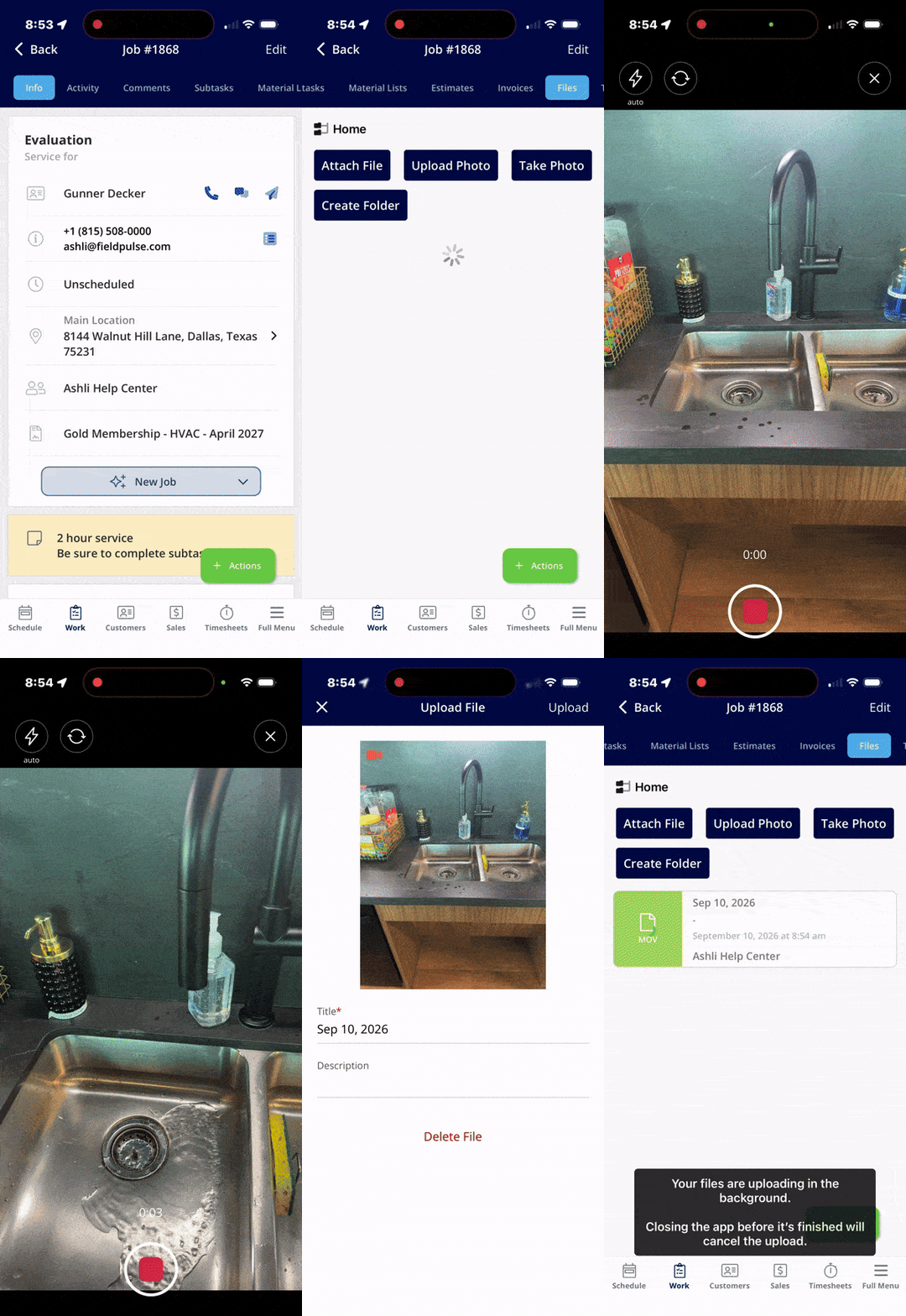
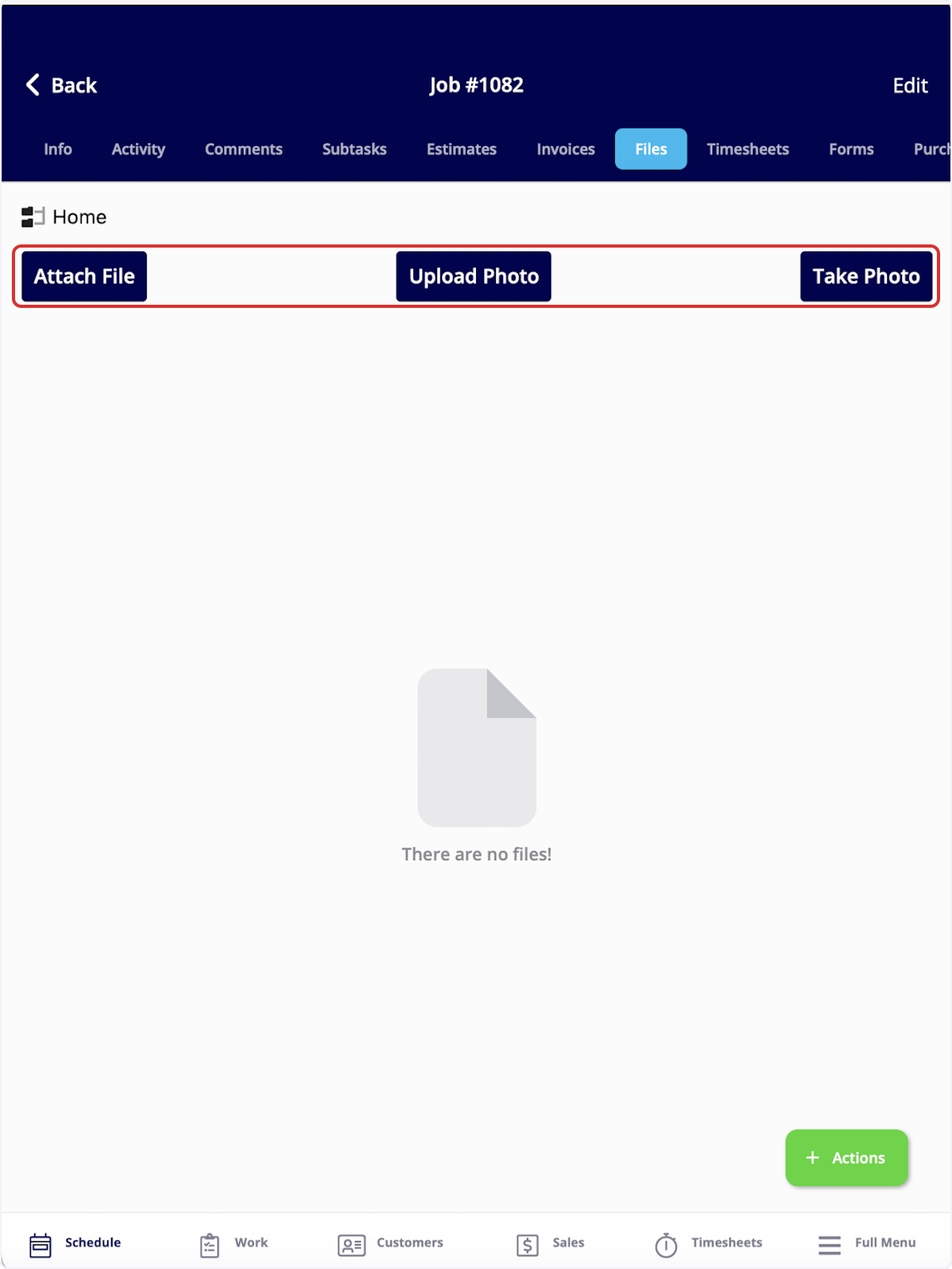
Files and photos go on the Files tab of the job record.- Select the Files tab in the top menu.
- Select Attach File, Upload Photo, or Take Photo. Take Photo opens the in-app camera, where you can capture a photo or switch to video mode to record a video. Whatever you capture is attached to the job record right away.
Leave a comment for the team
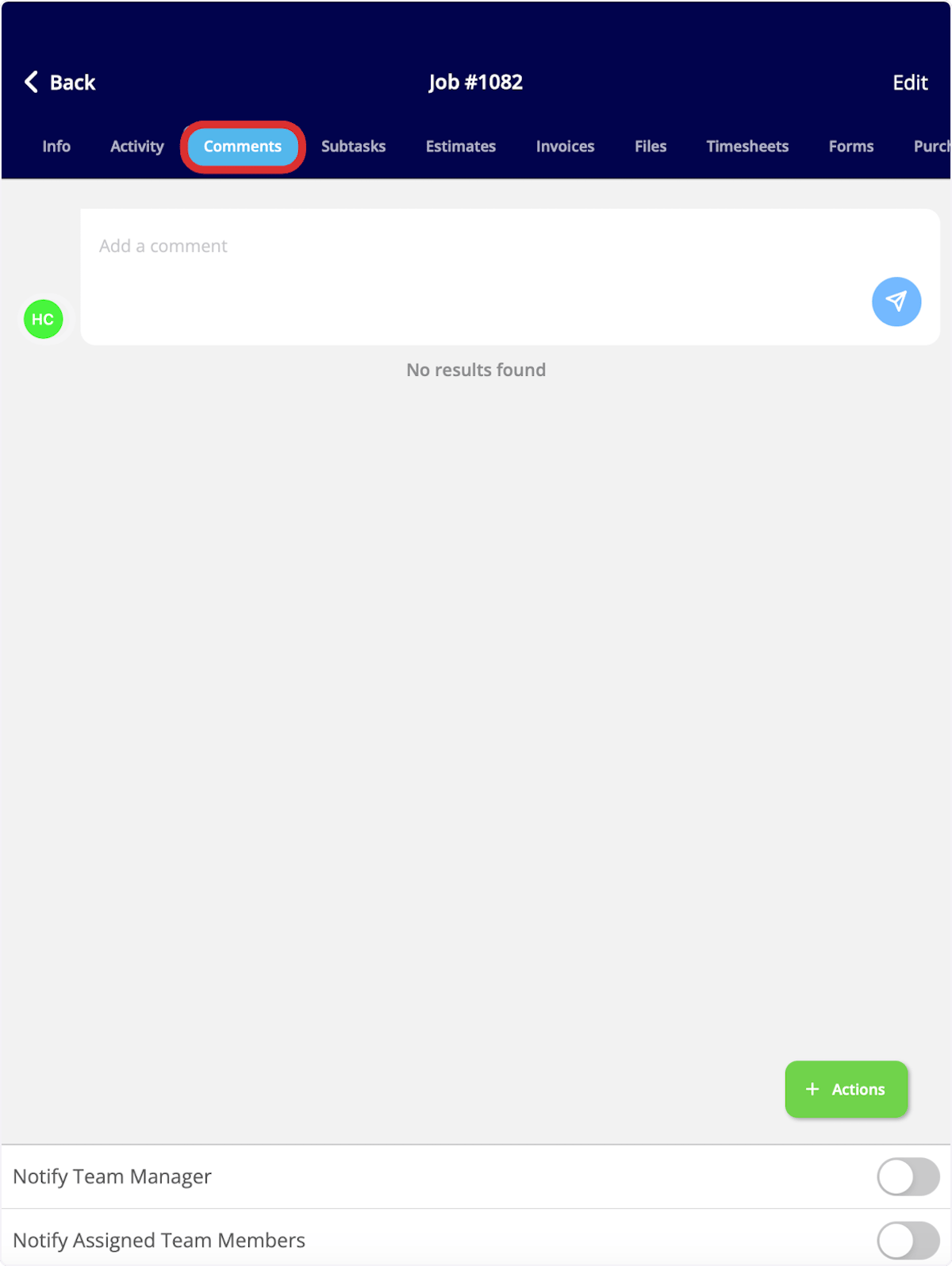
Comments go on the Comments tab of the job record.- Select the Comments tab in the top menu.
- Set the notification toggles at the bottom of the screen — Notify Team Manager and Notify Assigned Team Members — as needed.
- Enter your comment and send it.
Mark the job complete and clock out
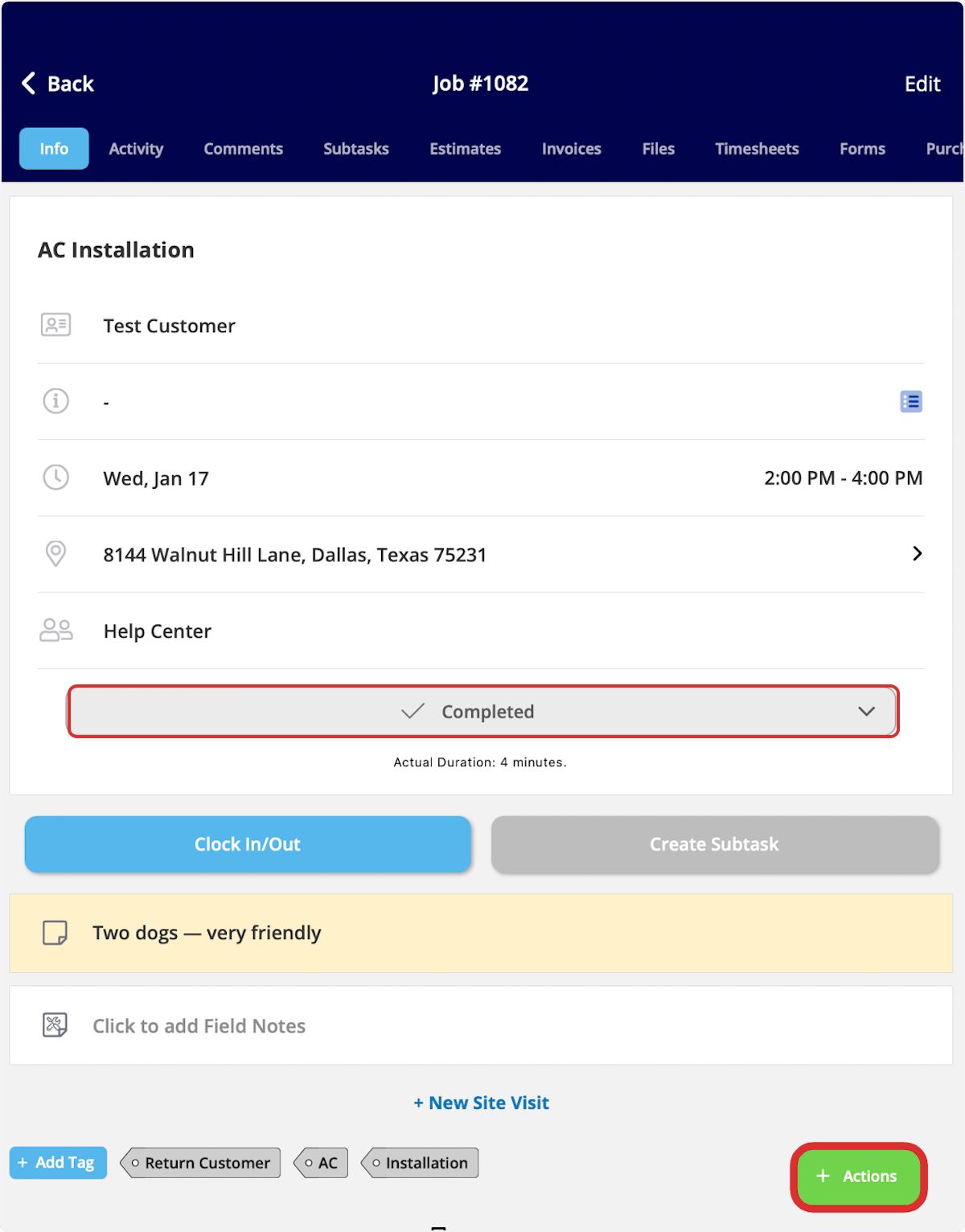
Finishing a job takes two actions — set the status to Completed, and clock out of the job.- On the Info page, select the status bar, then select Completed. FieldPulse records the job duration.
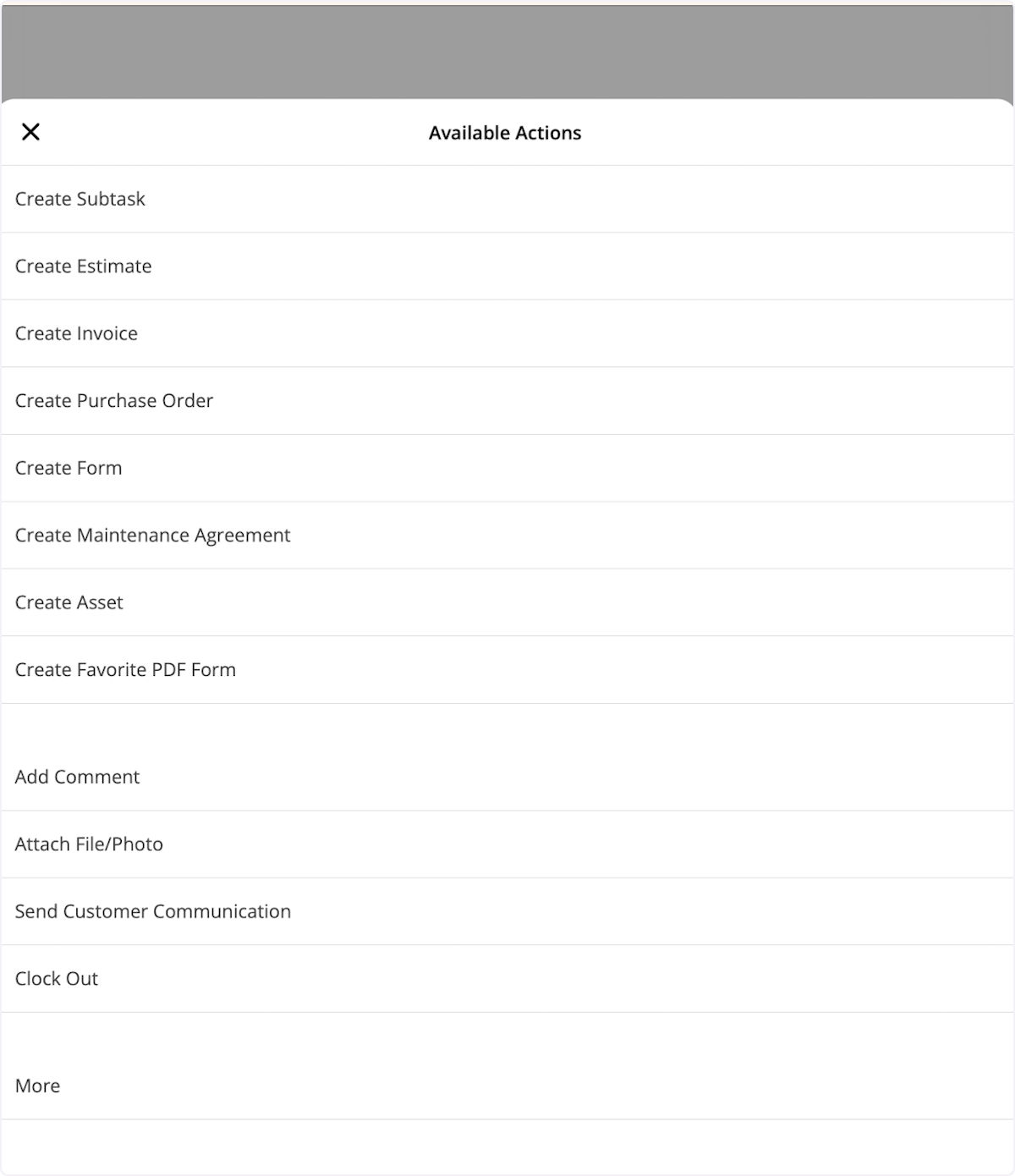
- Select Actions, then Clock Out.
FAQs
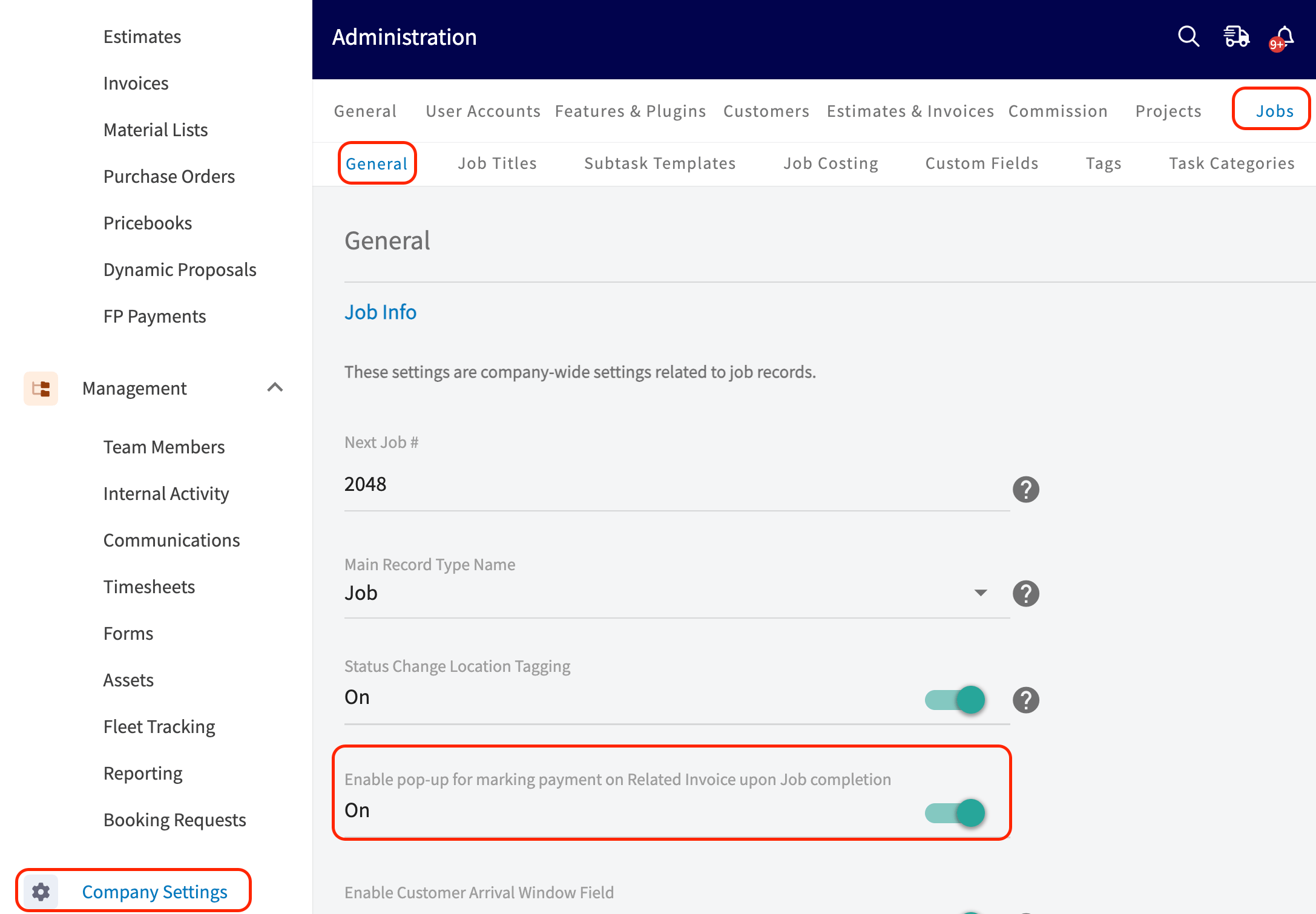
How do I turn off the “Mark Payment” pop-up that appears when I complete a job? By default, marking a job that has a related invoice as Completed brings up a pop-up asking “Do you want to mark payment on your invoice?”. To turn it off, go to Company Settings, then the Jobs tab, then General, and toggle off Enable pop-up for marking payment on Related Invoice upon Job completion.