Who uses this: An admin configures these company-wide settings. Admin and Team Manager roles with the Ability to View Job Cost tab permission turned on can see the Job Costing tab on job records. Availability: All regions · web app only.Most owners find out a job lost money long after the truck has left. Job Costing closes that gap by comparing what you expected to make against what you actually made on each job. Once it’s configured, every job record carries a complete financial picture of the work performed.
Overview
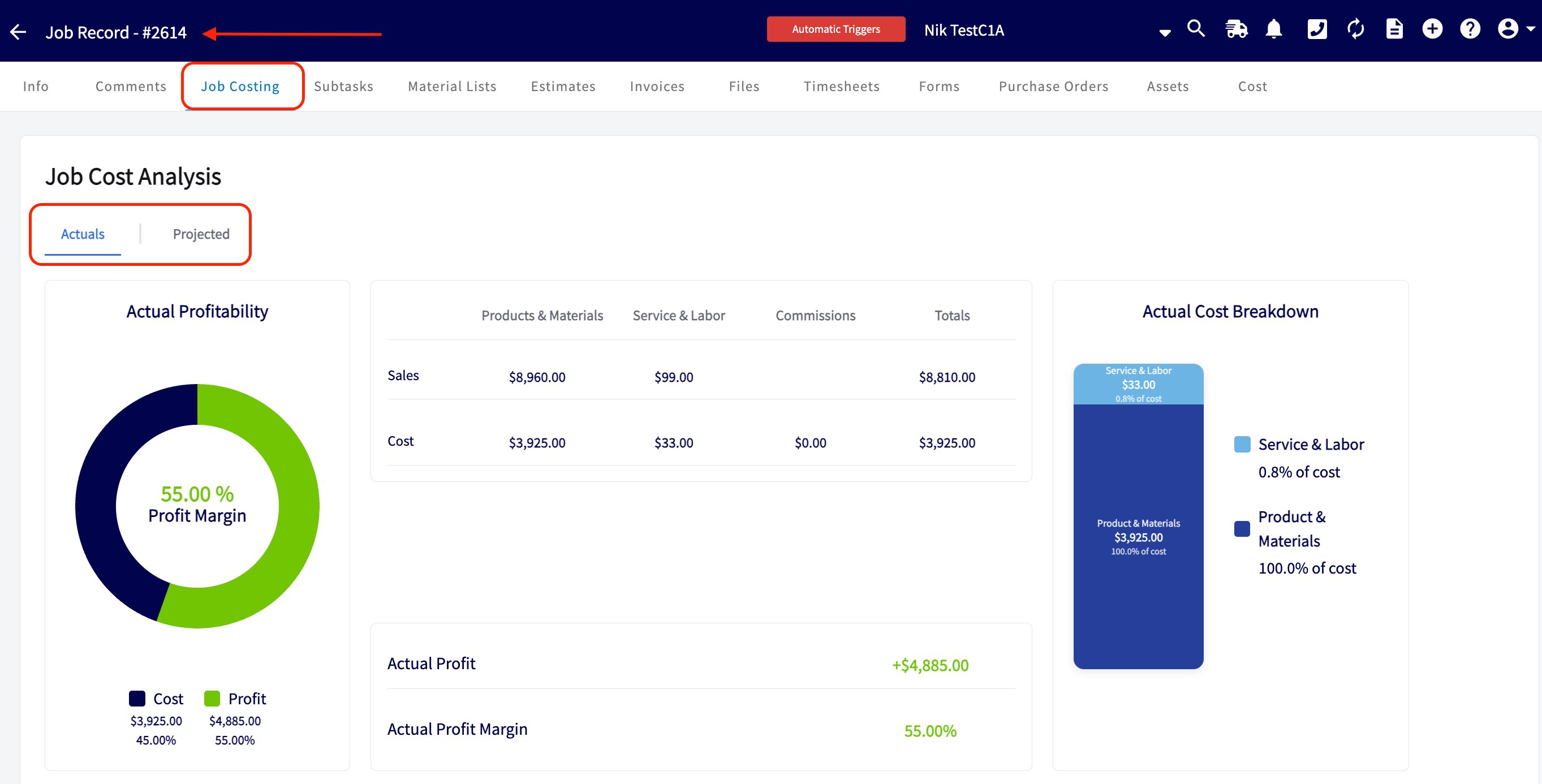
The Job Costing tab is available on every job record. The top of the tab is divided into two summary views:- Projected: your anticipated profit, margin, revenue, and costs before the job starts, based on your estimates and/or material lists. Use it to confirm your pricing before the work begins.
- Actuals: your finalized profit, margin, revenue, and costs after the job is complete, based on your final invoices and timesheet/labor records.
Sales tax is excluded from Job Costing calculations because it is not considered income. The Job Costing feature is currently available on the web app only.
Before you begin
- Confirm your role. Only Admin and Team Manager users can view the Job Costing tab, and each user sees only the records they have permission to access.
- Decide how you’ll track labor. You can count labor through timesheets, through labor line items, or both. Choosing this deliberately prevents counting the same labor twice.
Step-by-step setup
1. Choose your costing sources
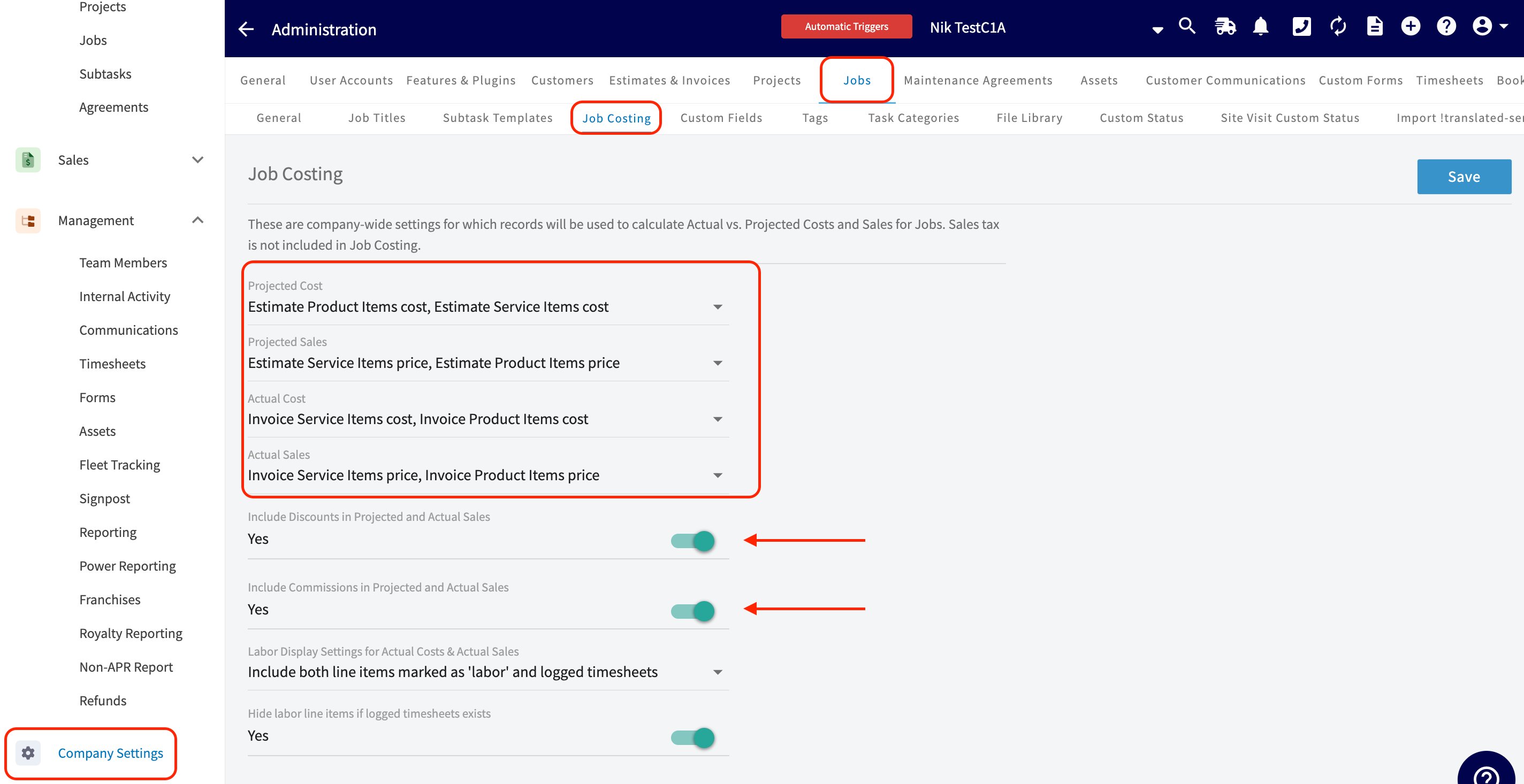
Costing sources are company-wide settings that decide which records feed the Actual vs. Projected calculations on your jobs.- As an admin, go to Company Settings > Jobs > Job Costing.
- Set the records that feed each metric: Projected Cost, Projected Sales, Actual Cost, and Actual Sales. The Settings reference below lists the options for each.
- Choose whether discounts and commissions count toward your margins with the Include Discounts in Projected and Actual Sales and Include Commissions in Projected and Actual Sales toggles — you have full control over both, so the calculations can match your accounting practices.
- Select Save.
2. Mark your labor service items
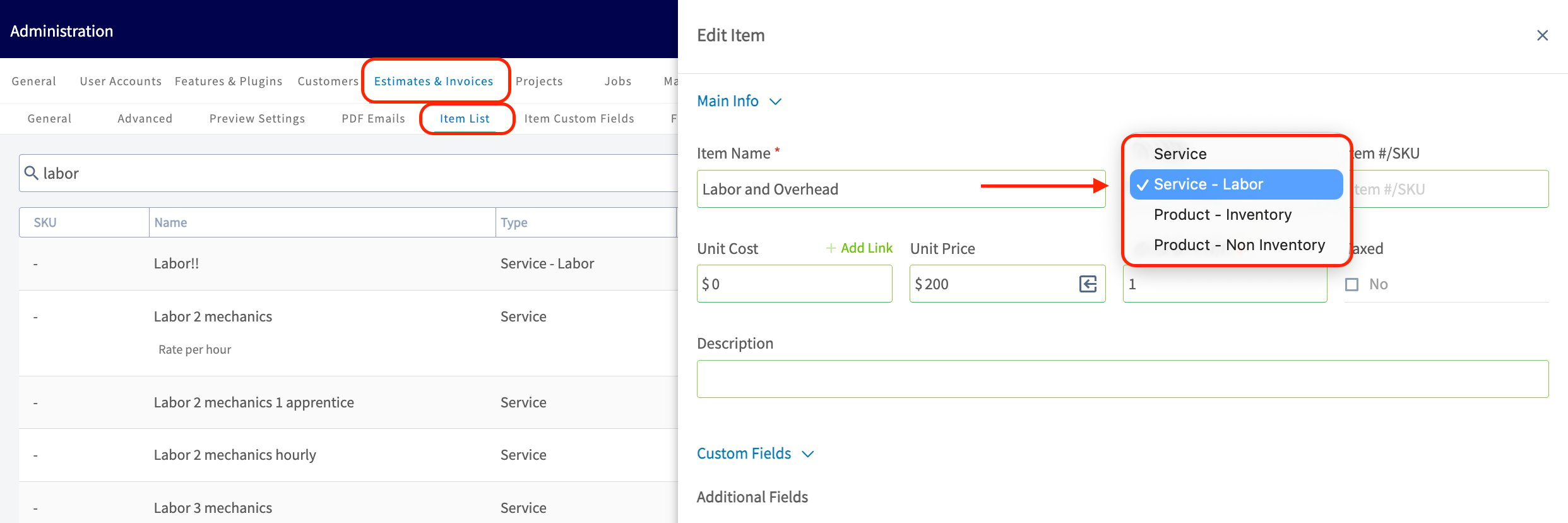
To track labor costs accurately, designate the service items that represent labor:- Go to Company Settings > Estimates & Invoices > Item List.
- When you create a new service item for labor, set its item type to Service - Labor — a fourth option in the item type dropdown. FieldPulse then automatically categorizes any costs associated with that item as Labor in your job costing calculations.
- For existing service items, open the item and update its item type manually.
3. Choose how labor costs are tracked
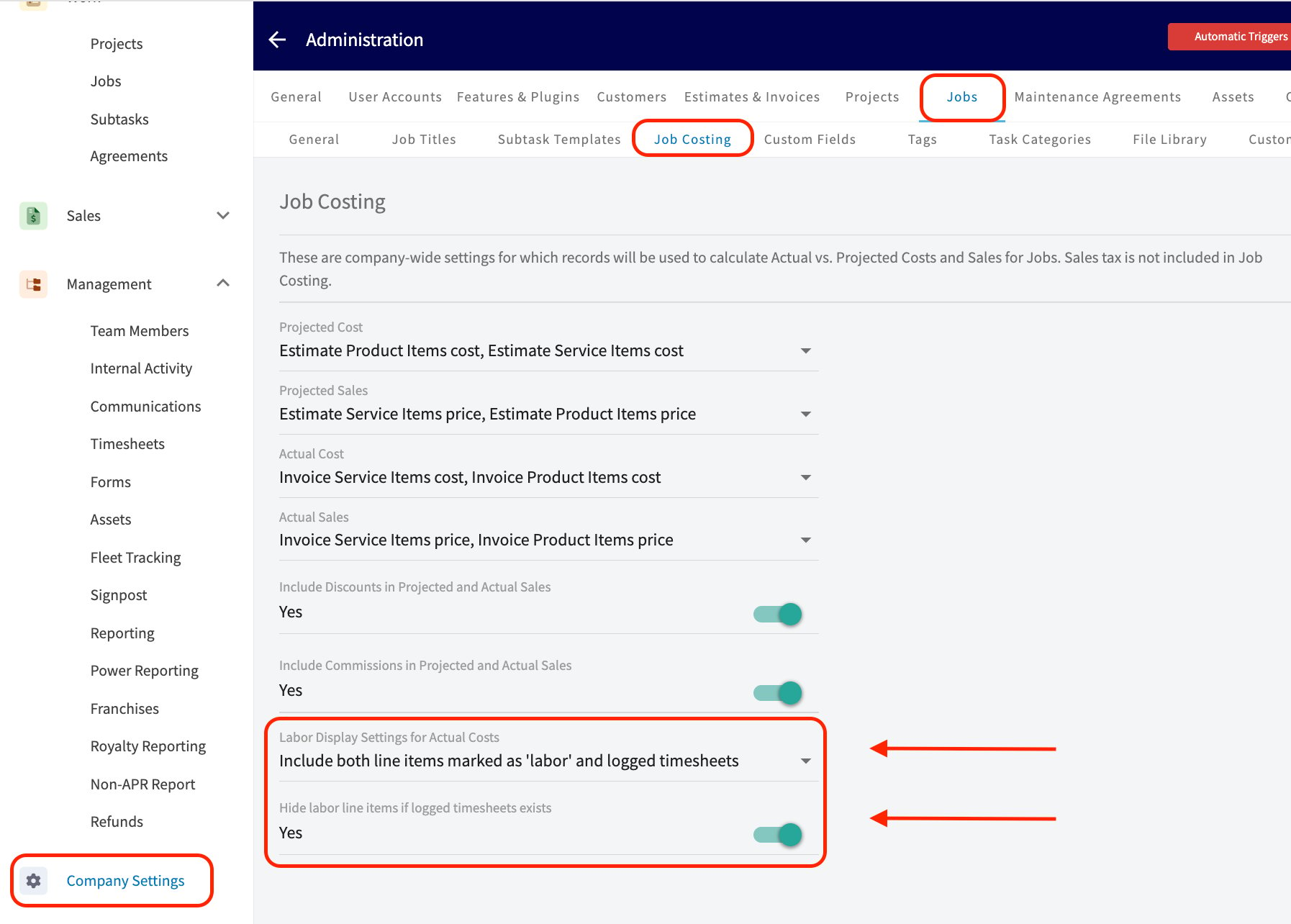
In the same Company Settings > Jobs > Job Costing screen, use the Labor Display Settings dropdown to define how labor costs are counted. Choose one of the following:- Reference only your team’s timesheets, if you use that feature in FieldPulse.
- Reference only the labor line items on your estimates and invoices.
- Use a combination of both methods.
4. Control who sees the Job Costing tab
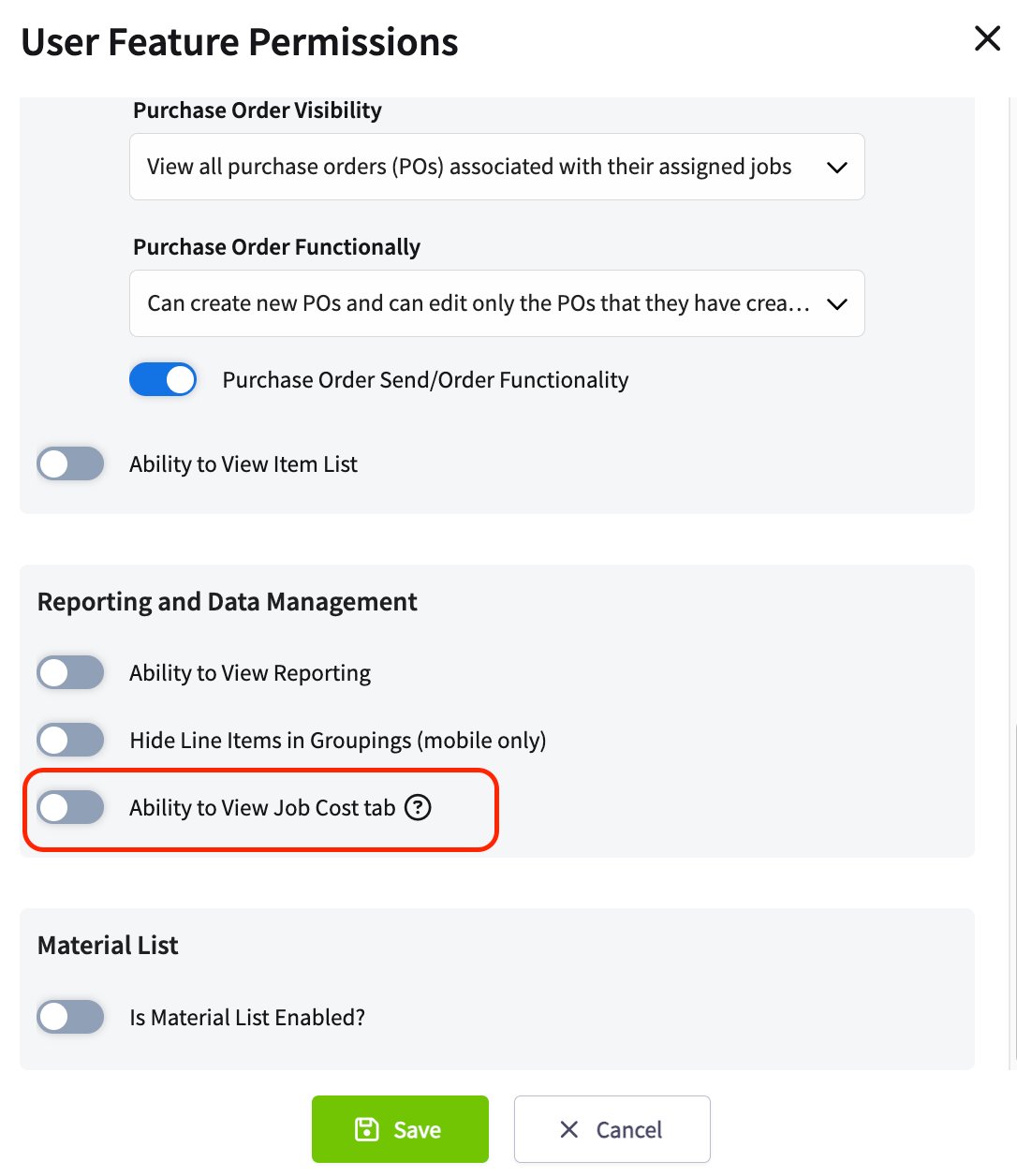
Only Admin and Team Manager users have access to the Job Costing tab on your job records. In a team member’s User Feature Permissions, under Reporting and Data Management, the Ability to View Job Cost tab toggle controls that access:- Toggled off: the Job Costing tab is not visible on job records for that user.
- Toggled on: Admin or Team Manager users can see the Job Costing tab, but the information displayed reflects only the records they have permission to access — which may include material lists, purchase orders, timesheets, estimates, and invoices. See User Roles and Permissions Details.
Settings reference
Costing sources
Comparison views
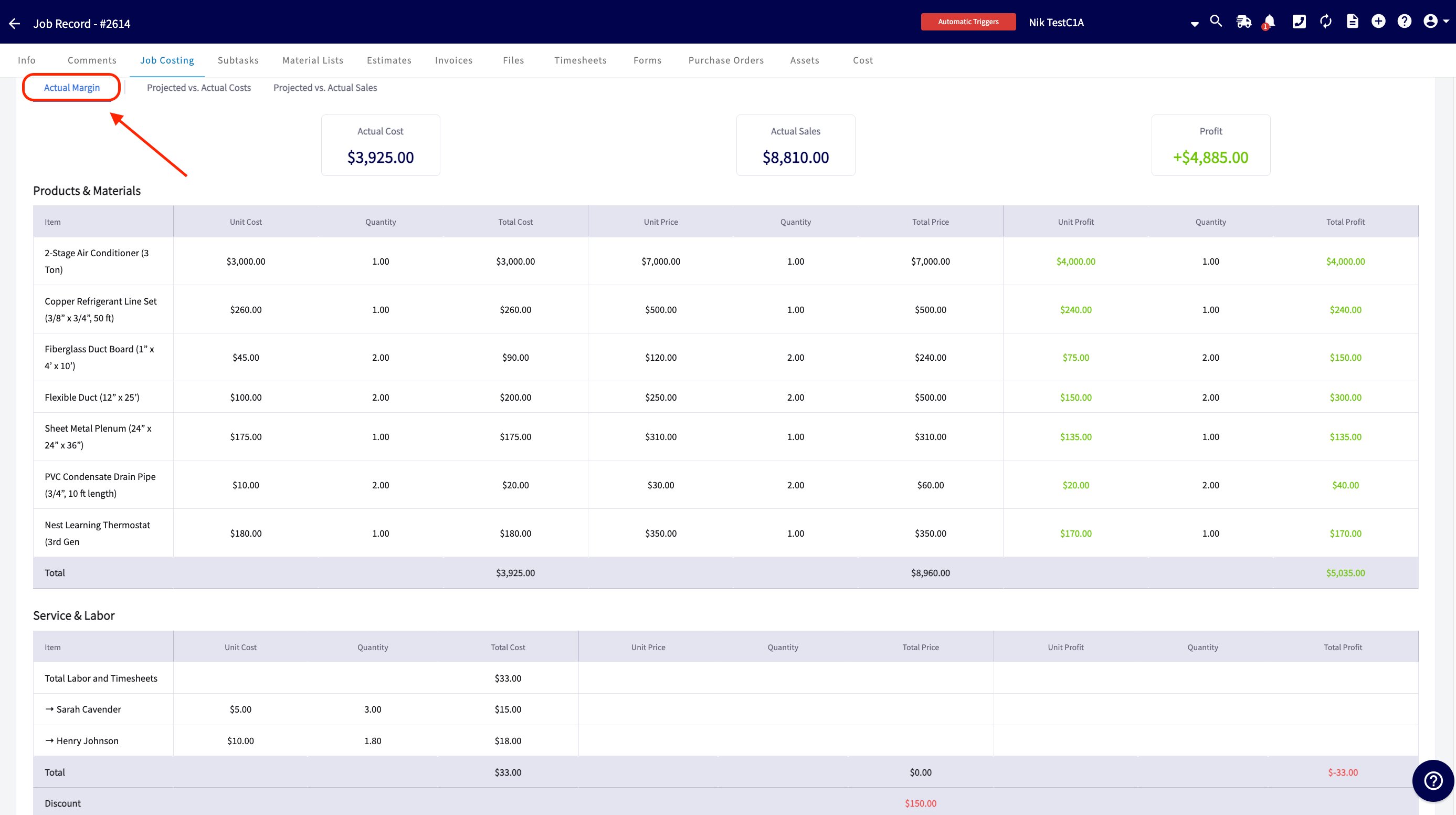
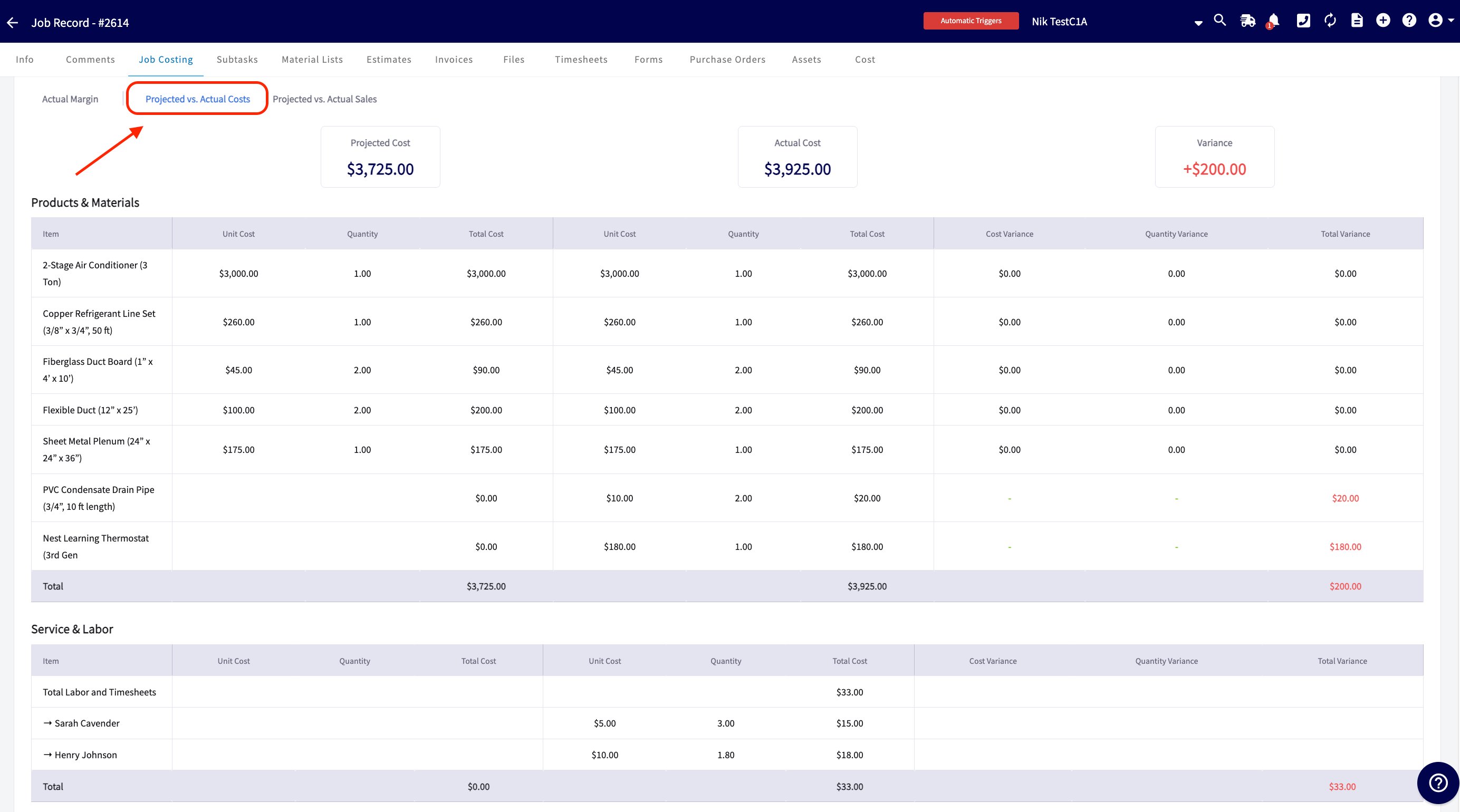
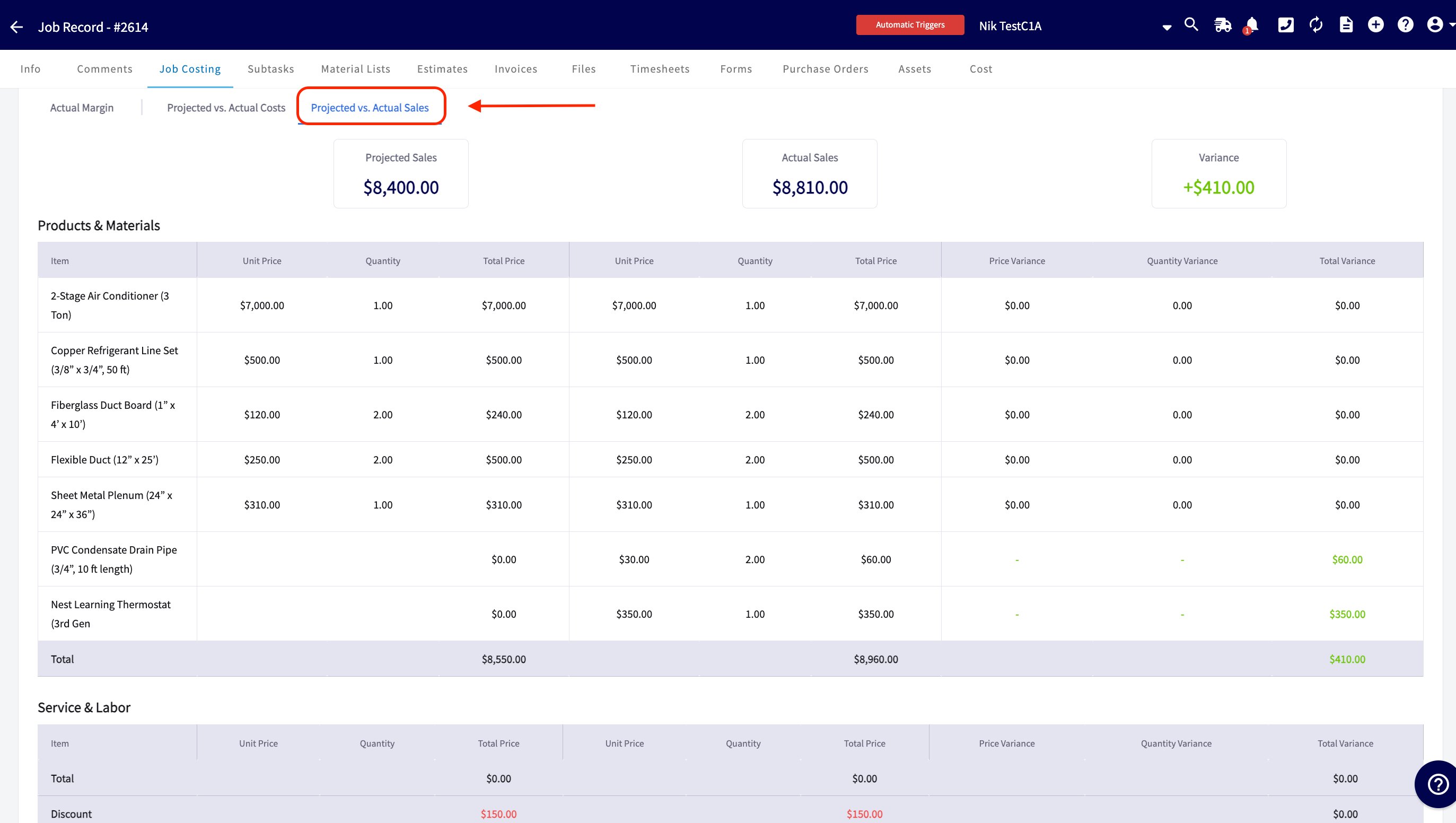
The bottom of the Job Costing tab offers three comparison views that break the numbers down to the individual line item, so you can see precisely where you gained or lost money: