
Who uses this: Admins, Team Managers, and Service Agents create subtasks (Service Agents on their assigned jobs); Limited Agents cannot. Subtask templates are built in Company Settings, which only Admins can view. In the mobile app, Admins and Managers can switch between Team Subtasks and My Subtasks. Availability: All regions.A subtask divides a job into a task list so your team can work through the steps in order. Subtasks usually sit under a job record, though a subtask can also stand on its own.
Overview
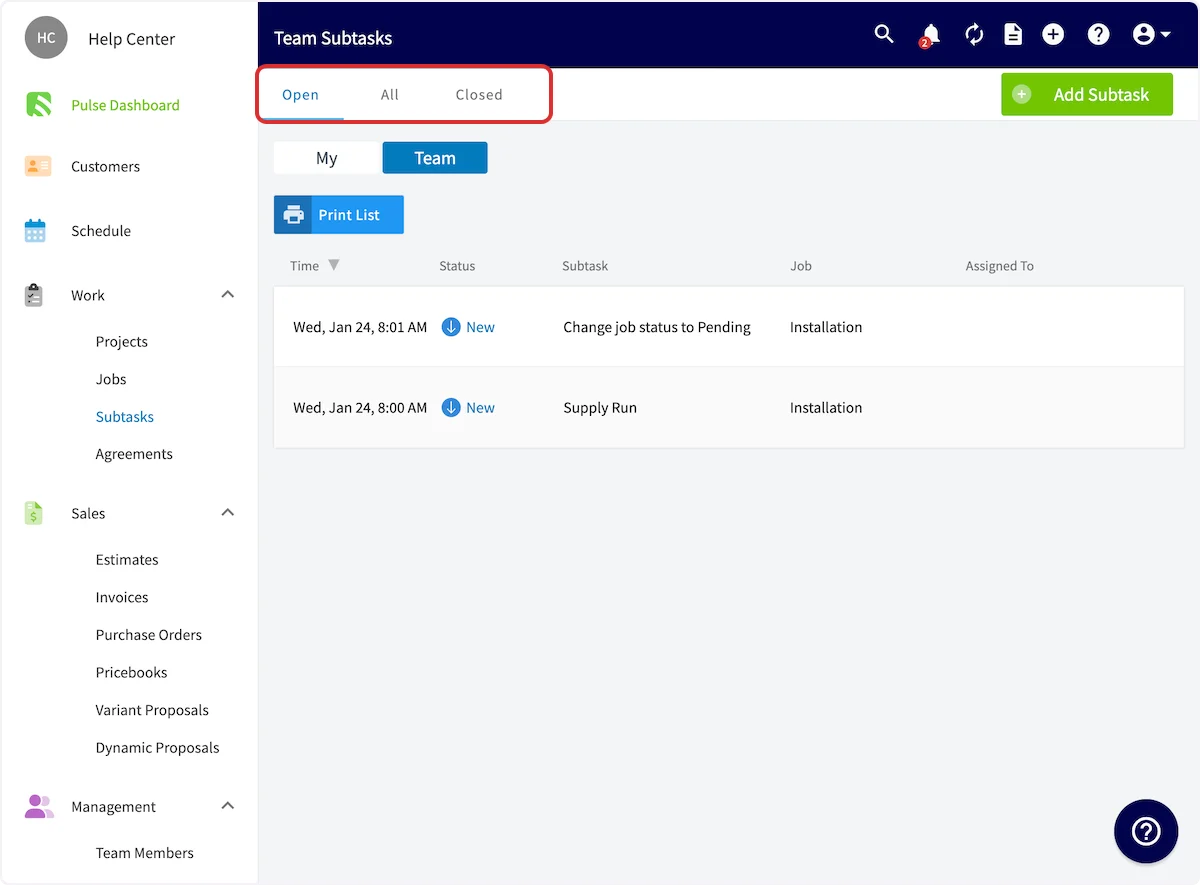
FieldPulse organizes work through two record types. A Job is the main record — a job requires a customer and a title, and it commonly includes a start and end date/time and assigned team members. A Subtask is the secondary record. A subtask can exist independently, but it typically attaches under a job record to divide the work into a task list — for example, to track the status of each step separately, or to assign different steps to different team members instead of having a single job record carry everything. Subtasks, unlike jobs, do not appear on the schedule. Use a subtask to track a step inside a job rather than to book time on the calendar. Every subtask carries its own status: New, In Progress, Pending, Completed, or Canceled.Before you begin
- Create the job record you want to divide into steps. See How to Create a Job.
- Decide which steps you repeat across jobs — those are the ones worth saving as a subtask template.
On web
Create a subtask template
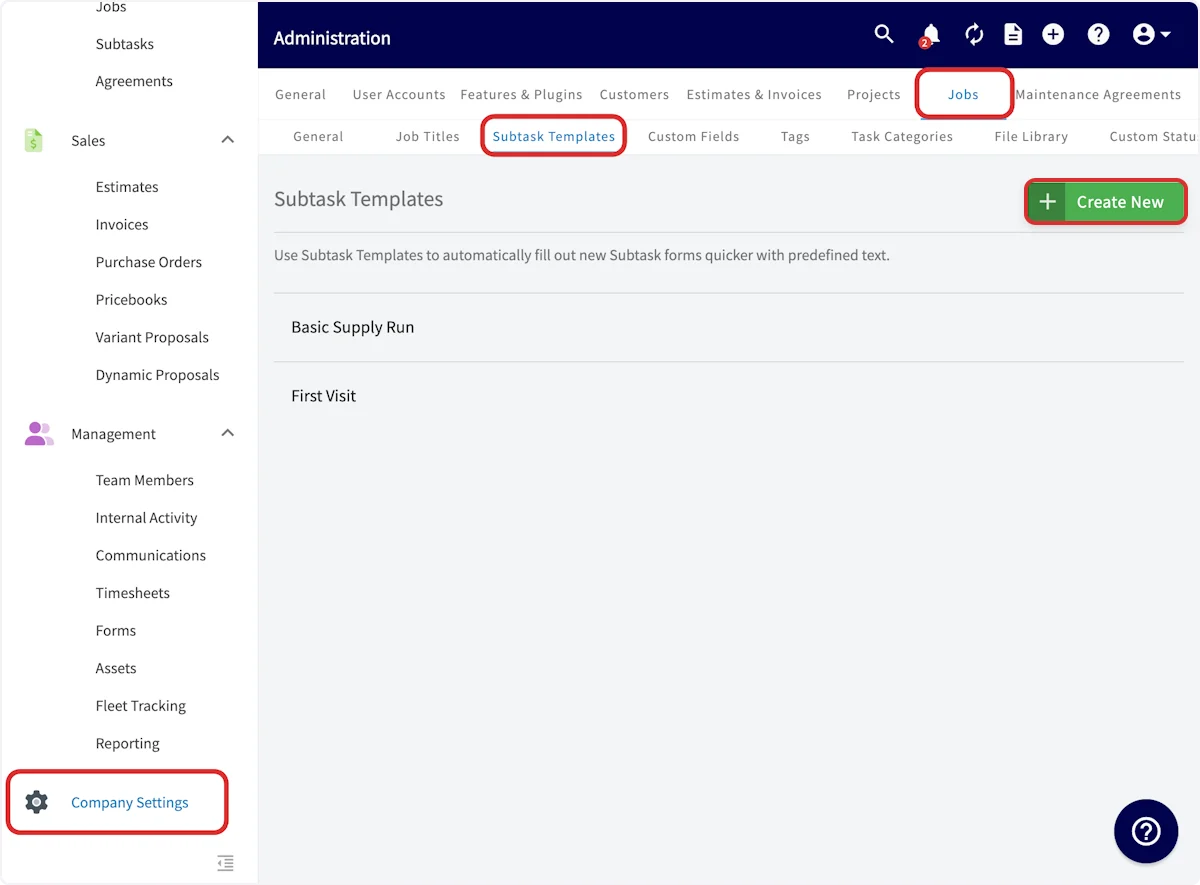
A subtask template pre-defines a subtask, or a series of subtasks, that your team uses often, so anyone can insert the whole series into a job in one step. A standard service call template might run: Diagnose Issue, Plan Repair, Provide estimate to customer and receive sign-off, Repair Issue, Inspect unit for quality and functioning, and Invoice.- Go to Company Settings in the left-side menu, select the Jobs tab, then select the Subtask Templates subtab.
-
Select Create New.
-
Enter the Template Name, the subtask Title, and an optional Description.
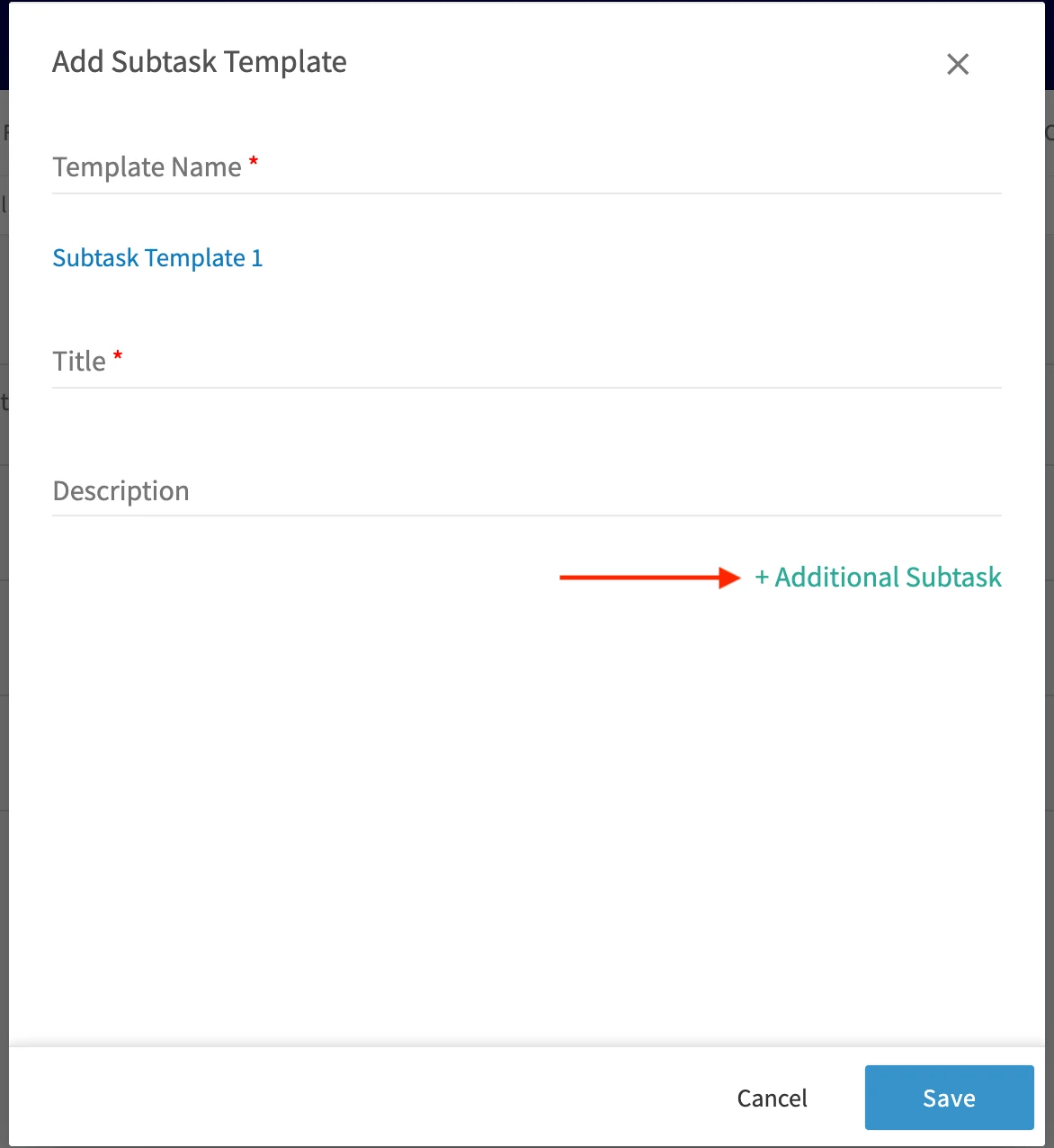
- Select + Additional Subtask to add the next subtask in the series, and repeat until the series is complete.
- Select Save. The template appears in your Subtask Templates list.
Attach subtasks to a job
-
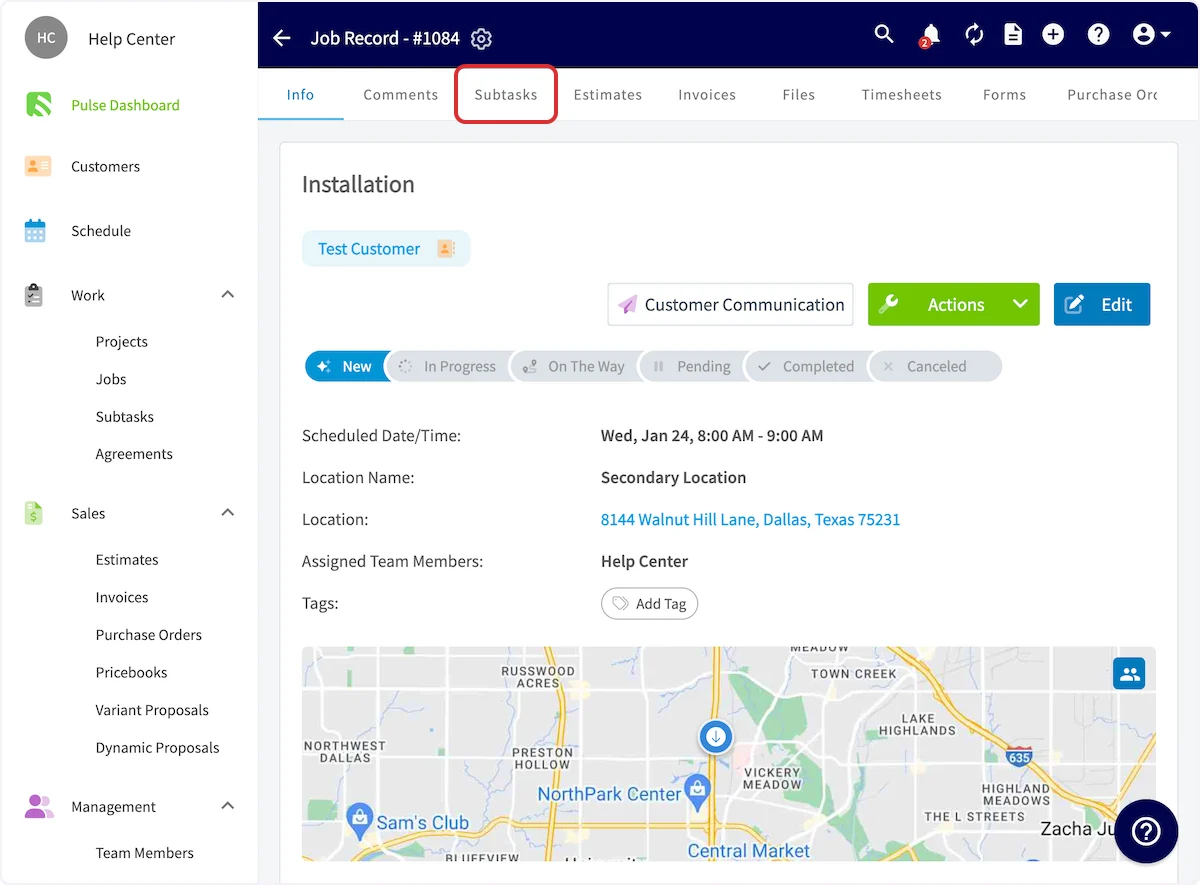
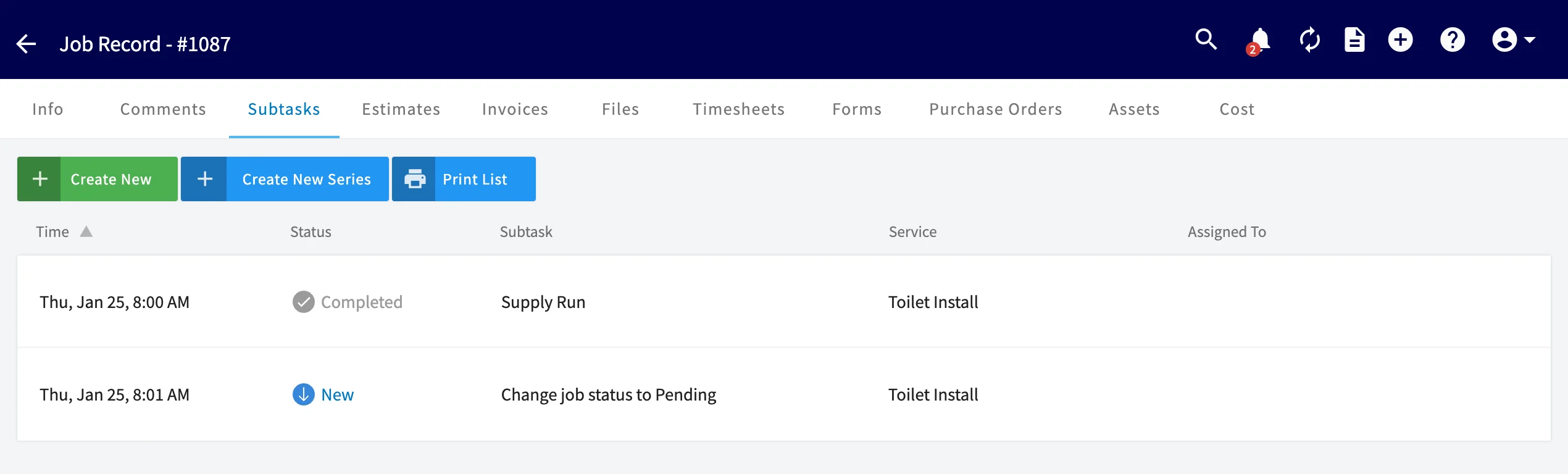
Open the job record and select the Subtasks tab.
-
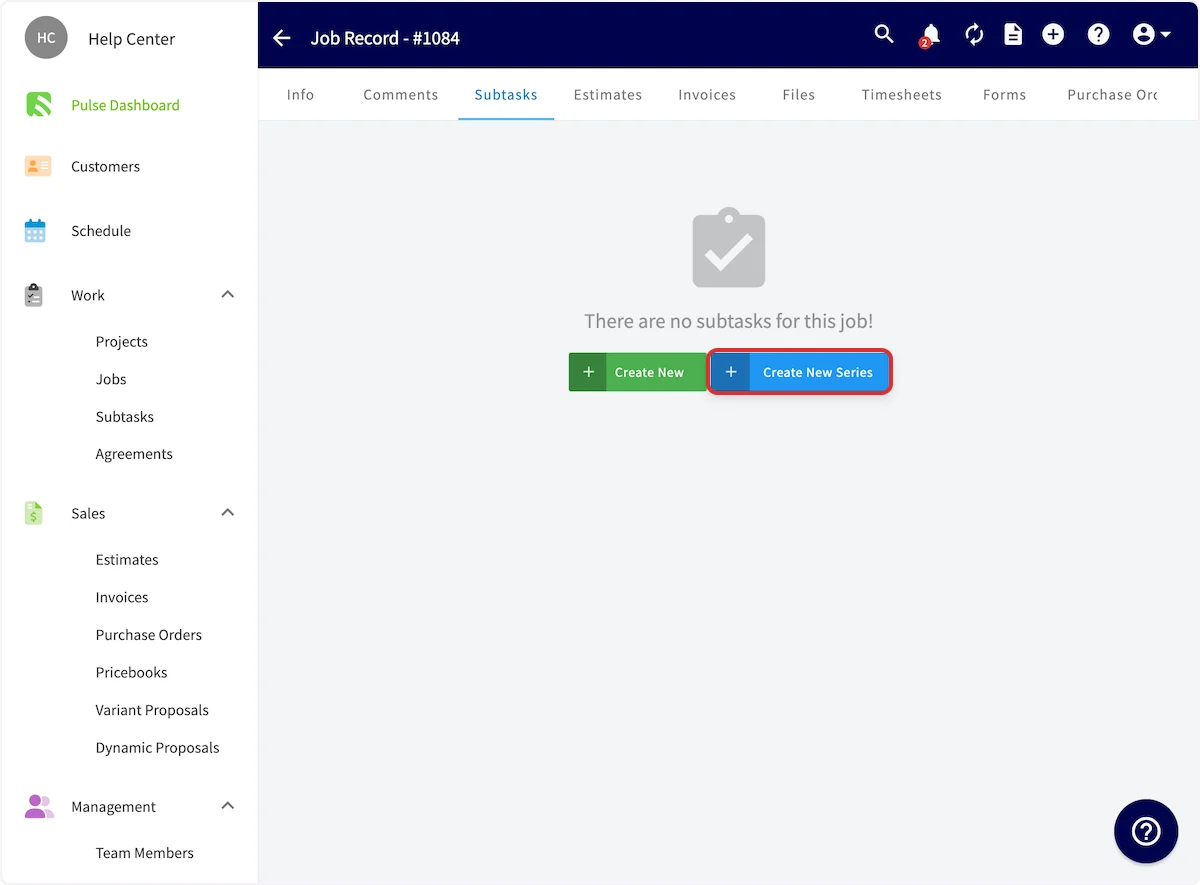
Select Create New Series.
-
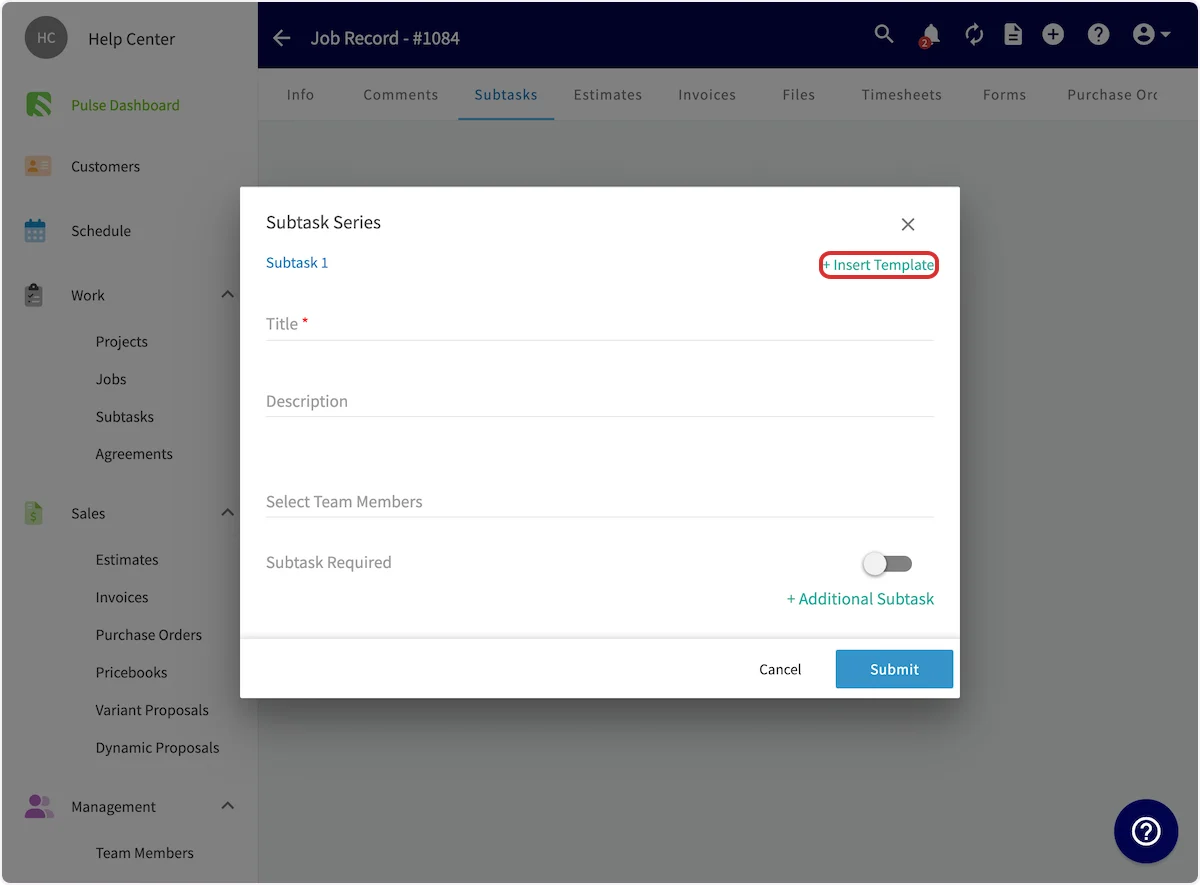
Fill in the subtask details, or select + Insert Template to pull in a template you built earlier.
-
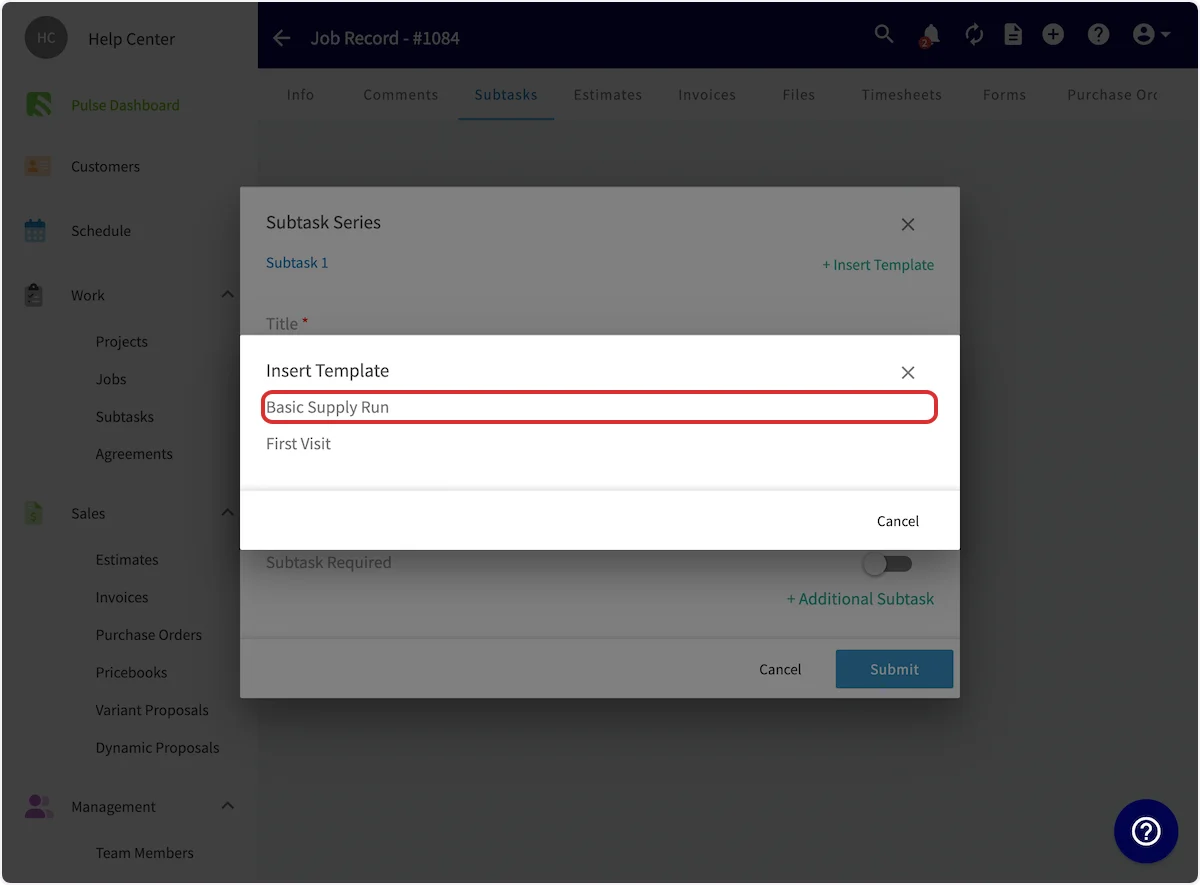
Choose which subtask template to insert.
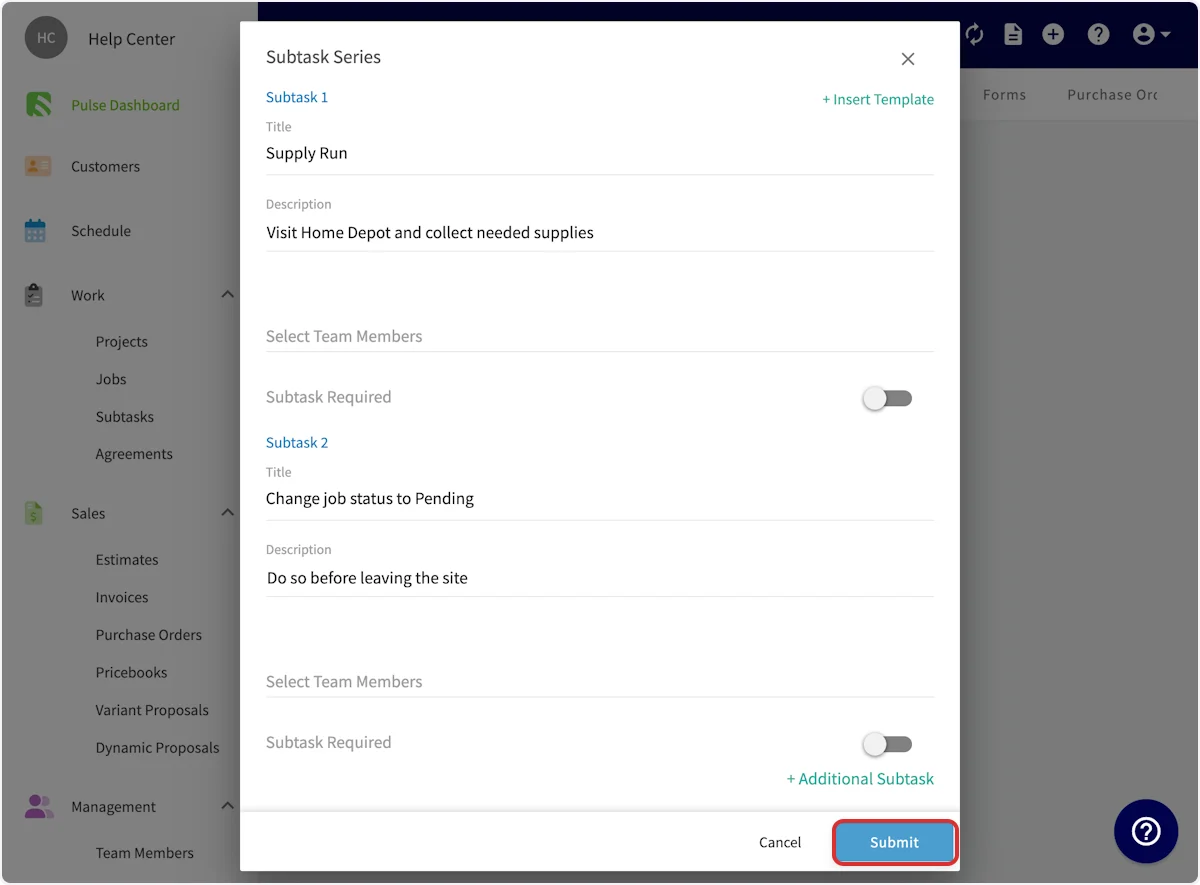
- Edit the text and add more steps with + Additional Subtask.
- Assign team members, and turn on Subtask Required for any step that has to be finished first.
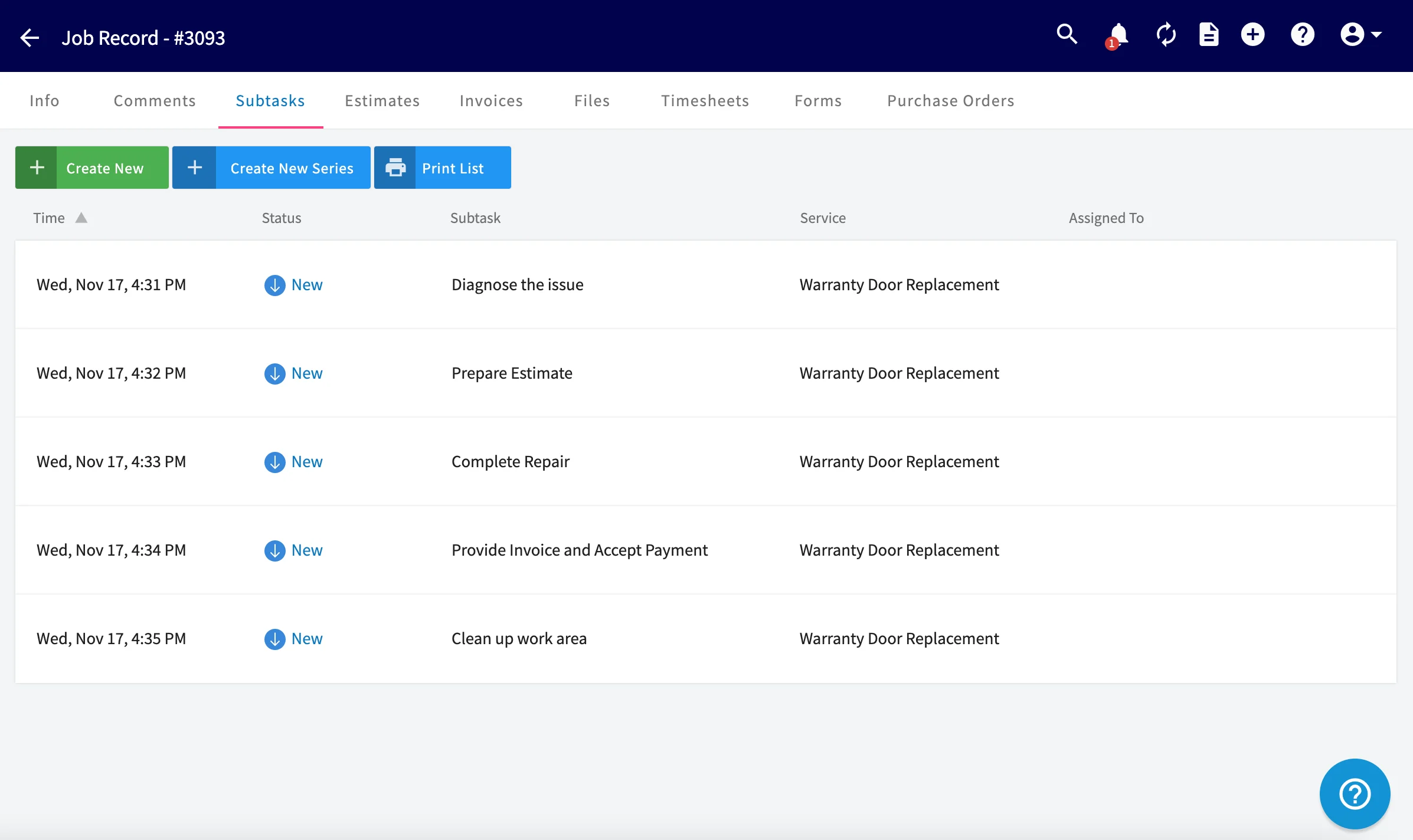
- Select Submit.
Create a subtask without a job
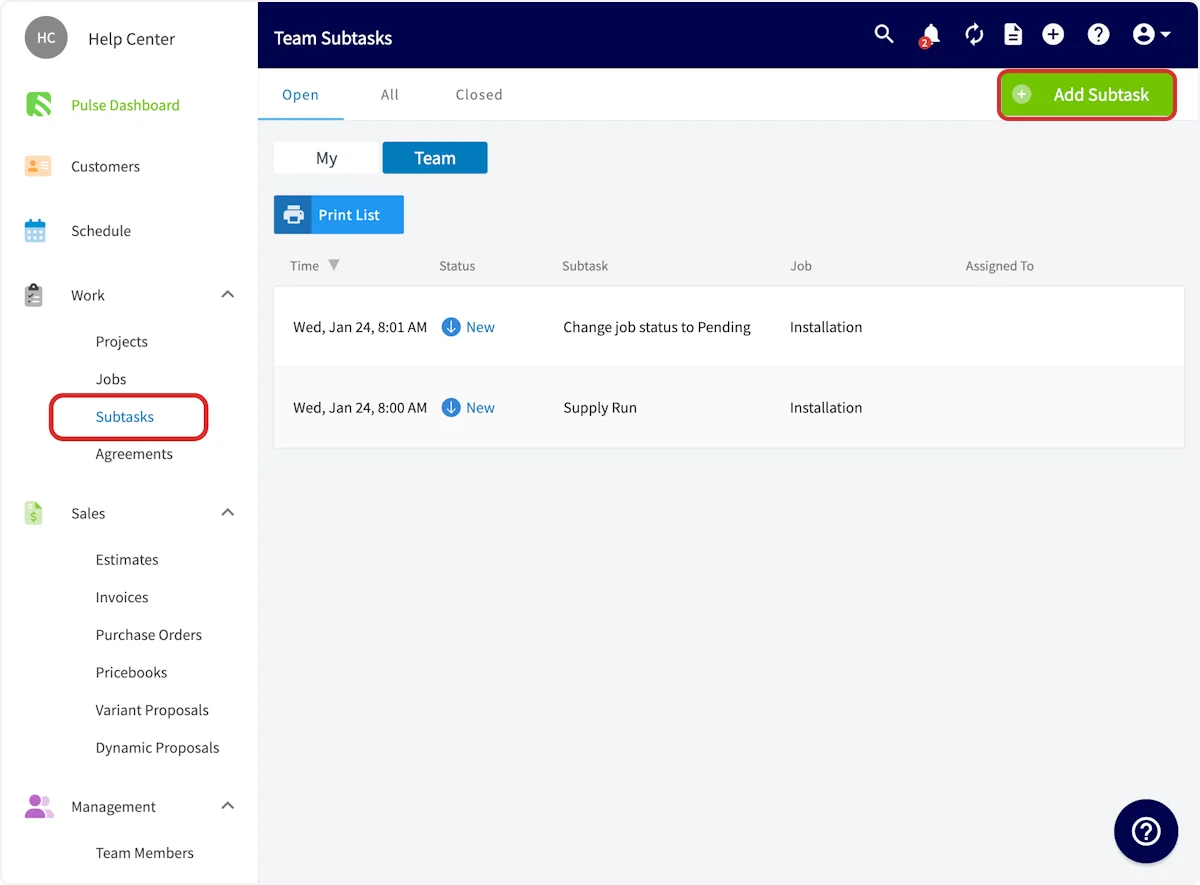
- Select Subtasks in the left-side menu.
-
Select Add Subtask.
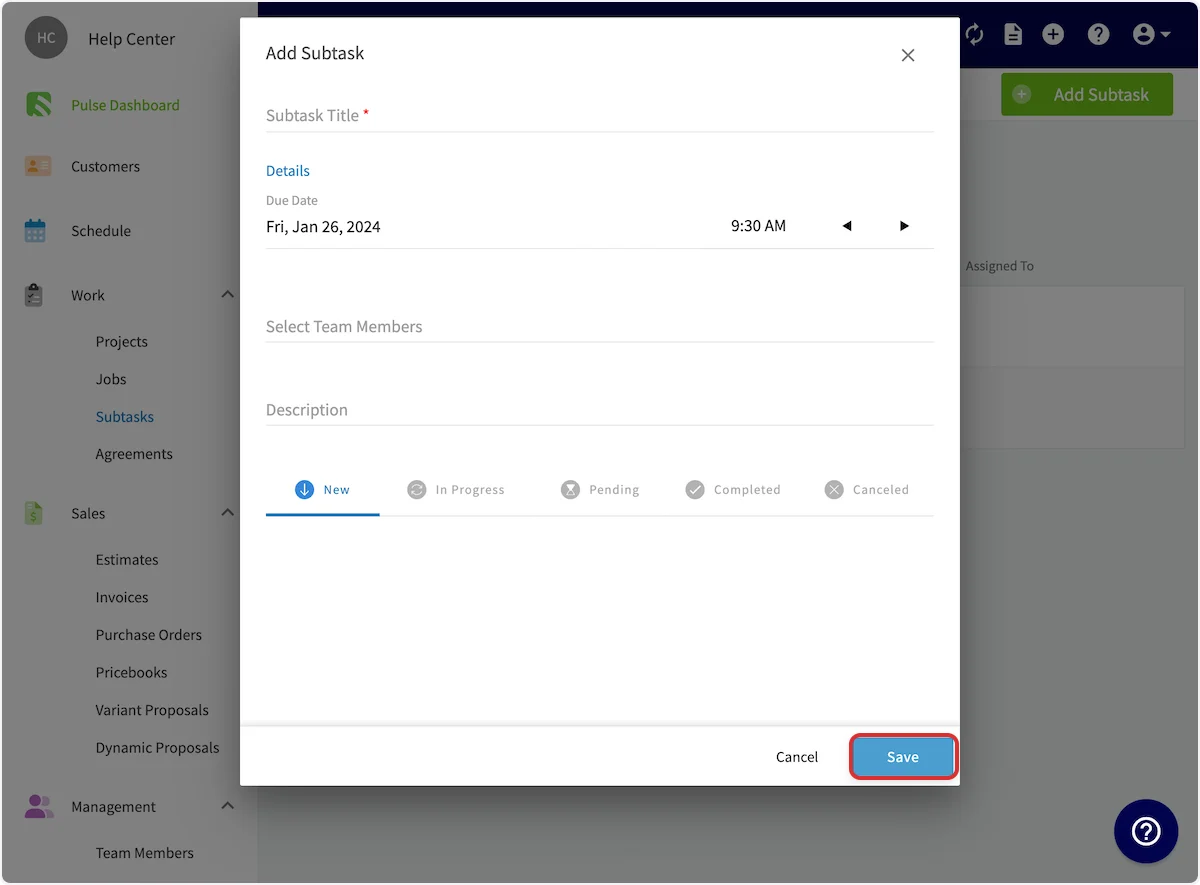
- Add the Subtask Title, the due date and time, assigned team members, and a description.
- Select Save.
Require a subtask before a job status changes
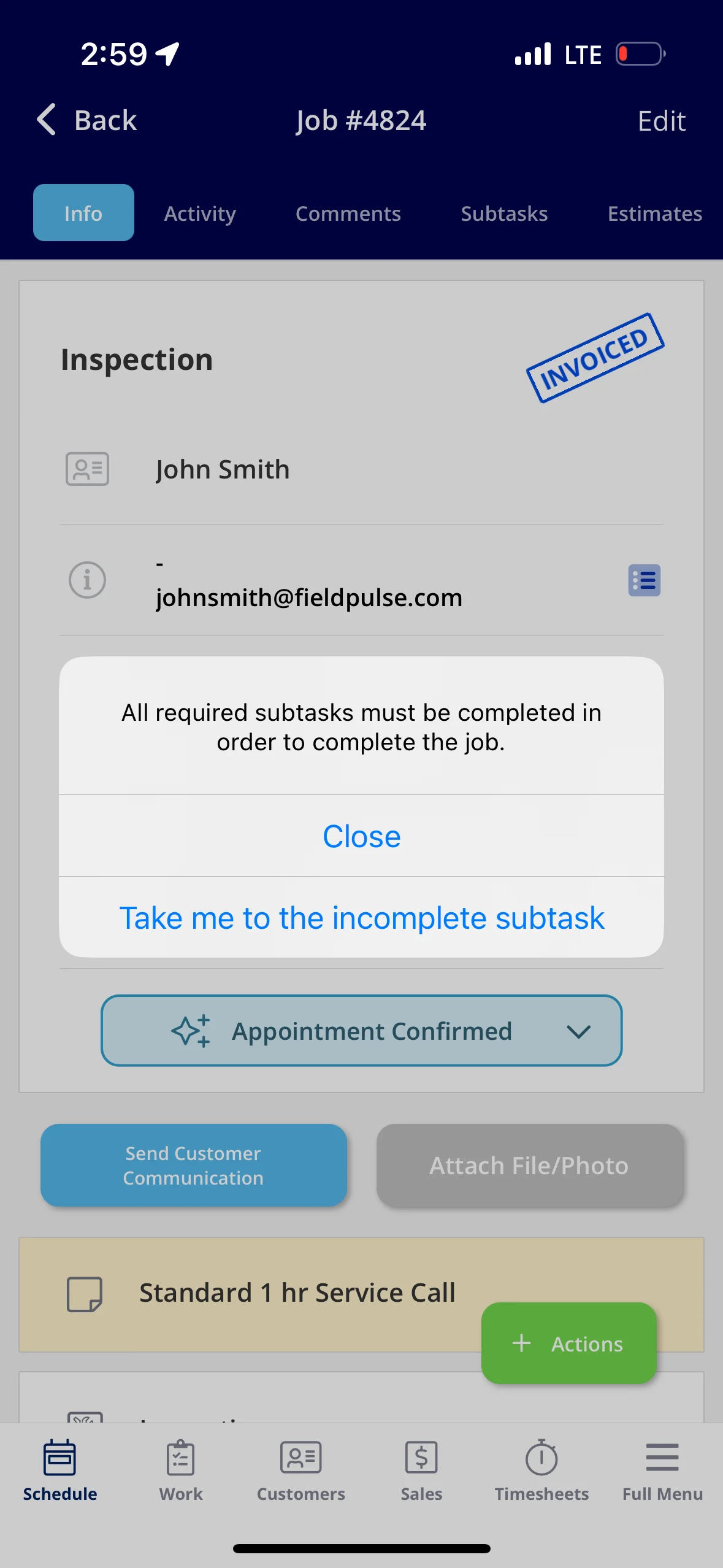
Mark a subtask as required to hold a job in place until that step is done. Required subtasks have to be completed before job statuses are selected or bypassed. If someone tries to change the job status while a required subtask is still open, FieldPulse displays an error and prompts them to complete it — which keeps a job from moving forward while a critical step, such as an inspection or a sign-off, is unfinished. The option to require a subtask appears both when you create subtask templates in Company Settings and when you create subtasks on a job. In the subtask series window on the web, it is the Subtask Required toggle.Complete a subtask
-
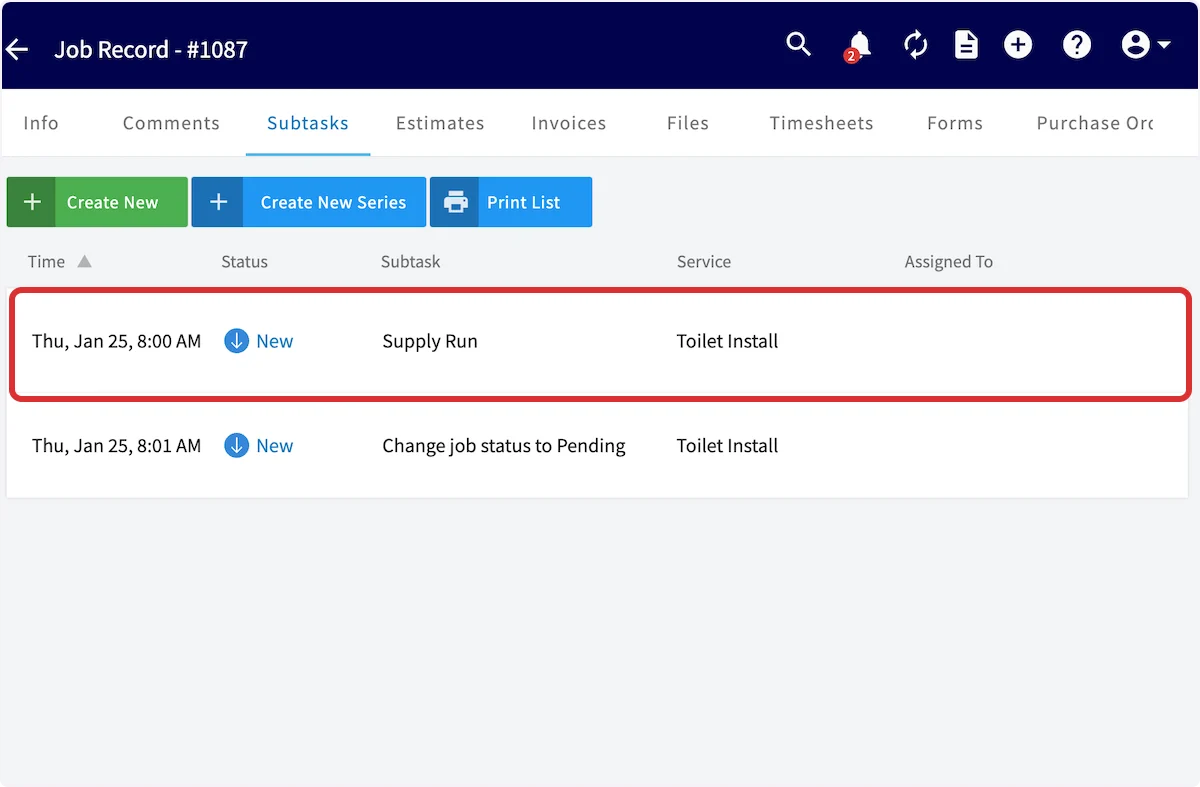
Open the job record’s Subtasks tab and select the subtask.
-
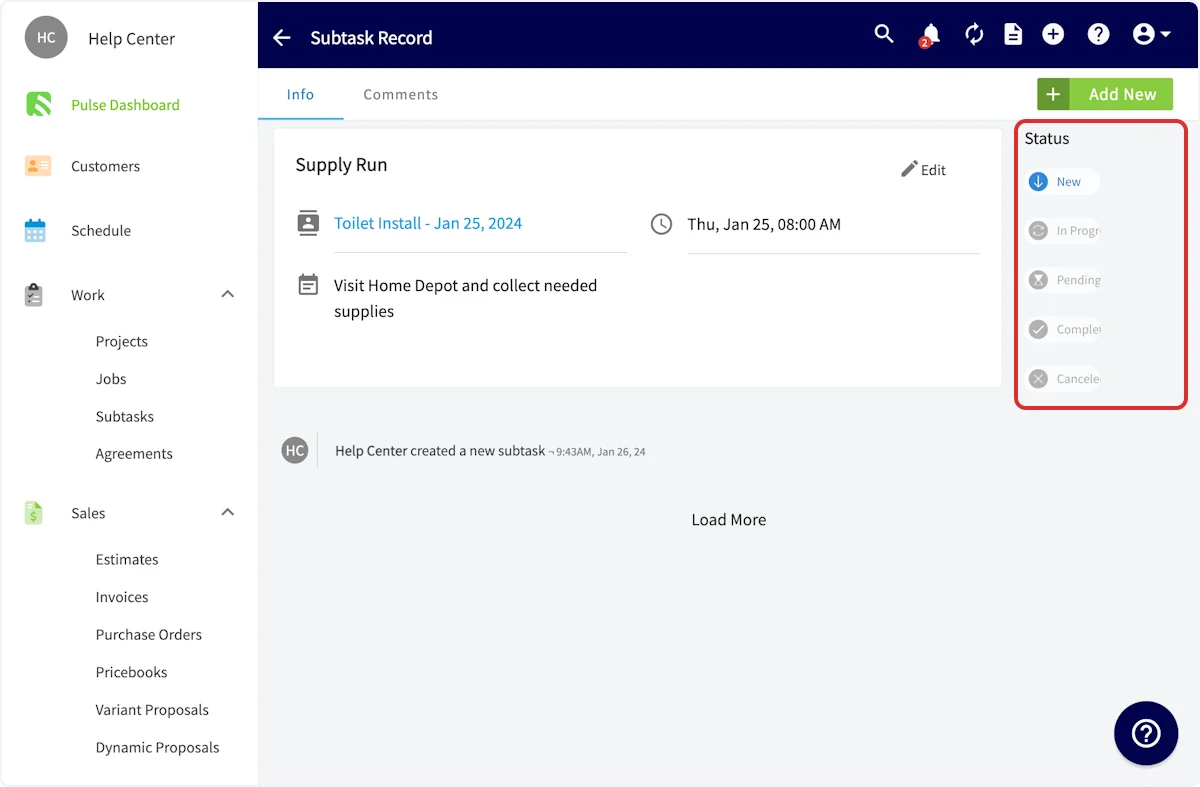
Set the Status as the work moves through its stages.
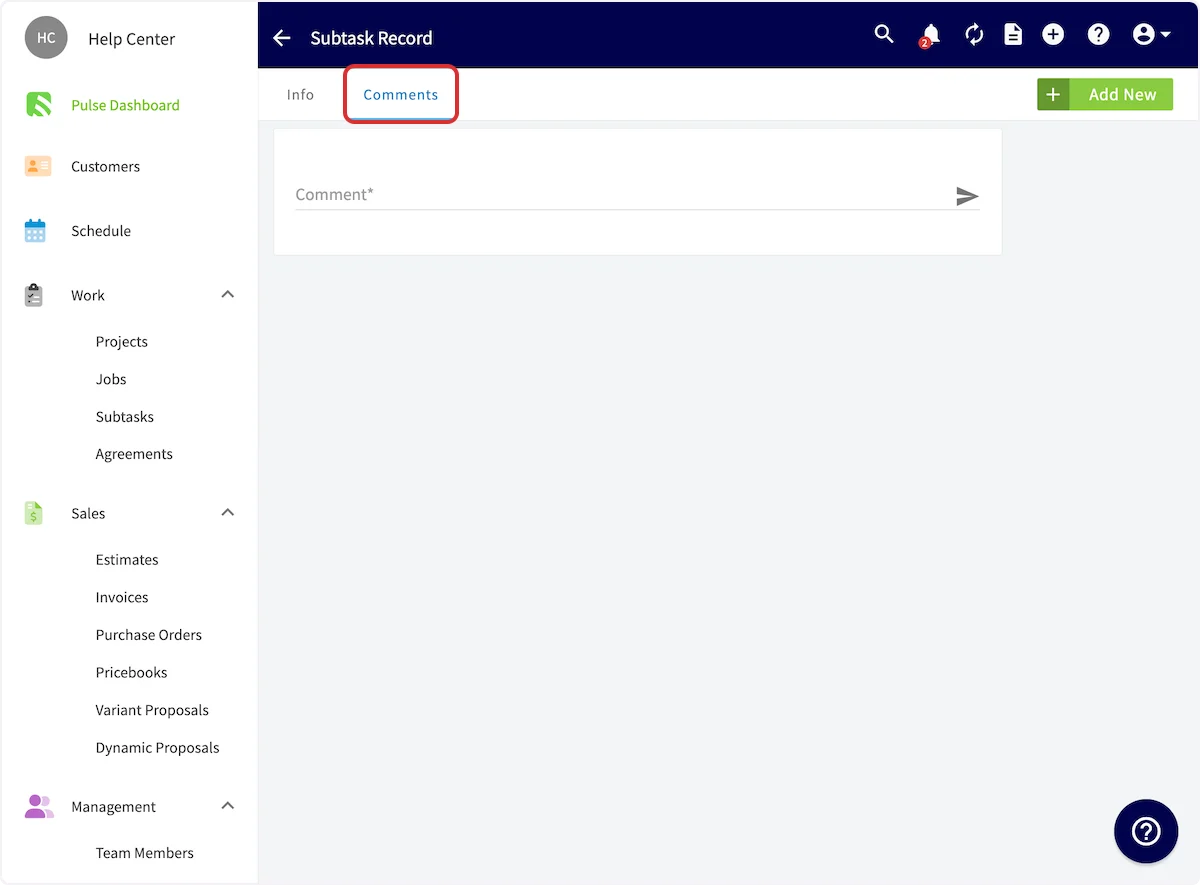
- Select Comments to add notes to the subtask.
Video walkthrough: creating, attaching, and completing subtasks in the web app
On mobile
Create a subtask on a job
-
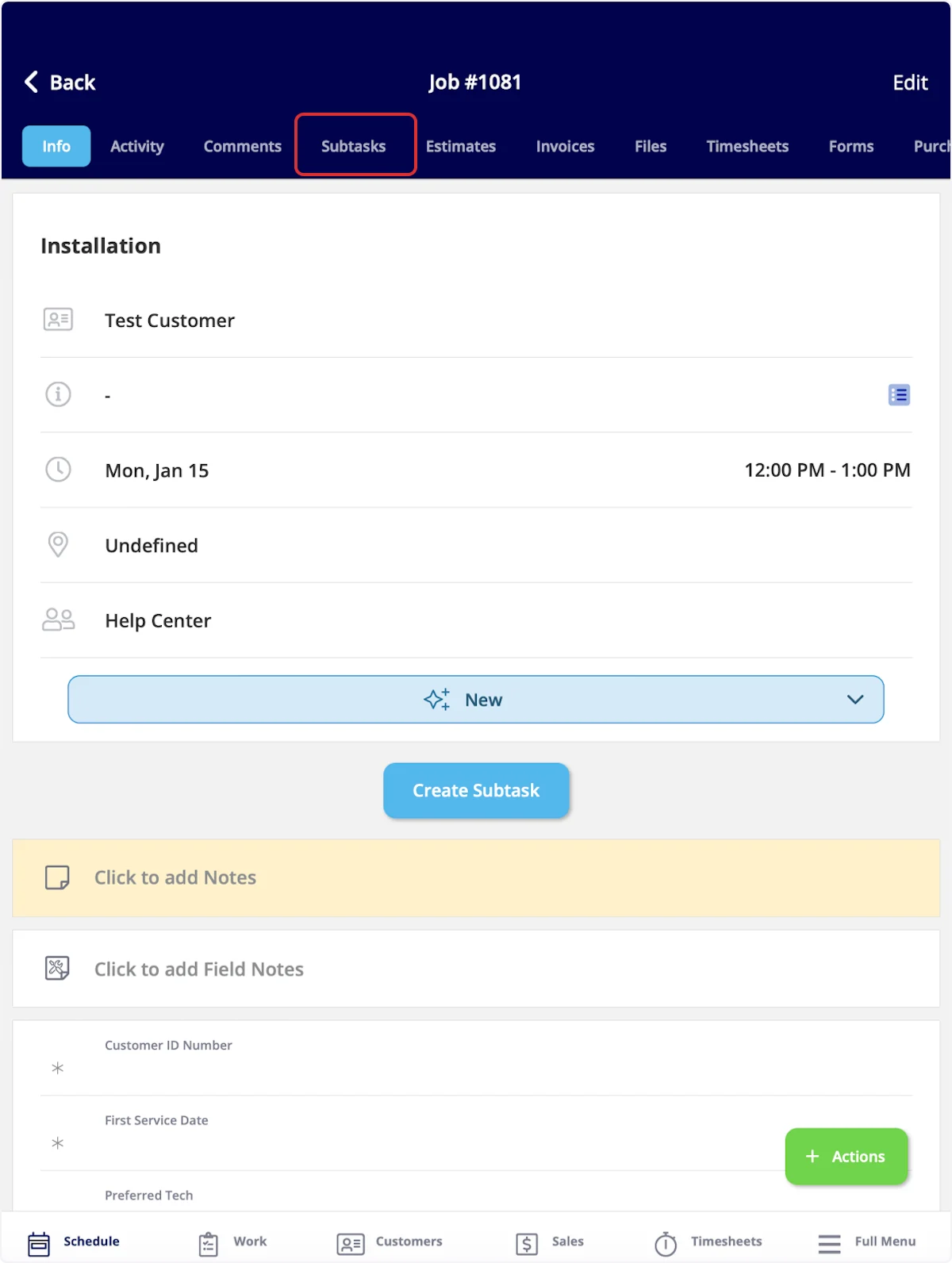
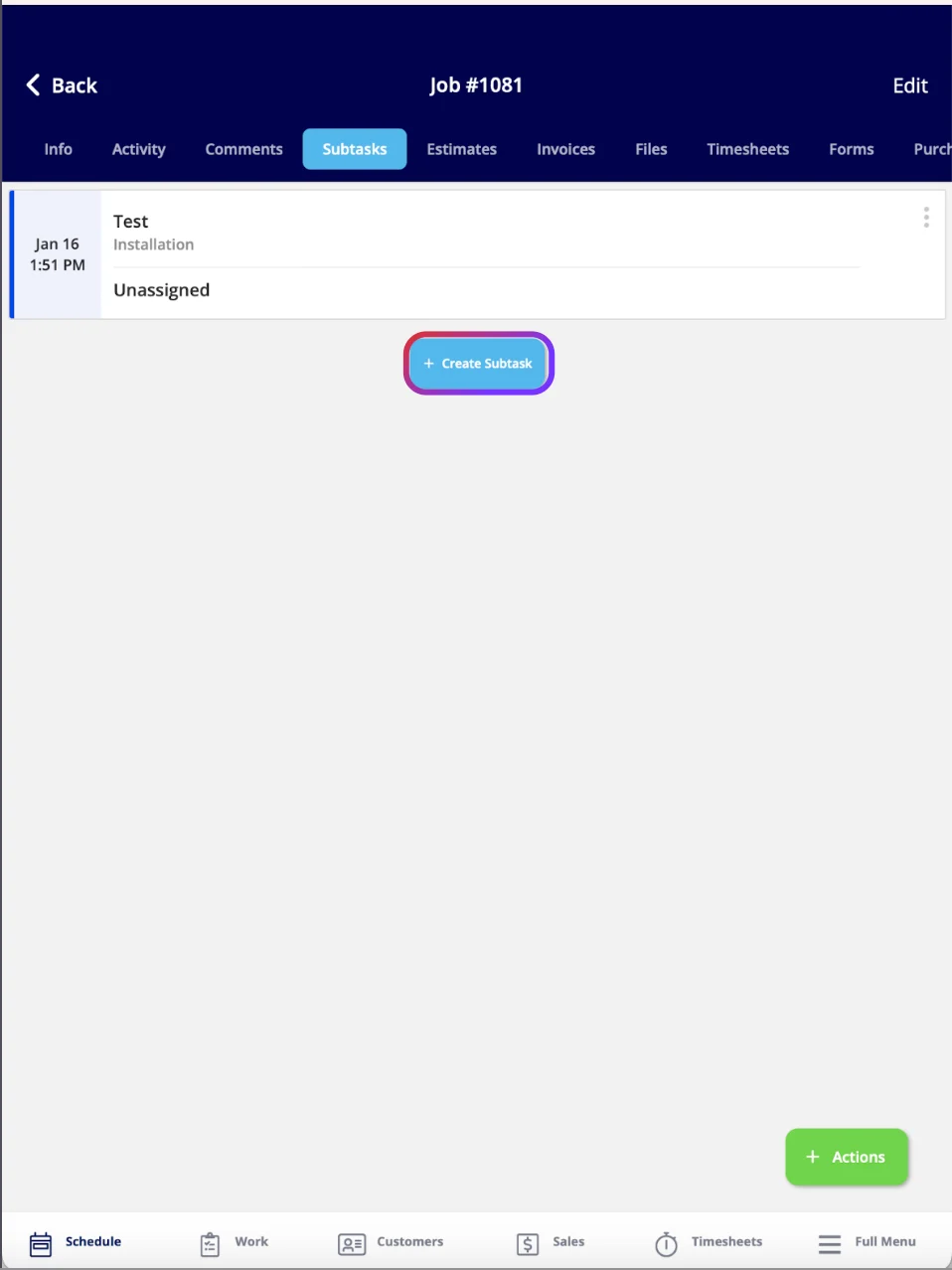
Open the job record and select the Subtasks tab.
-
Select Create Subtask.
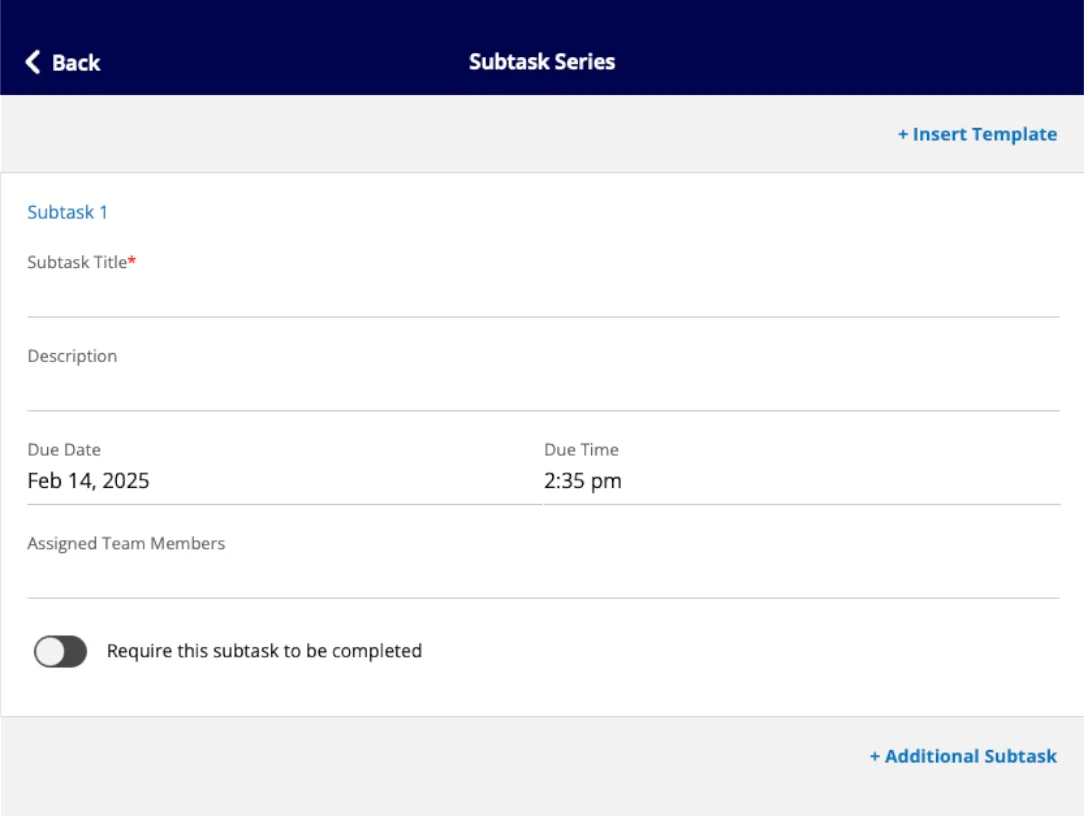
- Enter the Subtask Title, a description, and the due date and time.
- Assign team members, or select + Insert Template to pull in a subtask template.
Require a subtask before a job status changes
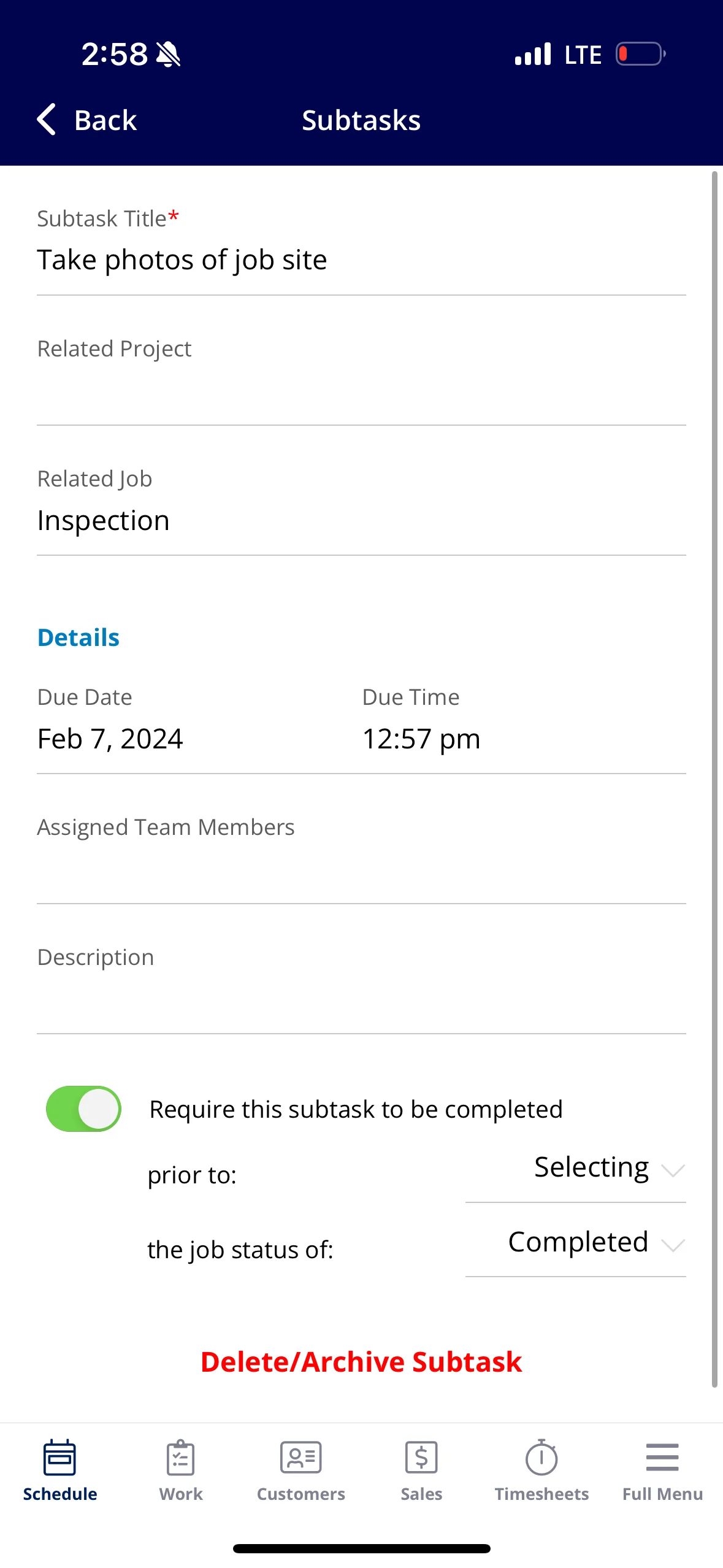
Turn on Require this subtask to be completed on the subtask, then choose the status the subtask has to be finished before. The option appears both when you create subtask templates in Company Settings and when you create subtasks on a job.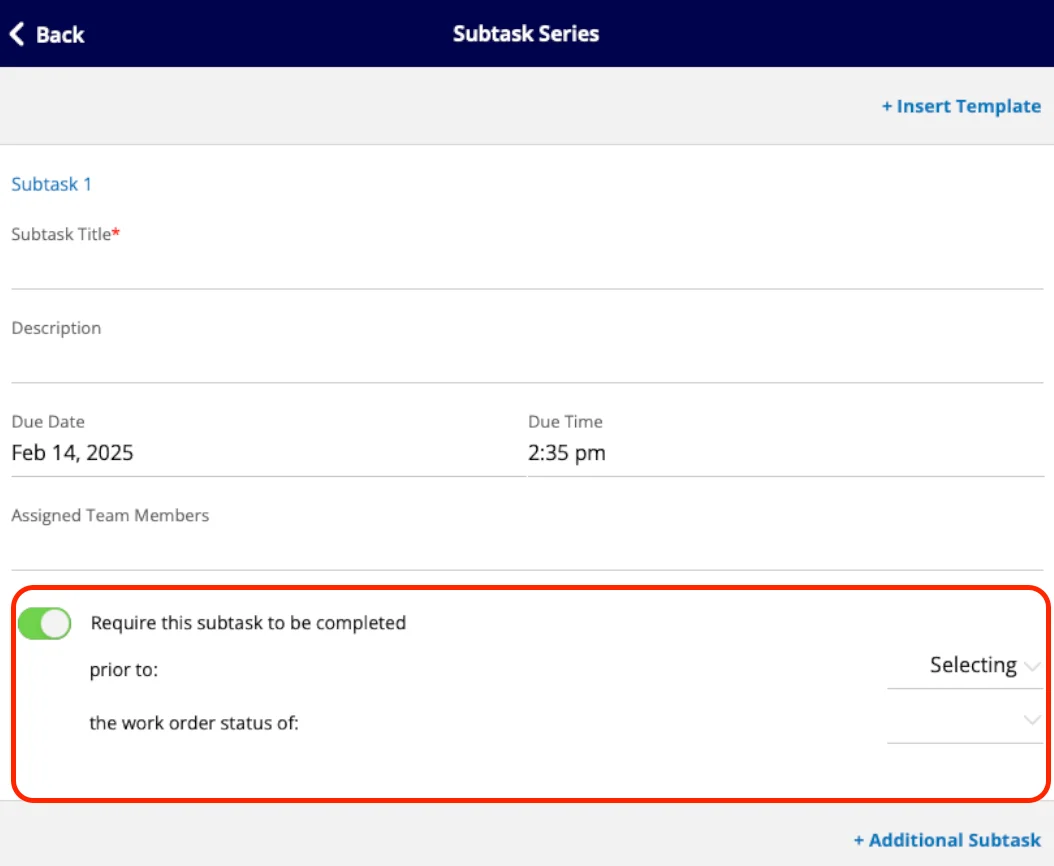
Create a subtask without a job
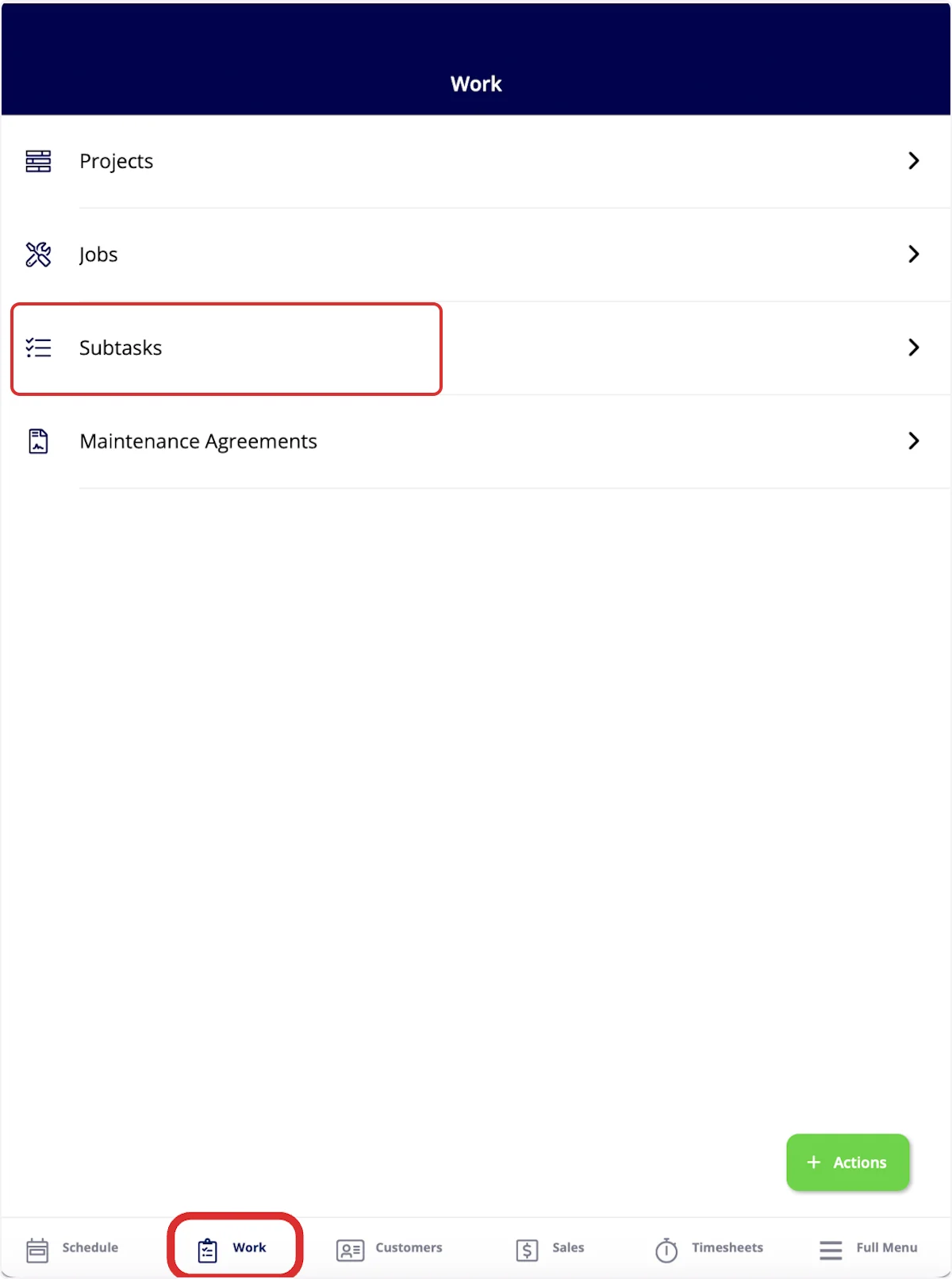
- Select Work in the bottom menu.
-
Select Subtasks.
-
Select Create New.
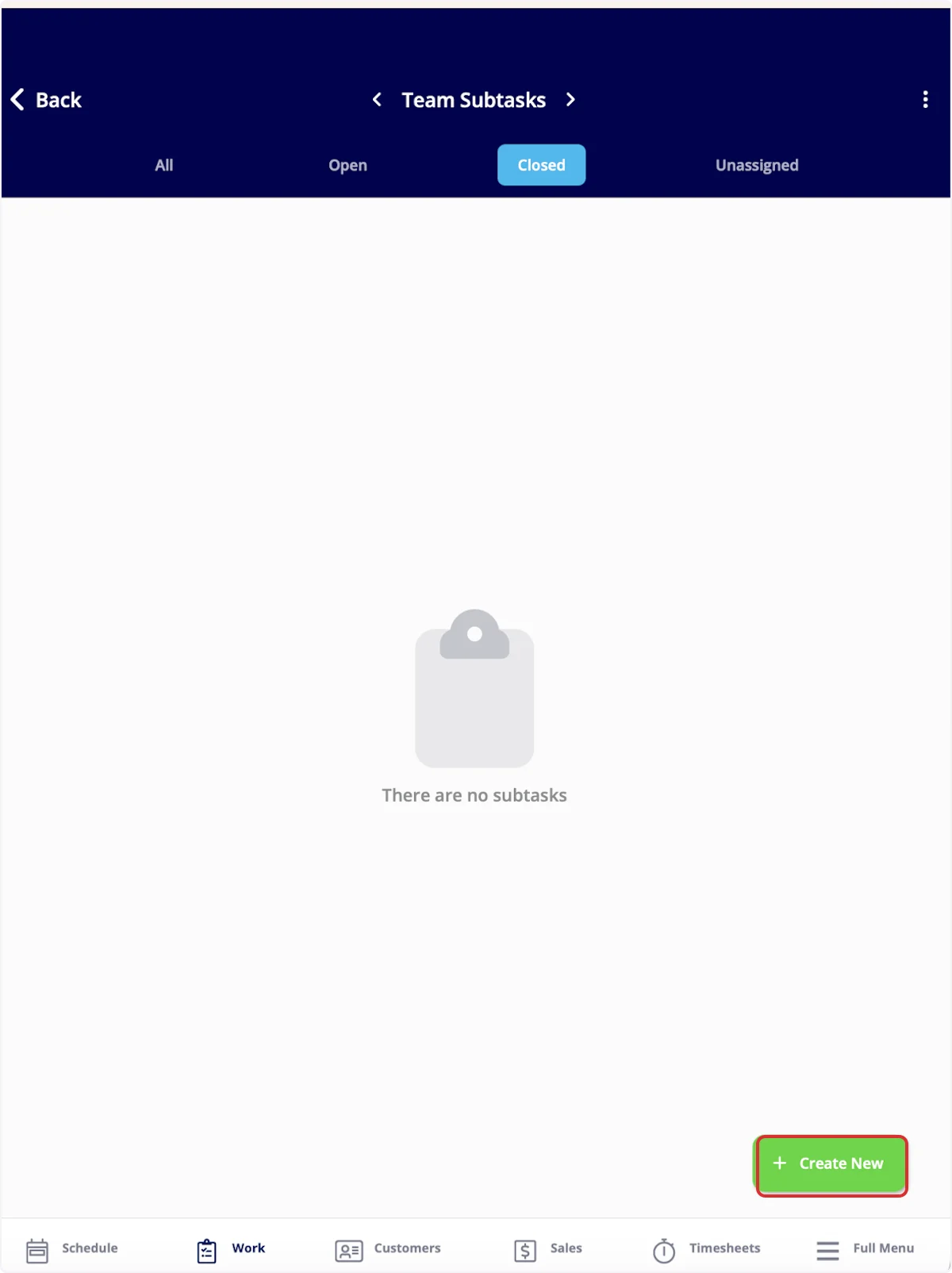
- Complete the subtask details as above, leaving Related Project and Related Job empty.
Update a subtask
Open the subtask to view its details. Move the subtask along with the status bar, and select Comments in the top menu to add a note.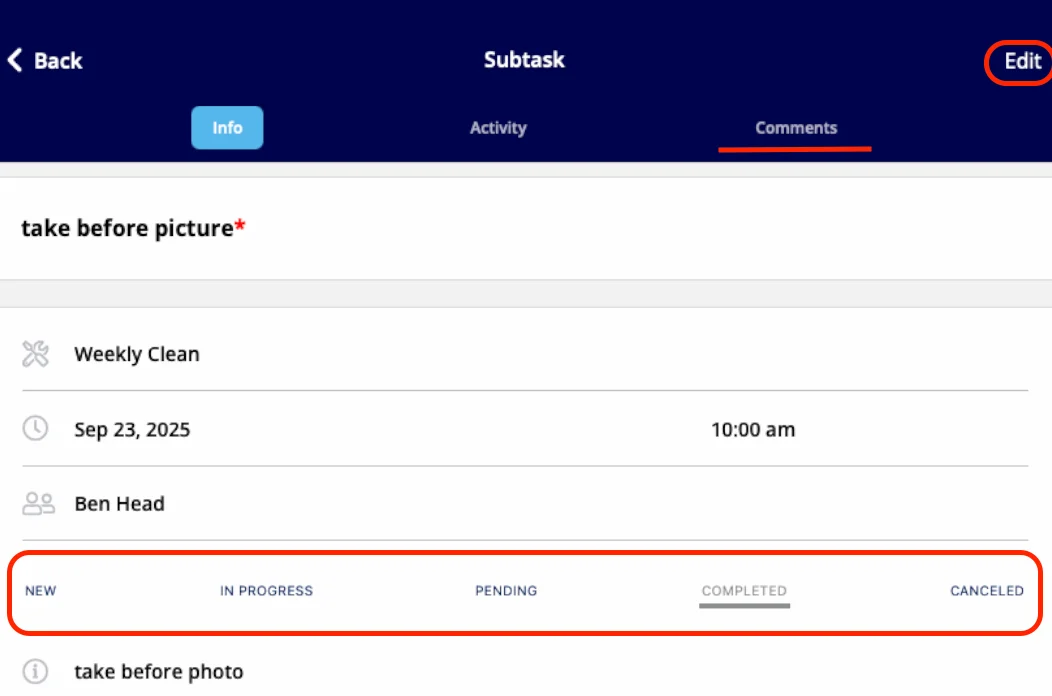
Video walkthrough: creating and updating subtasks in the mobile app