
Who uses this: Roles with permission to create jobs. Availability: All regions.Some work comes back on a schedule — weekly maintenance, monthly service, seasonal tune-ups — and rebuilding the same job by hand every time is the step that gets skipped. A recurring job is a job you create once and set to re-occur at an interval you choose, so the next visit is already on the calendar.
Overview
A recurring job repeats on a regular basis at the interval you set. You link a customer, enter the job details, choose how often the job repeats, and set when the recurrence starts and whether it ever ends. FieldPulse then creates each occurrence and adds it to your schedule and your job listings. The Recurring tab under Jobs is where recurring jobs live. From that tab you can view, edit, and archive the recurring jobs you already have, as well as create new ones.Video walkthrough
Video walkthrough: creating a recurring job
Before you begin
- Have the customer ready to link. You can link an existing customer or create a new one while building the recurring job.
- Know how often the job should repeat, when the first occurrence is, and whether the recurrence should ever end.
- Decide which Status Workflow each occurrence should follow. Workflow Design Overview covers what a workflow needs.
- If you use ClearPath, decide which Status Action Flow the job should follow. See Setting Up ClearPath Status Action Flows.
On web
Open the recurring job form
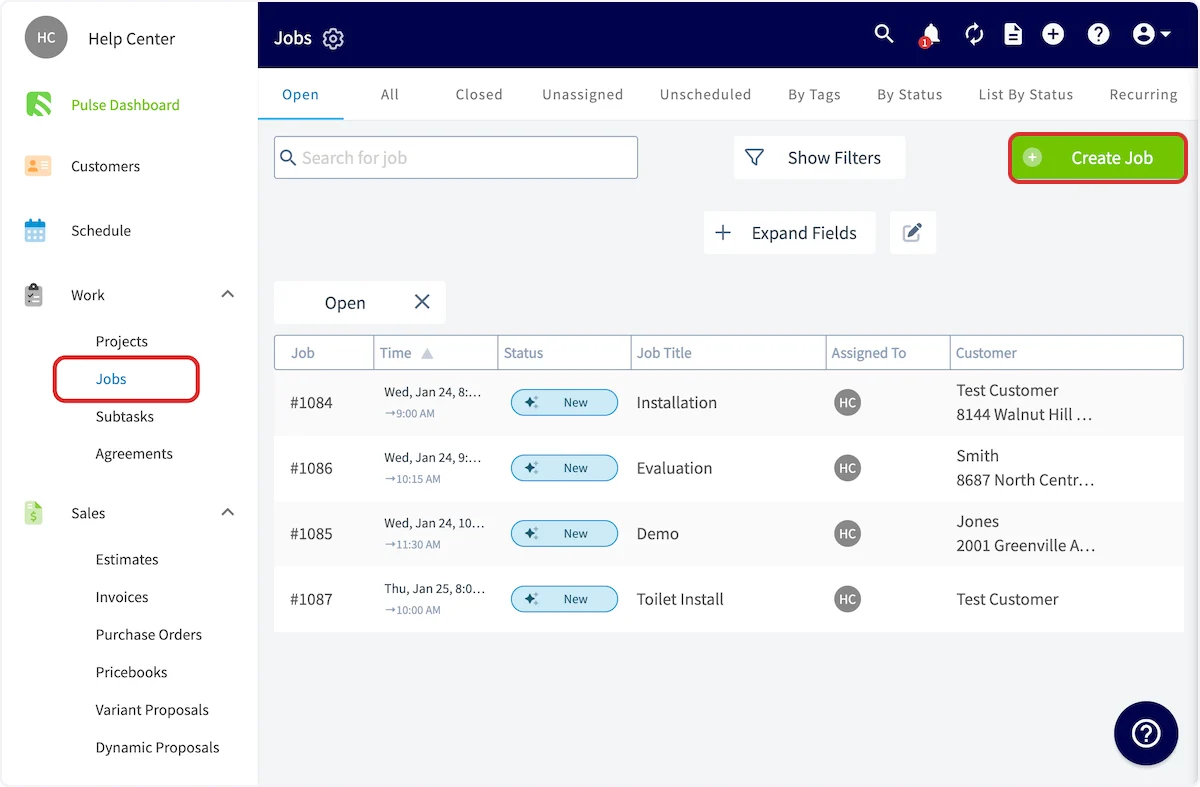
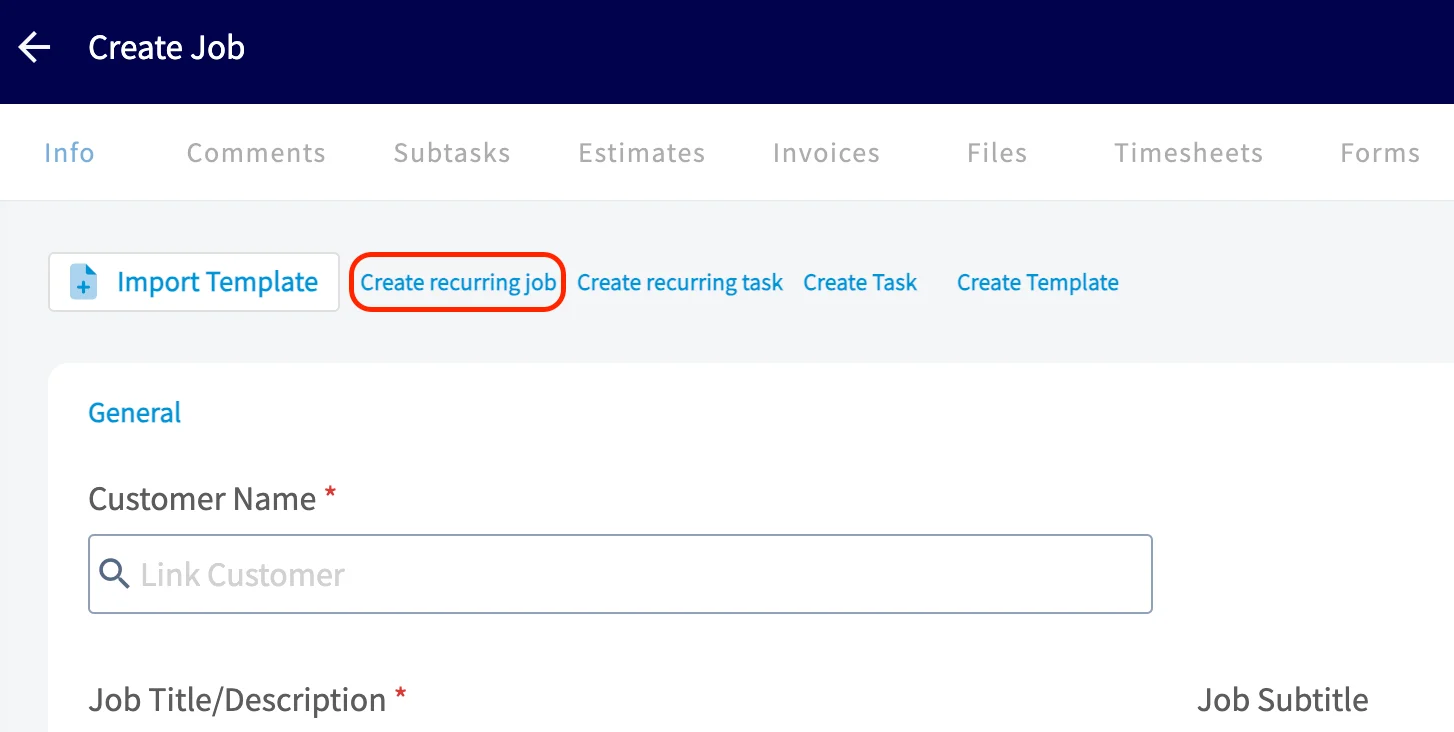
Open the Create Recurring Job form from either of two places. From the Recurring tab. Select Jobs in the left menu, select the Recurring tab, then select Create Recurring Job.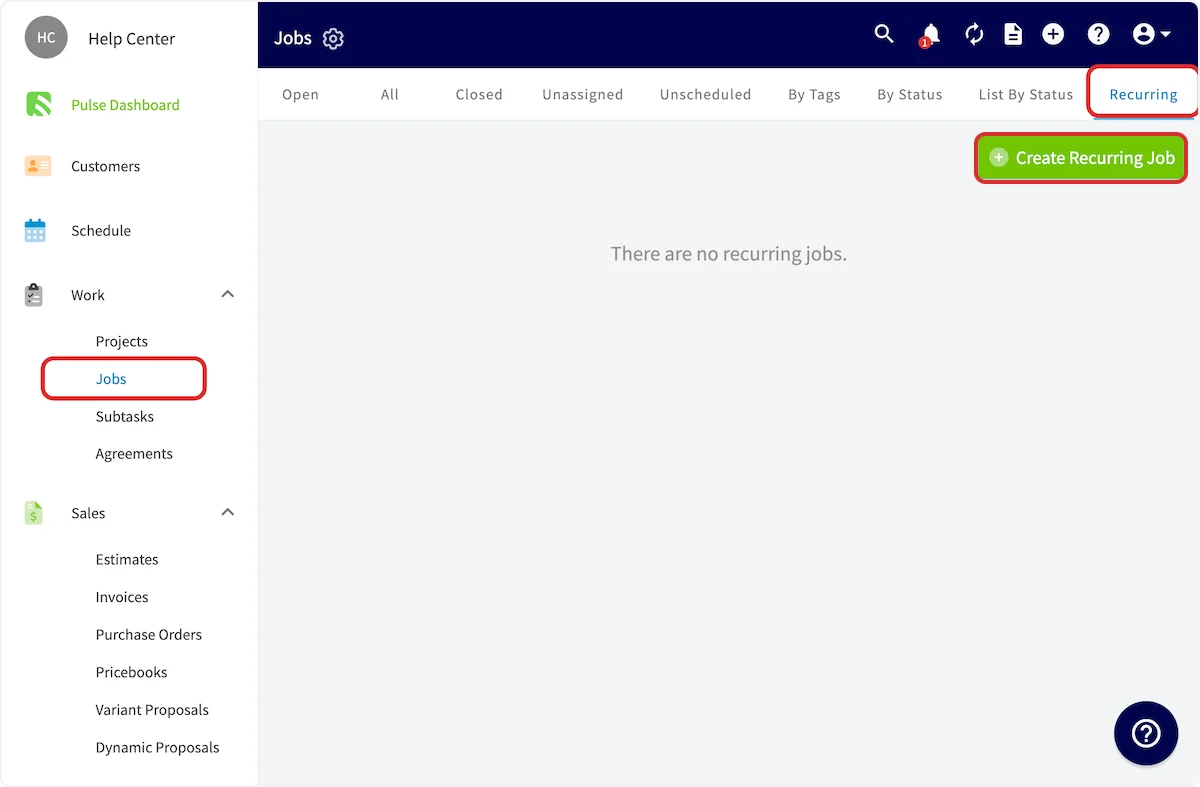
Enter the job details
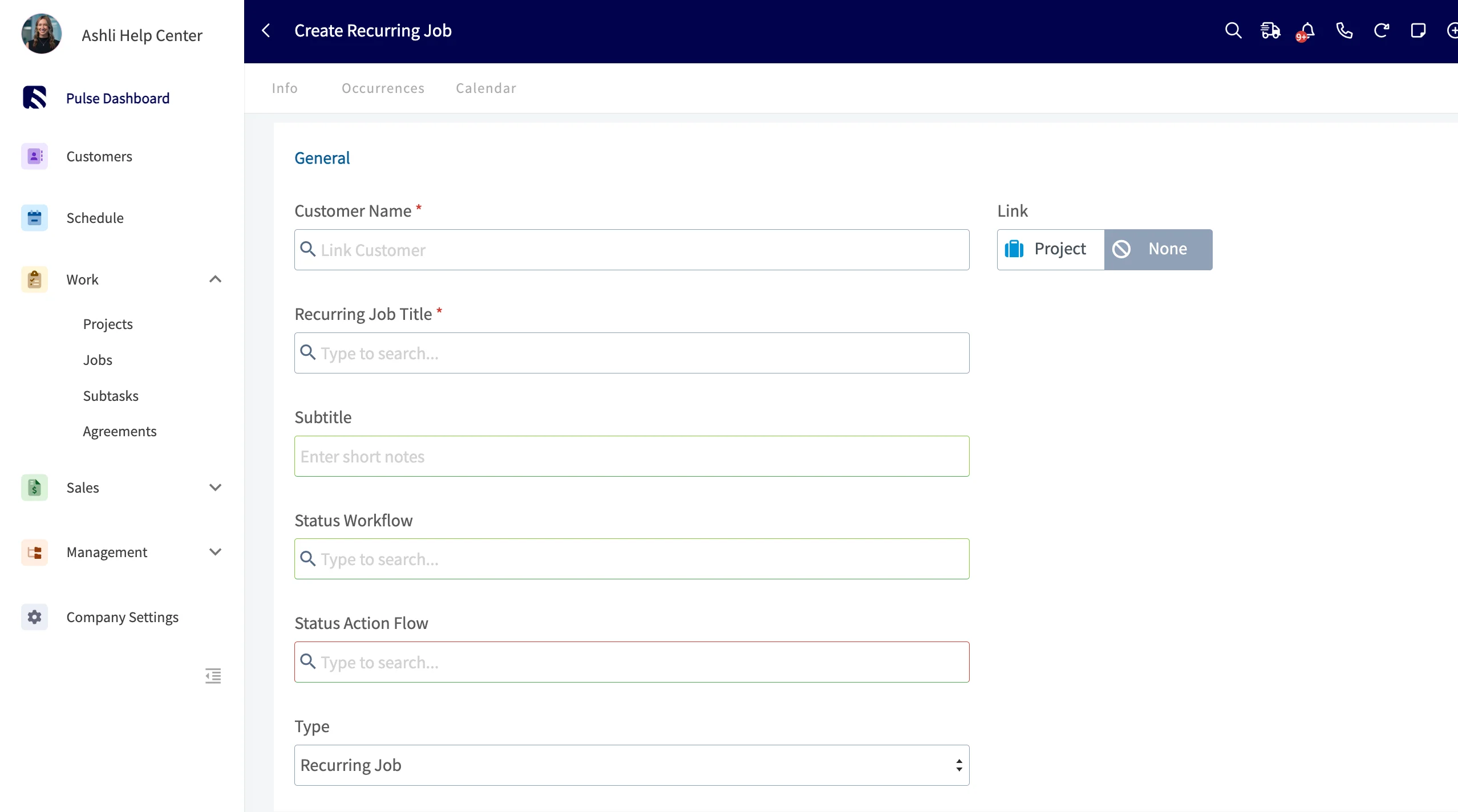
- Link a customer. Select an existing customer or create a new one — the location and contact auto-populate from the customer you link.
- Enter a Recurring Job Title that describes the work to be performed.
- Select the Status Workflow you want each job to follow.
- Select the Status Action Flow (ClearPath) you want each job to follow.
Set the frequency and end point
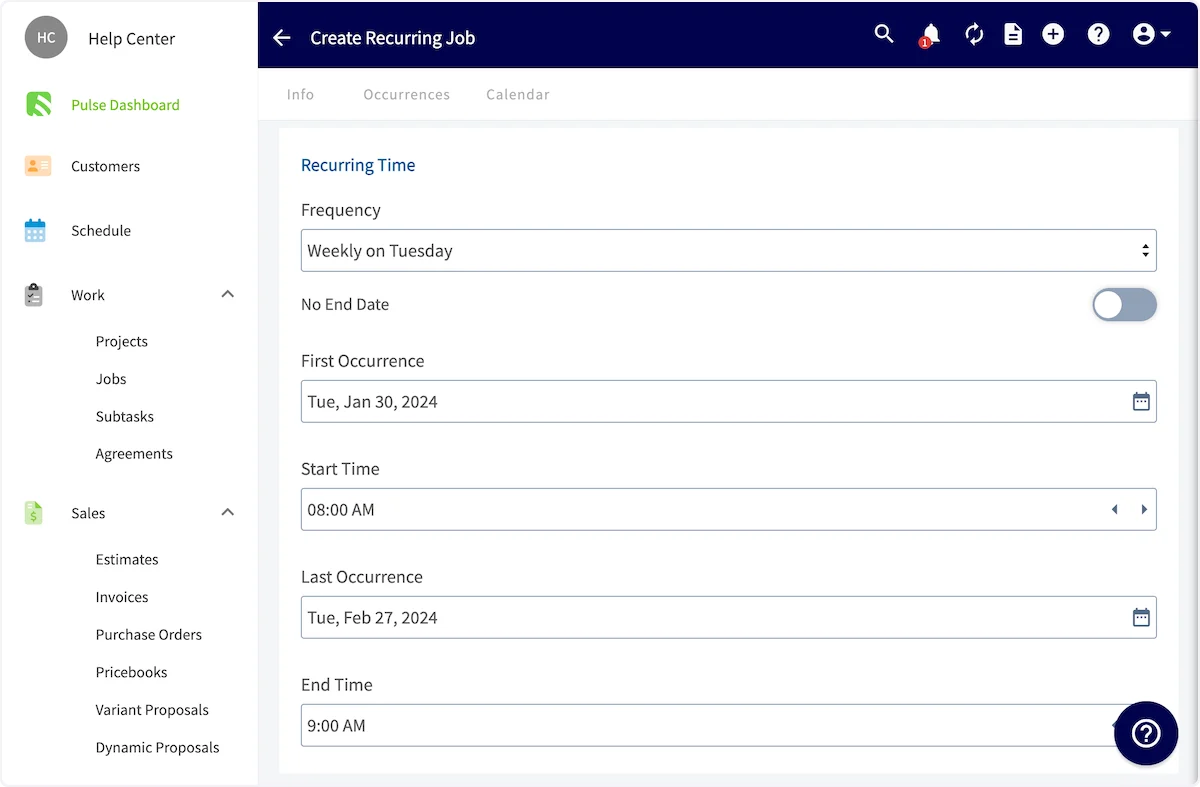
- Set the Frequency the job repeats on, such as weekly on a chosen day.
- Set the First Occurrence date and the Start Time.
- Choose how the recurrence ends. Turn on No End Date to have the job repeat with no end point, or set the Last Occurrence date and End Time.
Assign the team and save
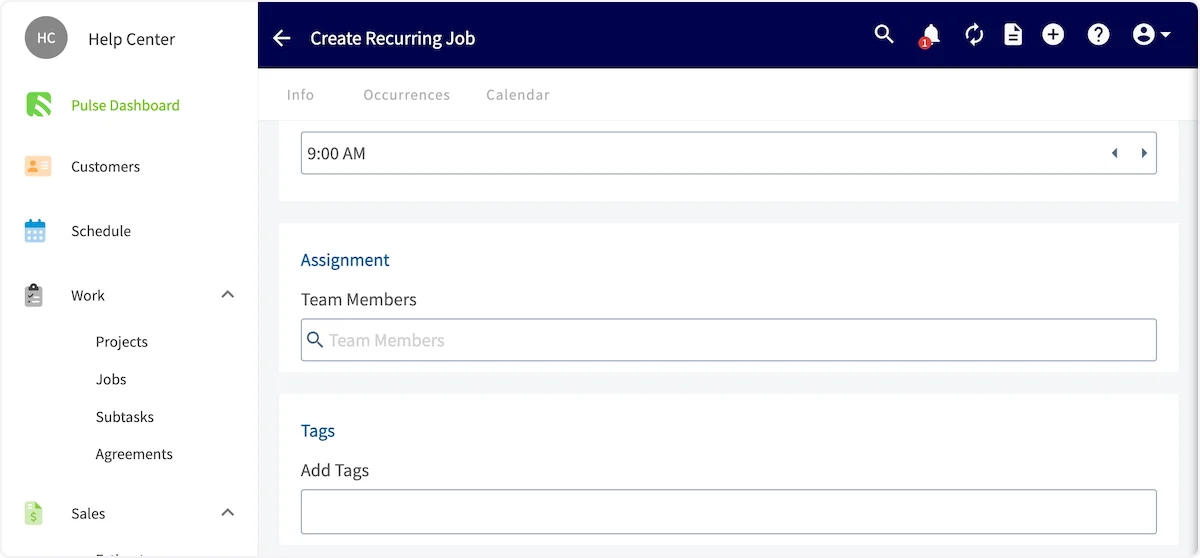
- Select the Team Members to assign to the job. To change the assignment later, see Edit a recurring job.
- Add Tags and notes as needed.
- Select Save.
Edit a recurring job
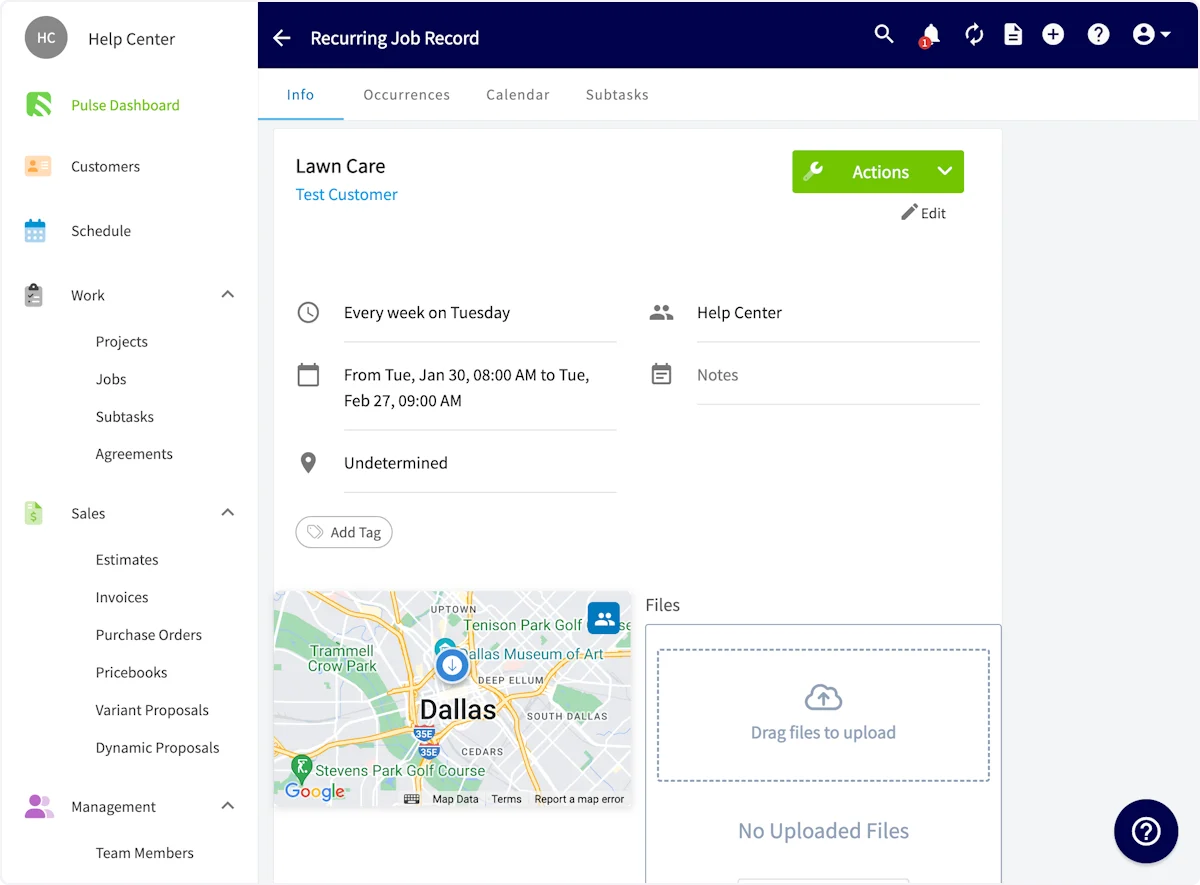
When you save an edit to a recurring job, FieldPulse asks which jobs the changes apply to. Recurring tasks follow the same steps and options.- Select Jobs, then the Recurring tab. Open the recurring job and select Edit.
- Make your changes and select Save.
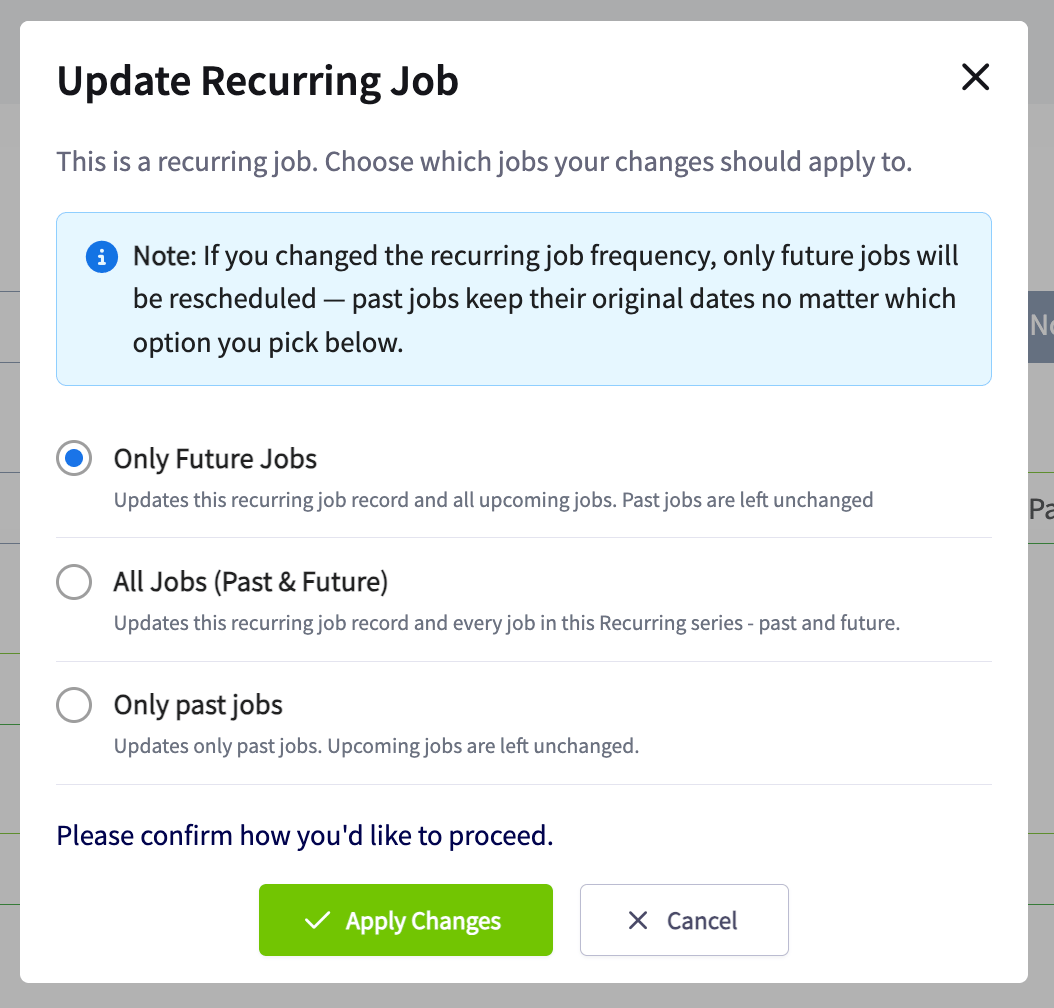
- In the pop-up, choose which jobs the changes apply to, then select Apply Changes.
How frequency changes work
Changing the frequency only affects future jobs, whichever option you choose. FieldPulse reschedules every future job to the new frequency, so no duplicates remain, and never reschedules past or completed jobs.Archive a recurring job
Archiving a recurring job stops it from generating new jobs. You choose whether to keep or archive the jobs it already created. Recurring tasks work the same way.- Open the recurring job.
- Select Actions, then select Archive recurring job.
- In the pop-up, choose what to archive.
- Select Archive. To close the pop-up without changes, select Cancel.
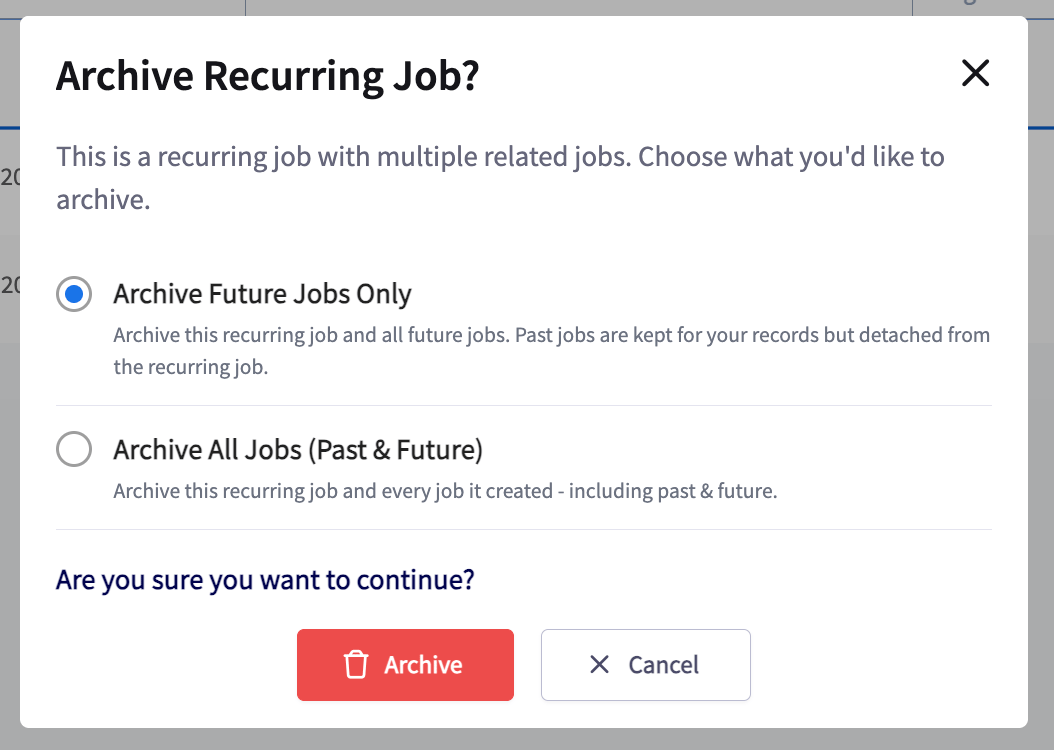
Your archive is working when the recurring job no longer appears in the Recurring tab and no new jobs are generated.