

Tasks are non-billable events that will appear on the calendar. These tasks do not need to be assigned to any specific customer, and can be customized and color-coded based on your companies preference. Some examples include:Documentation Index
Fetch the complete documentation index at: https://fieldpulse.mintlify.app/llms.txt
Use this file to discover all available pages before exploring further.
- PTO
- Drive Time
- Errands
- Lunch
- Internal Team Meeting
- Admin Time
- On-Site Estimate
Getting Task Categories Setup
Navigate to Company Settings, then select Jobs, then Task Categories. FieldPulse has preset task categories available, or you can adjust to meet your business needs. To add a new task category: type the task category name, select a color, then select Add Task Category. To edit a task category: select the pencil icon next to the task name. To delete a task category: select the trash can icon next to the task name.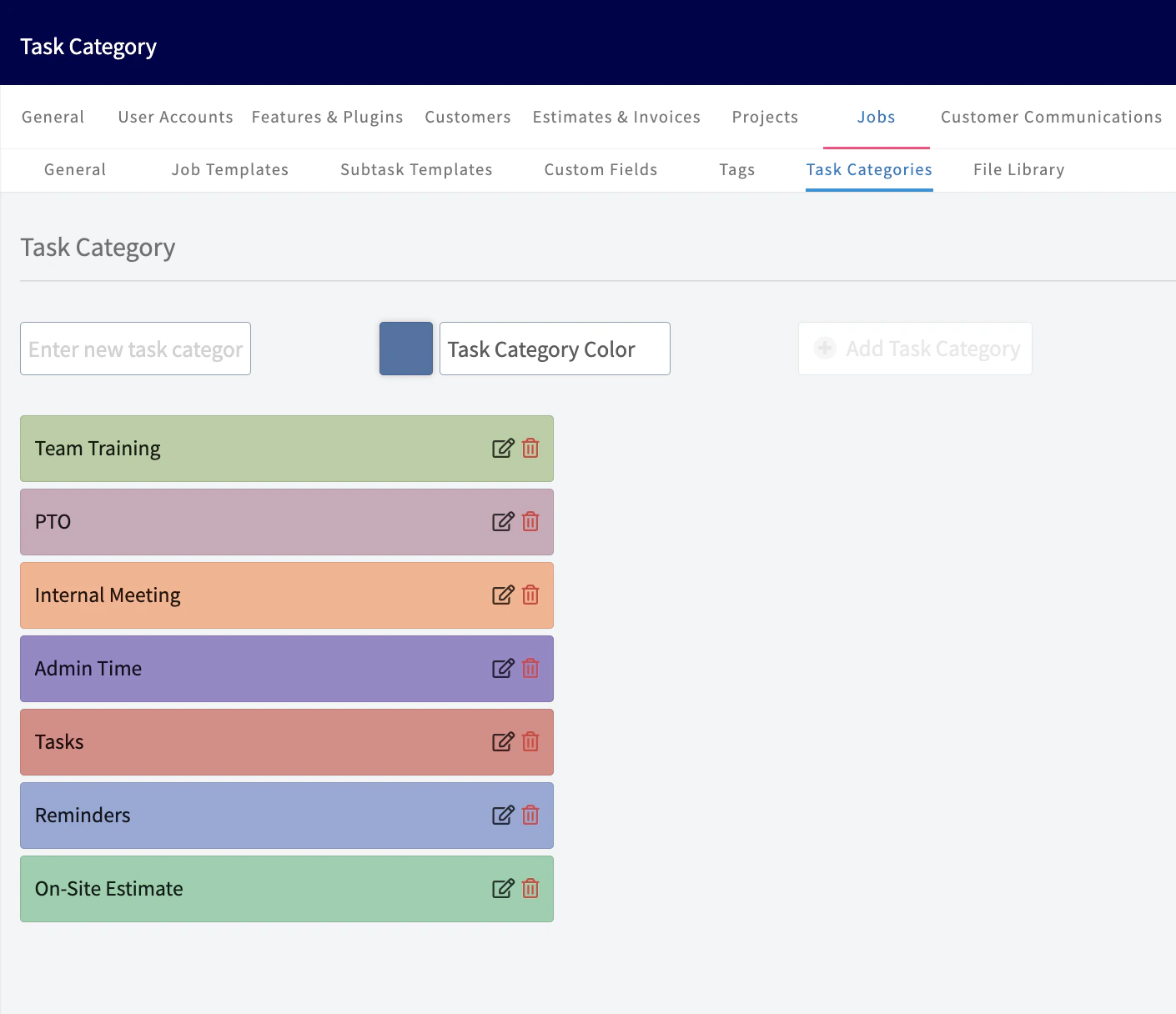
Video Tutorial
Creating a Task
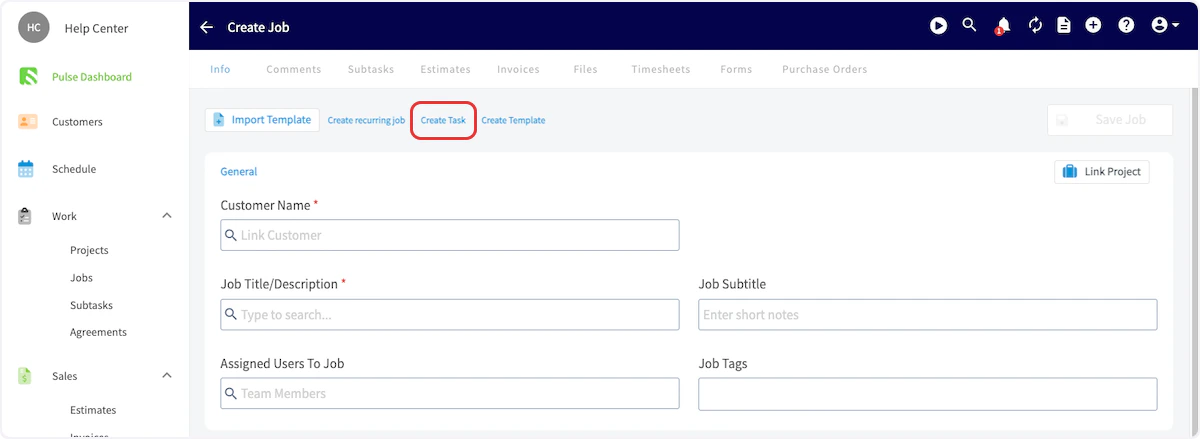
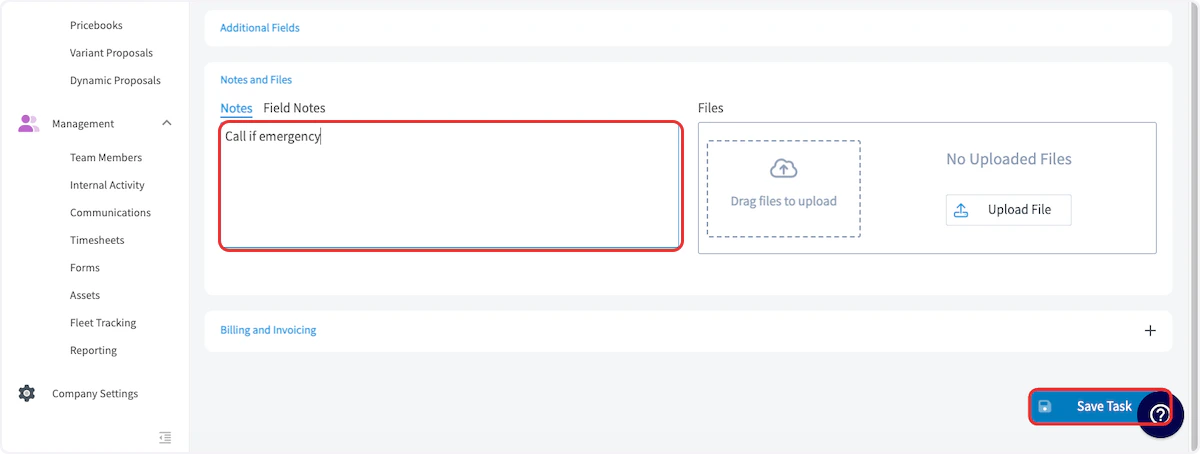
Tasks are created just like you’d create a job. This can be done directly from the schedule or the job tab. If it’s linked to a customer, it can also be created from the customer record. Begin by selecting Create Job, then click Create Task at the top of the new job record.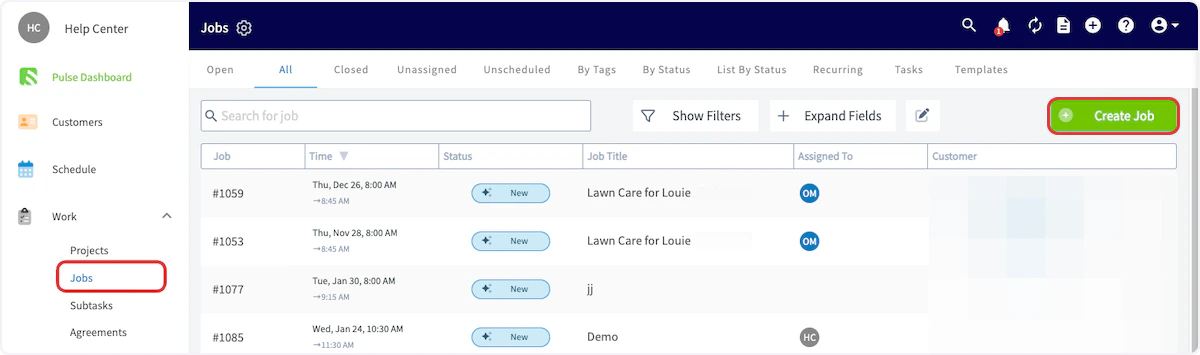

Video Tutorial
Have additional questions? Contact us at support@fieldpulse.com or use the chat feature in the bottom right corner of your screen.