

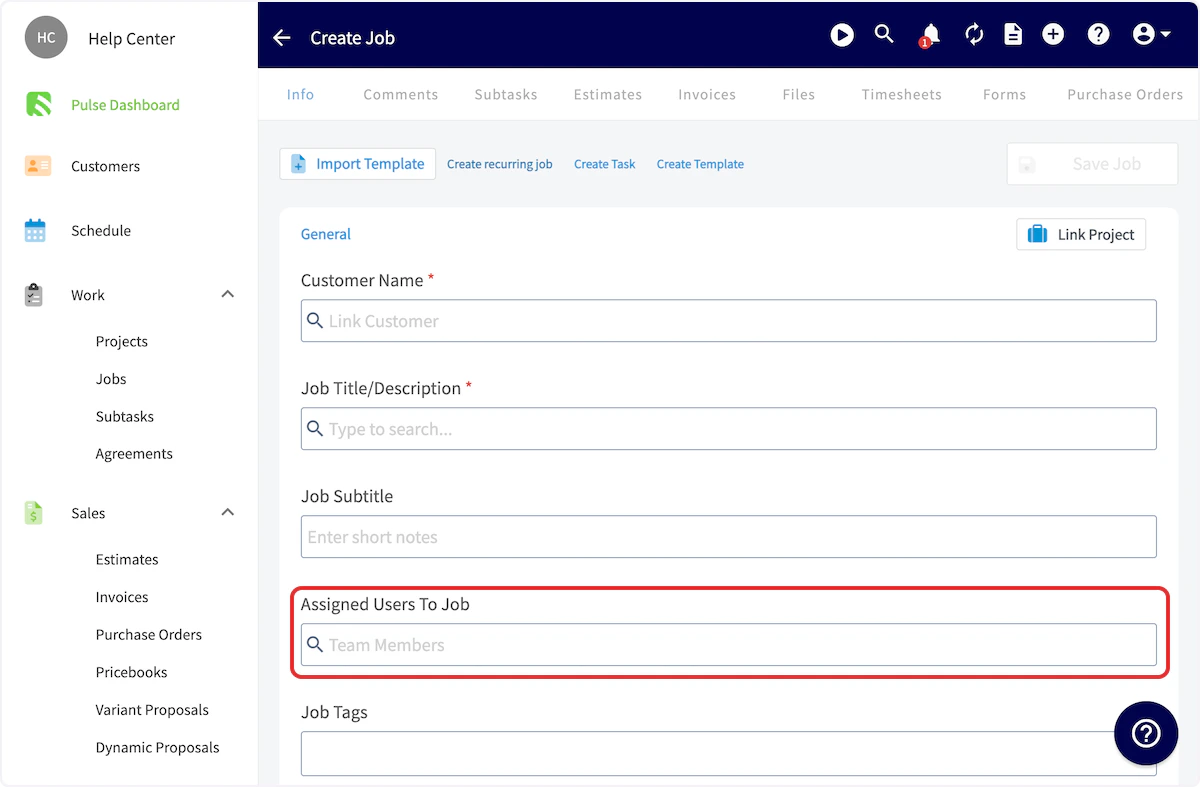
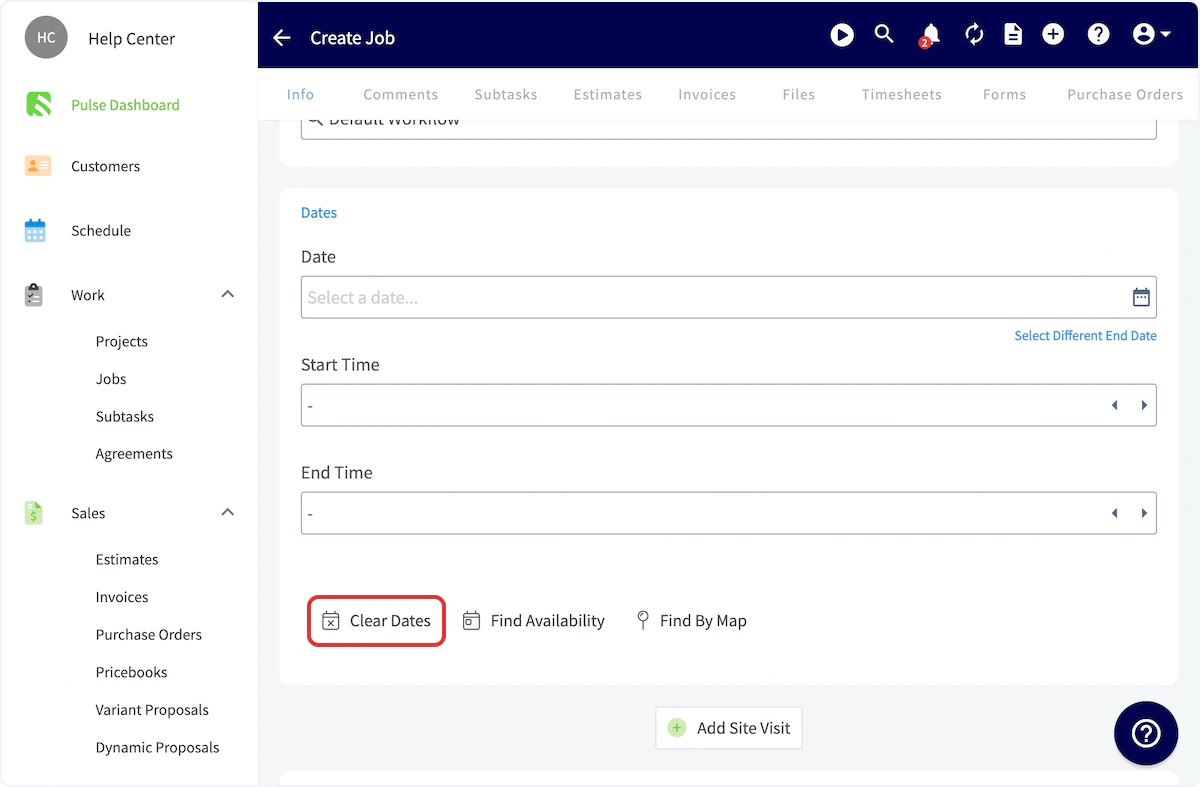
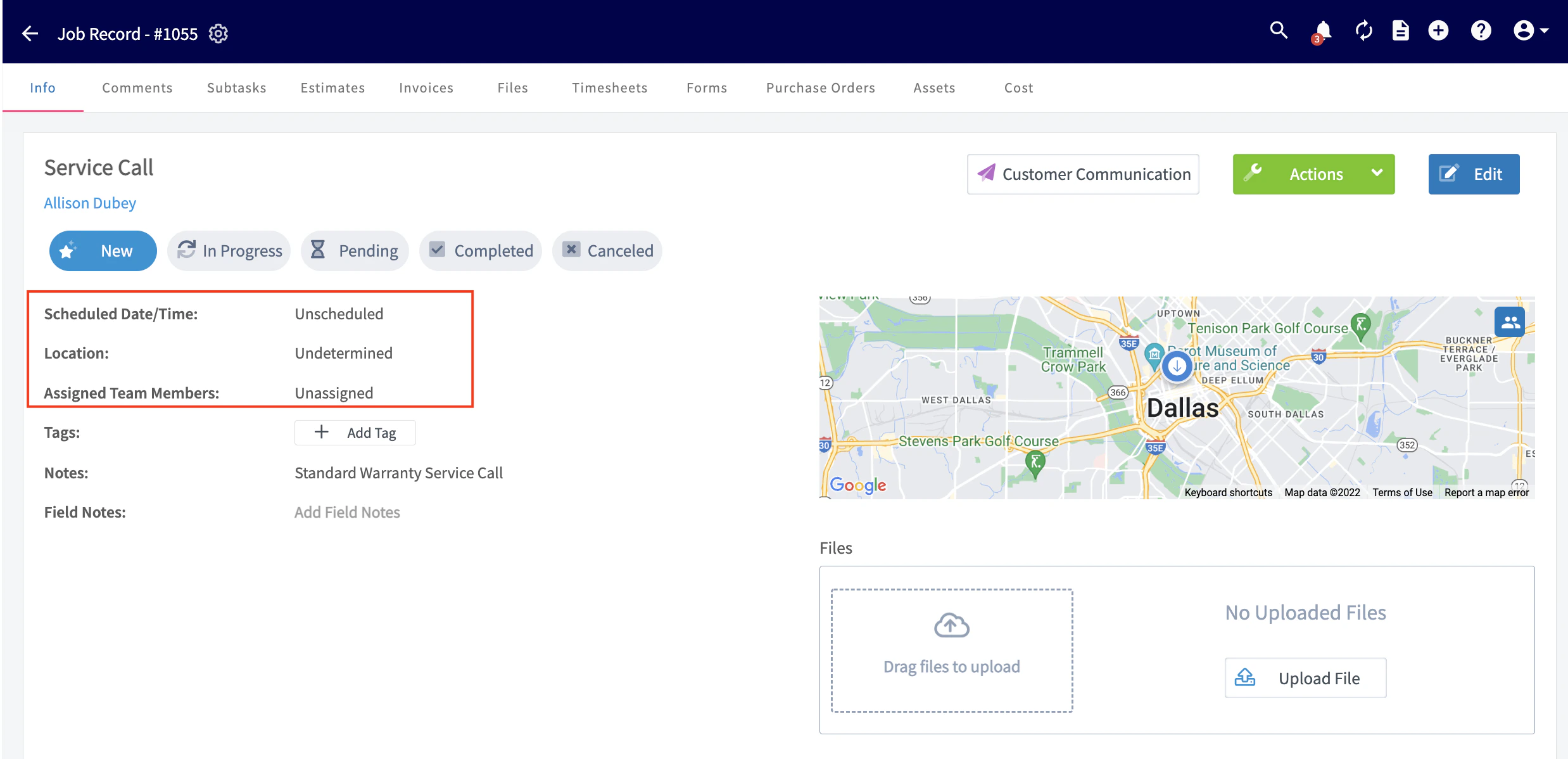
You can create jobs in FieldPulse that are not assigned to a particular team member or scheduled ahead of time. For example, you may have a job to complete sometime in the next 2 weeks, but the day is flexible and you haven’t yet decided which team member to assign it to. You can create an unassigned and unscheduled job and then assign and schedule it at a later date.Documentation Index
Fetch the complete documentation index at: https://fieldpulse.mintlify.app/llms.txt
Use this file to discover all available pages before exploring further.
Creating an Unassigned or Unscheduled Job
Begin by selecting Jobs under Work in the left-side menu, then click Create Job.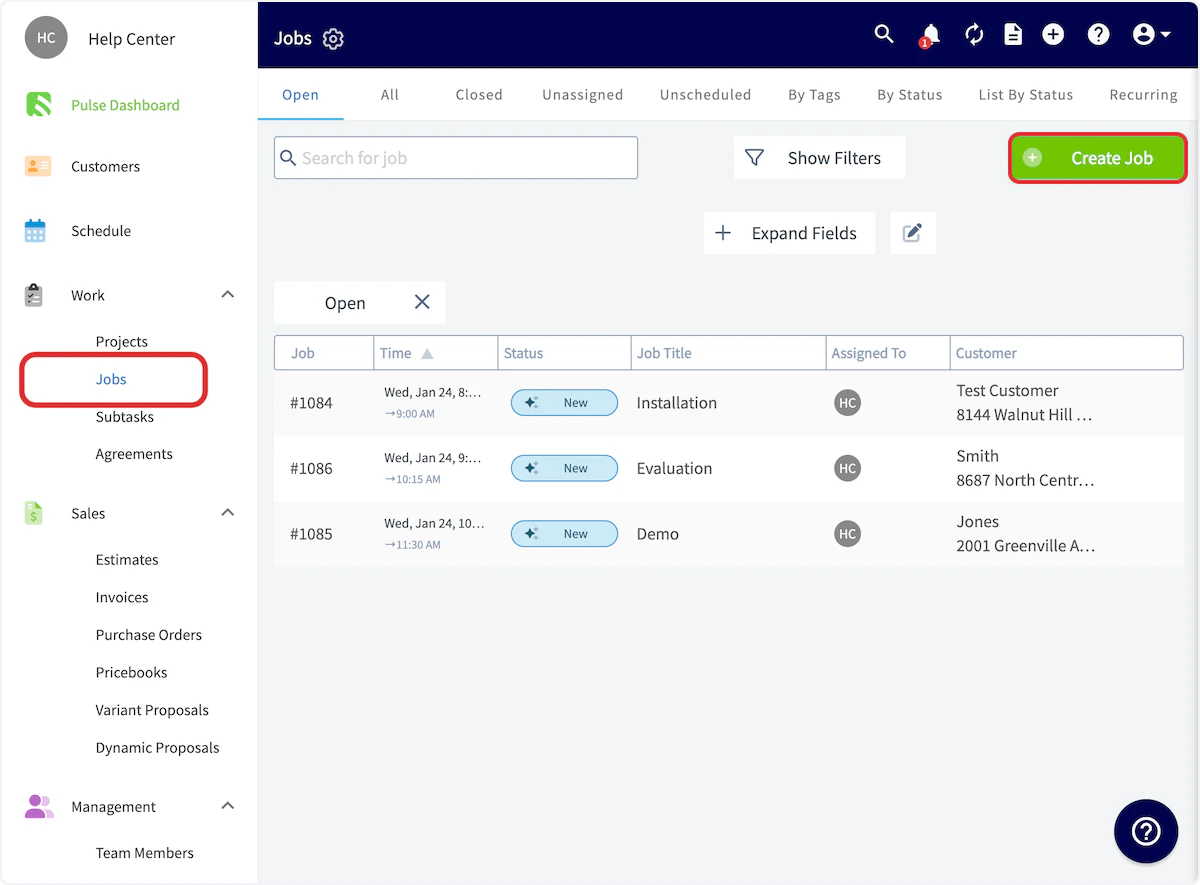
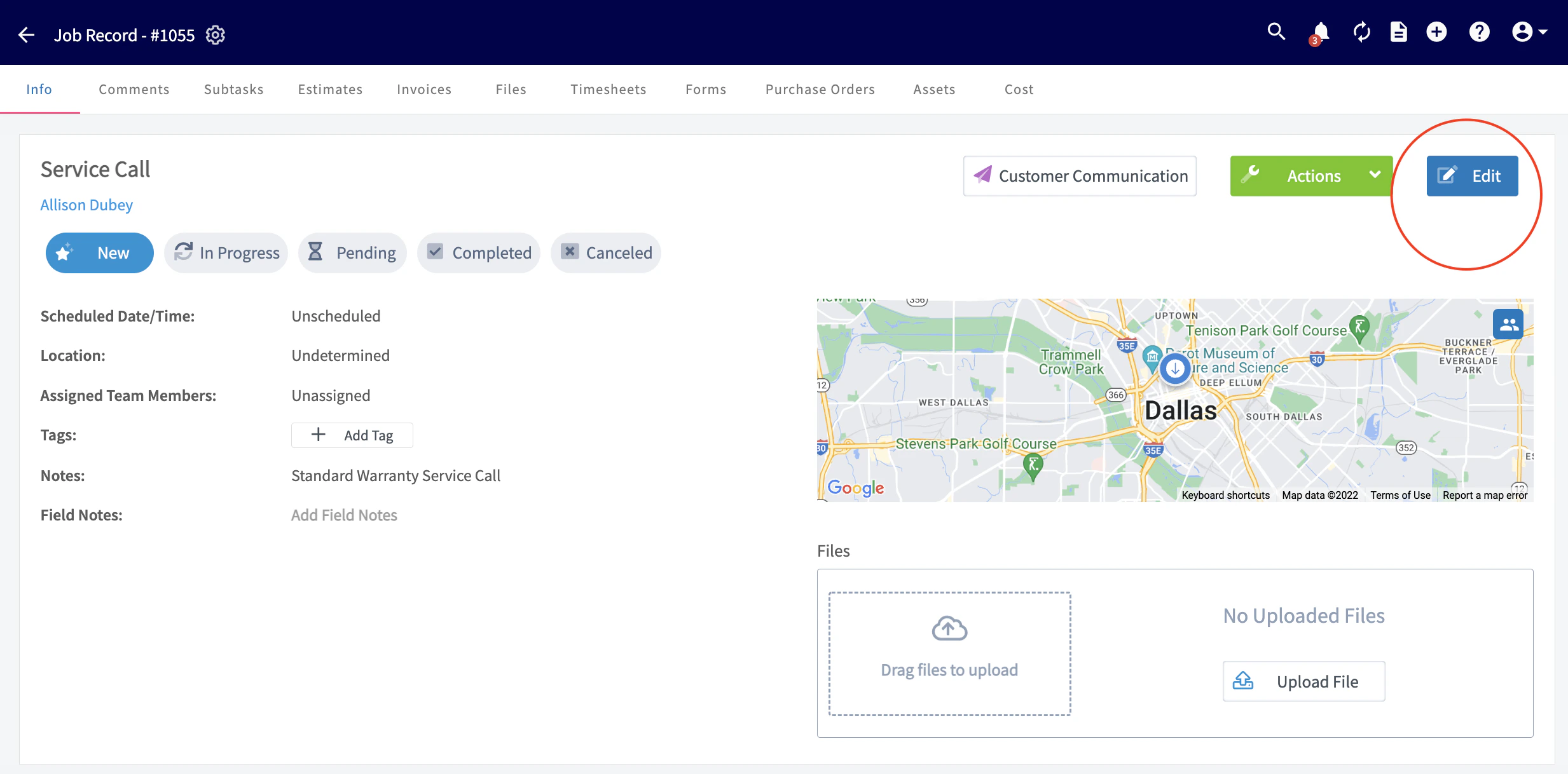
Viewing, Scheduling, & Assigning
Option 1:
Navigate to the Jobs tab in the left-side menu, and then click Unassigned. This will take you to a page with all the jobs that are unscheduled and/or unassigned.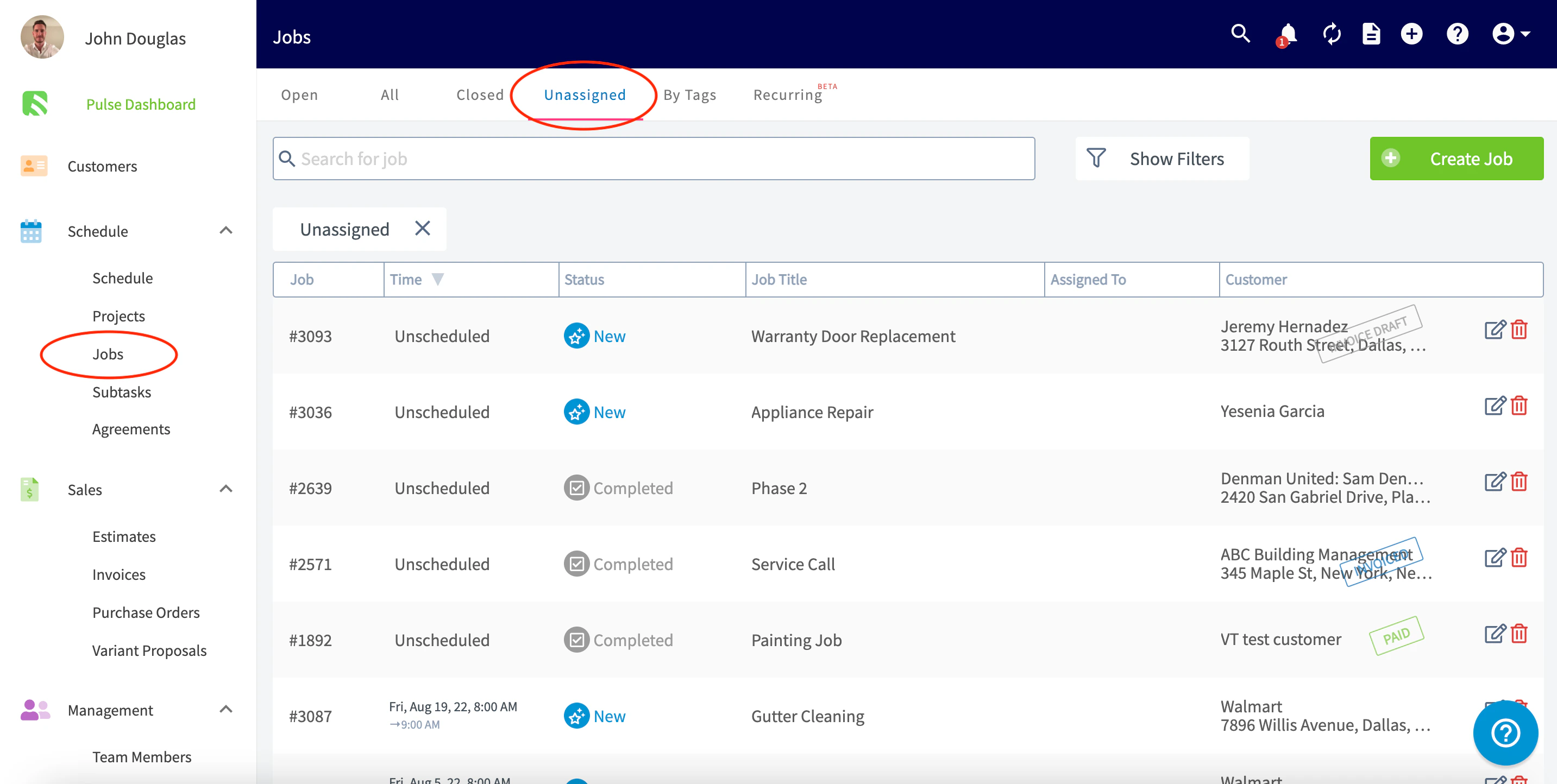
Option 2:
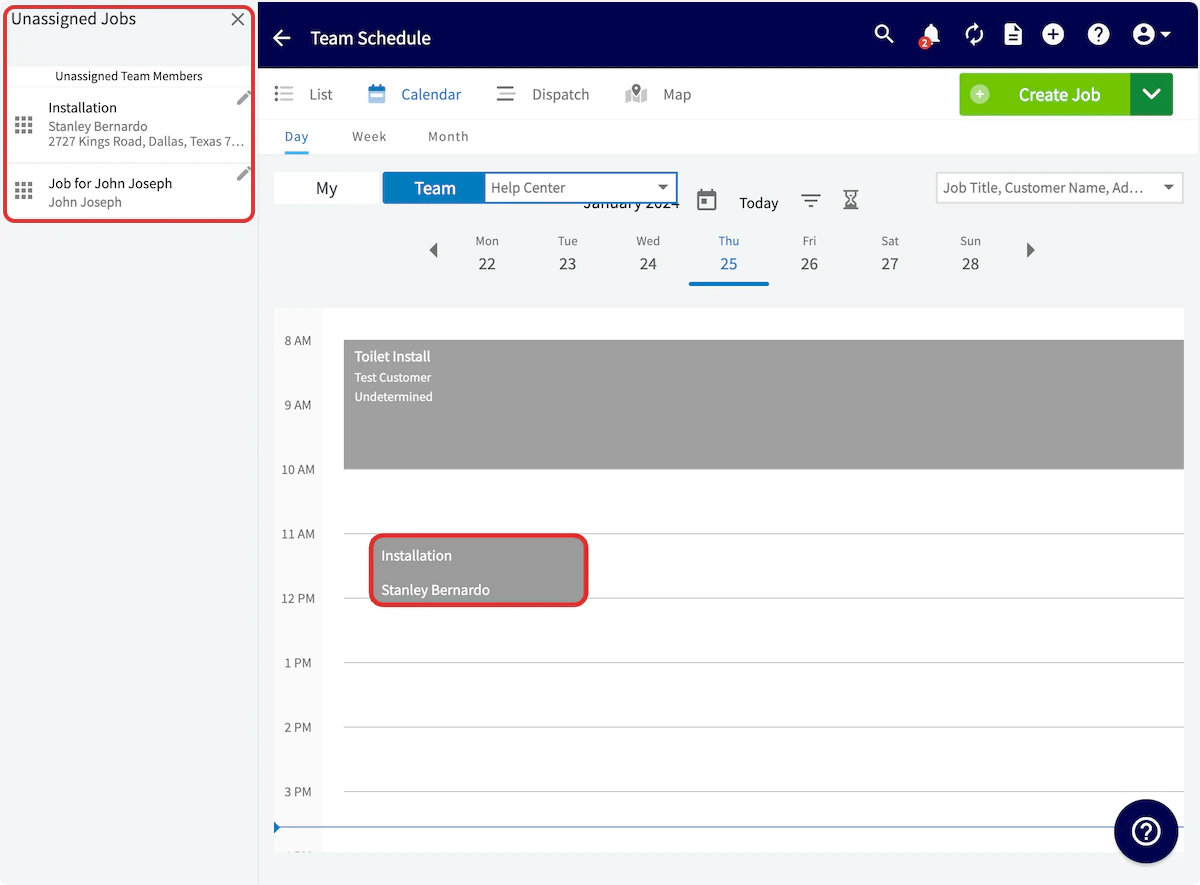
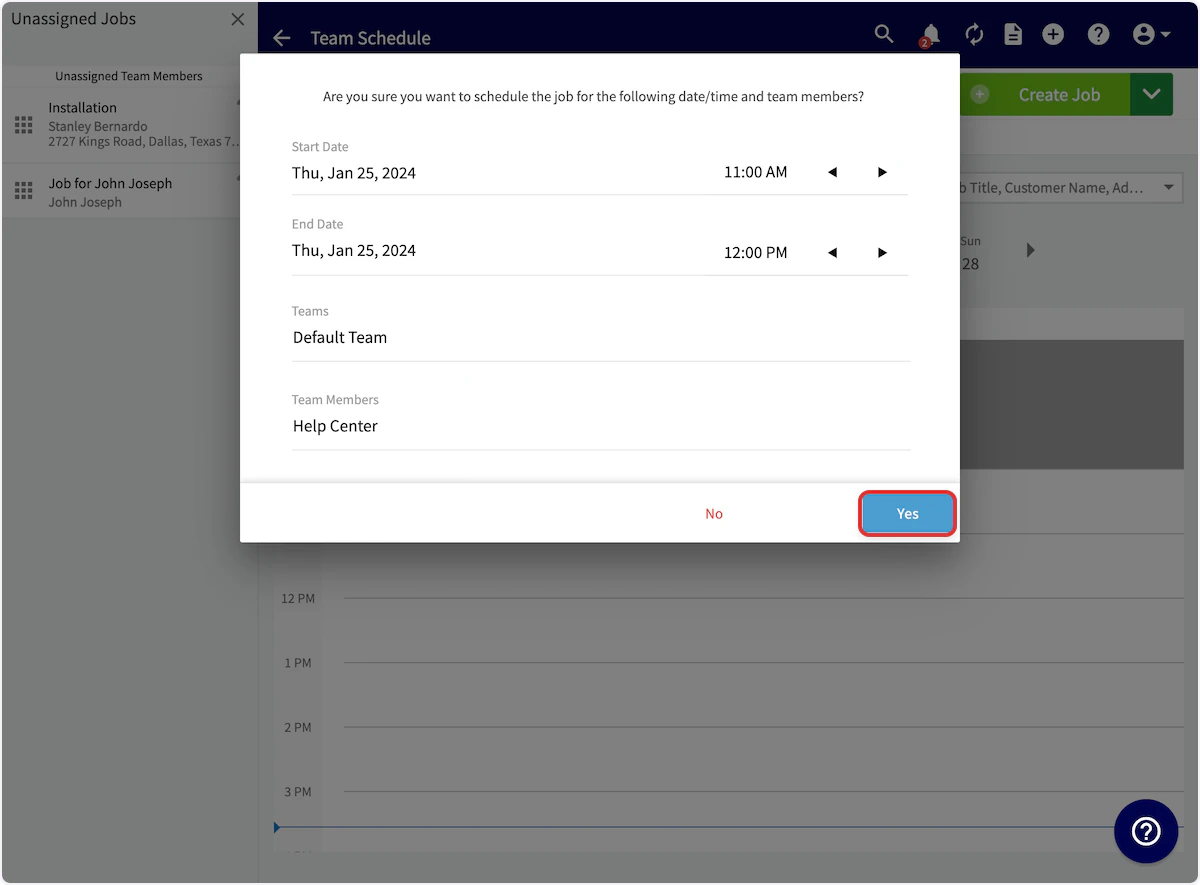
You can also view all unassigned jobs from the Schedule tab. On any of the schedule views, select the hourglass icon to display the unassigned and unscheduled jobs.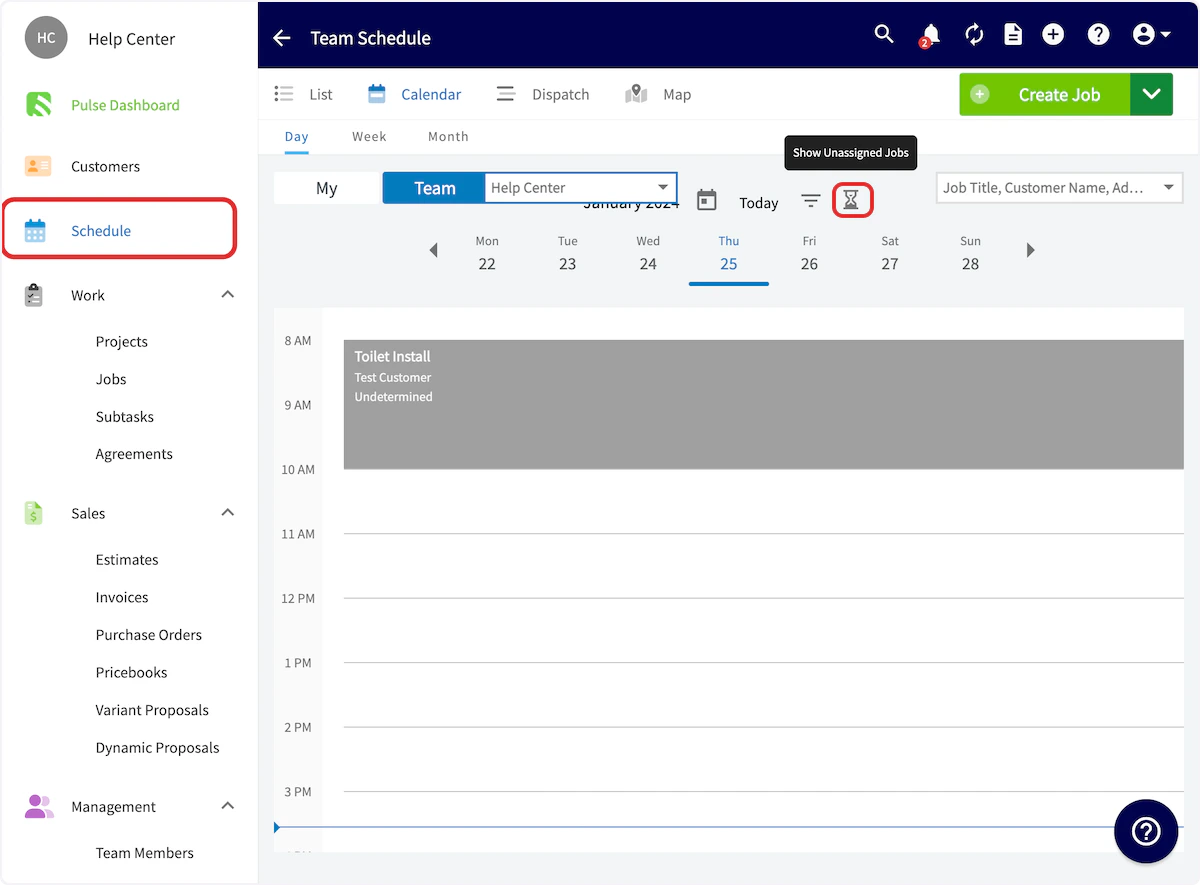
Video Tutorial
Have additional questions? Contact us at support@fieldpulse.com or use the chat feature in the bottom right corner of your screen.