

Documentation Index
Fetch the complete documentation index at: https://fieldpulse.mintlify.app/llms.txt
Use this file to discover all available pages before exploring further.
Overview
FieldPulse’s main record type is called a Job. A job record requires a customer and a title, but it also commonly includes a start and end date/time, and assigned team members. The secondary record type is called a Subtask. Although Subtasks can be independent, they are typically attached under a job record to further divide the work into a task list. For example, you may want to separate your job into multiple subtasks to better track the status or to assign the work to different team members, rather than having a single job record track everything. Subtasks, unlike Jobs, will not appear on the schedule.On Web: Admin Experience
Subtask Templates
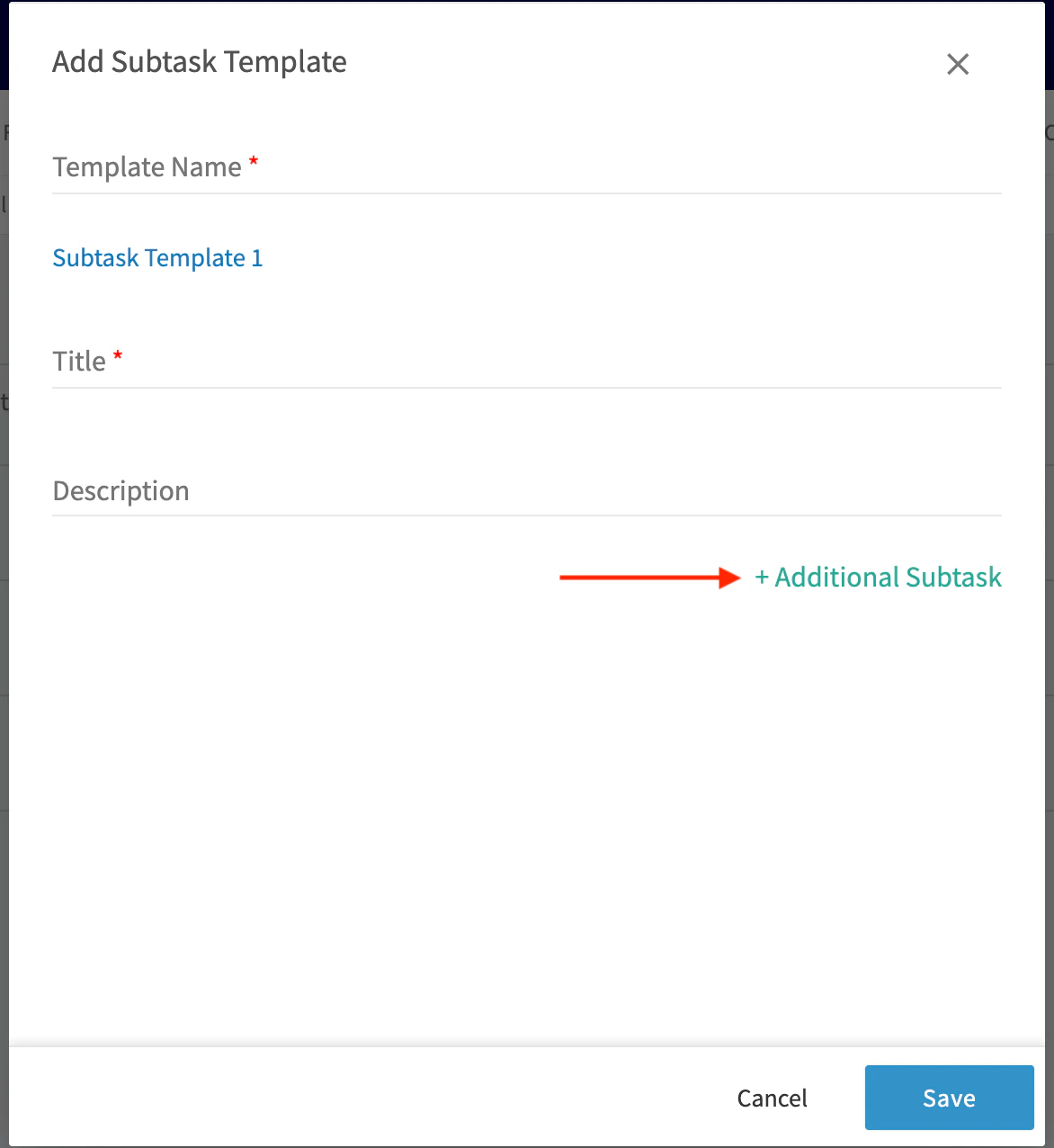
Subtask Templates allow you to pre-define a subtask or series of subtasks that you commonly use in your jobs. That way you can quickly insert them into jobs. For example, for a standard service call, you might create a subtask template with the following series of subtasks for your service agents to follow: 1. Diagnose Issue2. Plan Repair
3. Provide estimate to customer and receive sign-off
4. Repair Issue
5. Inspect unit for quality and functioning
6. Invoice To create a subtask template, navigate to Company Settings on the left-side menu, click Jobs, then Subtask Templates. On this page, click Create New.

Attaching a Subtask to a Job
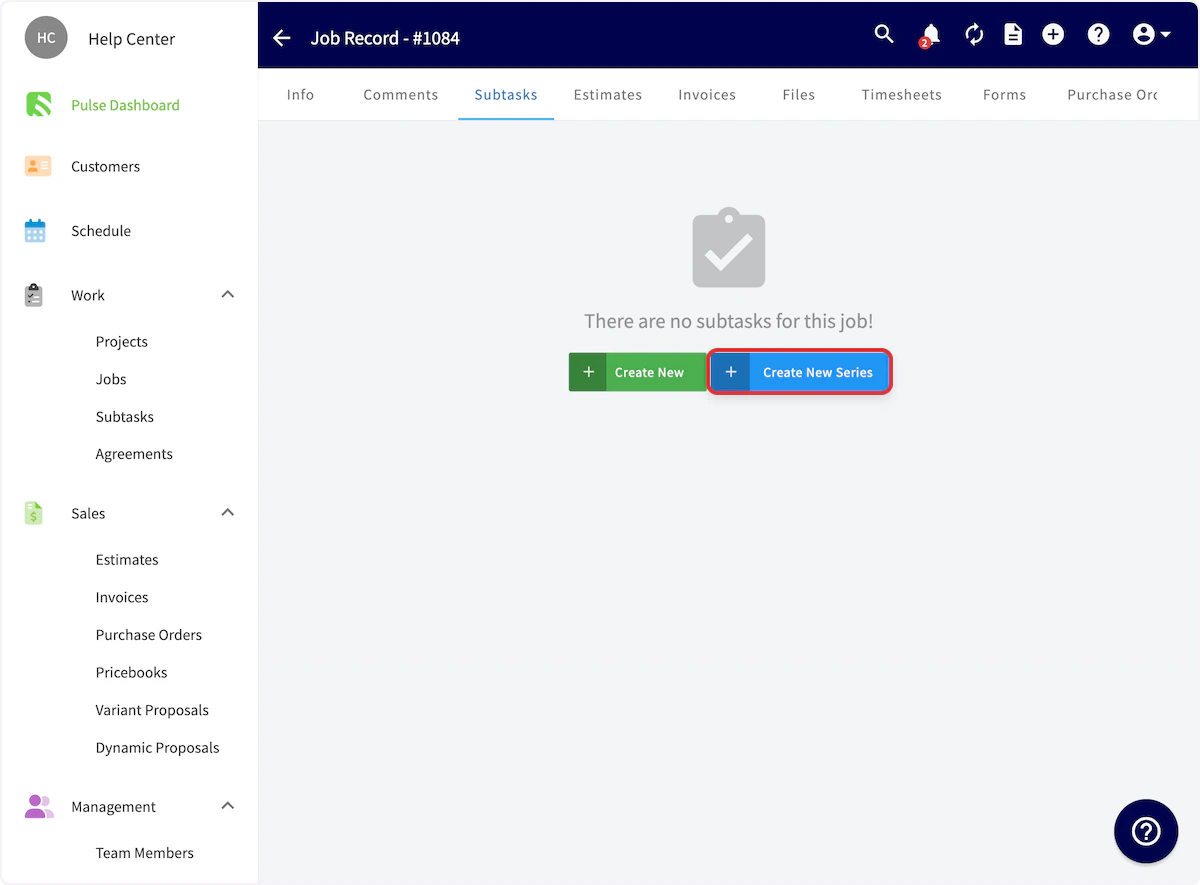
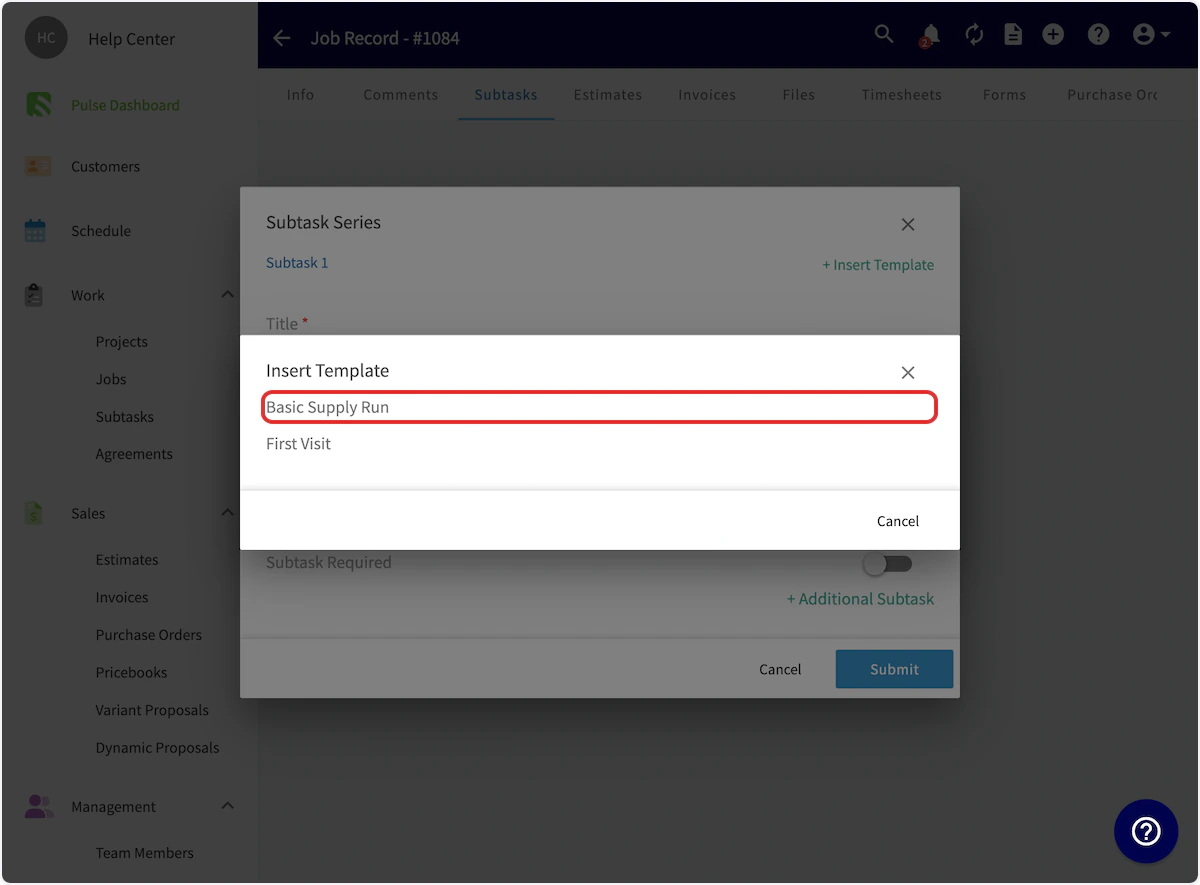
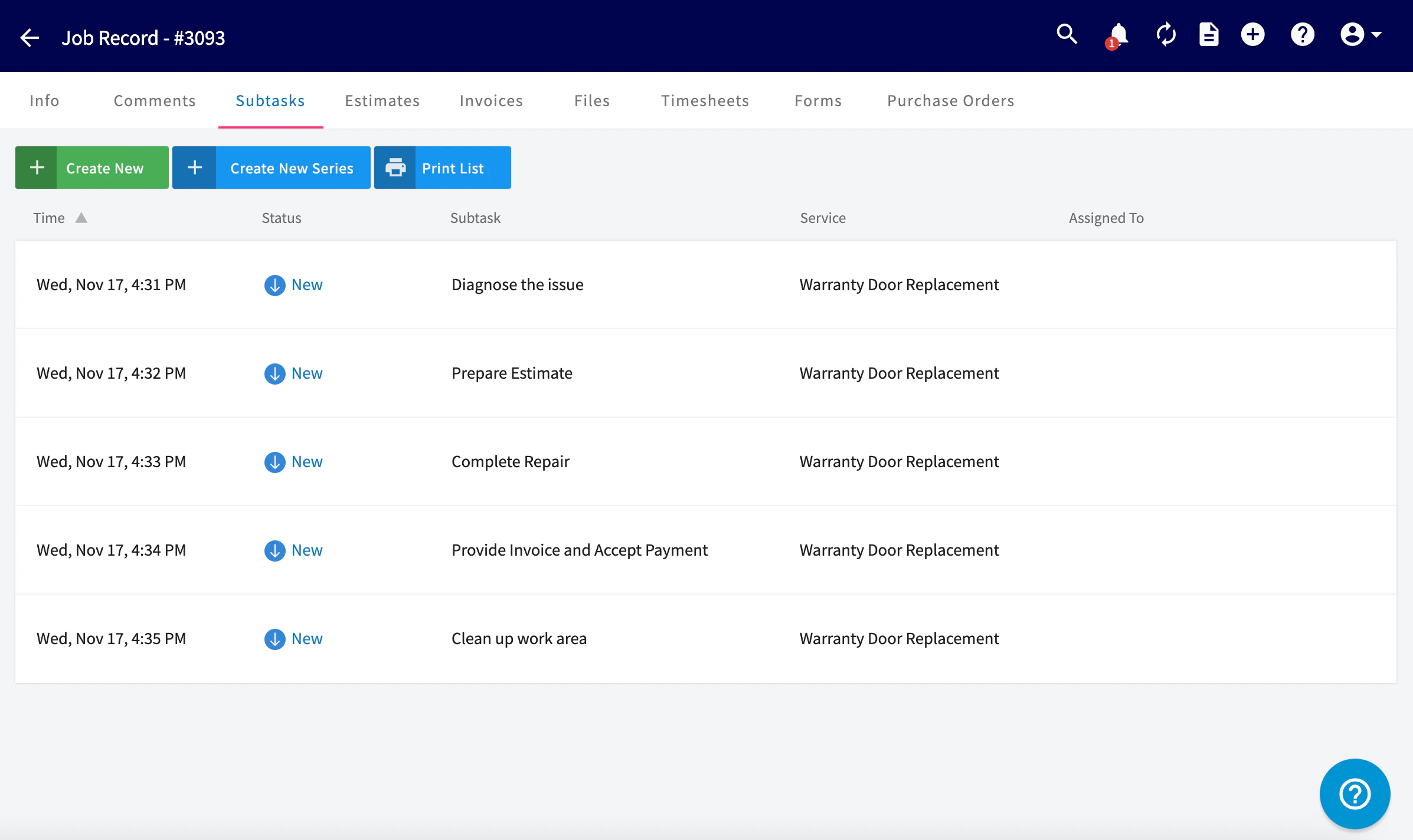
To use your subtask template, go to the job record you’d like to use the template on and click Subtasks.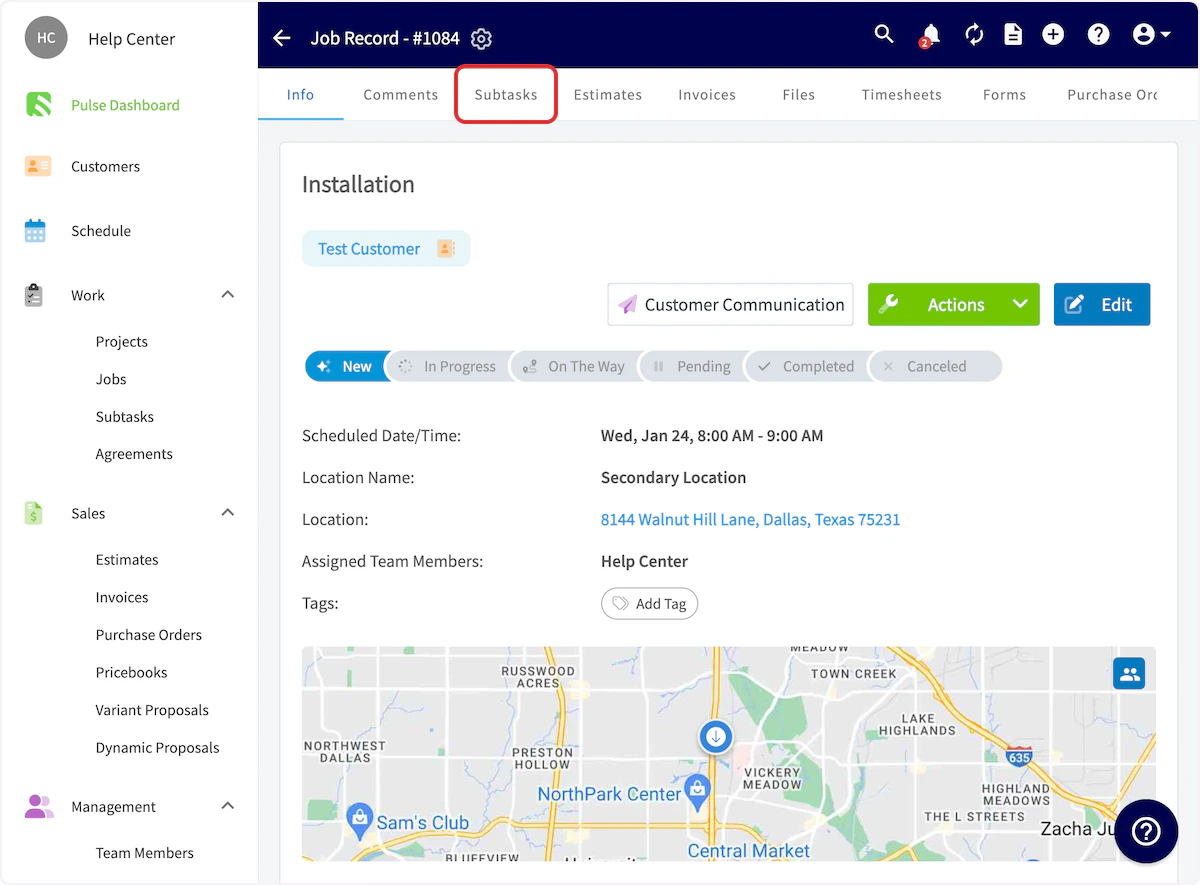


Subtasks without a Job
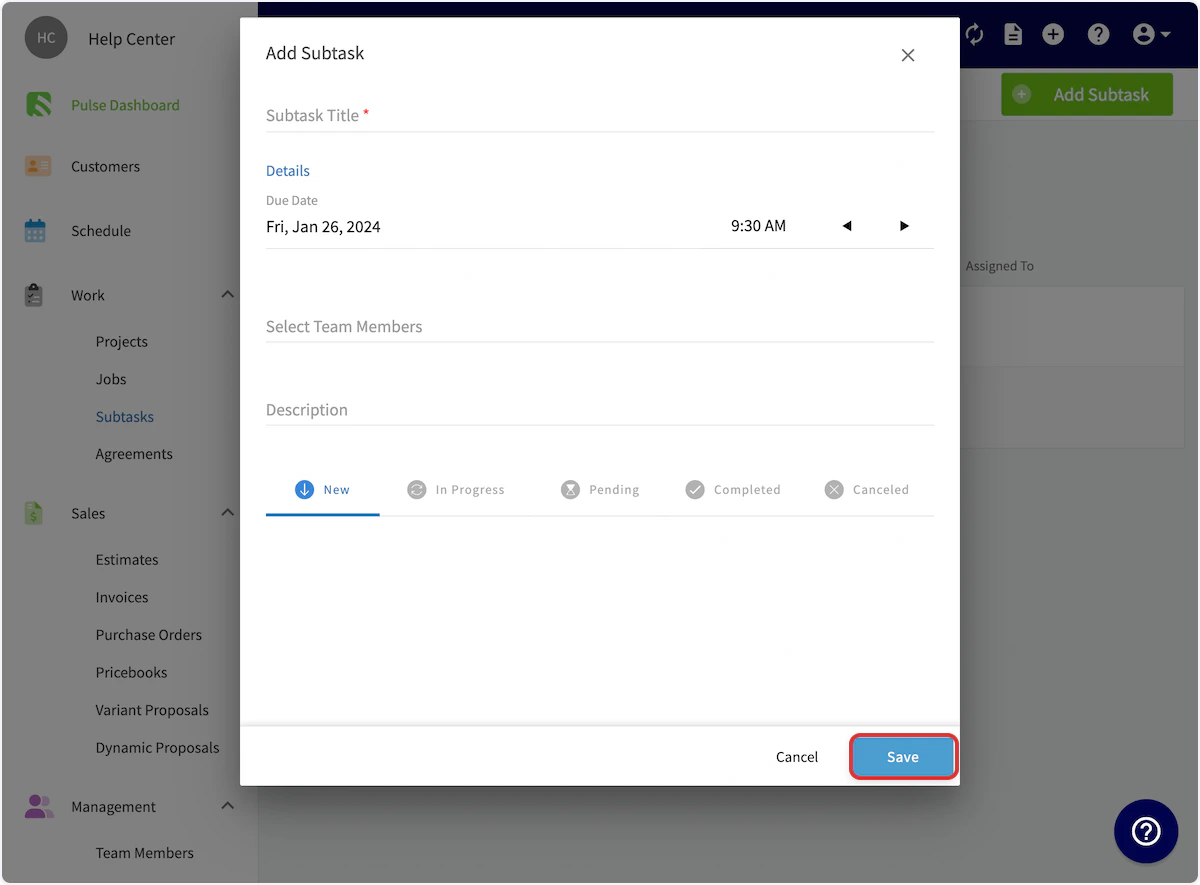
If you’d like to create a subtask without attaching it to a job, select Subtasks from the left-side menu, then click Add Subtask.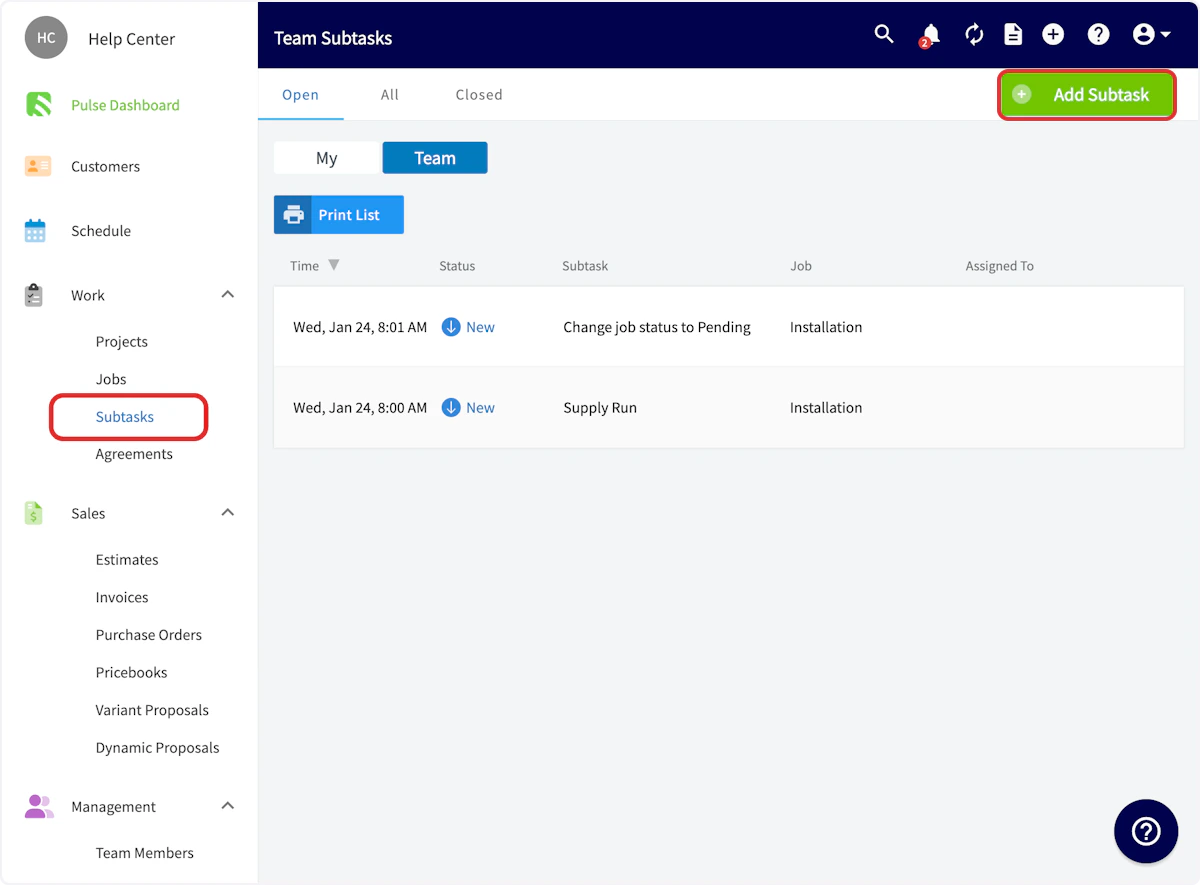

Requiring a Subtask
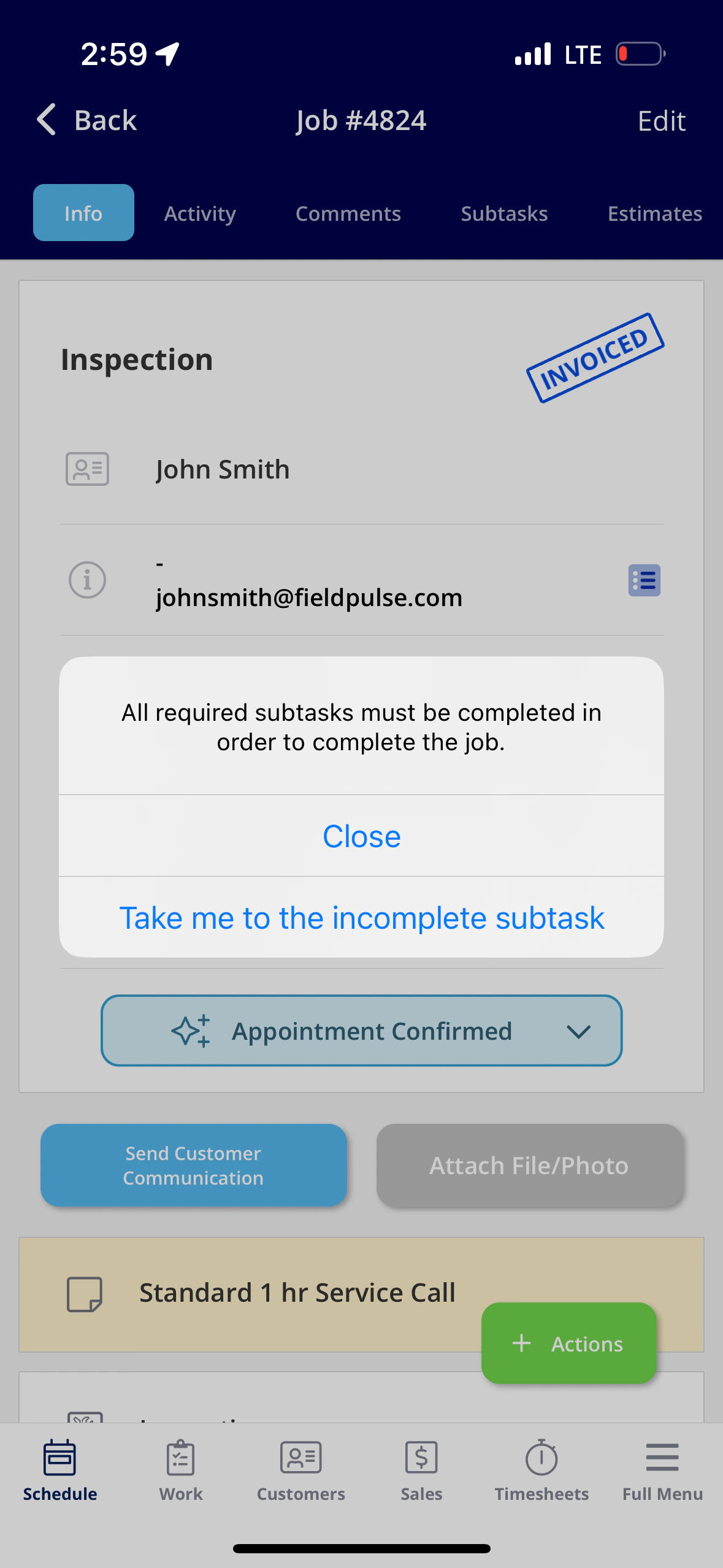
Whether using a template or creating a new subtask, subtasks can be required before job statuses are selected or bypassed. If you try to change a status without completed the required subtask(s), FieldPulse will display an error and prompt you to complete it. You’ll notice the ability to require a subtask before job statuses when creating templates in Company Settings, as well as when creating subtask(s) on a job.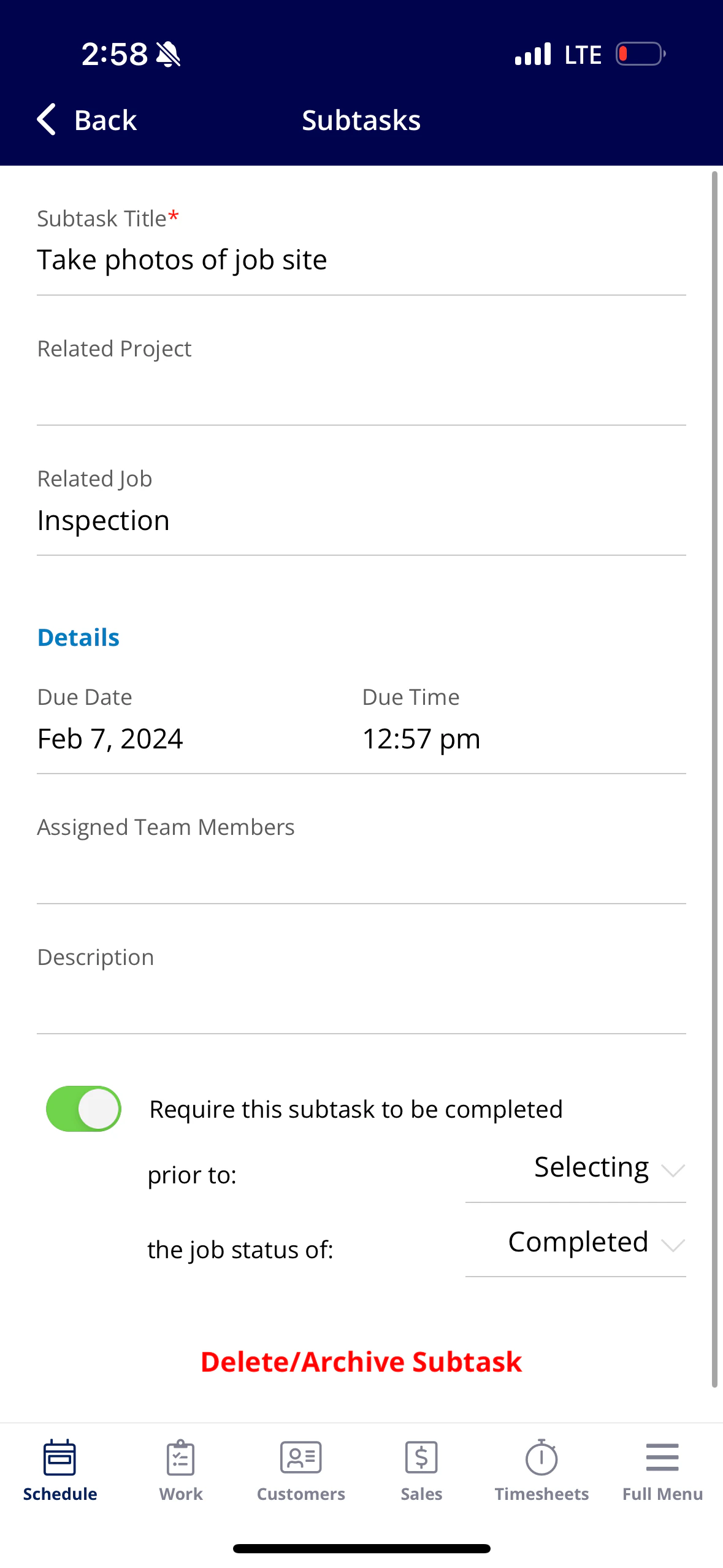
Completing a Subtask
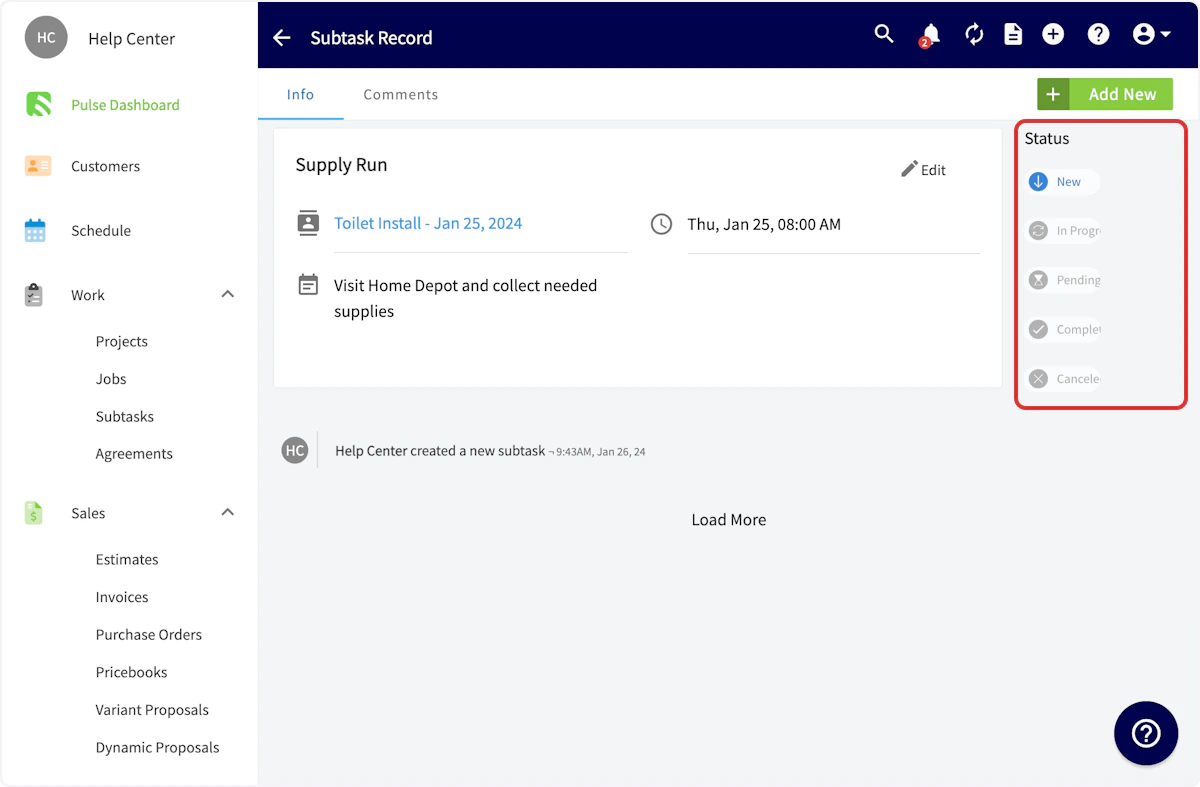
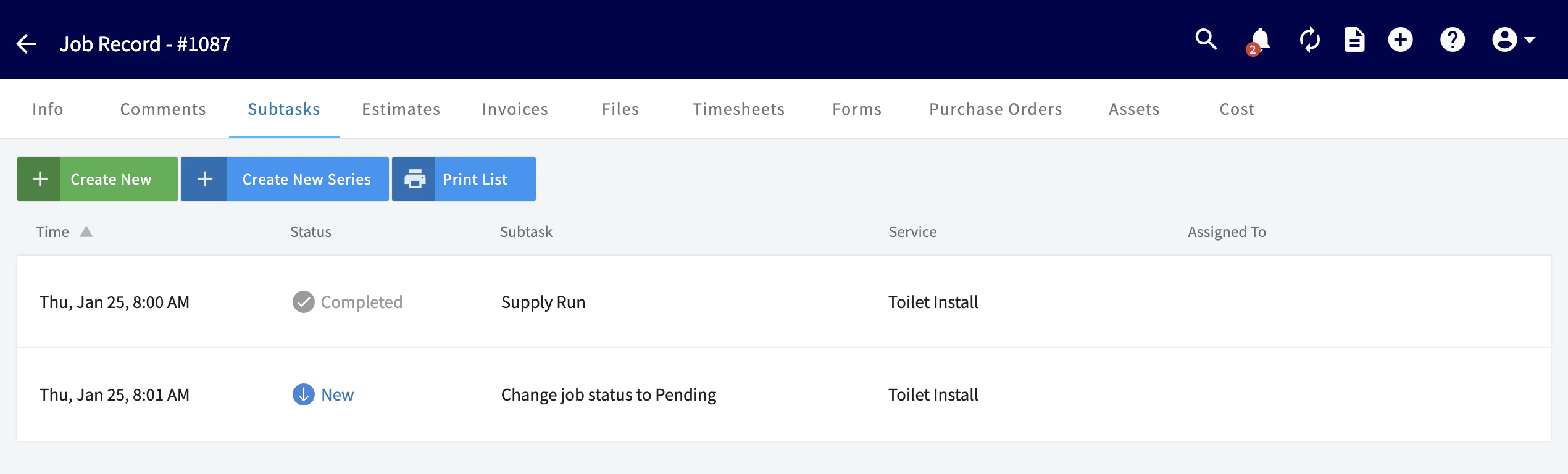
To complete a subtask, begin by selecting the subtask.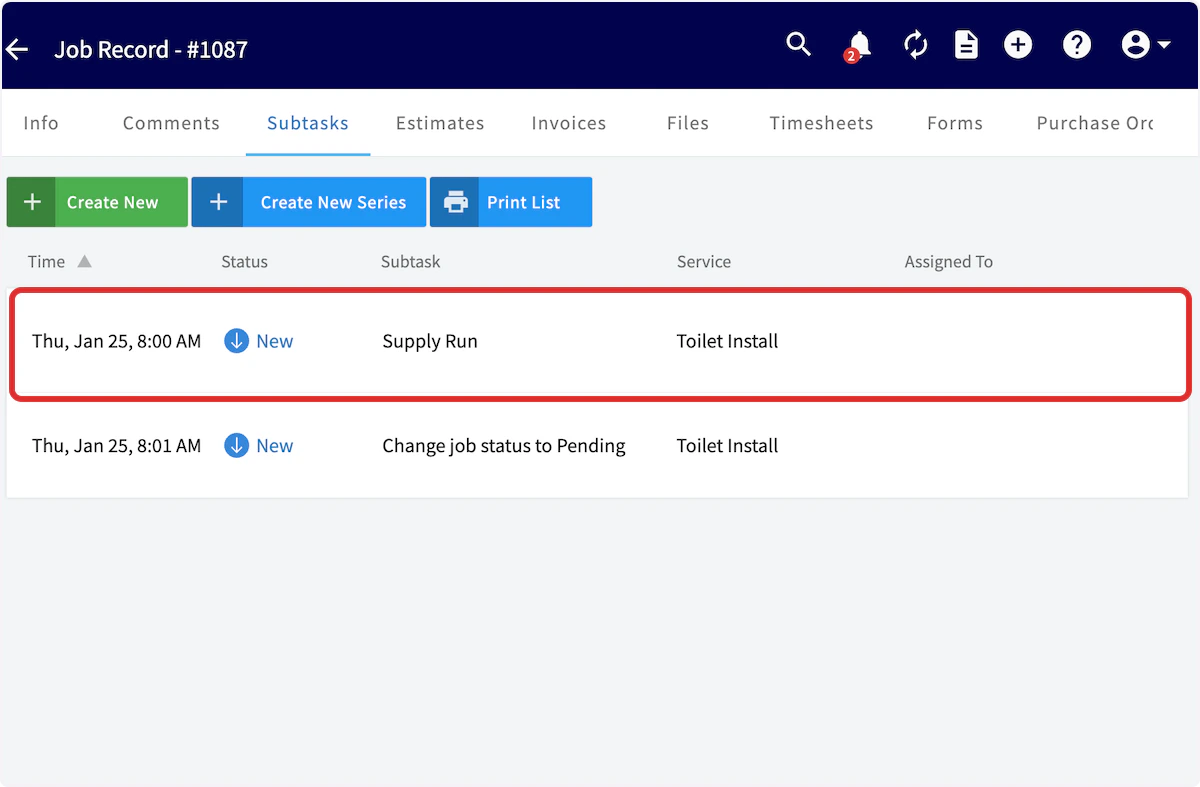

On Mobile: Field Experience
Creating a Subtask on a Related Job or Project
To create a new subtask, you’ll want to click on a job record. From this page, you can select the Subtasks tab.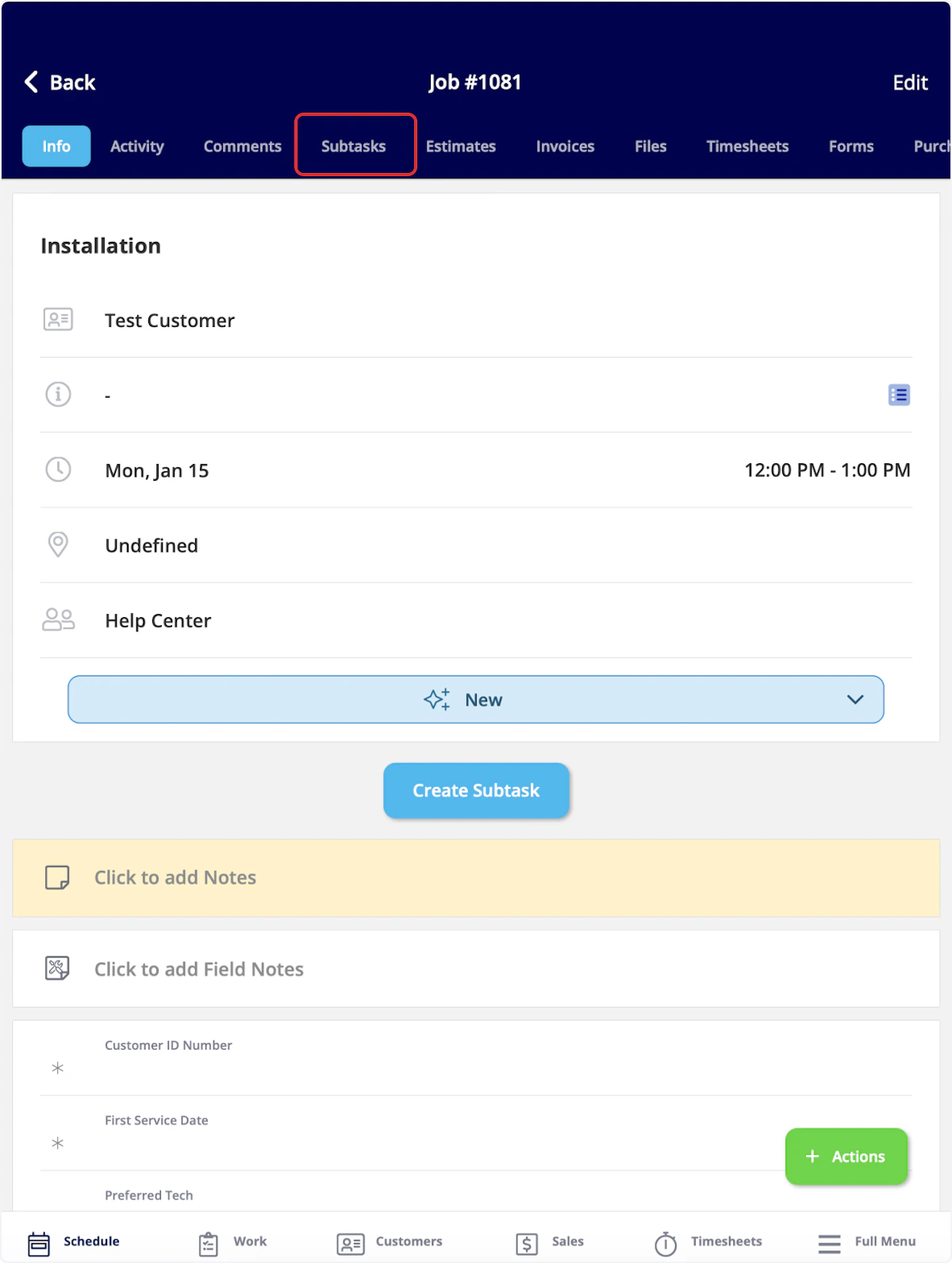


Creating a Subtask Without a Related Job or Project
To create a subtask that is not attached to a job or project, begin by selecting the Work tab from the bottom menu and then clicking on Subtasks.
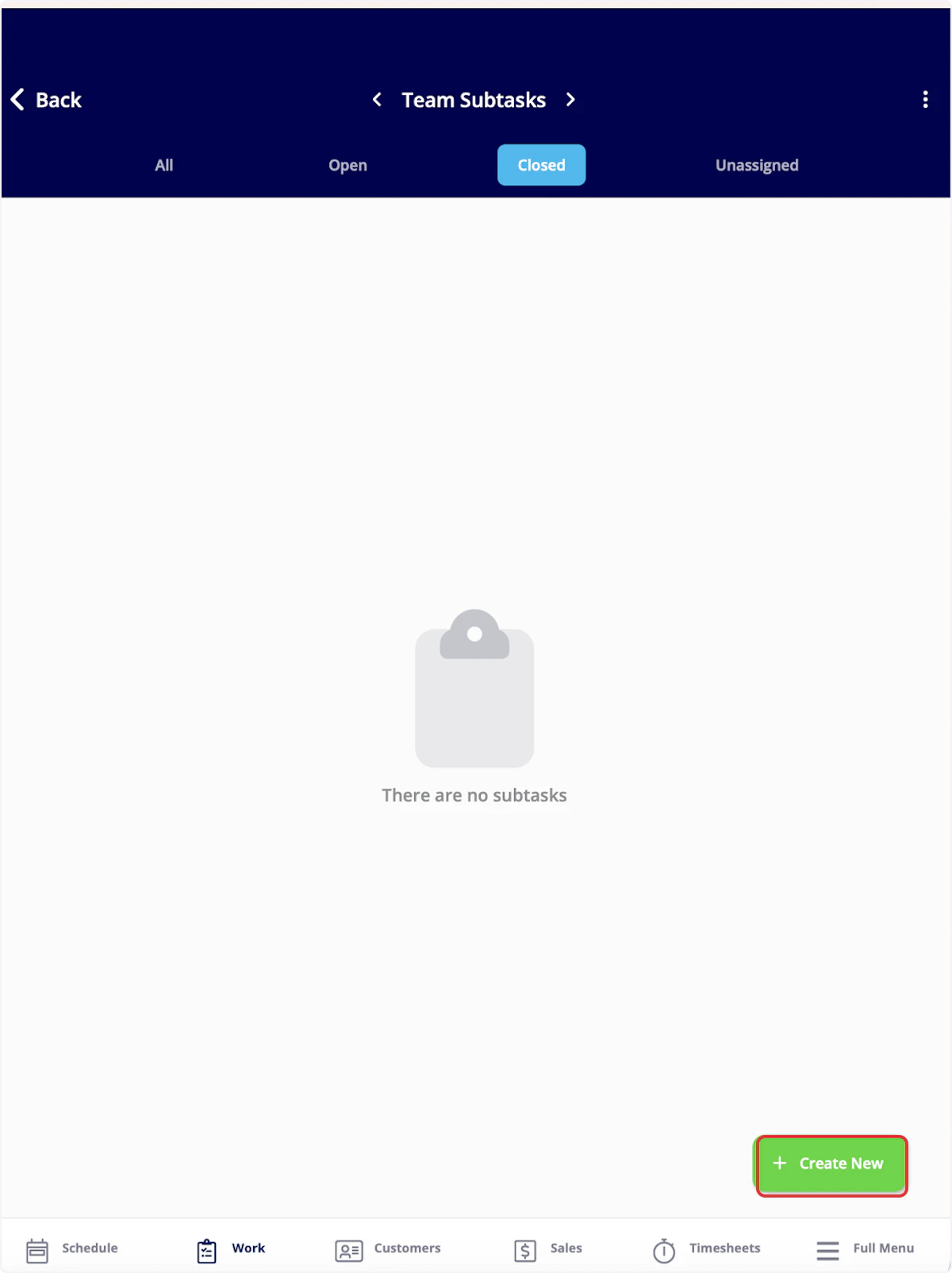
Updating a Subtask
Once your subtask is saved, you can view the subtask information. You can also update the status of the subtask using the status bar. If you’d like to add a comment to the subtask, select Comments from the top menu.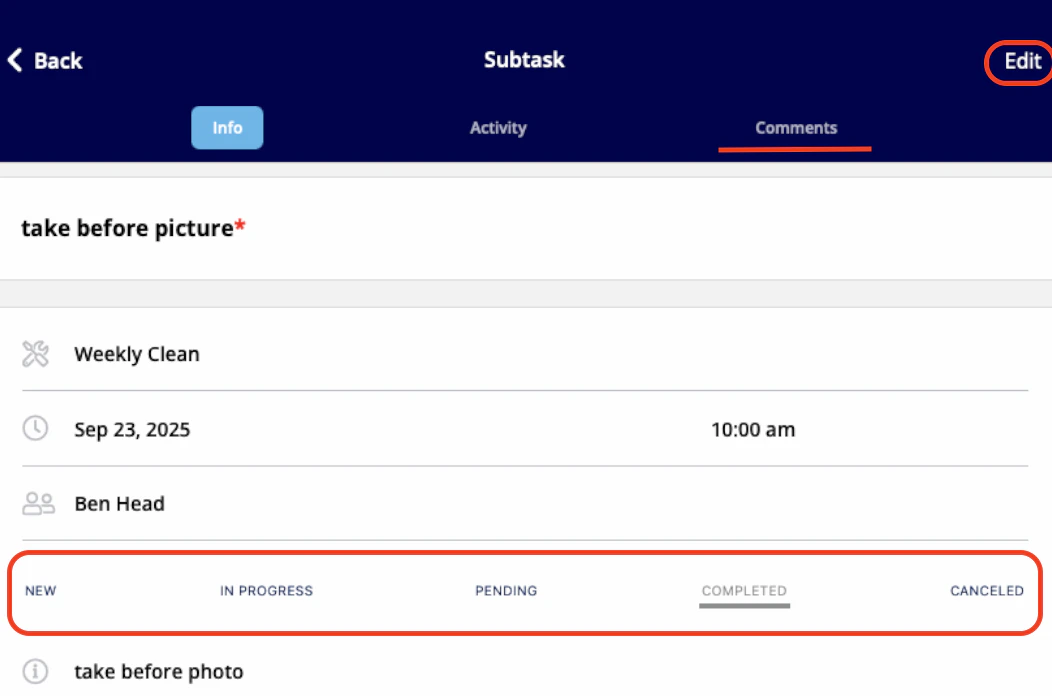
Video Tutorials
Web App
Mobile
Have additional questions? Contact us at support@fieldpulse.com or use the chat feature in the bottom right corner of your screen.