

Documentation Index
Fetch the complete documentation index at: https://fieldpulse.mintlify.app/llms.txt
Use this file to discover all available pages before exploring further.
Overview
We get it, running a service business means juggling a lot of moving parts. Site Visits let you schedule additional appointments tied to a single job, perfect for follow-ups, multi-day installs, or any work that takes more than one trip. Instead of creating separate jobs every time your team needs to come back, you keep all the visits organized under the parent job, with their own dates, teams, notes, and statuses.On Web: Admin Experience
Adding a Site Visit to a new or existing Job record
You can add a Site Visit while creating a new job or after the job already exists. Open the job record, scroll to Add Site Visit, and fill in the details in the pop-up.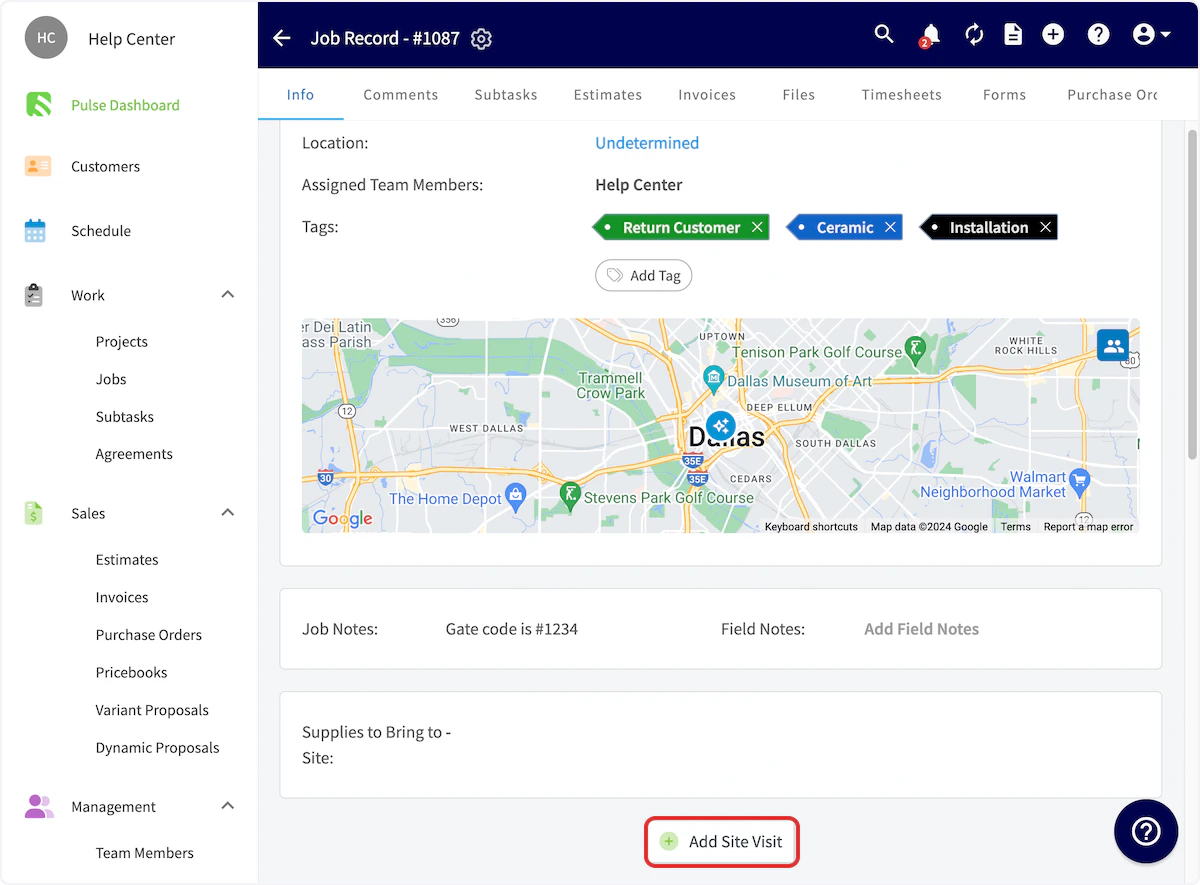
- Rename the site visit
- Select a Custom Status Workflow
- Set a date/time for the visit
- Add Notes (internal)
- Add Field Notes
- Assign team members
- Customer Arrival Window (if enabled)
Note: Site Visit Notes carry over to job templates and appear in Site Visit reporting.
Display on calendar within working hours only
When you create or edit a site visit, you’ll see a ‘Display on calendar within work hours only’ toggle. Turn it on to keep that visit visible on your team’s calendar only during working hours, so after-hours stay clean and your dispatch view focuses on the right time slots.Customer Arrival Window
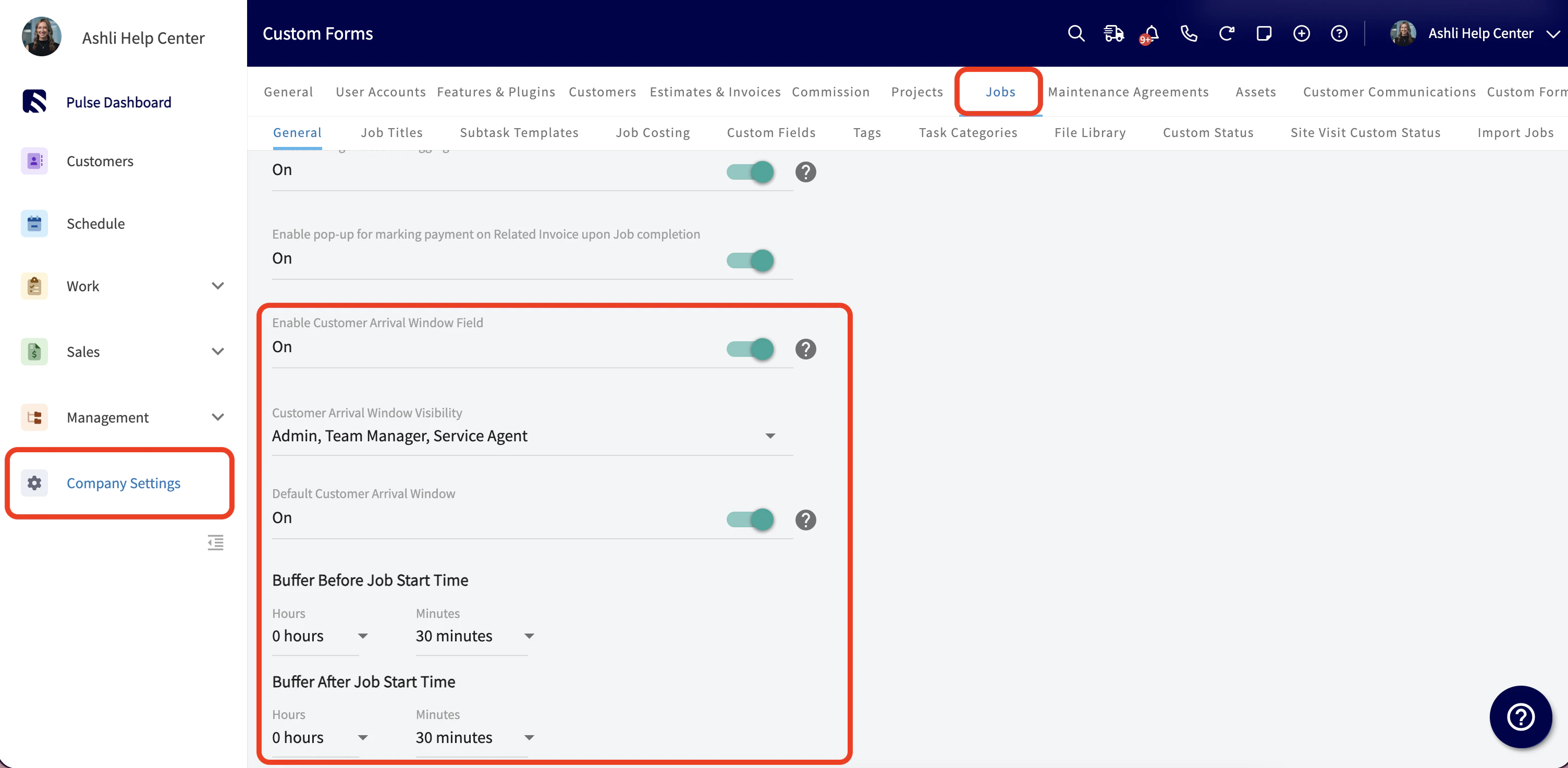
You can set an arrival window directly on the site visit, so customers know exactly when to expect your team. The arrival window pre-populates from your company default, but can be edited. Here’s how to enable it:- Go to Settings > Jobs > General
- Turn on Default Customer Arrival Window
- Set your Customer Arrival Window Visibility (which roles can see and edit it)
- Configure your Buffer Before and Buffer After Work Order Start Time
Scheduling conflict checks for your Site Visits
When you create or edit a site visit, FieldPulse automatically checks for overlaps against every scheduled job/site visit on your calendar. You’ll see a Check Scheduling Conflicts button on every site visit record, so a tech won’t accidentally get scheduled for a job and a site visit at the same time. The Booking Portal picks this up too. When customers book online, availability now factors in both jobs and site visits, so they only see slots that are truly open.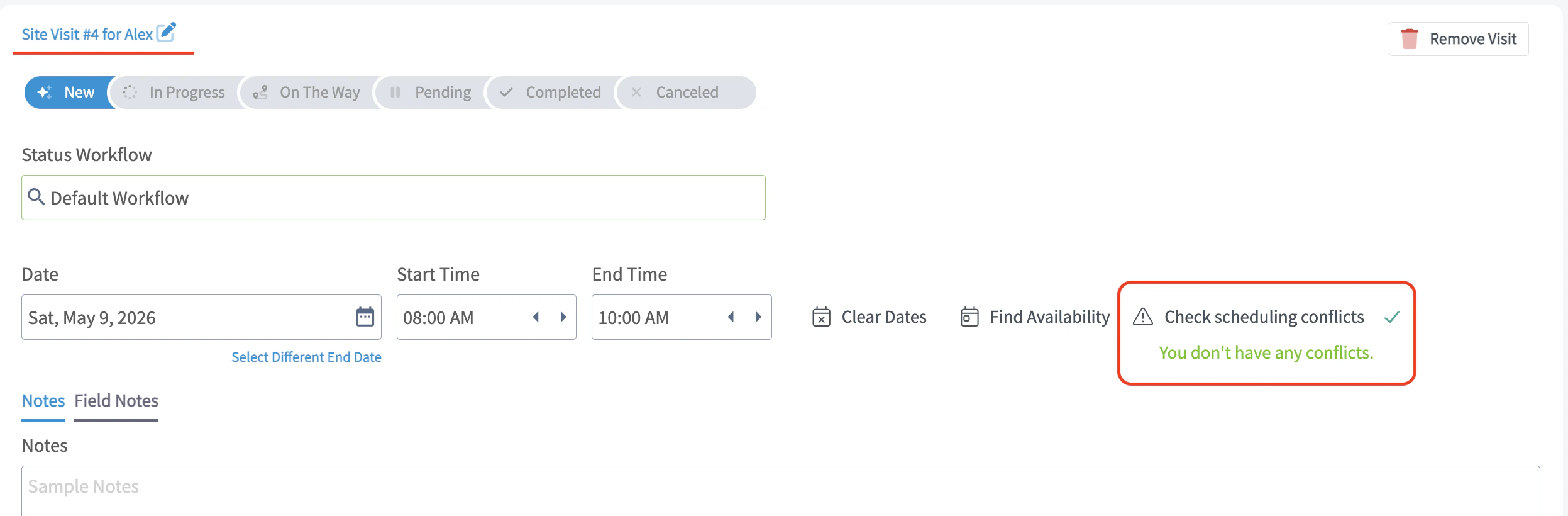
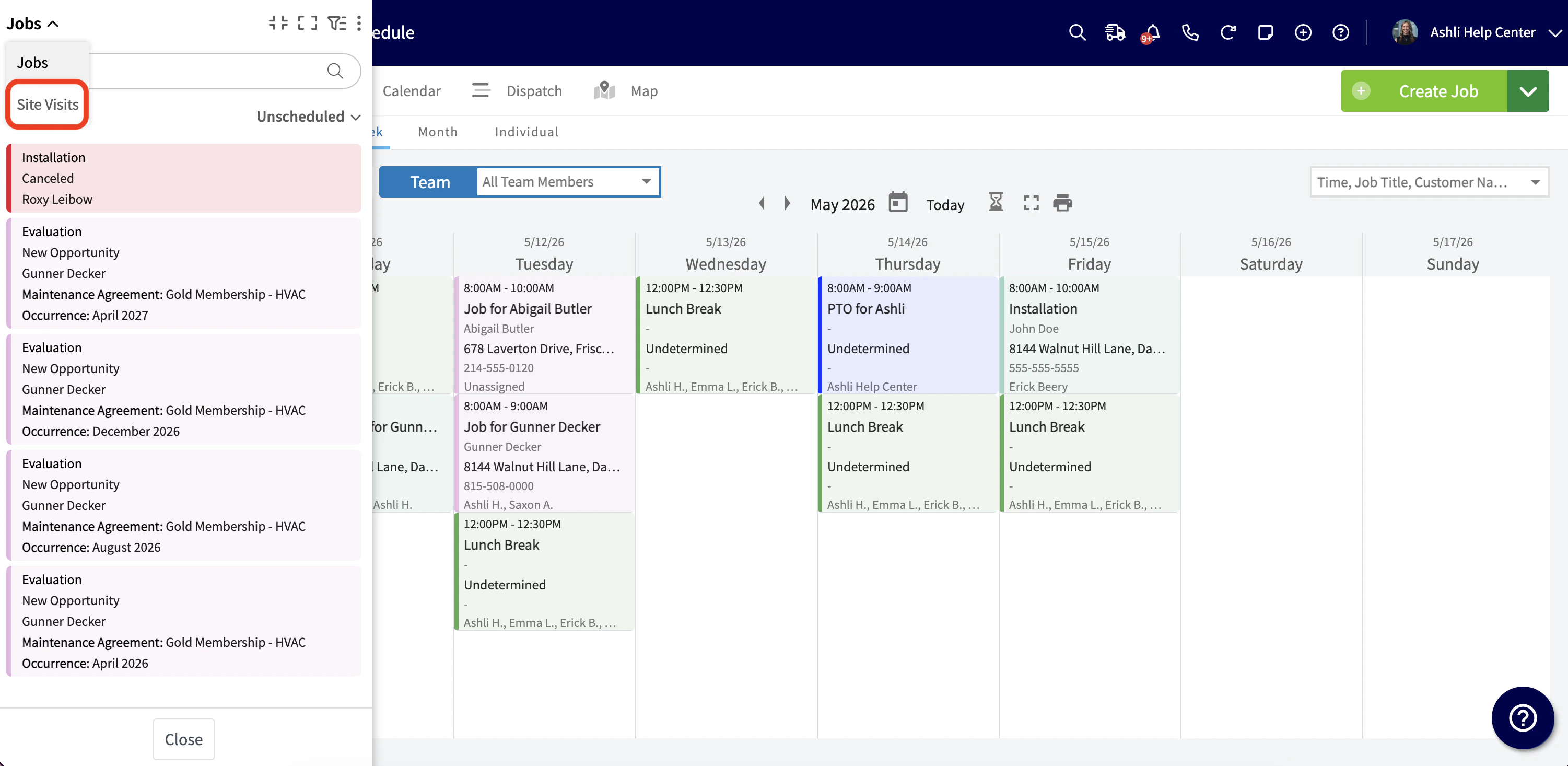
Schedule unassigned and unscheduled site visits
The Hourglass view on the Schedule page supports site visits alongside jobs. Here’s how to use it: Step 1: Open the Schedule page and click the Hourglass icon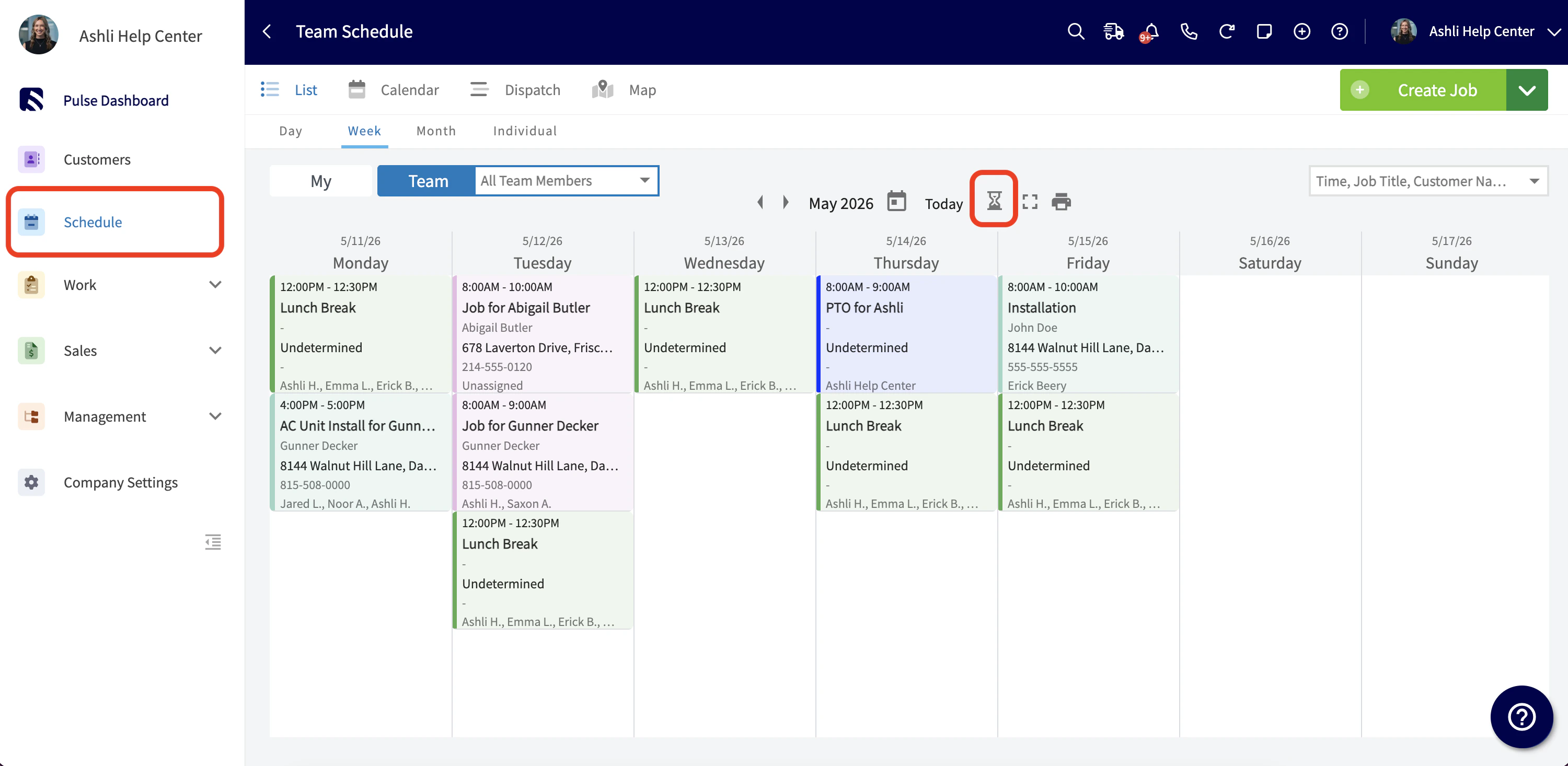
Communication triggers and templates for site visits
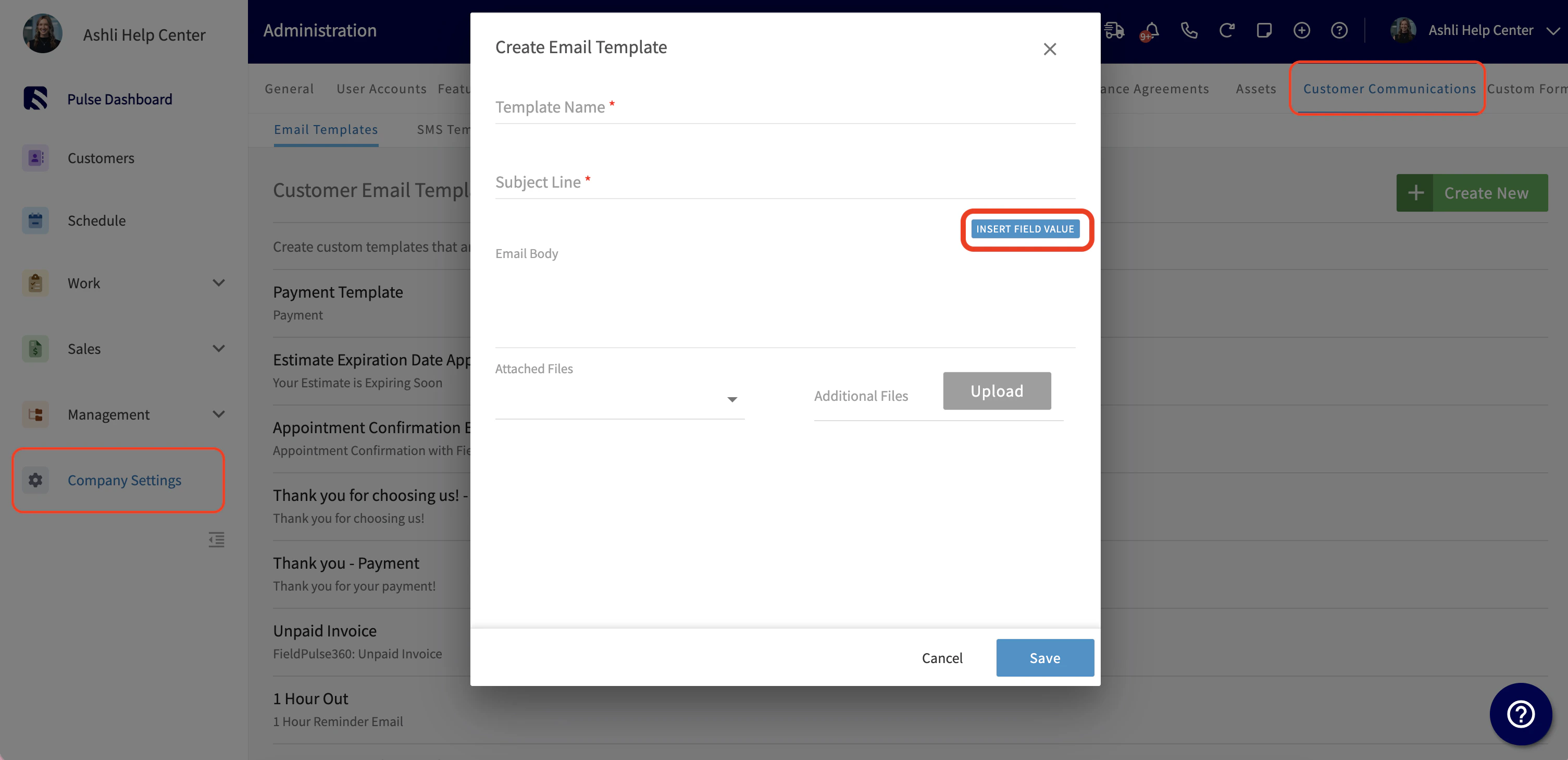
You can automate emails and SMS for site visits the same way you do for jobs. Here’s how to add insertable fields to a template:- Go to Settings > Customer Communication > Email Templates or SMS Templates
- Open an existing template or click Create New
-
Use the insertable fields menu to drop in any of the new site-visit fields:
- Site Visit Title
- Site Visit Start Date / Start Time
- Site Visit End Date / End Time
- Site Visit Assigned Team Members
- Site Visit Notes
- Site Visit Arrival Window Start Date / Start Time
- Site Visit Arrival Window End Date / End Time
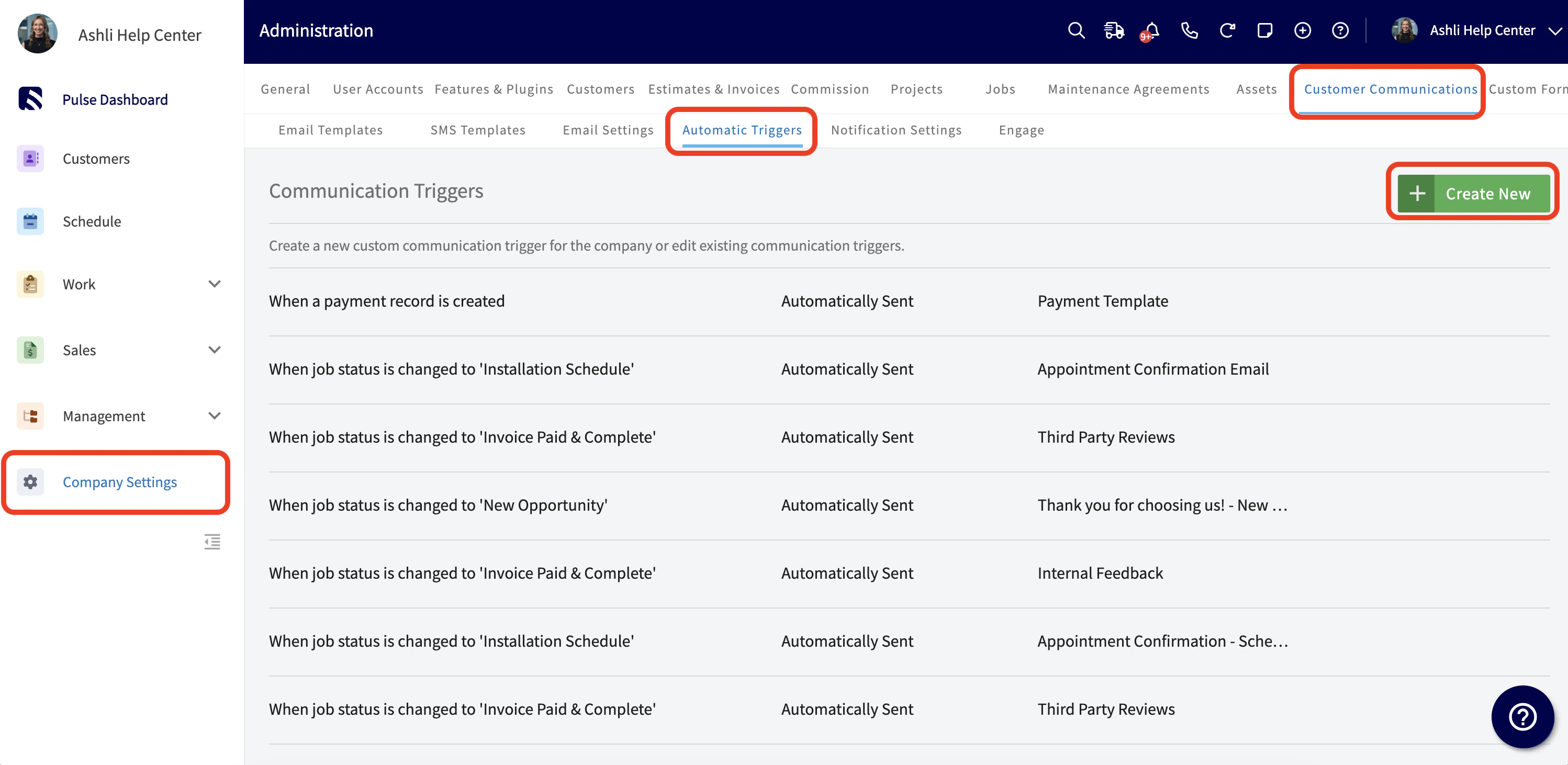
- Go to Settings > Customer Communication > Automatic Triggers
- Click Create New (or edit an existing trigger)
-
In Choose Trigger, pick one of the two new site-visit triggers:
- When a Site Visit is newly created (supports Automatically Sent, Prompts Confirmation Prior to Sending, Scheduled Based On Timing, and Scheduled With Confirmation)
- Set Time Prior to Site Visit Start Date/Time (supports Scheduled Based On Timing, great for day-before reminders)
- Choose your communication template and save
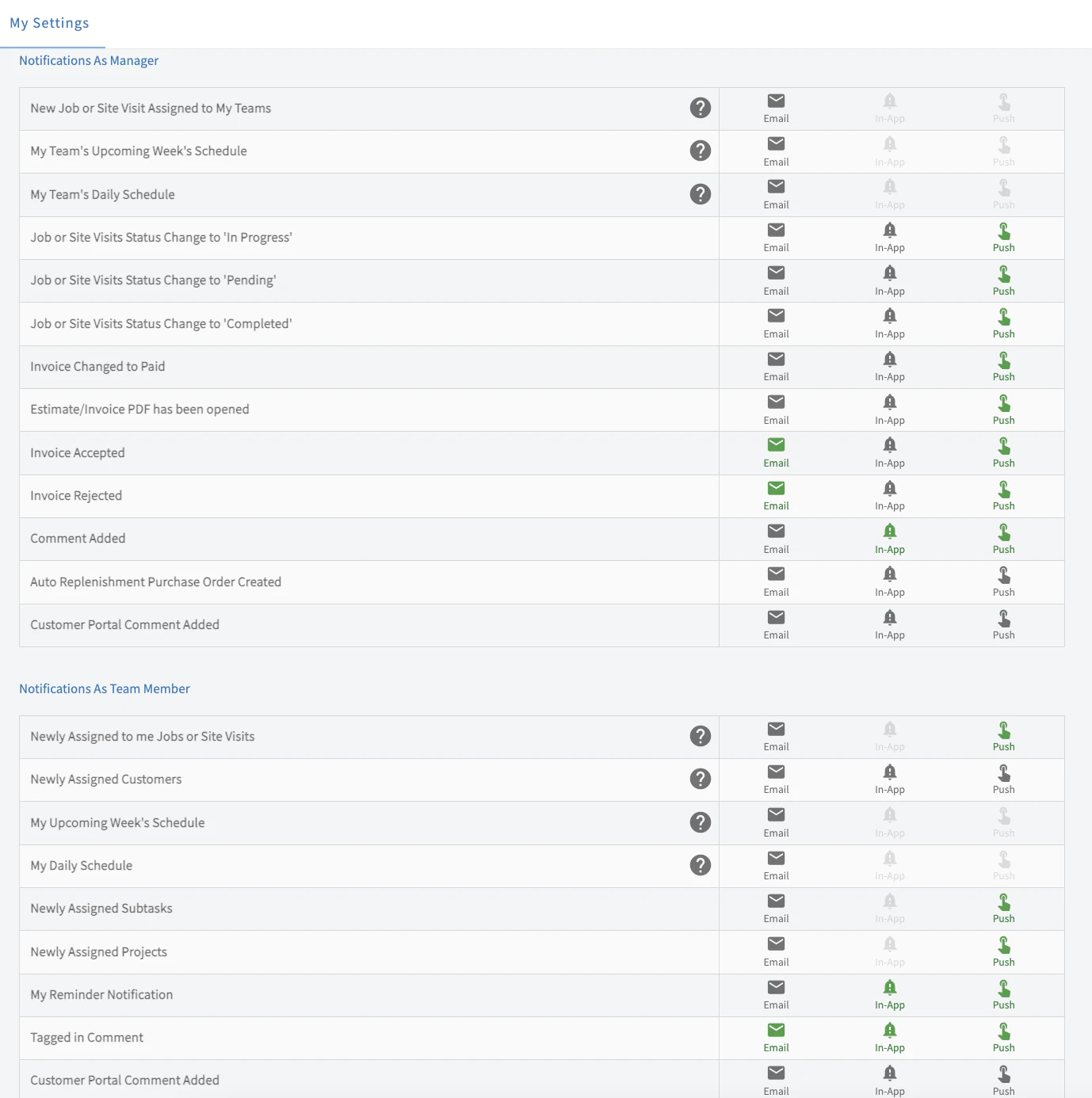
Notifications for site visits
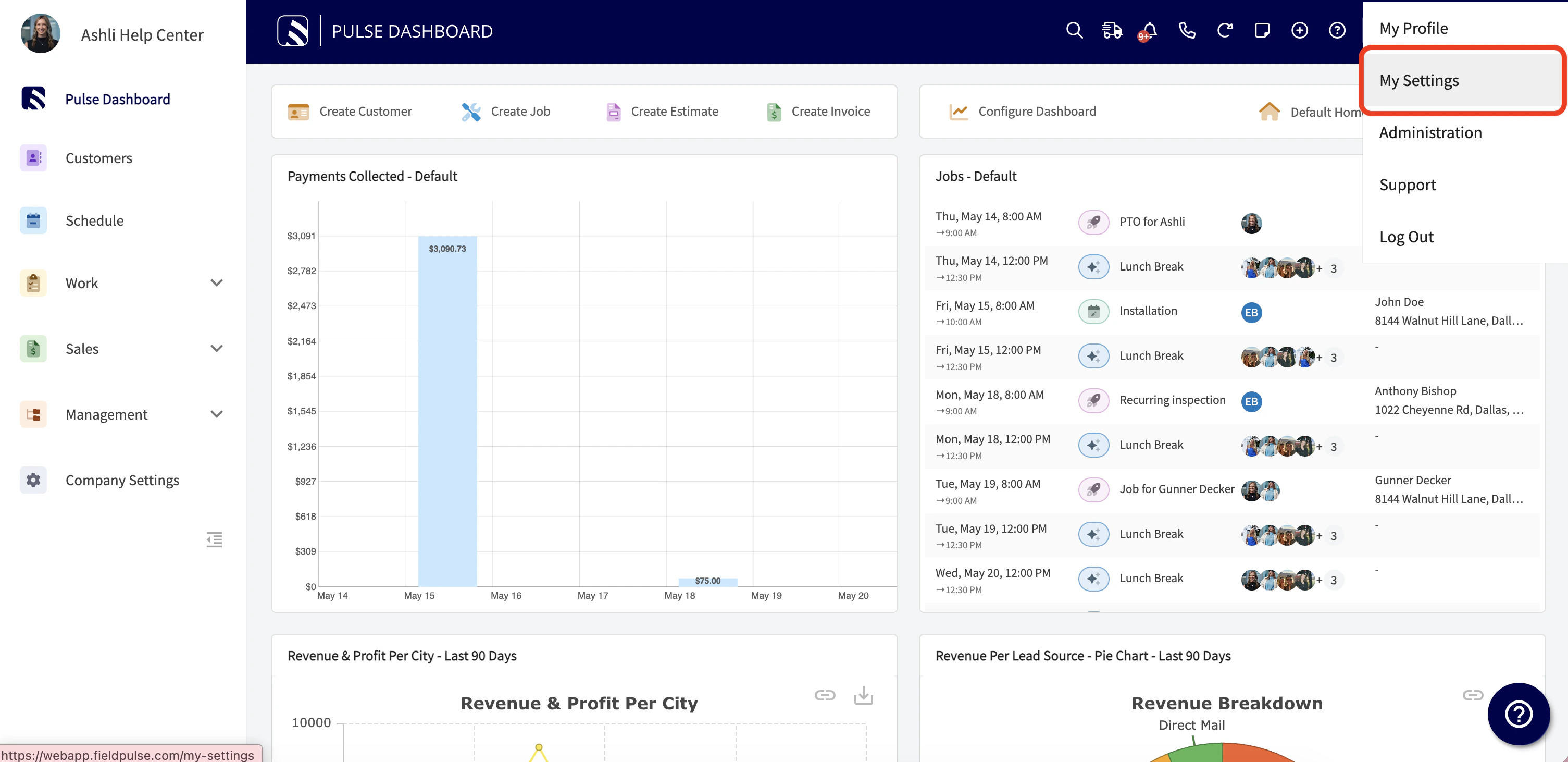
Whether a visit is created, reassigned, status-changed, or commented on, the right people get the update in real time. Here’s how to turn them on:- Go to My Settings > Notifications
-
Under As a Manager, toggle on the new Jobs or Site Visits triggers you want:
- New assignments
- Daily and weekly schedules
- Status changes (Pending, In Progress, Completed)
- Comments
-
Under As a Team Member, toggle on:
- New assignments
- Daily and weekly schedules
- Subtasks within site visits
- Comment tags
Insert Site Visit notes into your Estimate and Invoice records
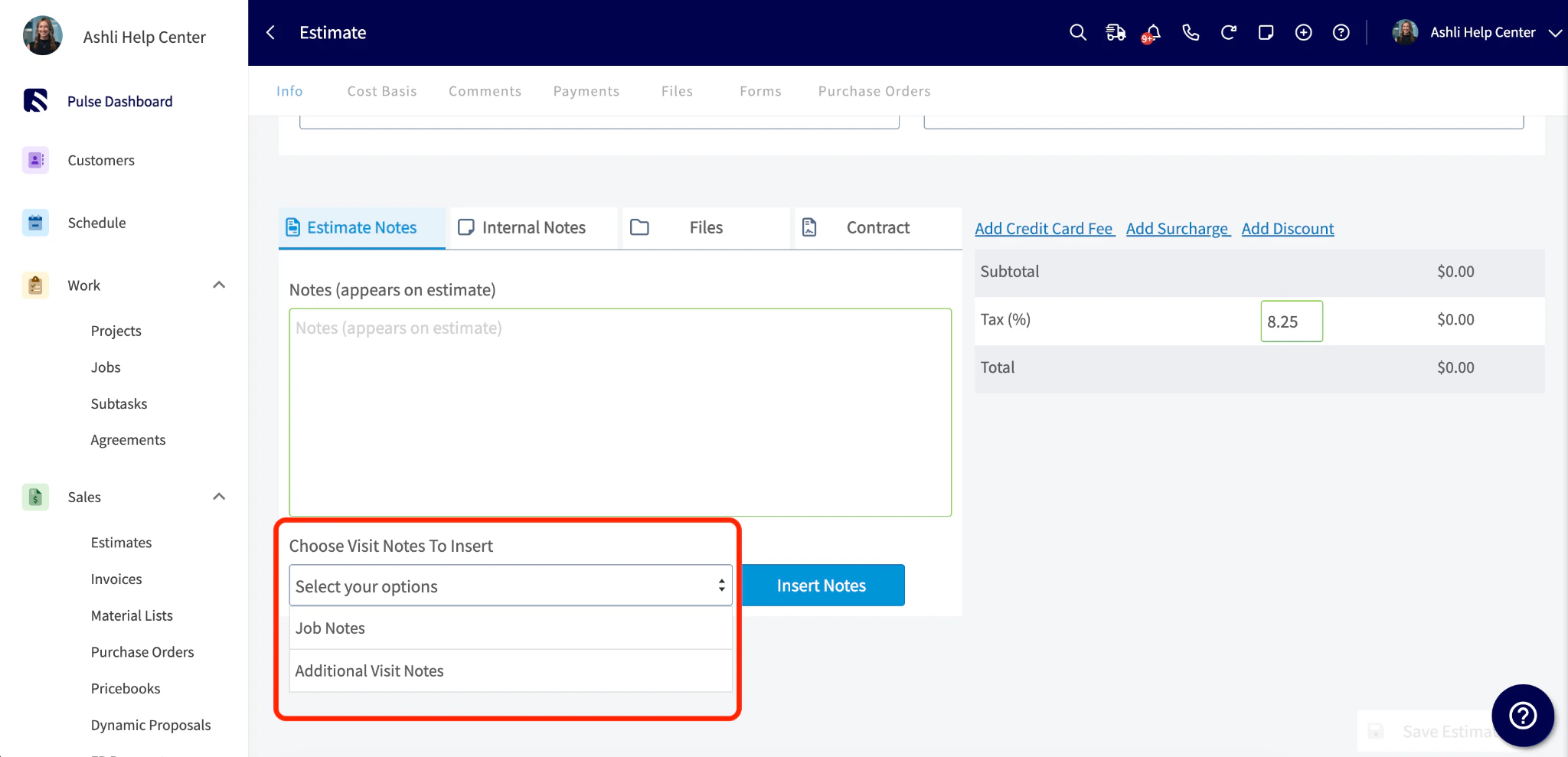
Rather than copying & pasting and clicking back and forth between records, you can insert site visit notes directly into estimates and invoices. Here’s how to use it on an Estimate or Invoice record:- Open the Notes tab
- Click the Choose Visit Notes to insert dropdown
- Multi-select any combination of notes (Job Notes, Job Field Notes, Site Visit #1 Notes, Site Visit #1 Field Notes, etc.)
- Click Insert Notes. Every selected note drops into the notes field at once
On Mobile: Field Experience
Insert Site Visit notes into your Estimate and Invoice records
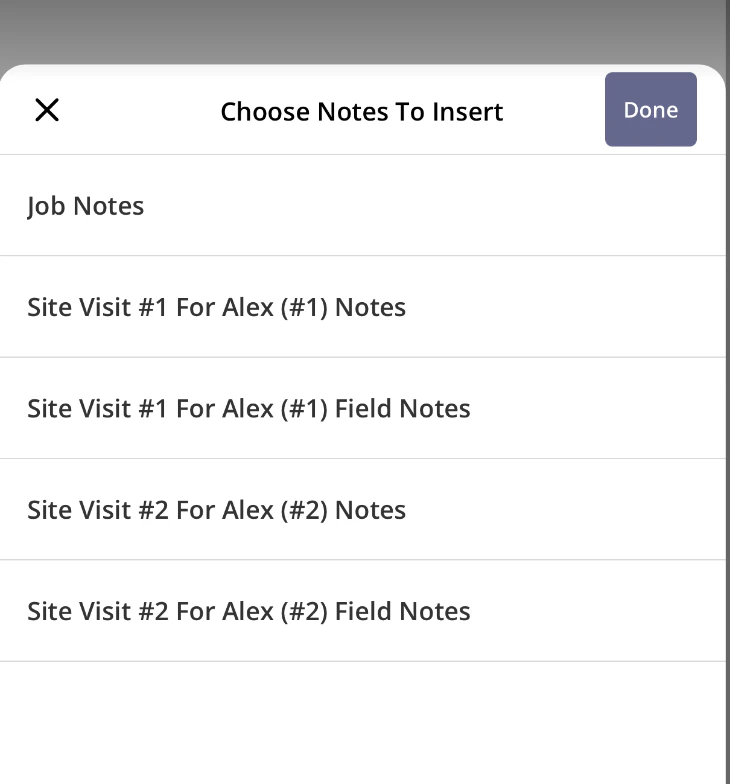
Rather than copying & pasting and clicking back and forth between records, you can insert site visit notes directly into estimates and invoices. Step 1: On the Estimate/Invoice record, scroll down to the Estimate Notes and click the insert button.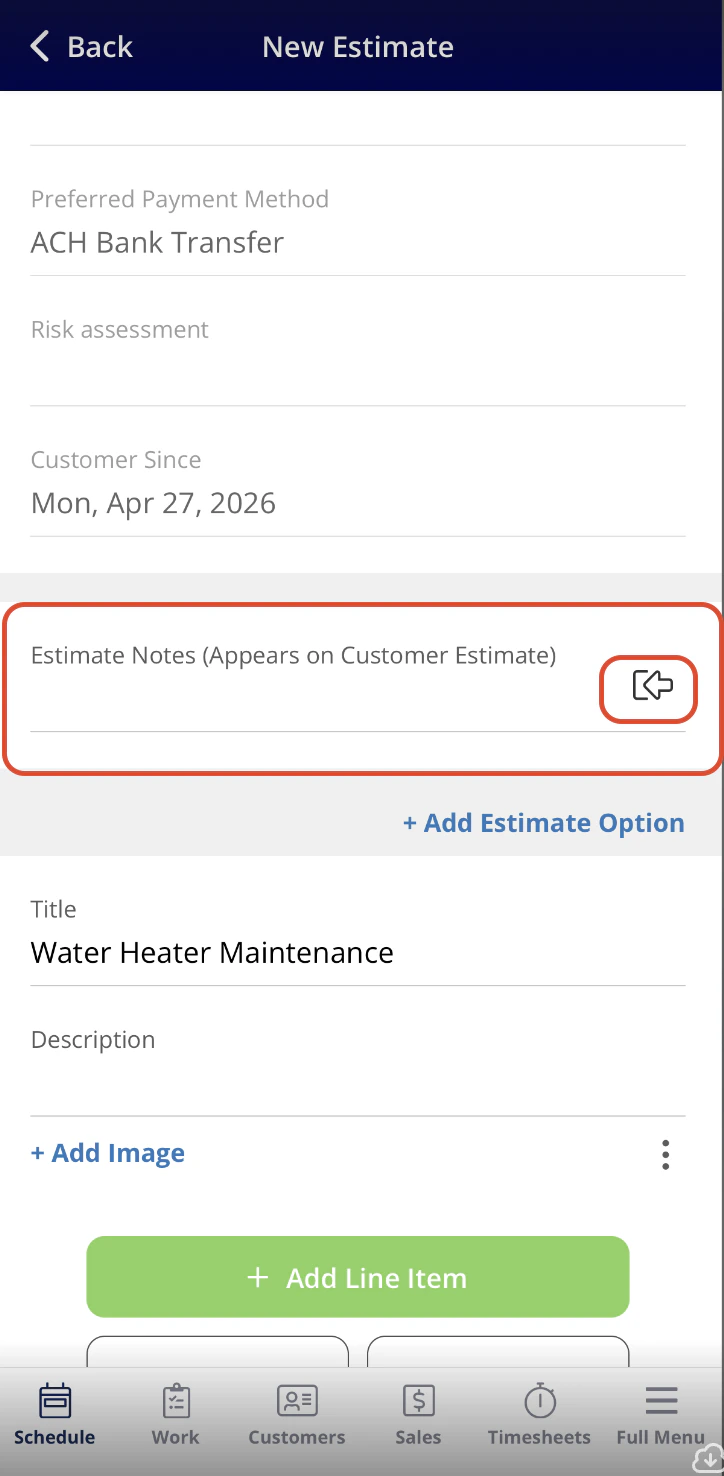
Troubleshooting
Issue Likely cause Fix Automated email/SMS isn’t firing for a site visit The trigger uses a job-level event instead of a site-visit-level event Edit the trigger and pick When a Site Visit is newly created or Set Time Prior to Site Visit Start Date/Time from Choose Trigger Site visit doesn’t appear in the Hourglass list Status is set to Cancelled or Completed, or filters are set to Unscheduled & Unassigned and the visit has one of those filled Switch the filter to All Open Site Visits to confirm visibility A team member isn’t getting site visit notifications Their Jobs or Site Visits toggles in My Settings > Notifications are off Have the team member open My Settings > Notifications and turn on the relevant triggers under As a Manager and As a Team MemberVideo Tutorial
Have additional questions? Contact us at support@fieldpulse.com or use the chat feature in the bottom right corner of your screen.