

Use the Asset tab to create reports based on asset data including warranty details, manufacturer, asset type, and more.Documentation Index
Fetch the complete documentation index at: https://fieldpulse.mintlify.app/llms.txt
Use this file to discover all available pages before exploring further.
Create an Asset Report
Date Range
Begin by selecting the start date range for which you’d like to report on. Click on the calendar icon to select a preset date range and click Load Data.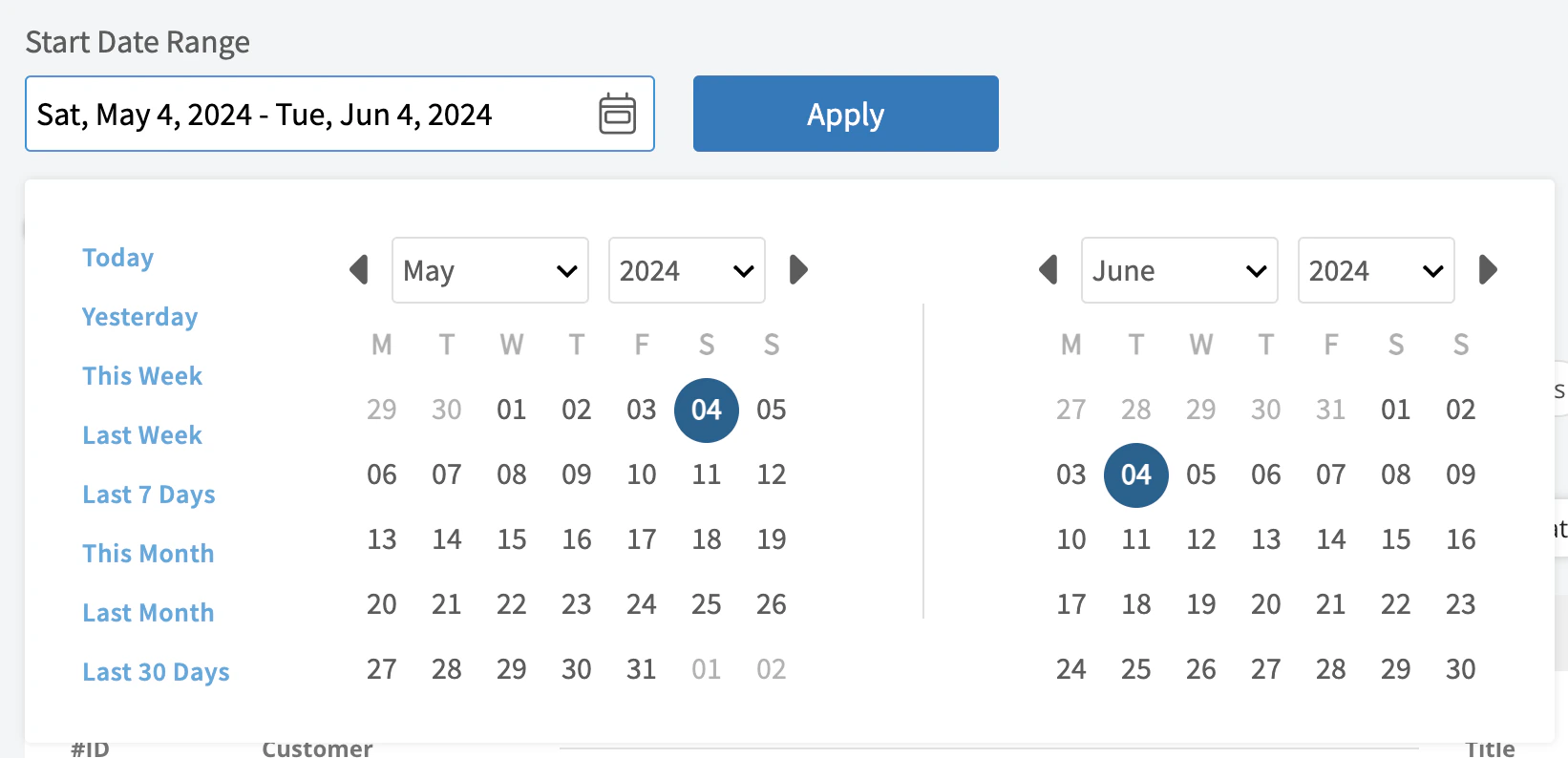
- Today: From 12:00 AM to the current time
- Yesterday: Previous day from 12:00 AM to 11:59 PM
- This Week: From Monday through Sunday of the current week
- Last Week: Previous week
- Last 7 Days: Previous seven days, including today
- This Month: From the first of the current month to the current day
- Last Month: Entire month before the current month
- Last 30 Days: Previous 30 days, including today
- Custom: Use the calendar to select start and end dates
Columns
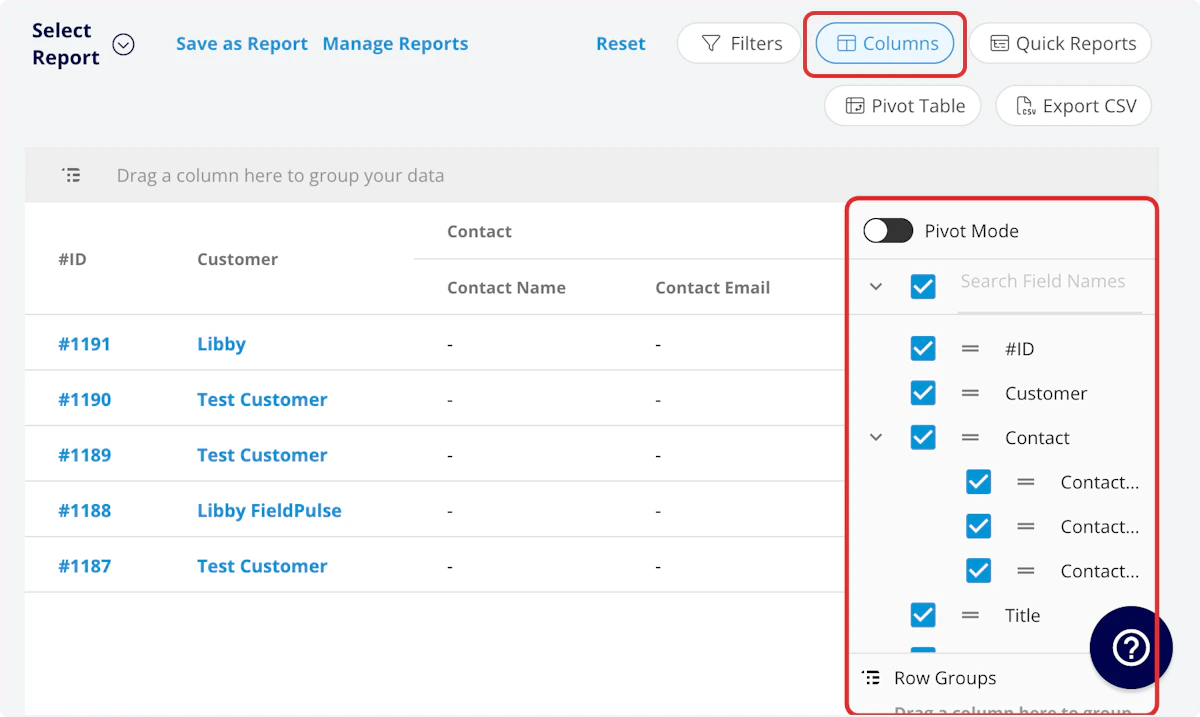
- #ID: Project number
- Title: Maintenance agreement title
- Asset Type: Customer or company asset
- Status: Maintenance agreement status
- Customer: Customer linked to the agreement
- Location: Service location for the agreement
- Maintenance Agreement: Related maintenance agreement
- Category: Equipment category
- Tag: Asset tag
- Created At: Date and time the agreement was created
- Created By: Author of the agreement
- Location Description: Asset location description
- Install Date: Asset install date
- Manufacturer: Asset manufacturer
- Model: Asset model
- Model Number: Model number
- Serial Number: Serial number
- Model Year: Model year
- Model Details: Model details
- Parts Warranty Expiration: Warranty expiration date
- Parts Warranty Information: Warranty information
- Labor Warranty Expiration
- Labor Warranty Information
- Condition: Asset condition
- Issues: Asset issues
- Notes: Asset record notes
- Custom Fields: User-created fields related to the asset
-
Asset Last Update
- Asset Update: Asset update details
- Asset Update Job: Asset update related job
- Asset Update Author: Asset update author
- Asset Update Created Date: Asset update created date
Filters
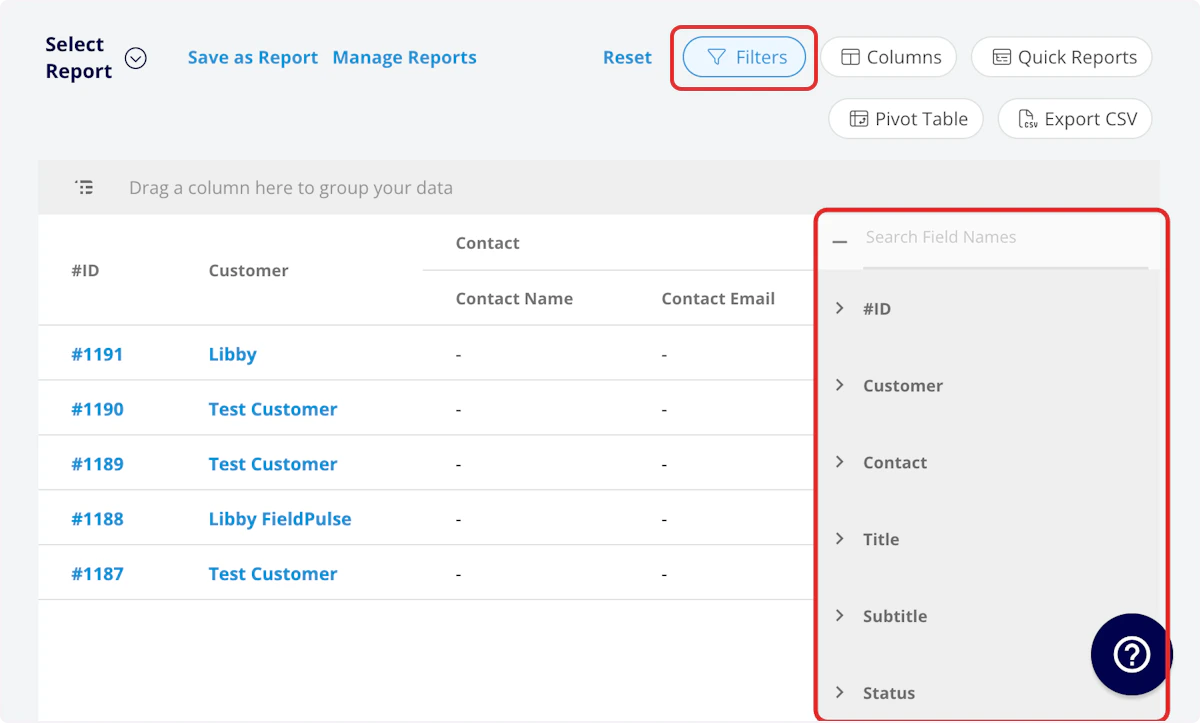
- #ID: filter by contents
- Title: filter by contents
- Asset Type: select type
- Status: select status
- Customer: filter by contents
- Location: filter by contents
- Maintenance Agreement: filter by contents
- Category: select category
- Tag: filter by contents
- Created At: filter by date
- Created By: filter by contents
- Location Description: filter by contents
- Install Date: filter by date
- Manufacturer: filter by contents
- Model: filter by contents
- Model Number: filter by contents
- Serial Number: filter by contents
- Model Year: filter by contents
- Model Details: filter by contents
- Warranty Expiration: filter by contents
- Warranty Information: filter by contents
- Condition: filter by contents
- Issues: filter by contents
- Notes: filter by contents
- Custom Fields: select custom field
-
Asset Last Update
- Asset Update: select update
- Asset Update Job: filter by contents
- Asset Update Author: filter by contents
- Asset Update Created Date: filter by date
Have additional questions? Contact us at support@fieldpulse.com or use the chat feature in the bottom right corner of your screen.