

Use the Estimates tab to create reports based on estimate data including invoice conversions, payment status, related jobs, and more. Some common estimate reports include estimates by status, estimate conversion rate, and estimates by location.Documentation Index
Fetch the complete documentation index at: https://fieldpulse.mintlify.app/llms.txt
Use this file to discover all available pages before exploring further.
Create a Estimate Report
Date Range
Begin by selecting date type you’d like to use to generate the report.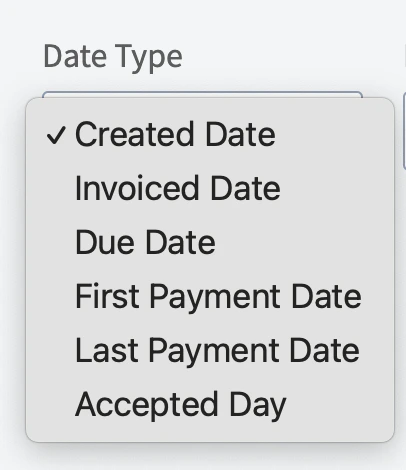
- Created Date: When the estimate was created
- Invoiced Date: When the estimate was sent to the customer
- Due Date: When the estimate was due
- First Payment Date: When the customer made their first payment on the estimate
- Last Payment Date: When the customer made their last payment on the estimate
- Accepted Date: When the estimate was accepted by the customer
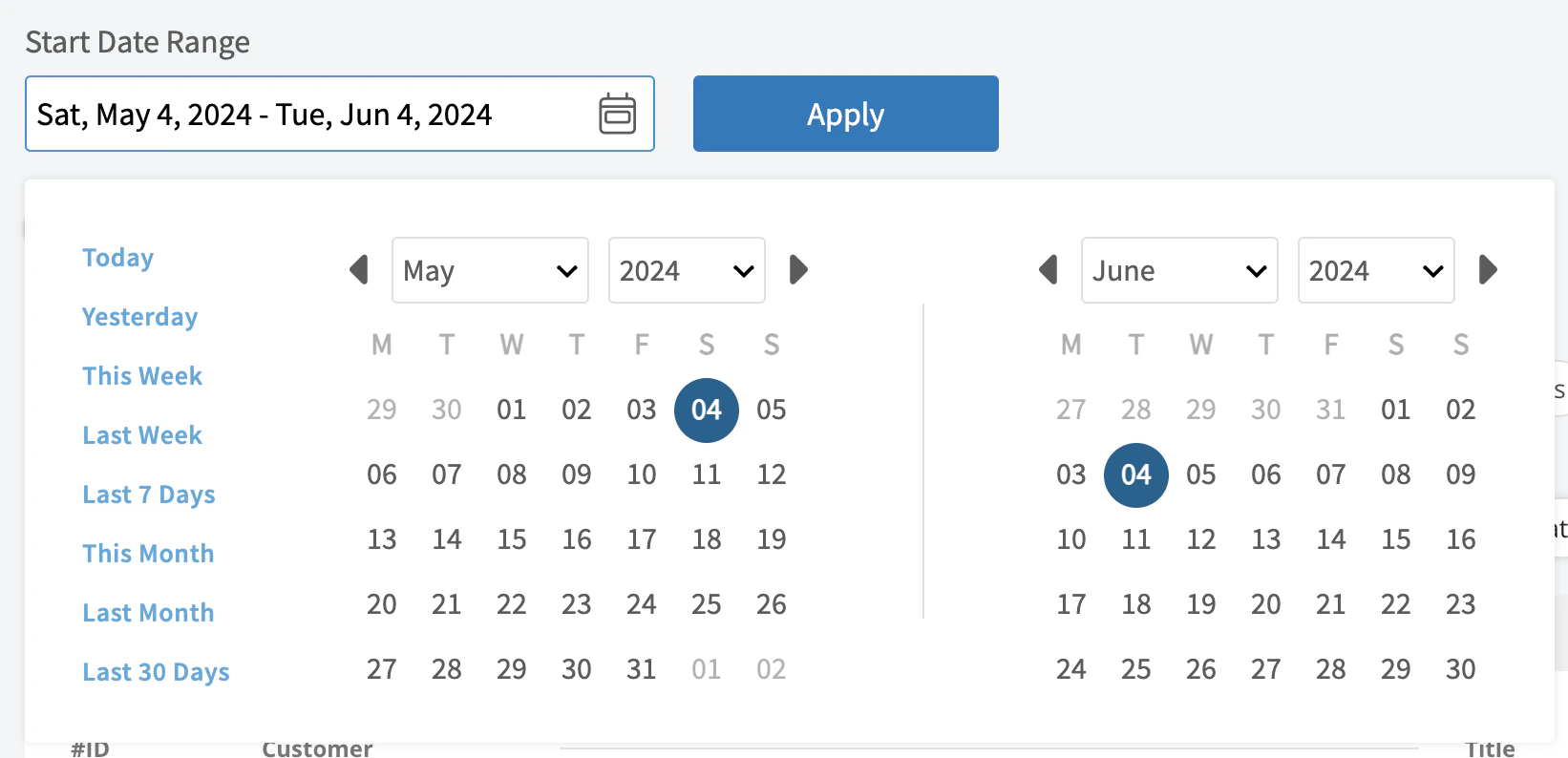
- Today: From 12:00 AM to the current time
- Yesterday: Previous day from 12:00 AM to 11:59 PM
- This Week: From Monday through Sunday of the current week
- Last Week: Previous week
- Last 7 Days: Previous seven days, including today
- This Month: From the first of the current month to the current day
- Last Month: Entire month before the current month
- Last 30 Days: Previous 30 days, including today
- Custom: Use the calendar to select start and end dates
Columns
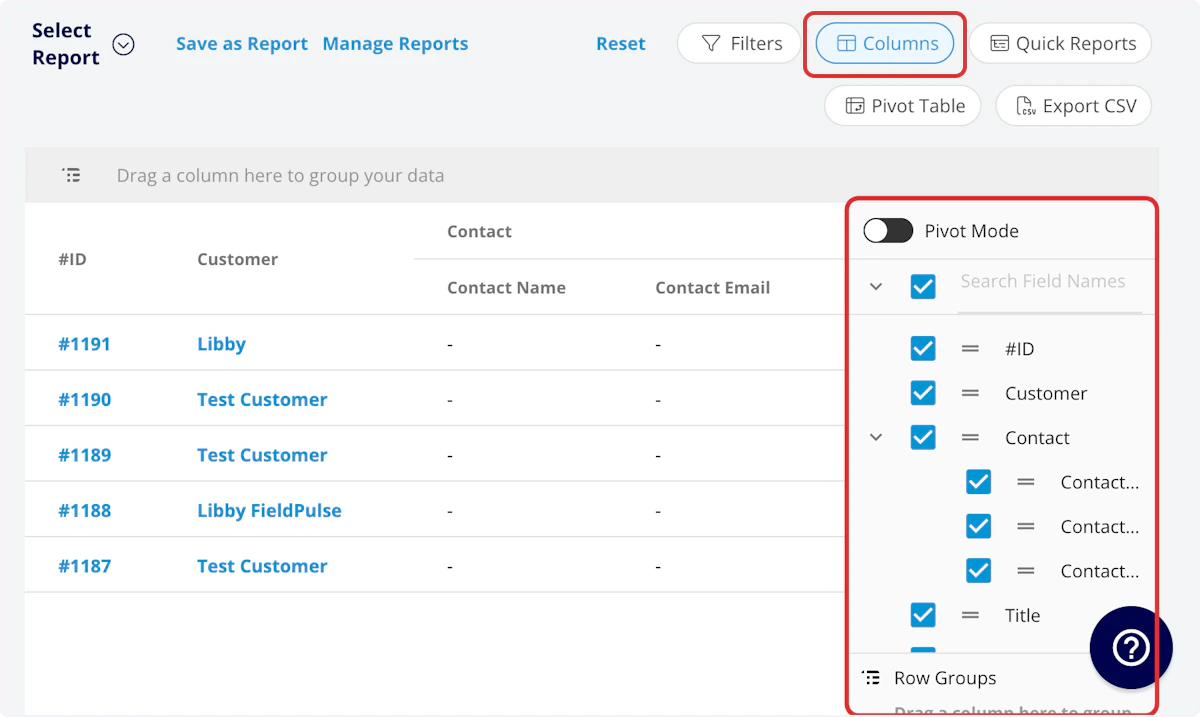
- #ID: Estimate number
- Customer: Customer linked to the estimate
- Estimate Title: Estimate title
- Parent Job: Job linked to the estimate
- Status: Estimate status
- Estimate Creator: Author of the estimate
- Created Date: Date and time the estimate was created in FieldPulse
- Invoiced Date: Date and time the estimate was sent to the customer
- Expiration Date: Date and time the estimate expires
- Accepted Date: Date and time the estimate was accepted by the customer
- Estimate Total: Total dollar amount on estimate
- QuickBooks Class: If you sync with QuickBooks, the class will be displayed here.
- Pre-Tax Subtotal: Total dollar amount on estimate before tax
- Cost Basis: Total costs associated with the estimate
- Profit Margin: Estimate profit in dollars
- Profit Margin Percentage: Estimate profit margin percentage
- Converted: Whether the estimate has been converted to an invoice or not
- Payment Status: Status of payment on estimate or converted invoice
- Related Invoices: Record numbers for invoices linked to the estimate
- Estimate Notes: Notes on estimate
- Internal Notes: Internal notes on estimate
- Tags: Tags on estimate
- Tax Rate: Tax rate percentage on estimate
- Tax: Dollar amount of tax on estimate
- Commission Method: Method for commission on estimate
- Commission %: Commission rate percentage
- Commission: Dollar amount of commission on estimate
- Related Project: Project linked to the estimate
- Location: Service location on the estimate
- QuickBooks Originated: Yes or No indicating if the record originated in QuickBooks.
- Custom Fields: User-created fields related to the estimate
-
Customer
- Custom Fields: User-created fields related to the customer record
- Customer Lead Source: Lead source on the customer record
- Customer Phone: Customer’s primary phone number
- Customer Email: Customer’s primary email address
- Customer Phone 2: Customer’s secondary phone number
- Customer Email 2: Customer’s secondary email address
- Customer Assigned To: User assigned to customer record
- Customer Pipeline Status: Customer’s custom sales pipeline status
- Customer Next Steps: Next steps listed on custom sales pipeline
- Customer Notes: Notes on customer record
- Customer Job Notes: Job notes on customer record (automatically inserted onto job records)
- Customer Created Date: Date and time the customer was added to FieldPulse
- Customer Tags: Tags attached to the customer record
- Parent Customer: Group and analyze data by the Parent Customer
-
Job
- Custom Fields: User-created fields related to the job record
- Notes: Notes on job record
- Field Notes: Notes left by assigned user(s) on the job
- Tags: Tags attached to the job record
- Assigned Team Members: Users assigned to the job
Filters
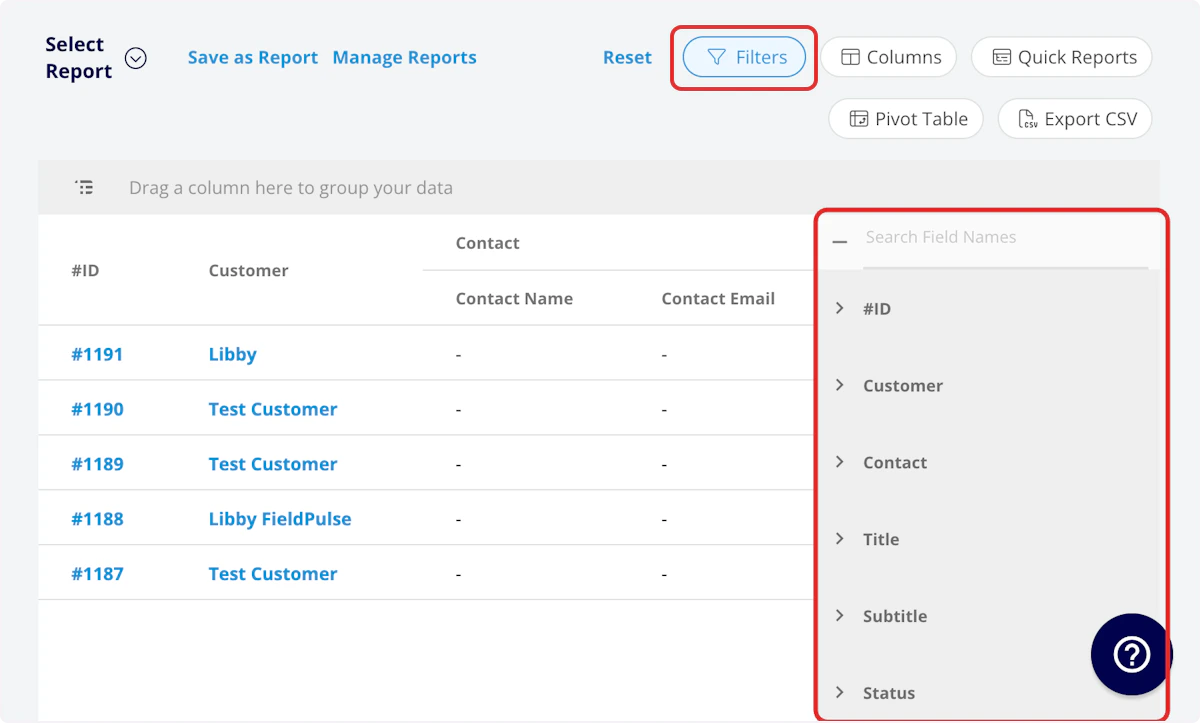
- Company: select company
- #ID: filter by contents
- Customer: filter by contents
- Estimate Title: filter by contents
- Parent Job: filter by contents
- Status: select status
- Estimate Creator: filter by contents
- Created Date: filter by date
- Invoiced Date: filter by date
- Expiration Date: filter by date
- Accepted Date: filter by date
- Estimate Total: filter by contents
- Pre-Tax Subtotal: filter by contents
- Cost Basis: filter by contents
- Profit Margin: filter by contents
- Profit Margin Percentage: filter by contents
- Payment Status: select status
- Related Invoices: filter by contents
- Estimate Notes: filter by contents
- Internal Notes: filter by contents
- Tags: select tag
- Tax Rate: filter by contents
- Tax: filter by contents
- Commission Method: select method
- Commission %: filter by contents
- Commission: filter by contents
- Related Project: select project
- Location: filter by contents
- Custom Fields: select custom field
-
Customer
- Customer Phone: select phone number
- Customer Email: select email address
- Customer Phone 2: select phone number
- Customer Email 2: select email address
- Customer Assigned To: filter by contents
- Customer Lead Source: select lead source
- Customer Pipeline Status: select status
- Customer Next Steps: filter by contents
- Customer Notes: filter by contents
- Customer Job Notes: filter by contents
- Customer Created Date: filter by contents
- Customer Tags: filter by contents
-
Job
- Status: select status
- Notes: filter by contents
- Field Notes: filter by contents
- Tags: filter by contents
- Assigned Team Members: filter by contents
Common Estimate Reports
Estimates by Status
Use this report to view how many estimates are sent/accepted/rejected and the total dollar amount in each status. Columns: Customize to your needs, but must include Status and Estimate Total Group by: StatusEstimate Conversion Rate
Use this report to view the percentage of estimates converted to invoices by each member of your team.- Select Quick Reports
- Primary Field = Conversion Rate
- Group by = Created By
- Click Configure Pivot Table
Estimates by Location
Use this report to view estimate data by city or zip code to inform your business decisions. By Tags: Columns: Customize to your needs, but must include Tags Group by: Tags By Location: Columns: Customize to your needs, but must include Location Filter: Location- contains [Zip Code] or [City]
- does not contain [Zip Code] or [City]
Closing Rates per Technician
Columns: Customize to your needs, but must include Converted Group by: Creator to organize the report by the team member who created each estimate.Have additional questions? Contact us at support@fieldpulse.com or use the chat feature in the bottom right corner of your screen.