

Within Reporting, use the Review Management tab to create reports that show each technician’s review data per the time interval you select.Documentation Index
Fetch the complete documentation index at: https://fieldpulse.mintlify.app/llms.txt
Use this file to discover all available pages before exploring further.
To learn more about Review Management, click here.
Create a Review Performance by Technician Report
Step 1: Date Range
Select the start date for the reporting period. Click on the calendar icon to choose a preset date range, then click Load Data.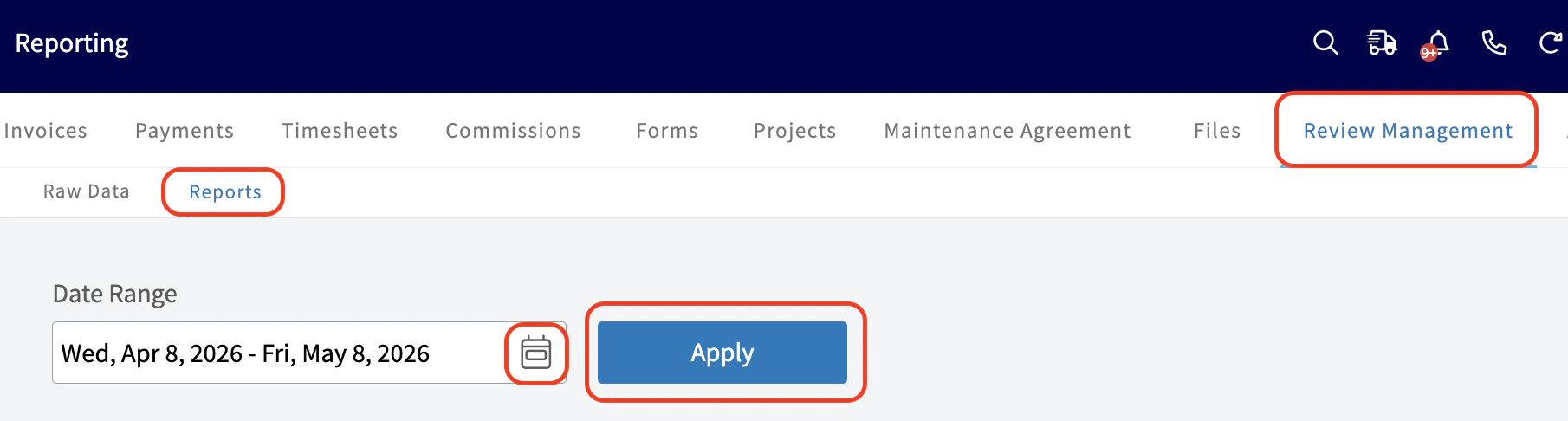
- Today: From 12:00 AM to the current time
- Yesterday: Previous day from 12:00 AM to 11:59 PM
- This Week: From Monday through Sunday of the current week
- Last Week: Previous week
- Last 7 Days: Previous seven days, including today
- This Month: From the first of the current month to the current day
- Last Month: Entire month before the current month
- Last 30 Days: Previous 30 days, including today
- Custom: Use the calendar to select start and end dates
Step 2: Configure Criteria
Configure your criteria:- Time Interval: Daily, Weekly, Monthly, Quarterly, or Total
- Group by: By user
- Metric: Feedback Score Average

Have additional questions? Contact us at support@fieldpulse.com or use the chat feature in the bottom right corner of your screen.