

Use the Orders tab to create reports based on purchase order data including order number, payment status, received date, and more. Some common purchase order reports include purchase orders by order status, vendor, and key dates.Documentation Index
Fetch the complete documentation index at: https://fieldpulse.mintlify.app/llms.txt
Use this file to discover all available pages before exploring further.
Create a Purchase Order Report
Date Range
Begin by selecting the start date range for which you’d like to report on. Click on the calendar icon to select a preset date range and click Load Data.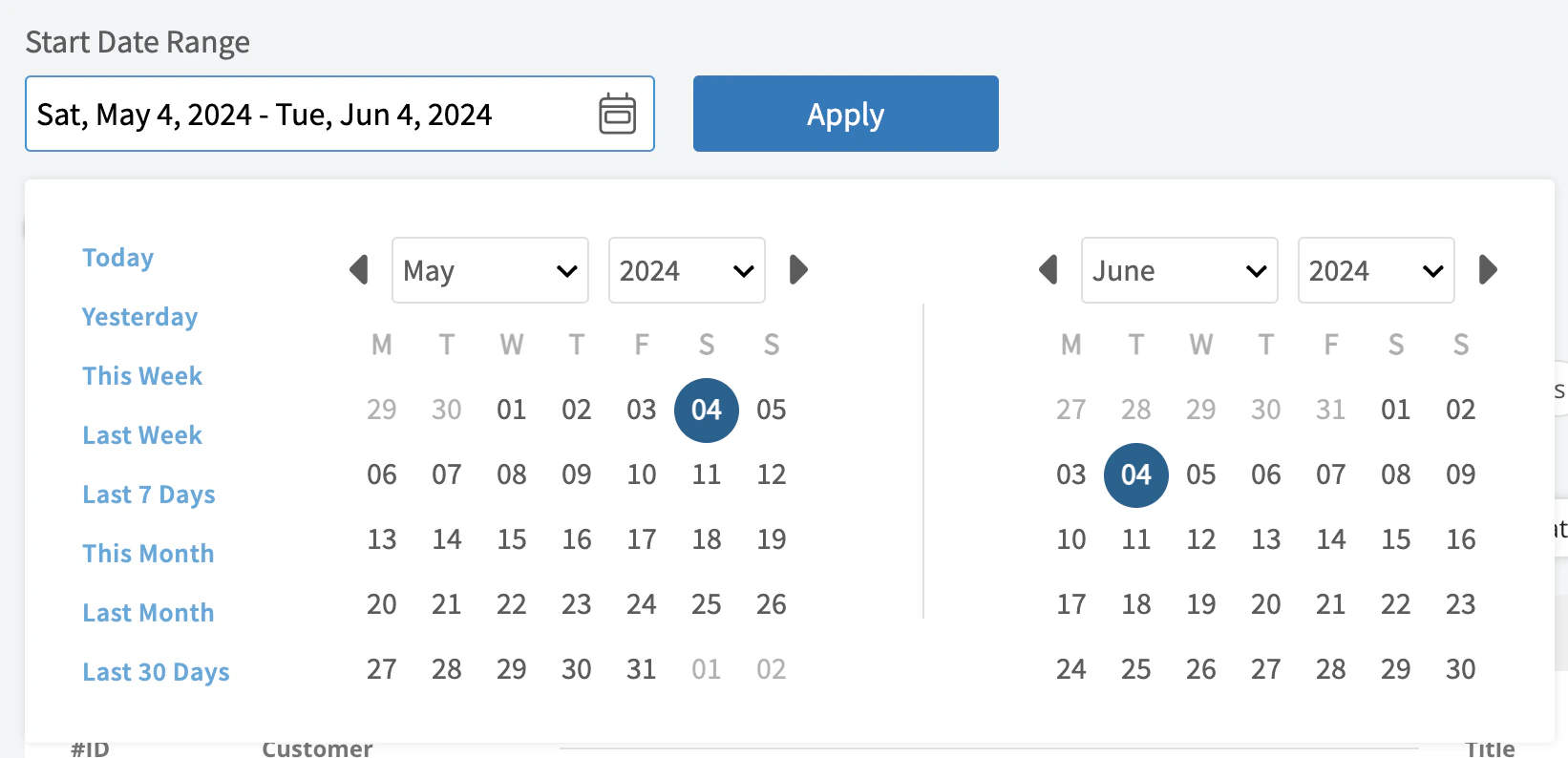
- Today: From 12:00 AM to the current time
- Yesterday: Previous day from 12:00 AM to 11:59 PM
- This Week: From Monday through Sunday of the current week
- Last Week: Previous week
- Last 7 Days: Previous seven days, including today
- This Month: From the first of the current month to the current day
- Last Month: Entire month before the current month
- Last 30 Days: Previous 30 days, including today
- Custom: Use the calendar to select start and end dates
Columns
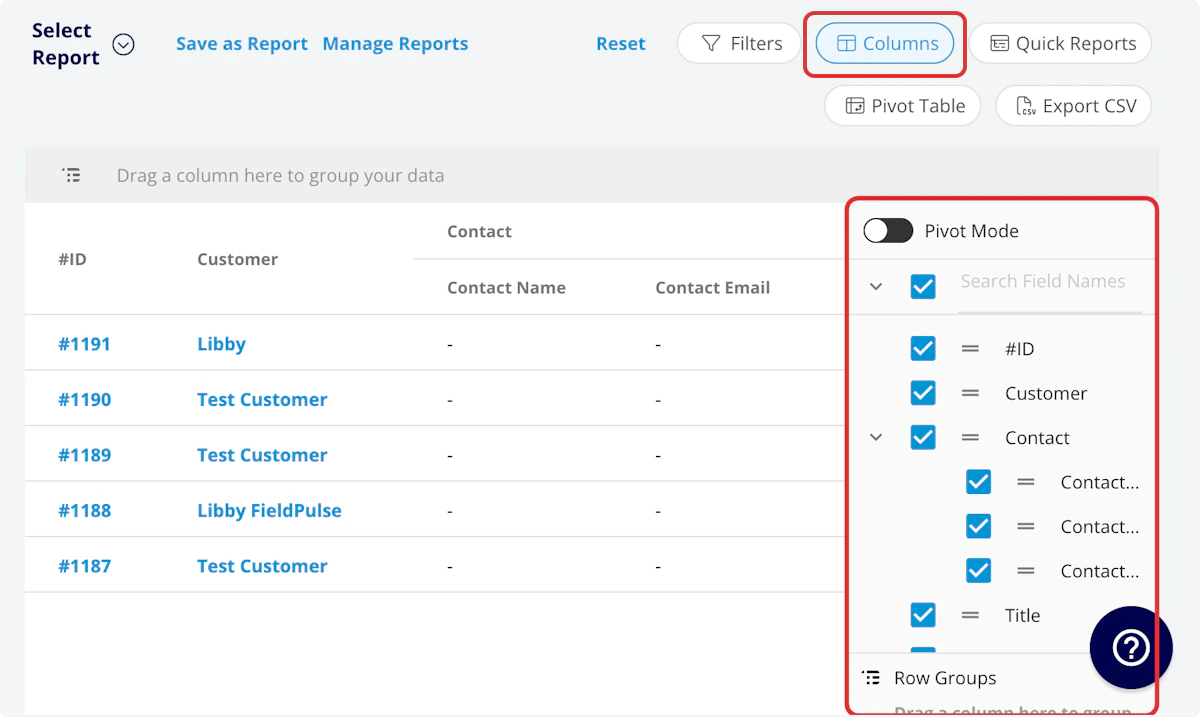
- ID: Purchase order number
- Title: Purchase order title
- Order Number: Supplier order number
- Status: Purchase order status
- Payment Status: Payment status
- Address: Delivery or pickup address
- Vendor: Supplier
- Tax Rate: Tax rate
- Delivery Method: Delivery or pickup
- Delivery Instructions: Delivery instructions
- Comment:
- Customer: Related customer
-
Related Project:
- Name: Related project
- Status: Status of the related project
-
Parent Job:
- Name: Related job
- Status: Status of the related job
- Parent Invoice: Related invoice
- Created At: Date and time the purchase order was created
- Assigned: Assigned team member
- Order At: Date and time the purchase order was ordered
- Expected Delivery At: Date and time the purchase order is expected to be delivered
- Received At: Date and time the purchase order was delivered
- Total: Total dollar amount of purchase order
-
Customer
- Custom Fields: User-created fields related to the customer record
- Customer Phone: Customer’s primary phone number
- Customer Email: Customer’s primary email address
- Customer Phone 2: Customer’s secondary phone number
- Customer Email 2: Customer’s secondary email address
- Customer Assigned To: User assigned to customer record
- Customer Lead Source: Lead source on the customer record
- Customer Pipeline Status: Customer’s custom sales pipeline status
- Customer Next Steps: Next steps listed on custom sales pipeline
- Customer Notes: Notes on customer record
- Customer Job Notes: Job notes on customer record (automatically inserted onto job records)
- Customer Created Date: Date and time the customer was added to FieldPulse
- Customer Tags: Tags attached to the customer record
- Tags: Tags on purchase order
- Custom Fields: User-created fields related to the purchase order
Filters
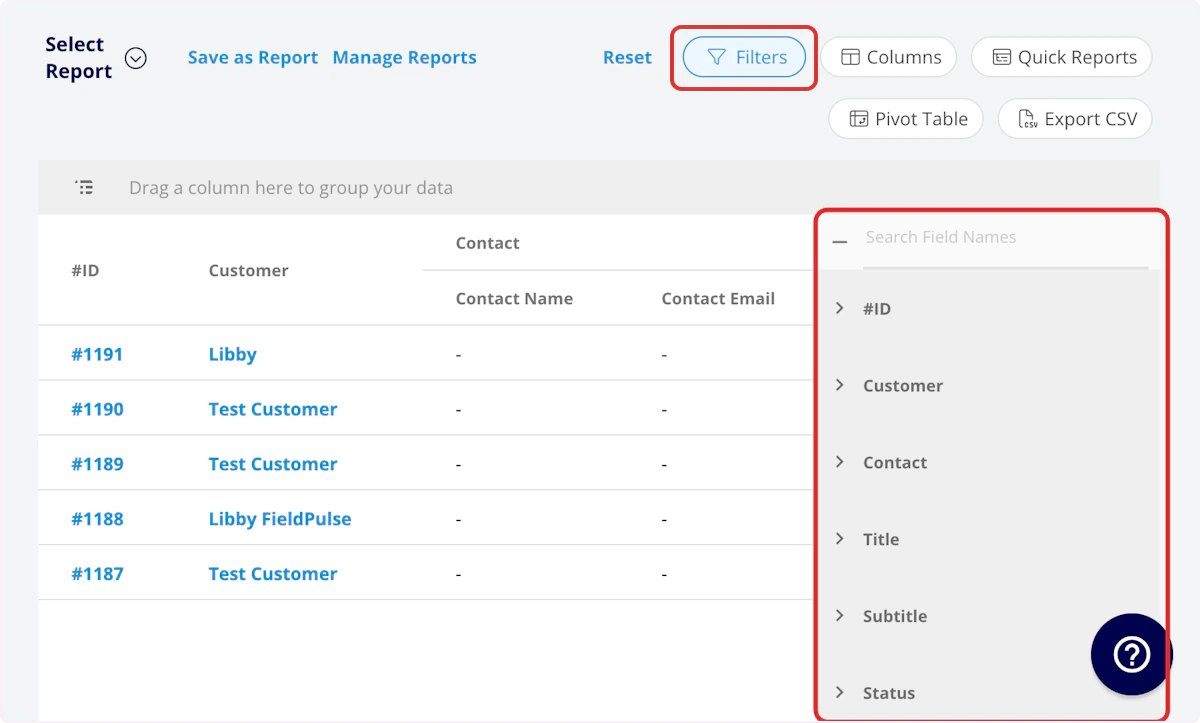
- ID: filter by contents
- Title: filter by contents
- Order Date: filter by date
- Order Number: filter by contents
- Status: select status
- Payment Status: select status
- Address: select address
- Vendor: select supplier
- Tax Rate: select tax rate
- Delivery Method: select delivery or pickup
- Delivery Instructions: select delivery instructions
- Comment: select comment
- Customer: filter by contents
- Related Project: select project
- Parent Job: filter by contents
- Parent Invoice: filter by contents
- Created At: filter by date
- Assigned: filter by contents
- Order At: filter by date
- Expected Delivery Date: filter by date
- Expected Delivery At: filter by date
- Date Received: filter by date
- Received At: filter by date
- Total: filter by contents
-
Customer
- Customer Phone: select phone number
- Customer Email: select email address
- Customer Phone 2: select phone number
- Customer Email 2: select email address
- Customer Assigned To: filter by contents
- Customer Pipeline Status: select status
- Customer Next Steps: filter by contents
- Customer Notes: filter by contents
- Customer Job Notes: filter by contents
- Customer Created Date: filter by contents
- Customer Tags: filter by contents
- Tags: select tag
- Custom Fields: select custom field
| Operator | Retrieves Data | Example | Data Retrieved |
|---|---|---|---|
| Equals | Equal to a specified value | Created By - Equals Tom Gause | For all records created by Tom Gause only |
| Not Equal | Different from a specified value | Tag - Not Equal to HVAC | For all records except those using the HVAC tag |
| Less Than | Lower than a specified value | #ID - Less than 1144 | For all records below #1144 |
| Less Than or Equal To | Lower than or equal to a specified value | Job Date/Time - Less than or equal to 12/13/2023 | For jobs scheduled before or on 12/13/2023 |
| Greater Than | Greater than a specified value | Job Duration - Greater than 60 minutes | For jobs in the In Progress status type for over 60 minutes |
| Greater Than or Equal To | Greater than or equal to a specified value | Job Date/Time - Greater than or equal to 1/1/2024 | For jobs scheduled on or after 1/1/2024 |
| In Range | Including and between two specified values | #ID - Between 1225 and 1236 | For all estimate records with #IDs between 1225 and 1236 |
| Starts With | Begins with a specified value | Title - Annual | For all job records beginning with Annual |
| Ends With | Ends with a specified value | Location - TX | For all job locations ending with TX |
| Blank | No values are in the field | Subtitle | For all job records with blank subtitles |
| Not Blank | Values in the field | Notes | For all job records with values in the notes field |
Common Purchase Order Reports
Purchase Orders by Order Status
Use this report to sort your purchase orders by status. Columns: Customize to your needs, but must include Status Group By: StatusPurchase Orders by Vendor
Use this report to sort your purchase orders by vendor. Columns: Customize to your needs, but must include Vendor Group By: StatusPurchase Order Key Dates
Use this report to view all key dates associated with your purchase orders. Columns: Customize to your needs, but must include Created At, Order At, Expected Delivery At, and Received At.Have additional questions? Contact us at support@fieldpulse.com or use the chat feature in the bottom right corner of your screen.