

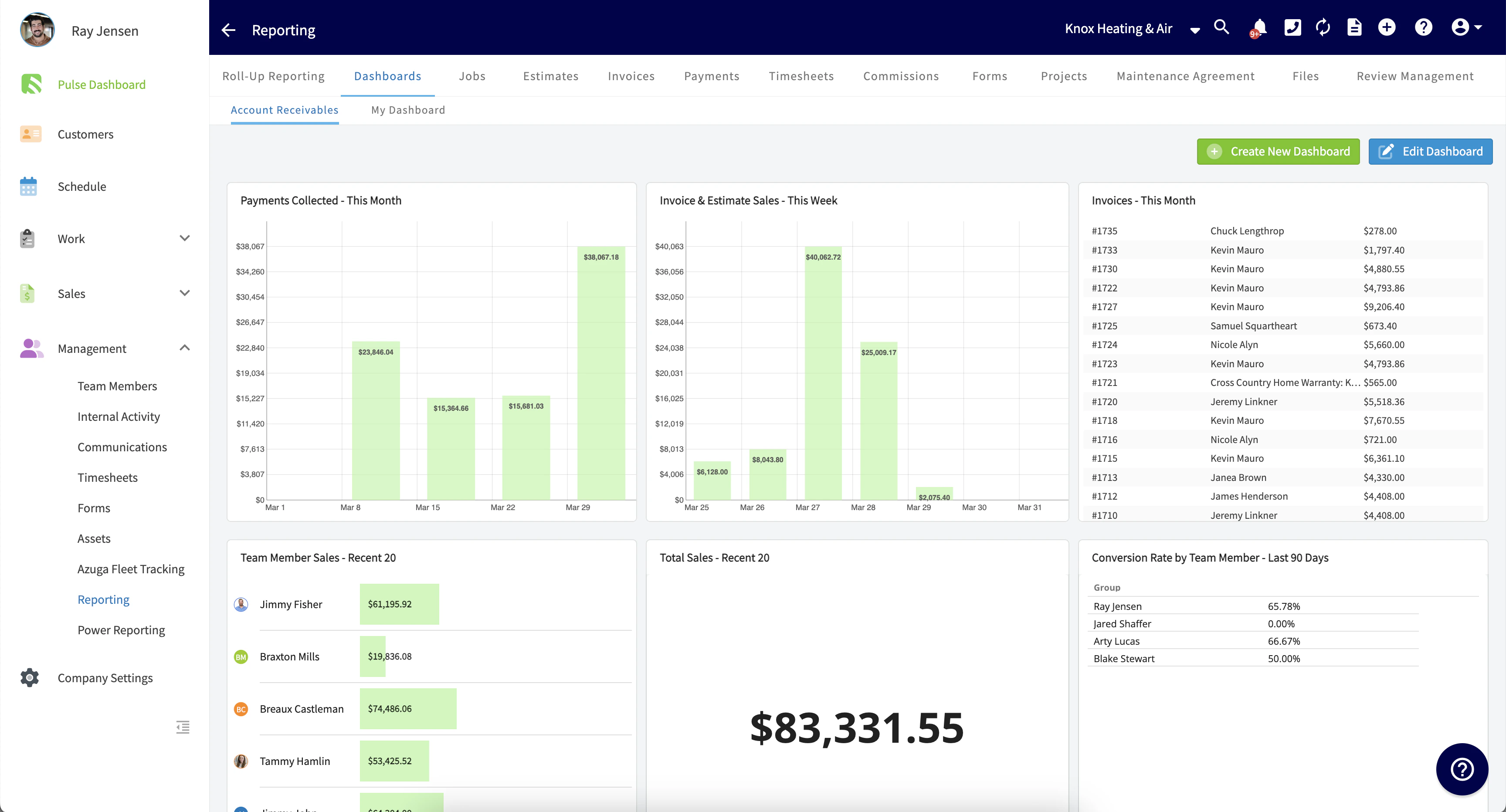
FieldPulse’s Custom Reporting Dashboard puts all your business data in one place. It updates automatically, so you can see everything you need at a glance. Plus, you can customize it to include only the reports that matter most to you.Documentation Index
Fetch the complete documentation index at: https://fieldpulse.mintlify.app/llms.txt
Use this file to discover all available pages before exploring further.
Building Custom Reports
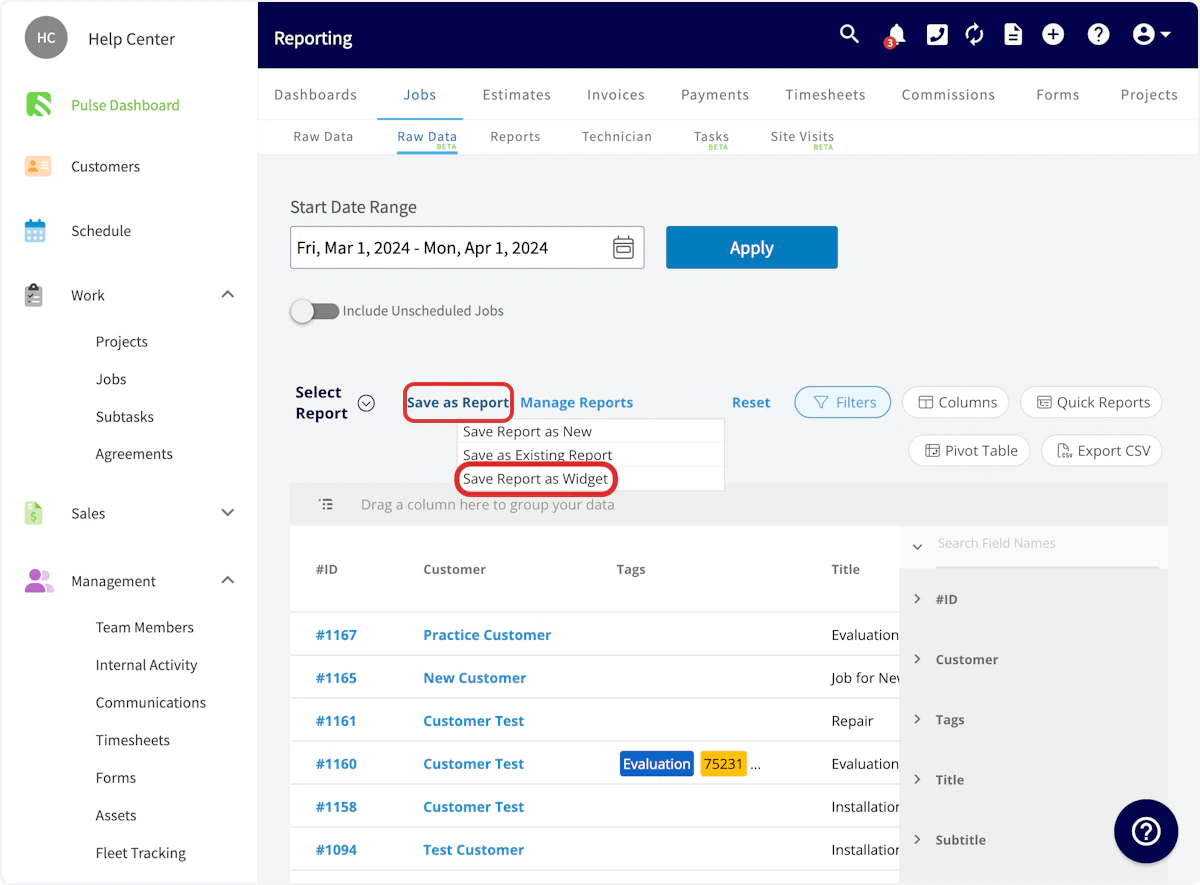
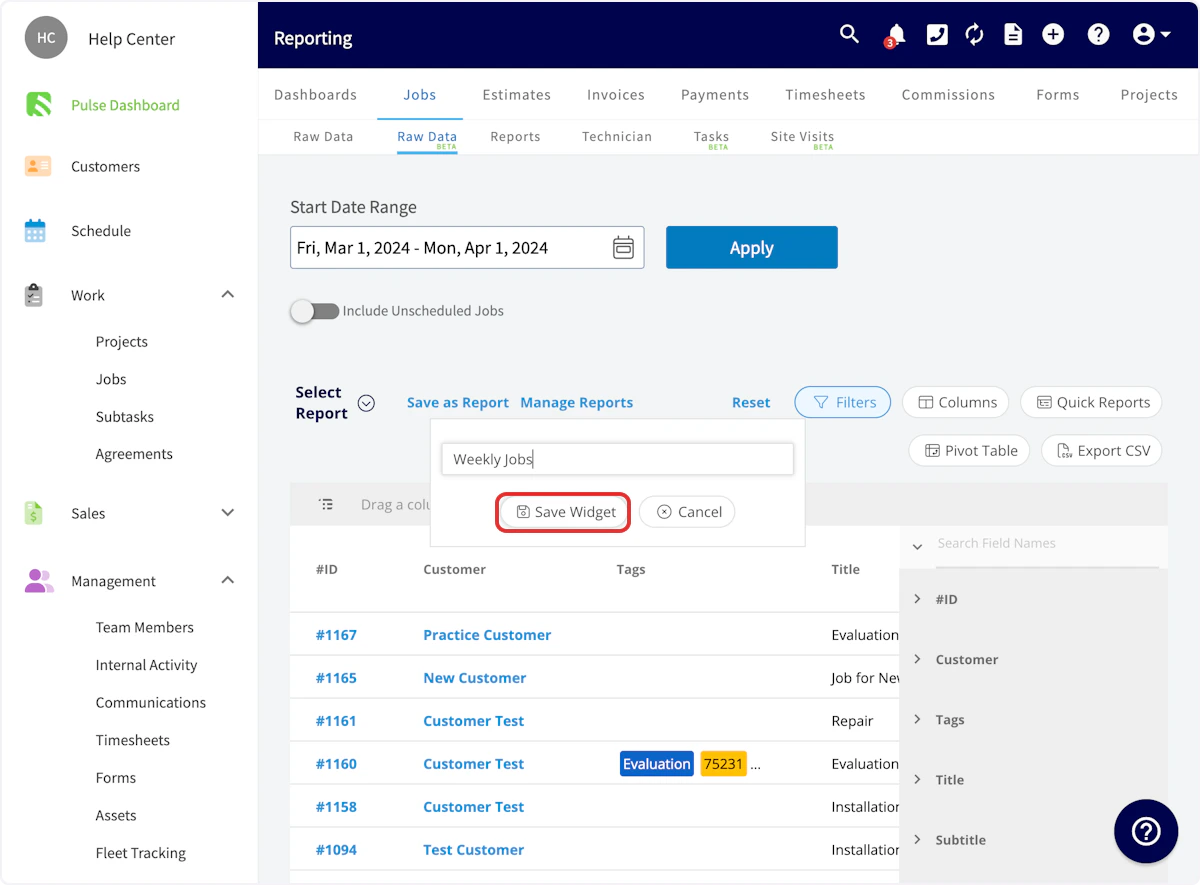
To build your custom reporting dashboard, you will first need to generate and save custom reports to display on your dashboard. Both traditional reports and visual reports can be included in your custom reporting dashboard. Navigate to Reporting in the left-side menu under the Management tab.
Configuring Your Dashboard
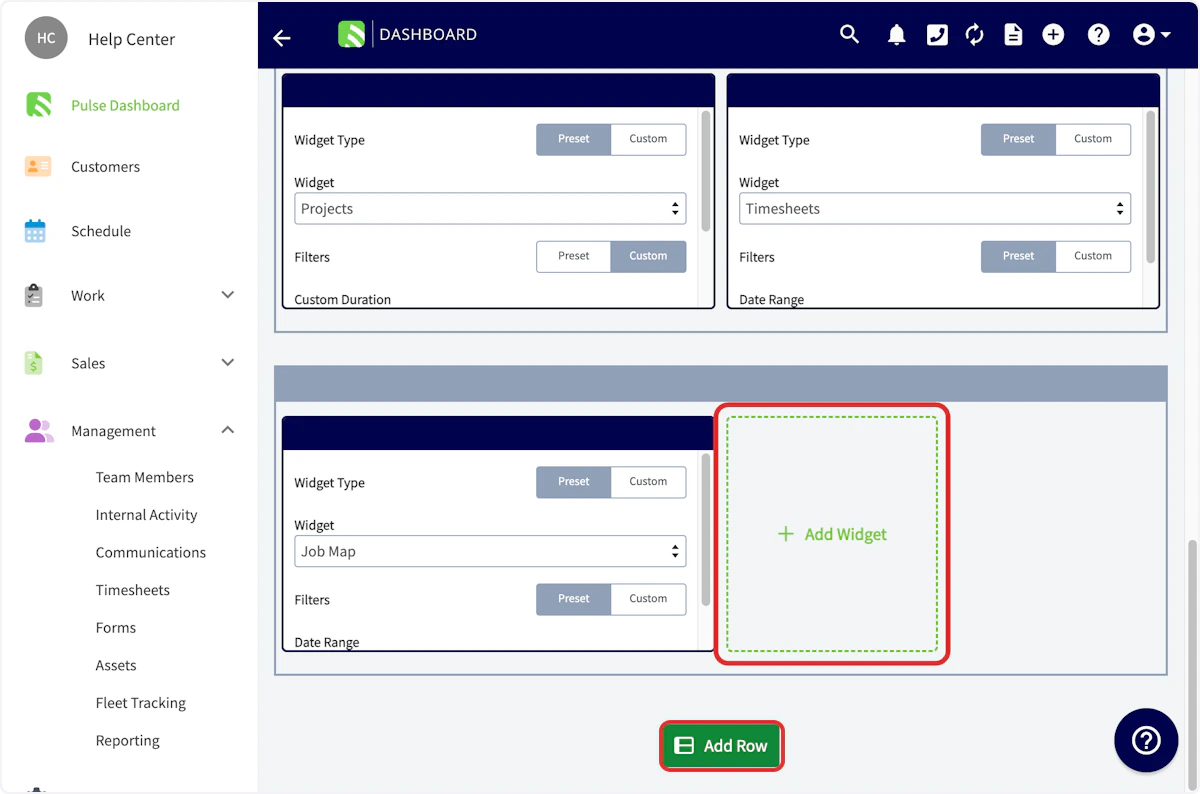
After creating and saving your reports as widgets, navigate to your Pulse Dashboard and select Configure Dashboard. Once here, you have the ability to select which reports to include, as well as the time period of data to display and the size of each widget and row.
Selecting Reports
Select from Preset or Custom widget types. To use the custom reports you just created, select Custom, then select the name of your desired custom report.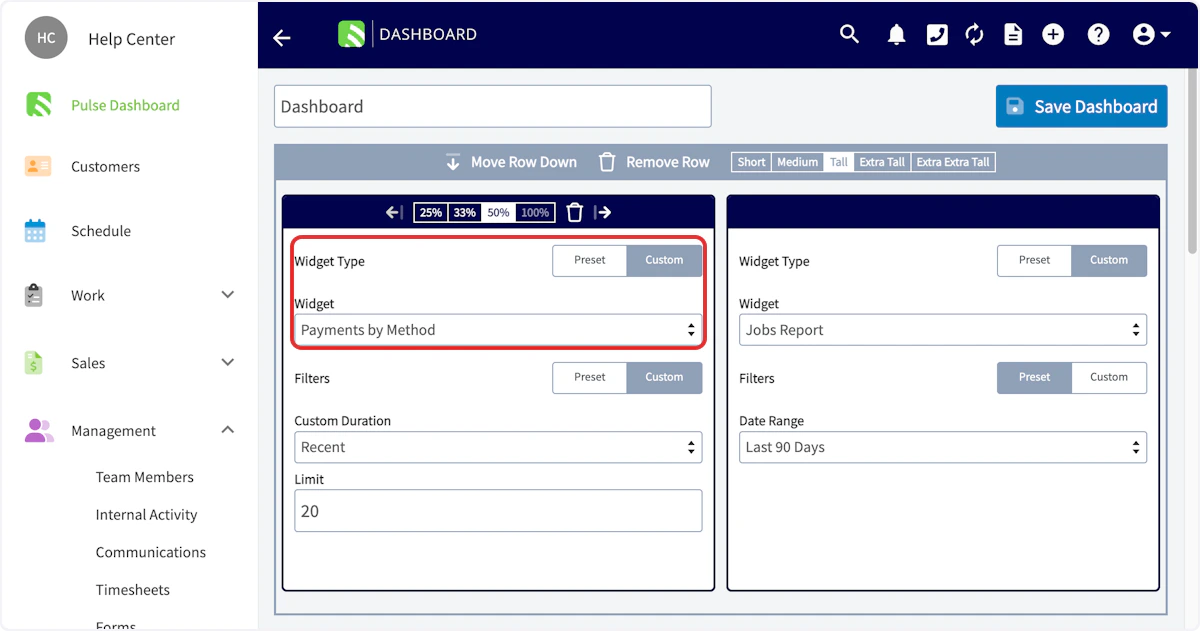
Applying Filters
Filters allow you to select the date range of data displayed for this report. You can select from Preset options such as This Month, Today, or Last 90 Days, or select Custom to set the maximum number of recent data points that should be included in the report.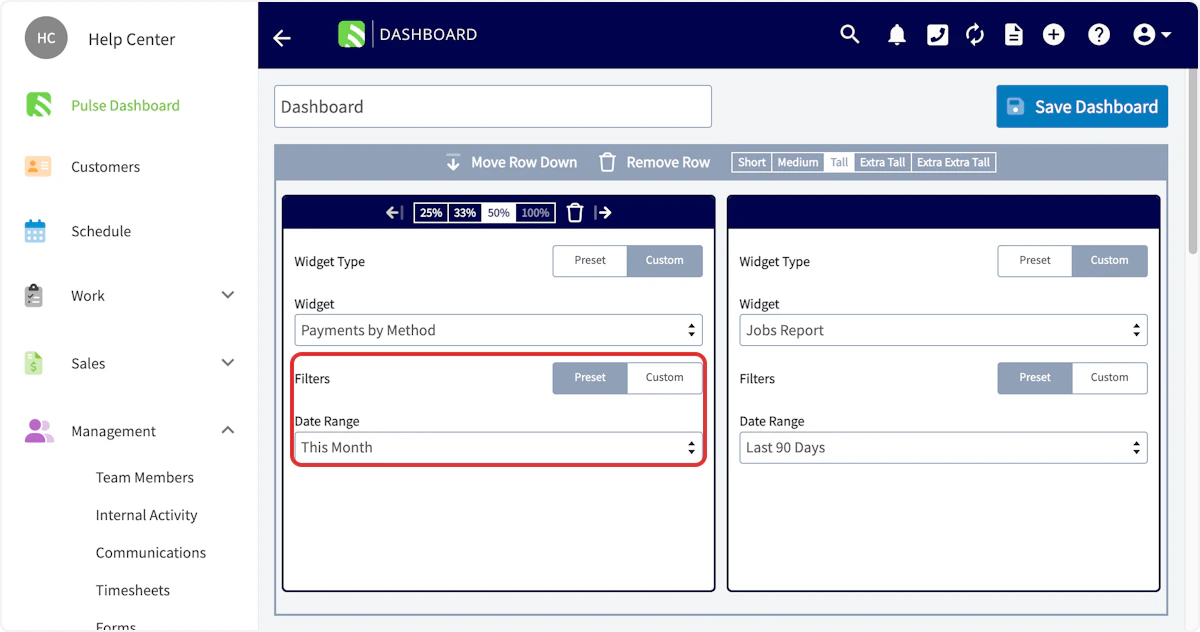
Adjusting the Display
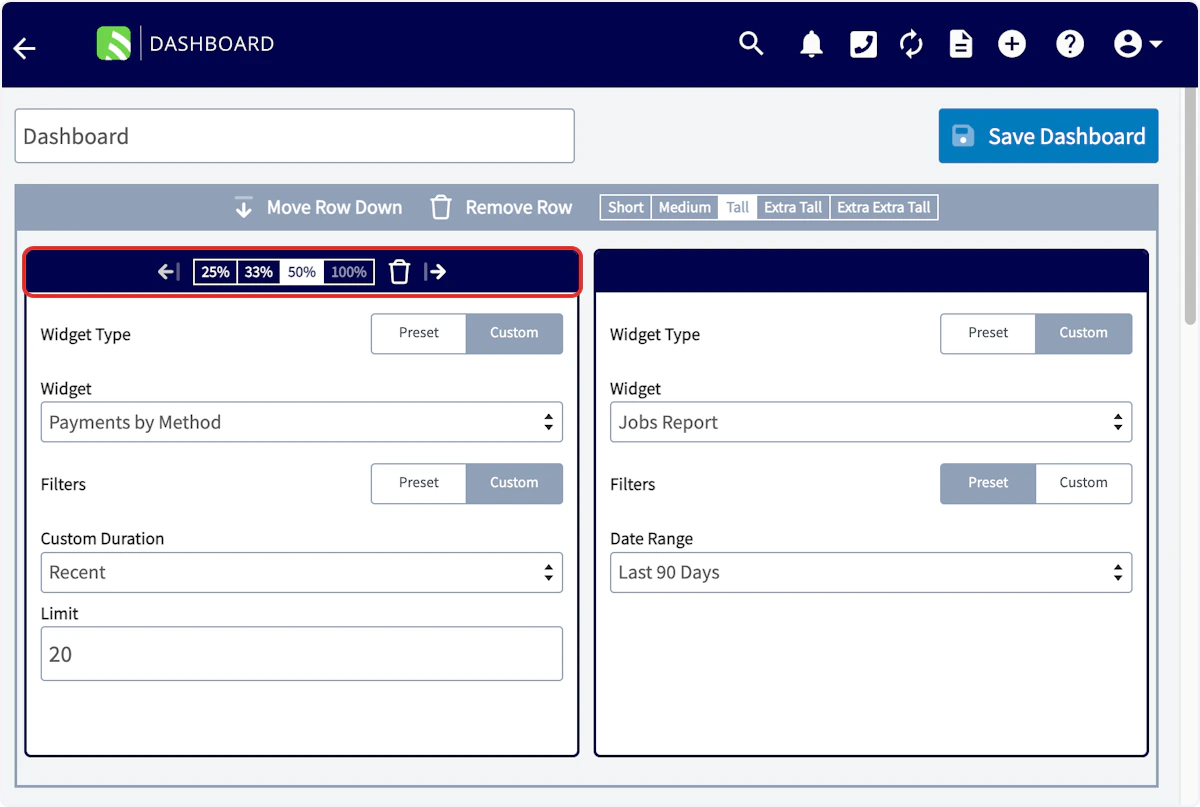
To adjust the appearance of your custom reporting dashboard, you can move the row up or down, remove the row entirely, or adjust the height from Short to Extra Extra Tall. All of these adjustments can be made in the gray bar above each row of widgets.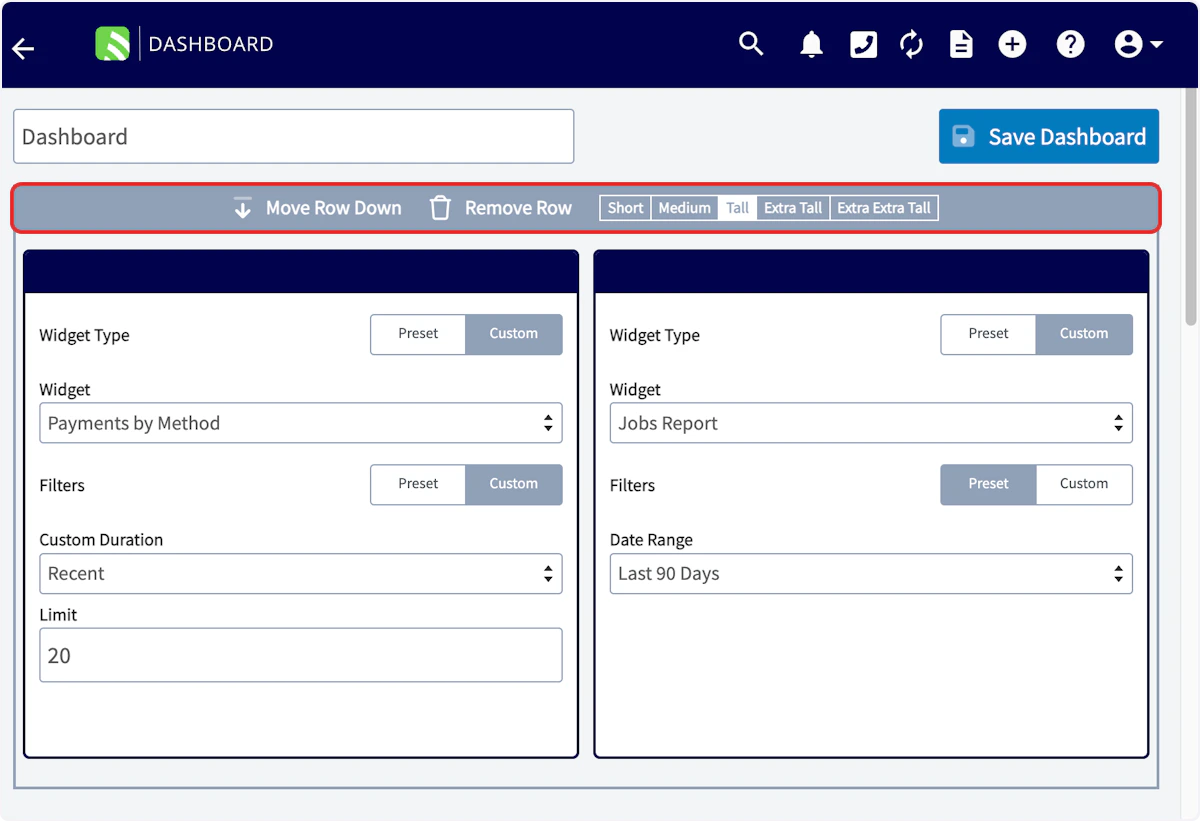
Creating Additional Dashboards
If you’d like to create additional custom reporting dashboards, you can build them under the Reporting tab. Select Dashboards, then click Create New Dashboard. While these dashboards will not display on your Pulse Dashboard, they provide convenience for you to view your reports in a grouping.
Video Tutorial
Have additional questions? Contact us at support@fieldpulse.com or use the chat feature in the bottom right corner of your screen.