

Royalty reports are automatically generated at the end of each month, granting each franchise immediate access. Franchisors can effortlessly view and approve reports for all franchisees, ensuring a smooth and efficient review process.Documentation Index
Fetch the complete documentation index at: https://fieldpulse.mintlify.app/llms.txt
Use this file to discover all available pages before exploring further.
Viewing Royalty Reports From The Franchisor Account
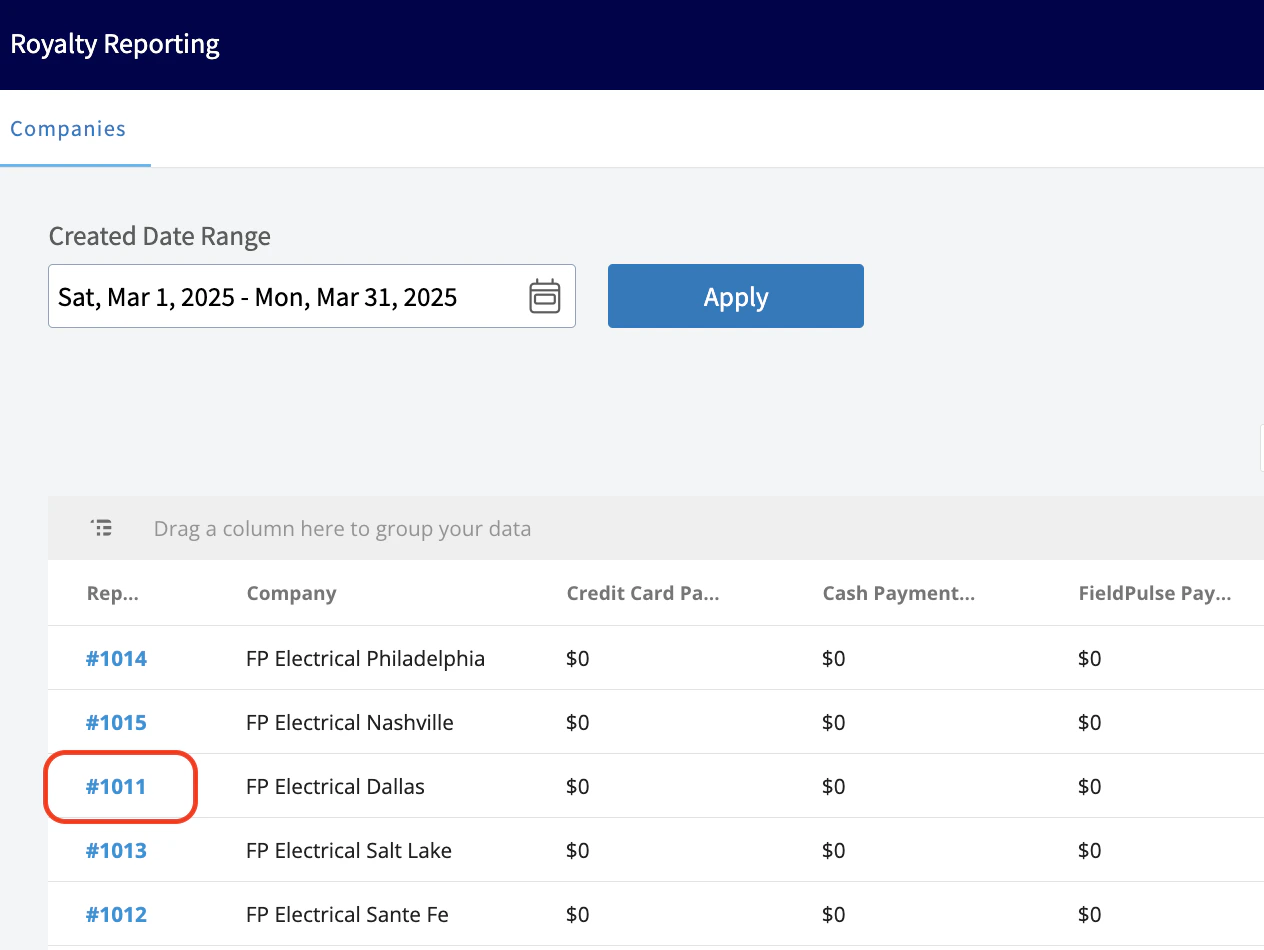
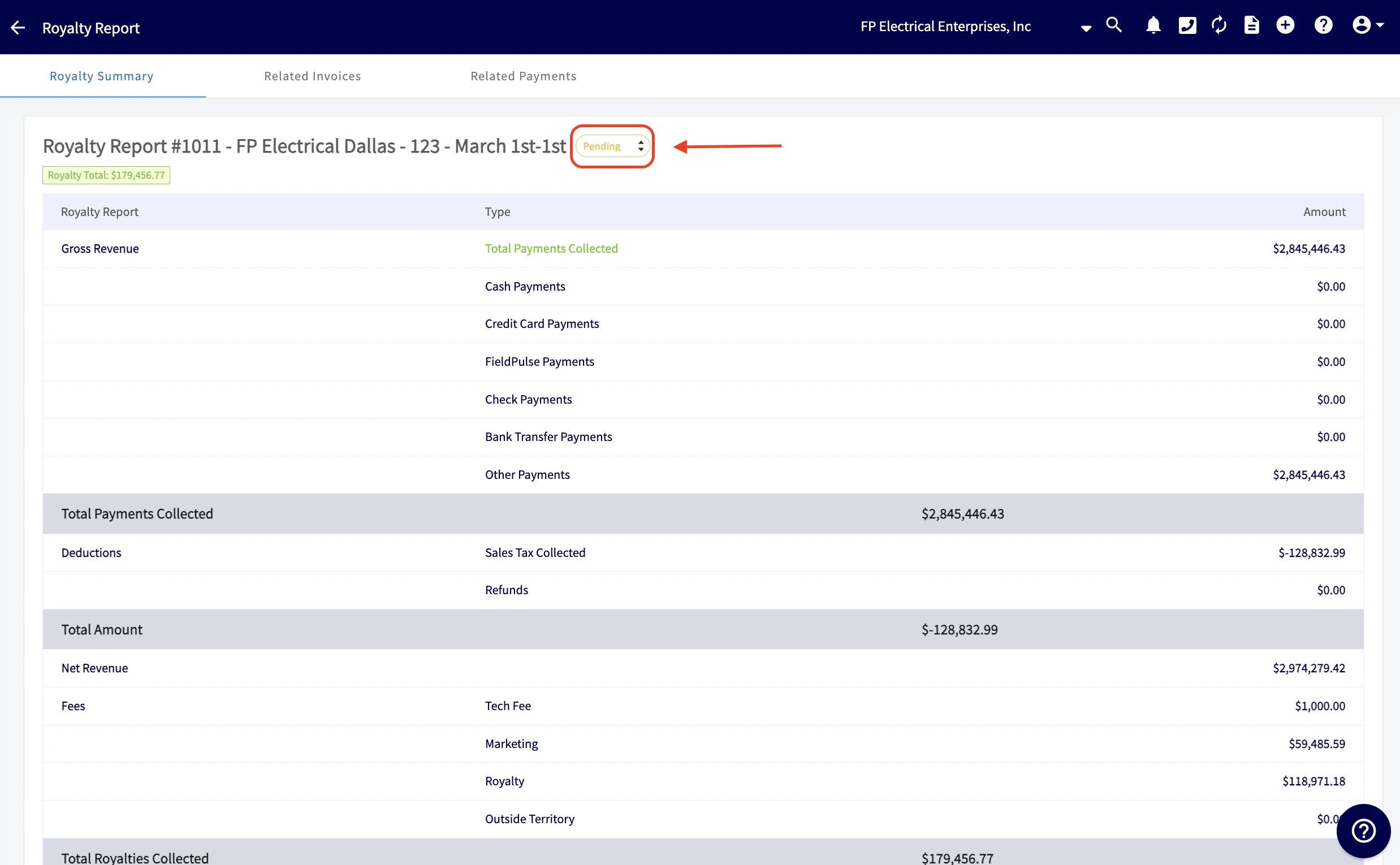
To view a royalty report, the franchisor will need to navigate to the Royalty Reporting tab from the menu on the left hand side of their screen. Like other reporting within FieldPulse, they will then need to select the date range to view their desired report. In the example below, within this date range there are multiple reports listed as these are from all franchisee locations.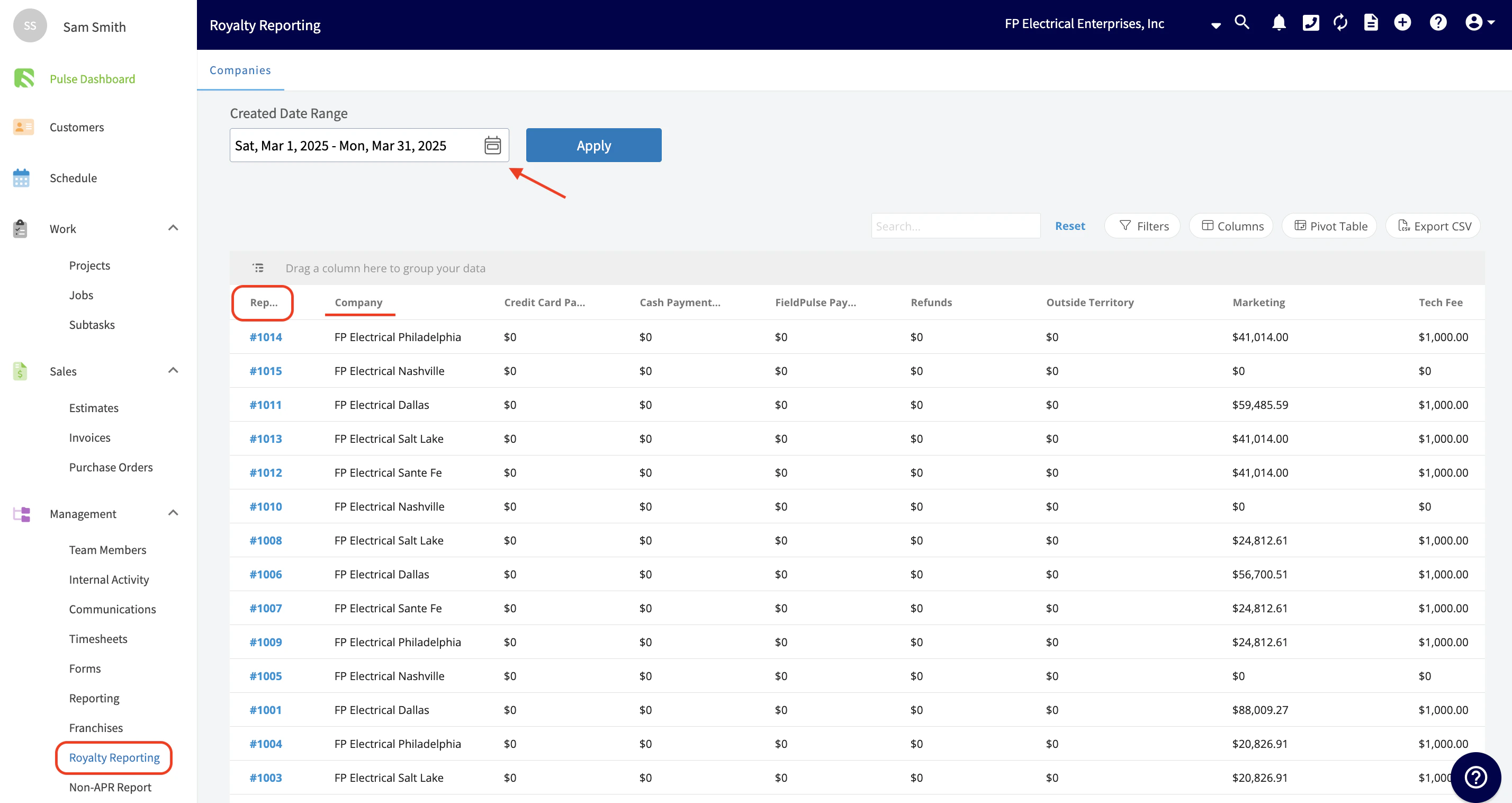

Related Invoices Tab
The franchisor can also view all the related invoices that factored into this royalty report. To do so, they would click the Related Invoices tab at the top of their screen. Utilize the Columns and Filters to further customize this report and display the desired information.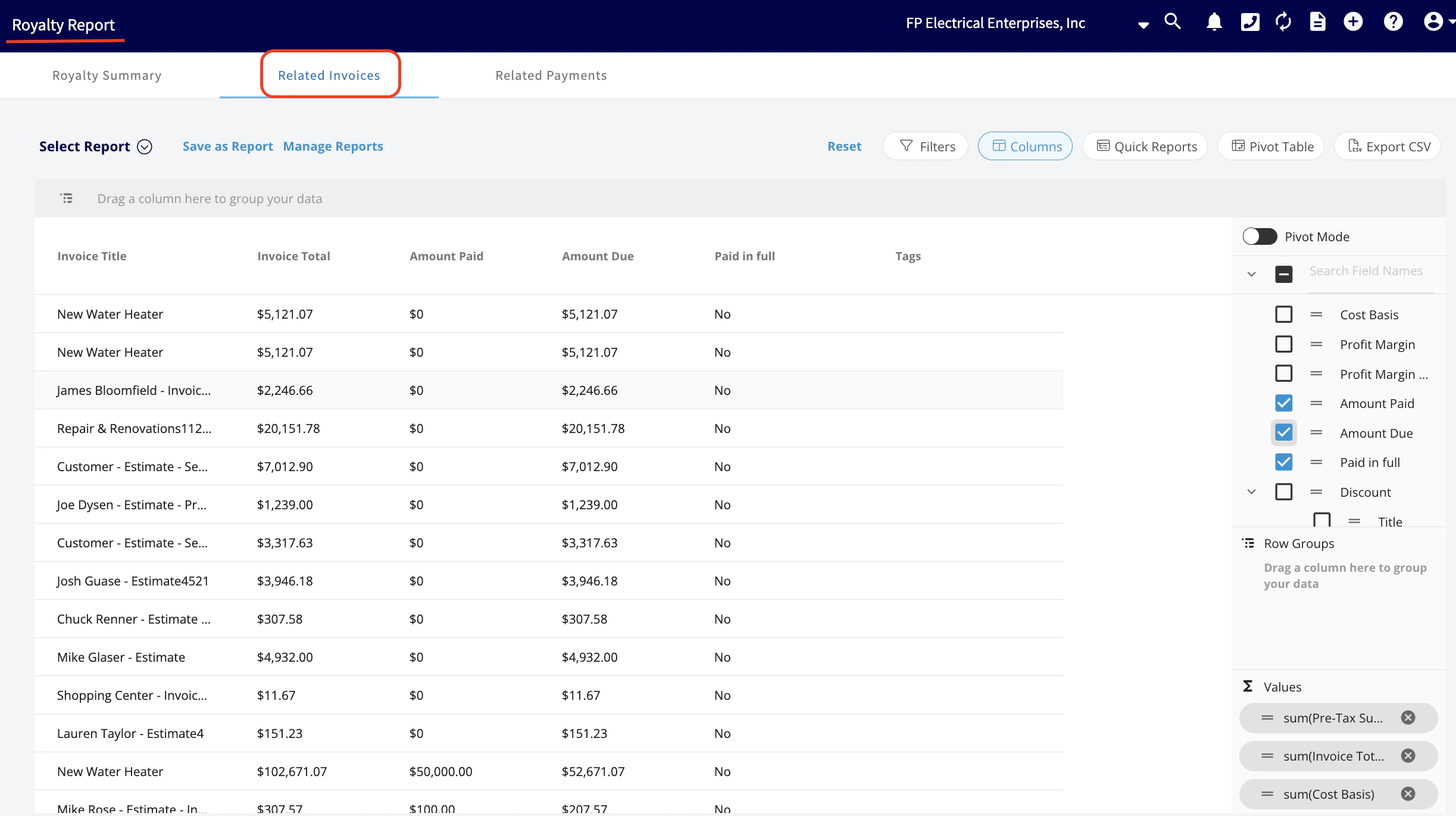
Related Payments Tab
Here the franchisor can view the revenue for those related invoices, not just the invoices themselves, but what actually was collected that is contributing to those royalties. This ensures a high level of transparency between the compliance team, the franchisor, and the franchisee. This report is automatic and is pulling information directly from within FieldPulse. This is not some manually created report where there could be room for error. As far as the actual collection of the royalties, that is not something that is handled by FieldPulse. To view this information, click the Related Payments tab at the top of the screen. Again, utilize the Columns and Filters to customize the data you want displayed.
Viewing Royalty Reports From The Franchisee Account
To view their royalty report, the franchisee will navigate to the Royalty Reporting tab from the menu on the left hand side of their screen. Like other reporting within FieldPulse, they will select the date range to view their desired report. Notice in the example below there are 3 separate royalty reports that have been generated.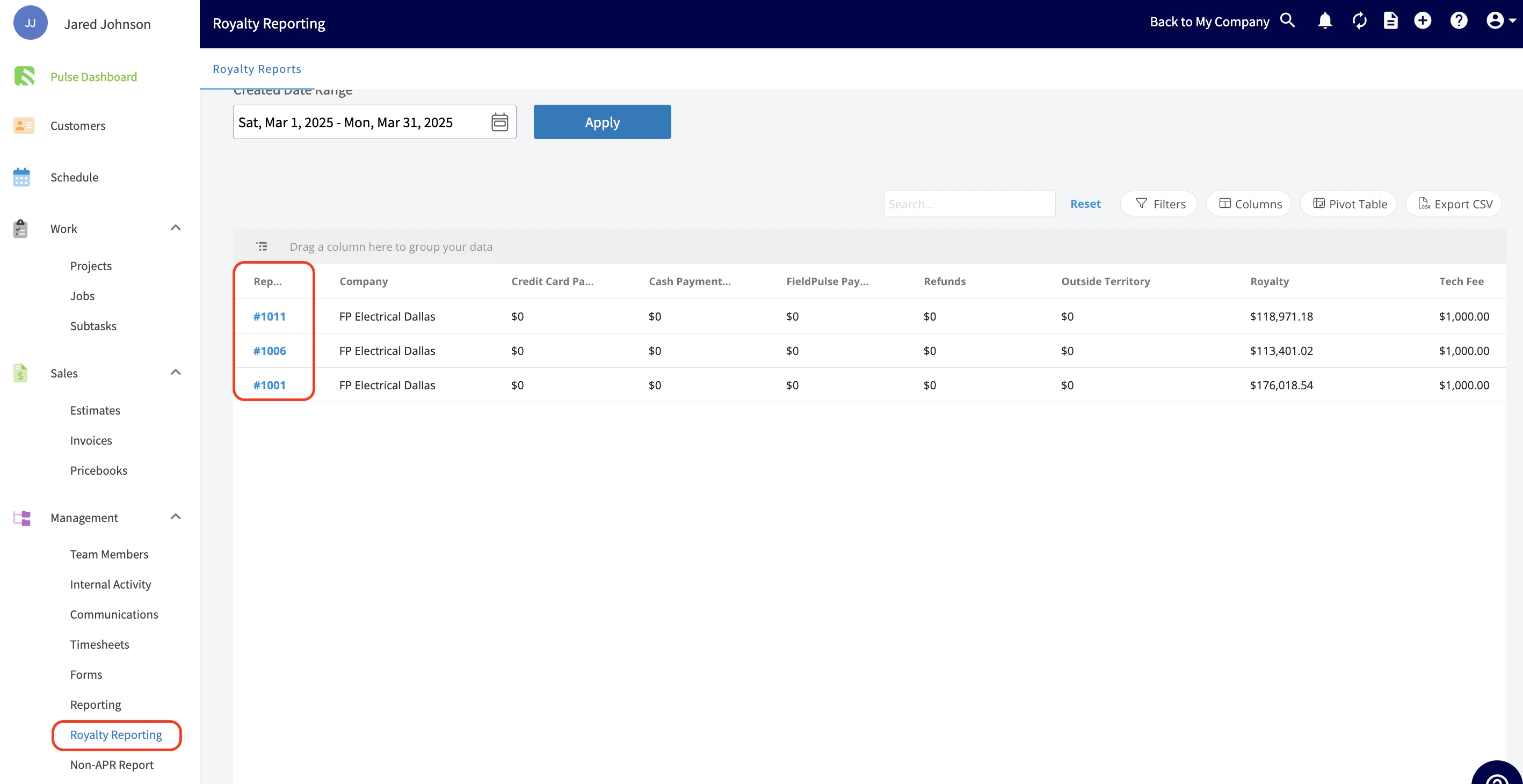

Have additional questions? Contact us at support@fieldpulse.com or use the chat feature in the bottom right corner of your screen.