

Use the Jobs tab to create reports based on job data including job durations, assigned users, invoice totals, and more. Some common job reports include jobs by lead source, job profit margin, and job duration.Documentation Index
Fetch the complete documentation index at: https://fieldpulse.mintlify.app/llms.txt
Use this file to discover all available pages before exploring further.
Create a Jobs Report
Date Range
Begin by selecting the start date range for which you’d like to report on. Click on the calendar icon to select a preset date range and click Load Data.
- Today: From 12:00 AM to the current time
- Yesterday: Previous day from 12:00 AM to 11:59 PM
- This Week: From Monday through Sunday of the current week
- Last Week: Previous week
- Last 7 Days: Previous seven days, including today
- This Month: From the first of the current month to the current day
- Last Month: Entire month before the current month
- Last 30 Days: Previous 30 days, including today
- Custom: Use the calendar to select start and end dates
Columns
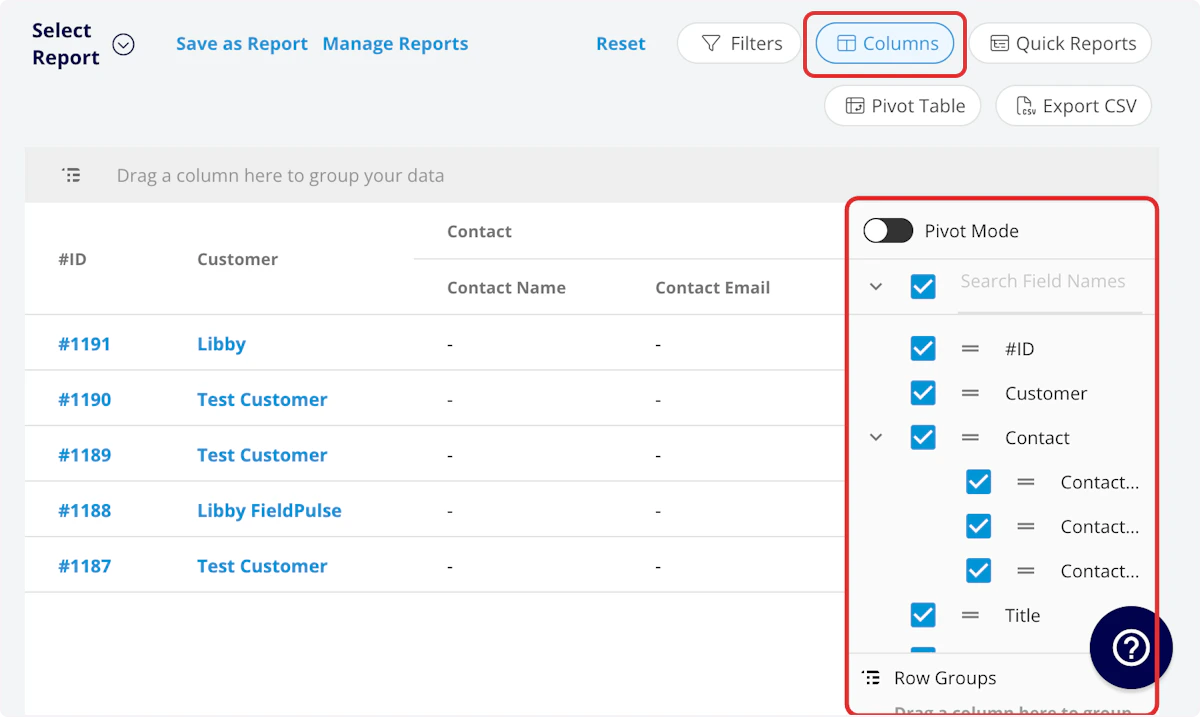
- #ID: Job number
- Customer: Customer linked to the job record
-
Contact
- Contact Name: Customer contact selected on job record
- Contact Email: Customer contact’s email address selected on job record
- Contact Phone: Customer contact’s phone number selected on job record
- Title: Job record title
- Subtitle: Job record subtitle
- Status: Job workflow status
- Start Date/Time: Date and time the job was scheduled to begin
- End Date/Time: Date and time the job was scheduled to end
- Clock In Date/Time
- Clock Out Date/Time
- Created At: Date and time the job record was created in FieldPulse
- Created By: Author of the job record
- Location: Service location for the job
- Assigned Team Members: Users assigned to the job
- Assigned Teams: Teams assigned to the job
- Related Invoice Status: Status of the linked invoice
- Total Invoice Amount: Total amount on related invoice
- Total Estimate Amount: Total amount on related estimate
- Total Invoice Amount Due: Remaining balance on related invoice
- Total Amount Paid: Amount paid on related invoice
- Assets: Assets linked to the job record
- Related Estimates and Invoices: Record numbers for estimates and invoices linked to the job record
- Related Estimates: Record numbers for estimates linked to the job record
- Related Estimate’s QuickBooks Class: The QuickBooks class of the Related Estimate record
- Related Invoices: Record numbers for invoices linked to the job record
- Related Invoices’s QuickBooks Class: The QuickBooks class of the Related Invoice record
- Notes: Notes on job record
- Field Notes: Notes left by assigned user(s) on the job
- Tags: Tags attached to the job record
- Related Project: Project linked to the job record
- Job Duration: Time spent in In Progress status type, recorded in HH:MM:SS
- Job Duration Decimal: Time spent in In Progress status type, recorded in hours
- Scheduled Duration: Time scheduled for the job, recorded in HH:MM:SS
- Scheduled Duration Decimal: Time scheduled for the job, recorded in hours
- Travel Duration: Time spent in On The Way status type, recorded in HH:MM:SS
- Travel Duration Decimal: Time spent in On The Way status type, recorded in hours
- Total Timesheet Duration: Sum of all timesheets related to the job record, recorded in HH:MM:SS
- Total Timesheet Duration Decimal: Sum of all timesheets related to the job record, recorded in hours
- Custom Fields: User-created fields related to the job record
-
Estimate - Product
- Estimate - Total Product Cost: Sum of product line item costs on related estimate
- Estimate - Total Product Amount: Sum of product line item prices on related estimate
- Estimate - Total Product Margin: Overall margin on product line items on related estimate
-
Estimate - Service
- Estimate - Total Service Cost: Sum of service line item costs on related estimate
- Estimate - Total Service Amount: Sum of service line item prices on related estimate
- Estimate - Total Service Margin: Overall margin on service line items on related estimate
-
Invoice - Product
- Invoice - Total Product Cost: Sum of product line item costs on related invoice
- Invoice - Total Product Amount: Sum of product line item prices on related invoice
- Invoice - Total Product Margin: Overall margin on product line items on related invoice
-
Invoice - Service
- Invoice - Total Service Cost: Sum of service line item costs on related invoice
- Invoice - Total Service Amount: Sum of service line item prices on related invoice
- Invoice - Total Service Margin: Overall margin on service line items on related invoice
-
Customer
- Custom Fields: User-created fields related to the customer record
- Customer Phone: Customer’s primary phone number
- Customer Email: Customer’s primary email address
- Customer Phone 2: Customer’s secondary phone number
- Customer Email 2: Customer’s secondary email address
- Customer Assigned To: User assigned to customer record
- Customer Lead Source: Lead source
- Customer Pipeline Status: Customer’s custom sales pipeline status
- Customer Next Steps: Next steps listed on custom sales pipeline
- Customer Notes: Notes on customer record
- Customer Job Notes: Job notes on customer record (automatically inserted onto job records)
- Customer Created Date: Date and time the customer was added to FieldPulse
- Customer Tags: Tags attached to the customer record
- Parent Customer: Group and analyze data by the Parent Customer
-
Job Status Workflow: Includes each status in your custom status workflow
- Start Timestamp: Date and time the workflow was changed to this status
- End Timestamp: Date and time the workflow was changed from this status
- Total Duration: Total time spent in this status, recorded in HH:MM:SS
Filters
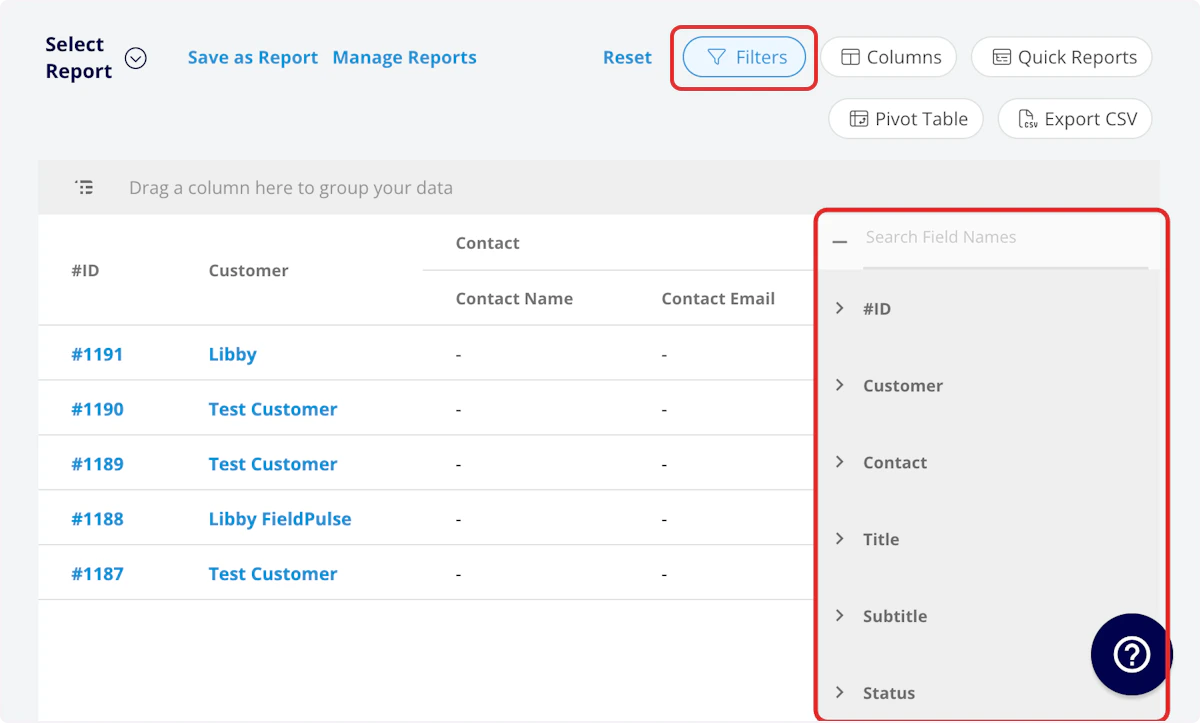
- #ID: filter by contents
- Customer: filter by contents
-
Contact
- Contact Name: select name
- Contact Email: select email address
- Contact Phone: select phone number
- Title: filter by contents
- Subtitle: filter by contents
- Status: select status
- Job Created Date: filter by date
- Job End Date: filter by date
- Start Date/Time: filter by date
- End Date/Time: filter by date
- Created At: filter by contents
- Created By: filter by contents
- Location: filter by contents
- Assigned Team Members: filter by contents
- Assigned Teams: filter by contents
- Related Invoice Status: select status
- Assets: filter by contents
- Related Estimates and Invoices: filter by contents
- Notes: filter by contents
- Field Notes: filter by contents
- Tags: filter by contents
- Related Project: select project
- Job Duration: filter by contents
- Job Duration Decimal: filter by contents
- Scheduled Duration: filter by contents
- Scheduled Duration Decimal: filter by contents
- Travel Duration: filter by contents
- Travel Duration Decimal: filter by contents
- Total Timesheet Duration: filter by contents
- Total Timesheet Duration Decimal: filter by contents
- Custom Fields: select custom field
-
Customer
- Customer Phone: select phone number
- Customer Email: select email address
- Customer Phone 2: select phone number
- Customer Email 2: select email address
- Customer Assigned To: filter by contents
- Customer Lead Source: select lead source
- Customer Pipeline Status: select status
- Customer Next Steps: filter by contents
- Customer Notes: filter by contents
- Customer Job Notes: filter by contents
- Customer Created Date: filter by contents
- Customer Tags: filter by contents
-
Job Status Workflow
- Start Timestamp: select All, Last 24 Hours, Today, Last 7 Days, or Custom
- End Timestamp: select end date and time
- Total Duration: select duration
Common Job Reports
Job Profit Margin
Use this report to view your profit margin on completed jobs. Columns: Customize to your needs, but must include Invoice - Total Service Margin and Invoice - Total Product Margin. Filters: Status = CompletedJobs by Lead Source
Use this report to view your job data sorted by customer lead source. Columns: Customize to your needs, but must include Lead Source. Group by: Lead SourceJob Duration
Use this report to view scheduled job time versus actual job duration on completed jobs. Columns: Customize to your needs, but must include Scheduled Duration or Scheduled Duration Decimal and Job Duration or Job Duration Decimal. Filters: Status = CompletedEstimated vs. Actual Job Duration
You can pull a report that compares the estimated (scheduled) duration of a job against the actual duration.- Estimated Duration: This is based on the time you scheduled the job for.
- Actual Duration: This is based on the technician’s clock-in and clock-out times recorded in the timesheets for that job.
Technician Punctuality (Late Arrivals)
You can track technician punctuality by comparing the scheduled arrival window to when the technician actually started work.- Scheduled Arrival: The designated time frame set for the job.
- Actual Arrival: This can be determined by tracking when the technician first updates the job status (e.g., clicks “On the Way” or “Started”).
Note: The technician’s clock-in time would be on a separate report (timesheet report), but comparing the job’s scheduled arrival window to the time they click a given custom status is the most direct way to evaluate late arrivals against the job schedule.
Have additional questions? Contact us at support@fieldpulse.com or use the chat feature in the bottom right corner of your screen.