

You can create, edit, and send estimates in the FieldPulse mobile app. Once an estimate has been accepted, convert it to an invoice with ease! Note that the process of creating an invoice is very similar if you choose to create an invoice instead of converting an estimate into an invoice.Documentation Index
Fetch the complete documentation index at: https://fieldpulse.mintlify.app/llms.txt
Use this file to discover all available pages before exploring further.
Creating an Estimate
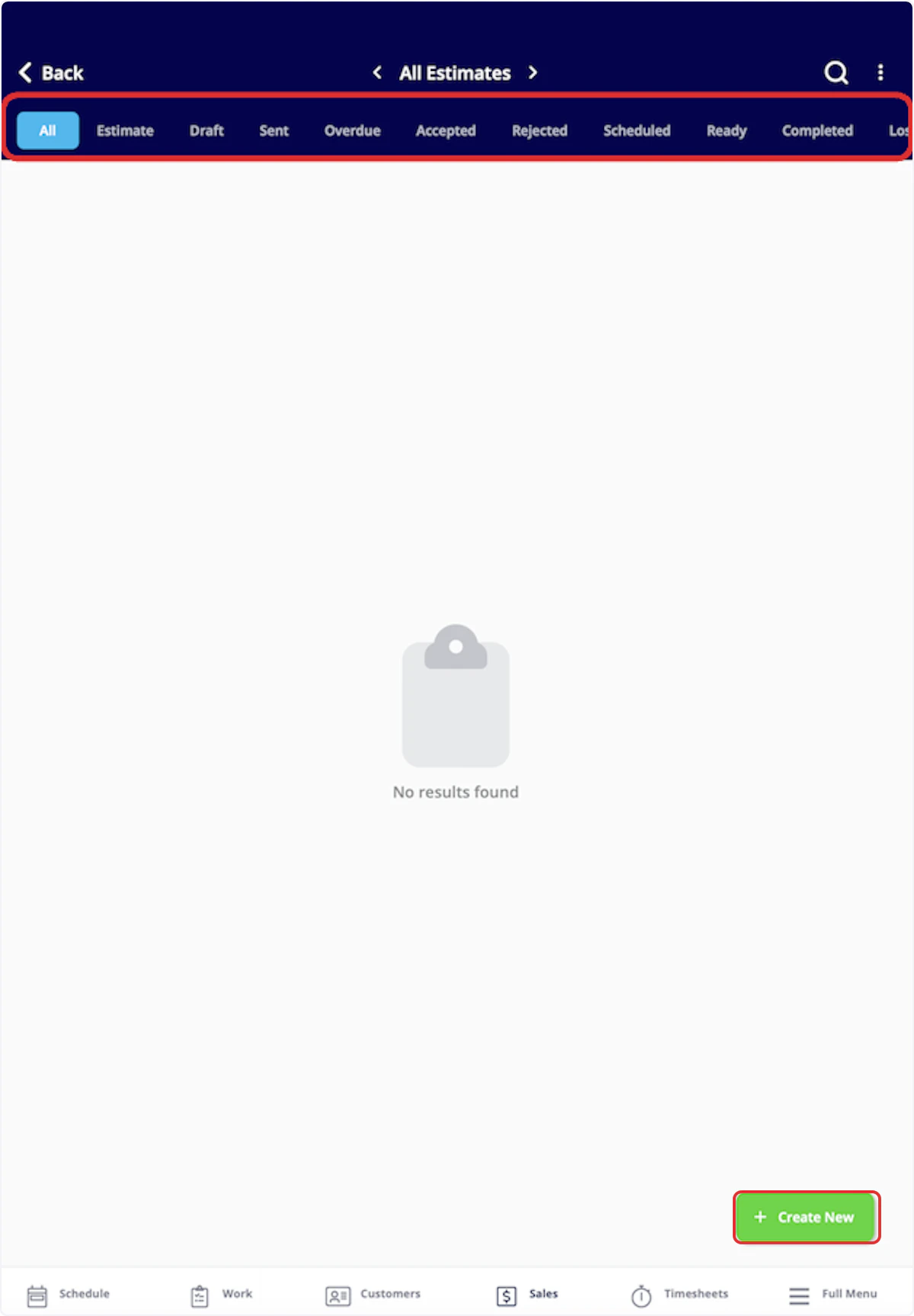
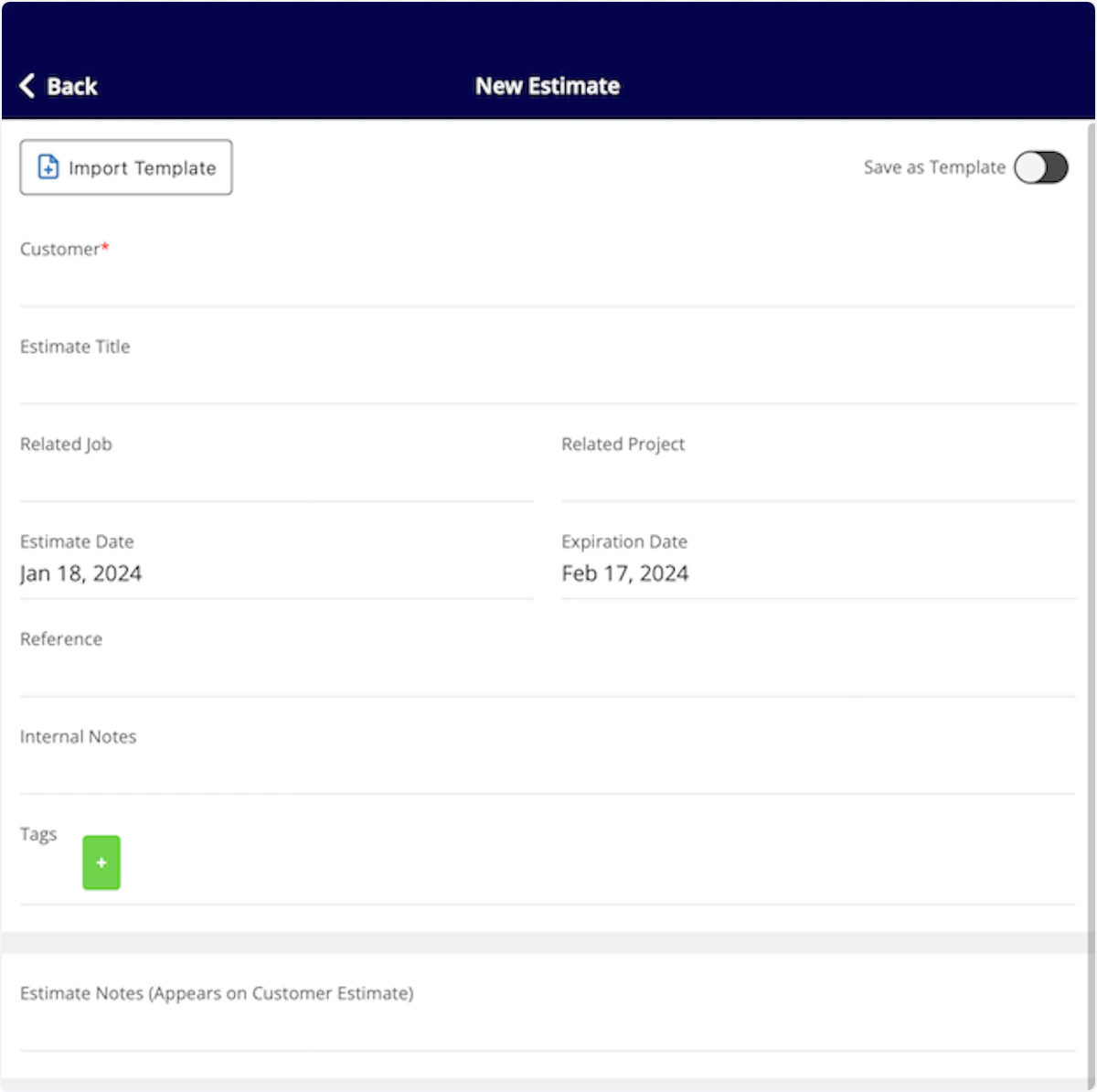
To create a new estimate, navigate to the Sales tab in the bottom menu, then select Estimates. ( Note: There are many ways to create a new estimate including from a job record, customer record, or the Actions button.)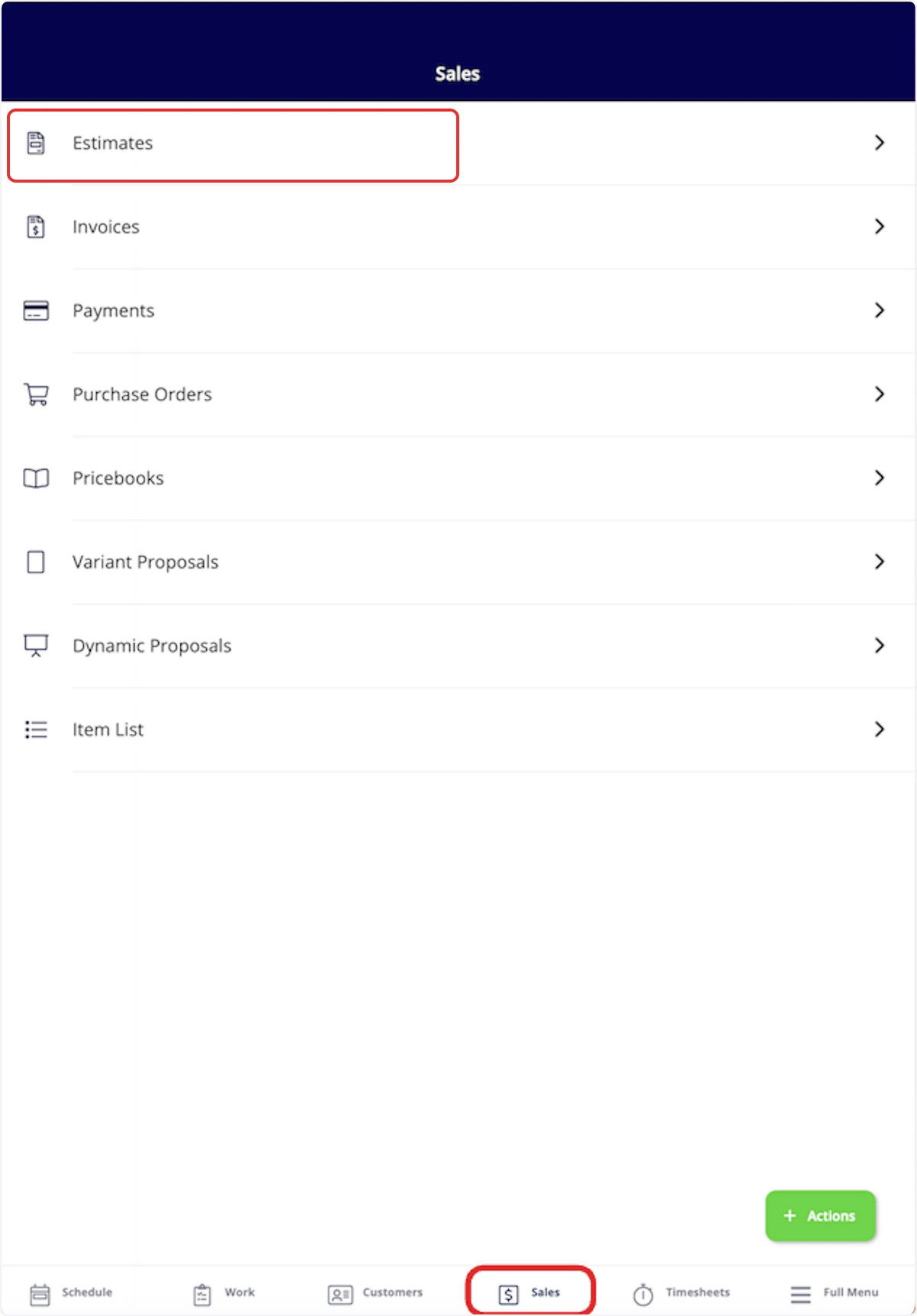
Add Line Item: Selecting Add Line Item will allow you to search your item list in order to add items to the estimate
Insert Bundle: Bundles are for services and parts that are often grouped together. To learn more about bundles and how to create them, Line Item Bundles Groupings
Pricebook: Selecting Pricebook will allow you to select and add flat-rate jobs from your Pricebook
Additional Details
Add Estimate Option allows you to create multiple estimate options for your customer to choose from. Add Line Item: Selecting Add Line Item will allow you to search your item list in order to add items to the invoice. Add Grouping: allows you to organize your line items on the estimate, as well as control the visibility of the line item names and prices for your customer. Simply create a grouping then drag and drop line items into it to begin organizing your invoice! Insert Bundle: Bundles are for services and parts that are often grouped together. To learn more about bundles and how to create them, Line Item Bundles Groupings. Insert PO Items: Populate an invoice with items from a purchase order. To learn more, visit the Purchase Orders article. Pricebook: By selecting Pricebook, you will have the option to add flat-rate jobs straight from the Pricebook you created. The Granite Group: Add purchase orders items from The Granite Group to your estimate. To learn more, visit The Granite Group article. Apply Markup/Margin: allows you to apply a markup or achieve a margin, which will overwrite all the item prices in your estimate. Create Add-On Options: allows you to create add-ons for your customer to select and add on to the standard items listed in the estimate. This may look like an extended warranty, upgraded parts, or an additional service.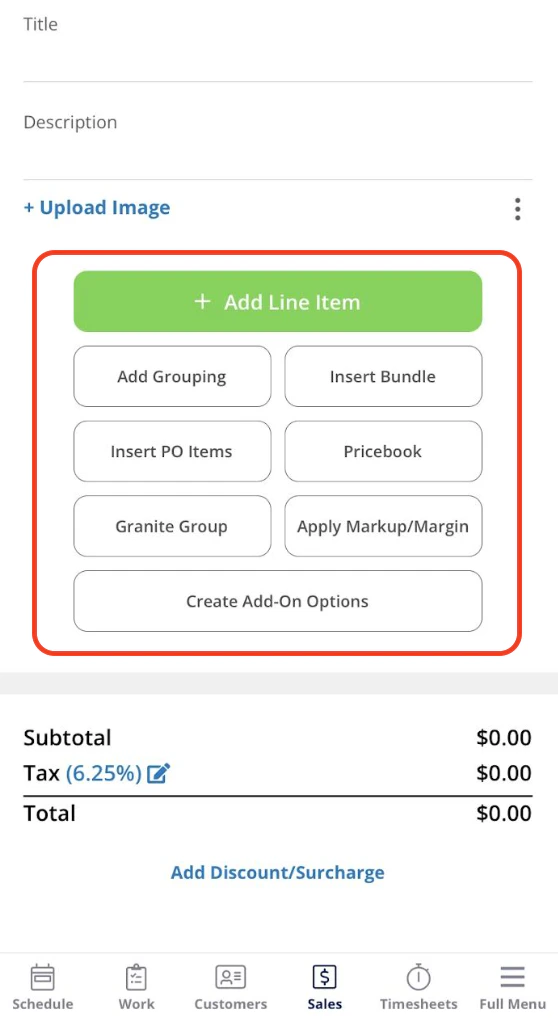
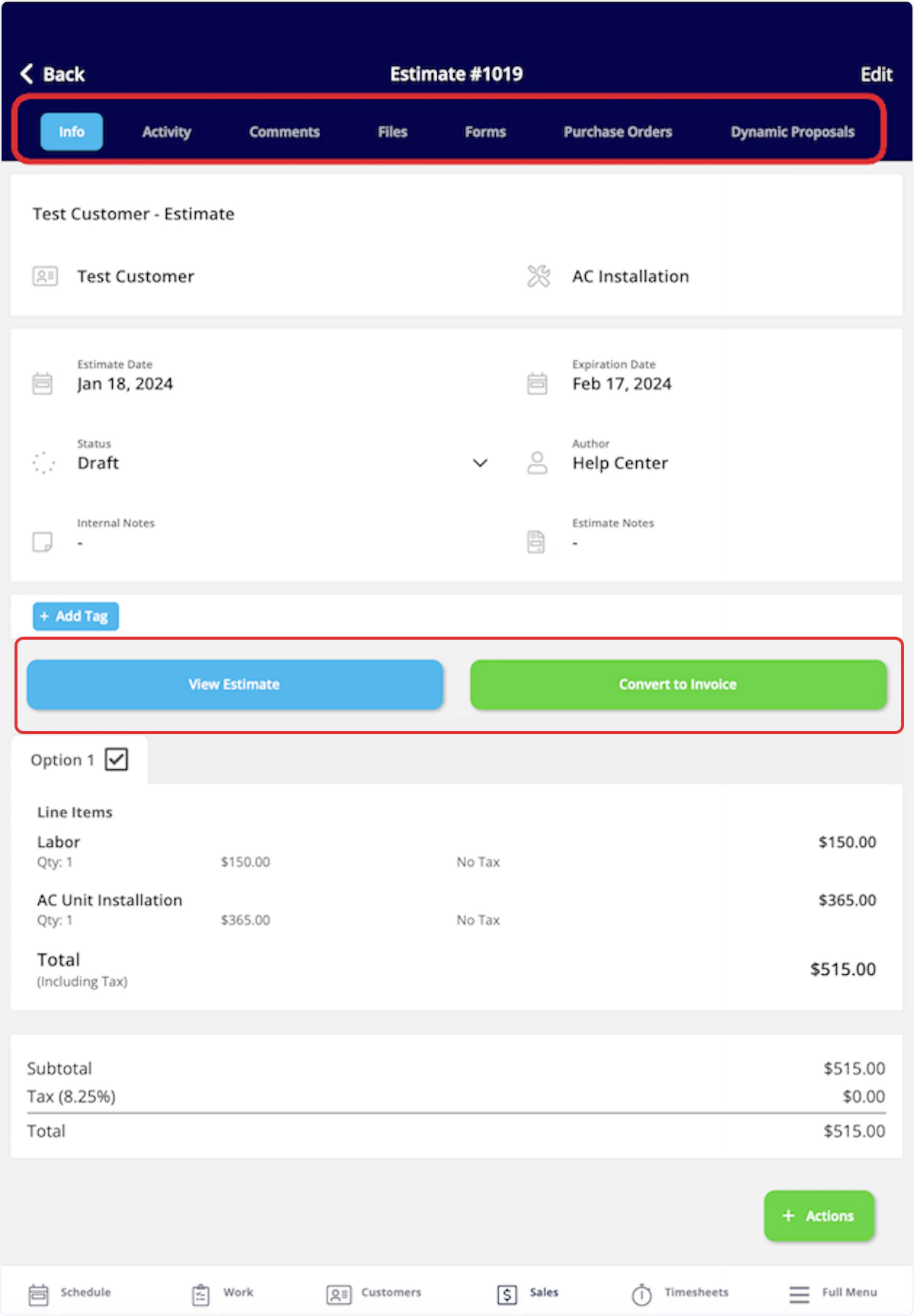
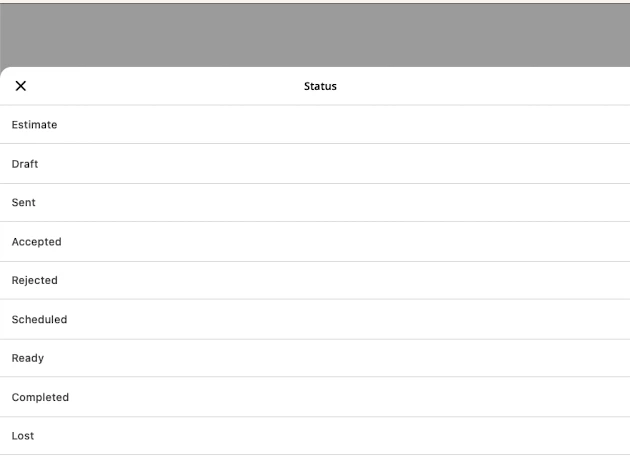
Estimate Statuses
As you create and send estimates, FieldPulse makes keeping track of the statuses easy. On your Estimates page, notice the statuses listed on the right side of each estimate record. The Draft, Sent, and Accepted statuses are automatically updated by FieldPulse, while the remaining statuses can be manually updated to continue keeping track of your estimate long-term. You can also use the menu at the top of the Estimates page to sort your estimates by status.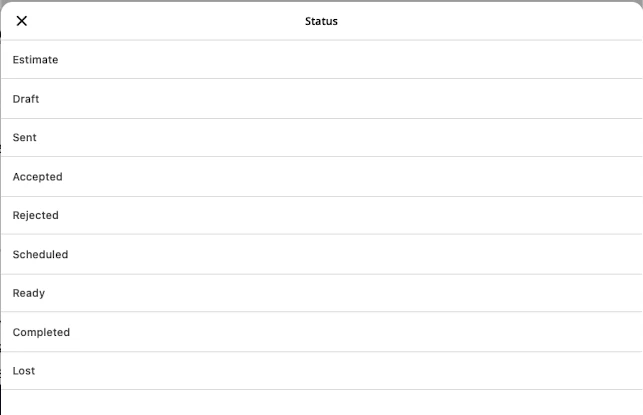
Customer Estimate Experience
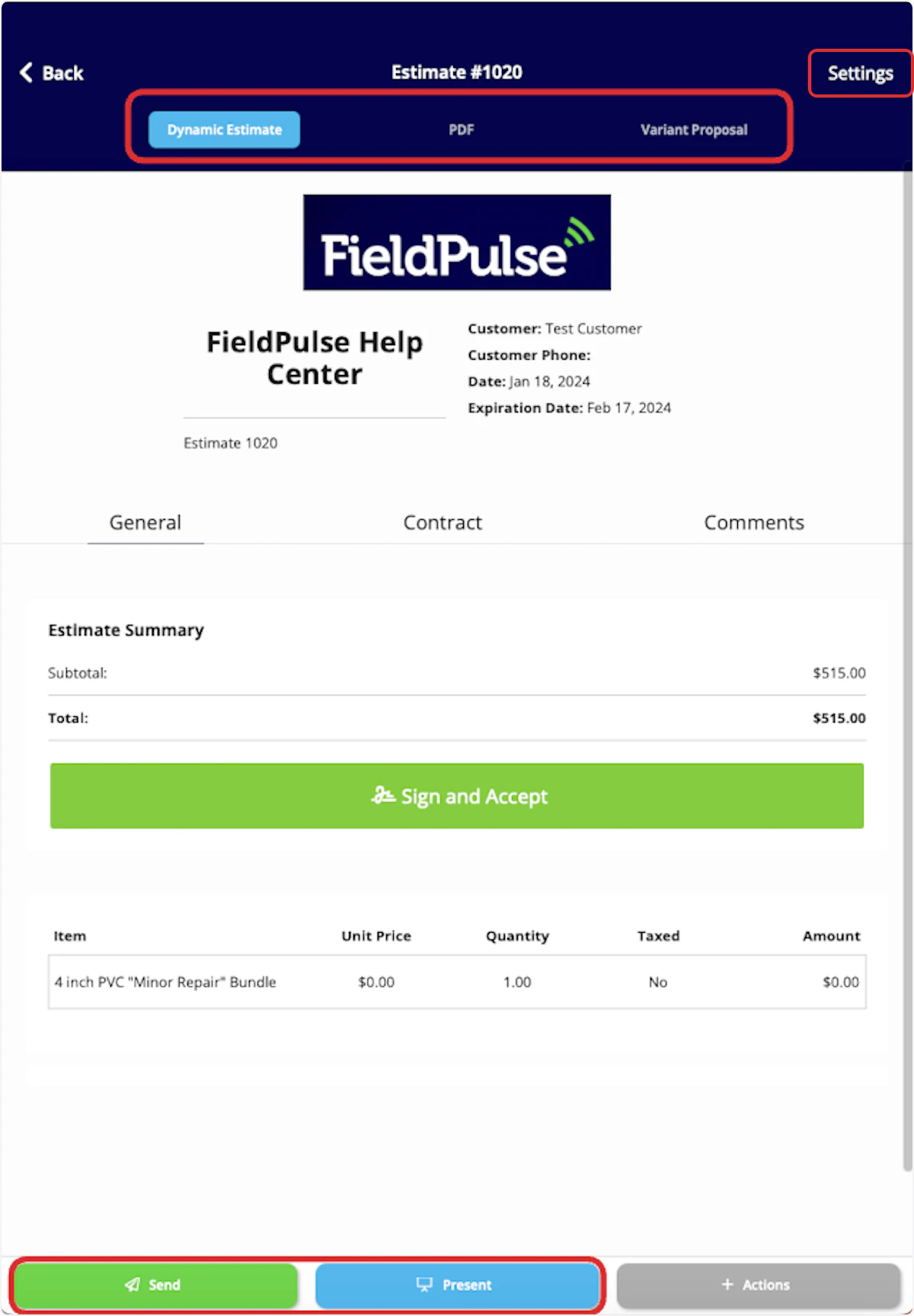
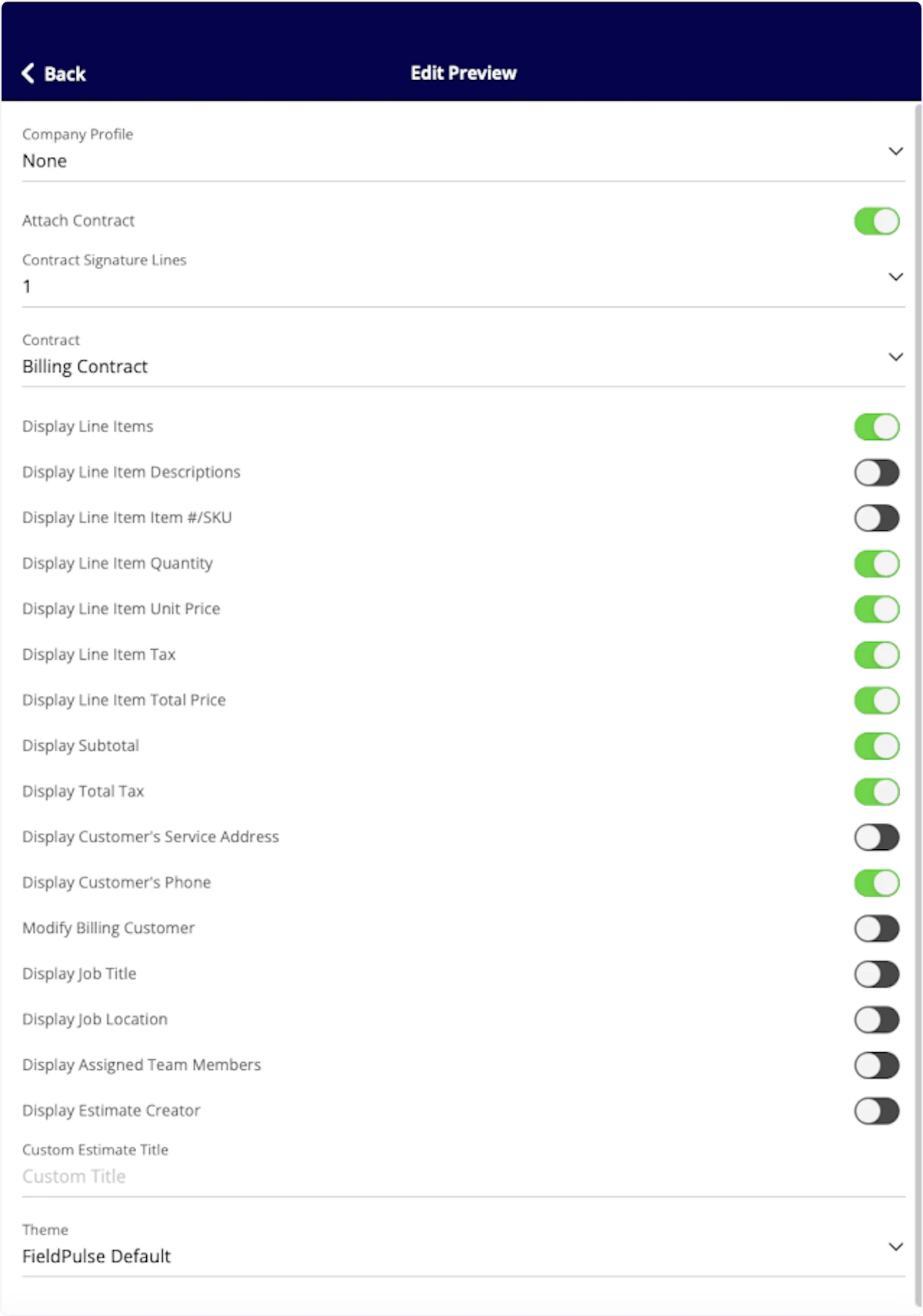
To preview, send, or show an estimate, select View Estimate on the estimate record.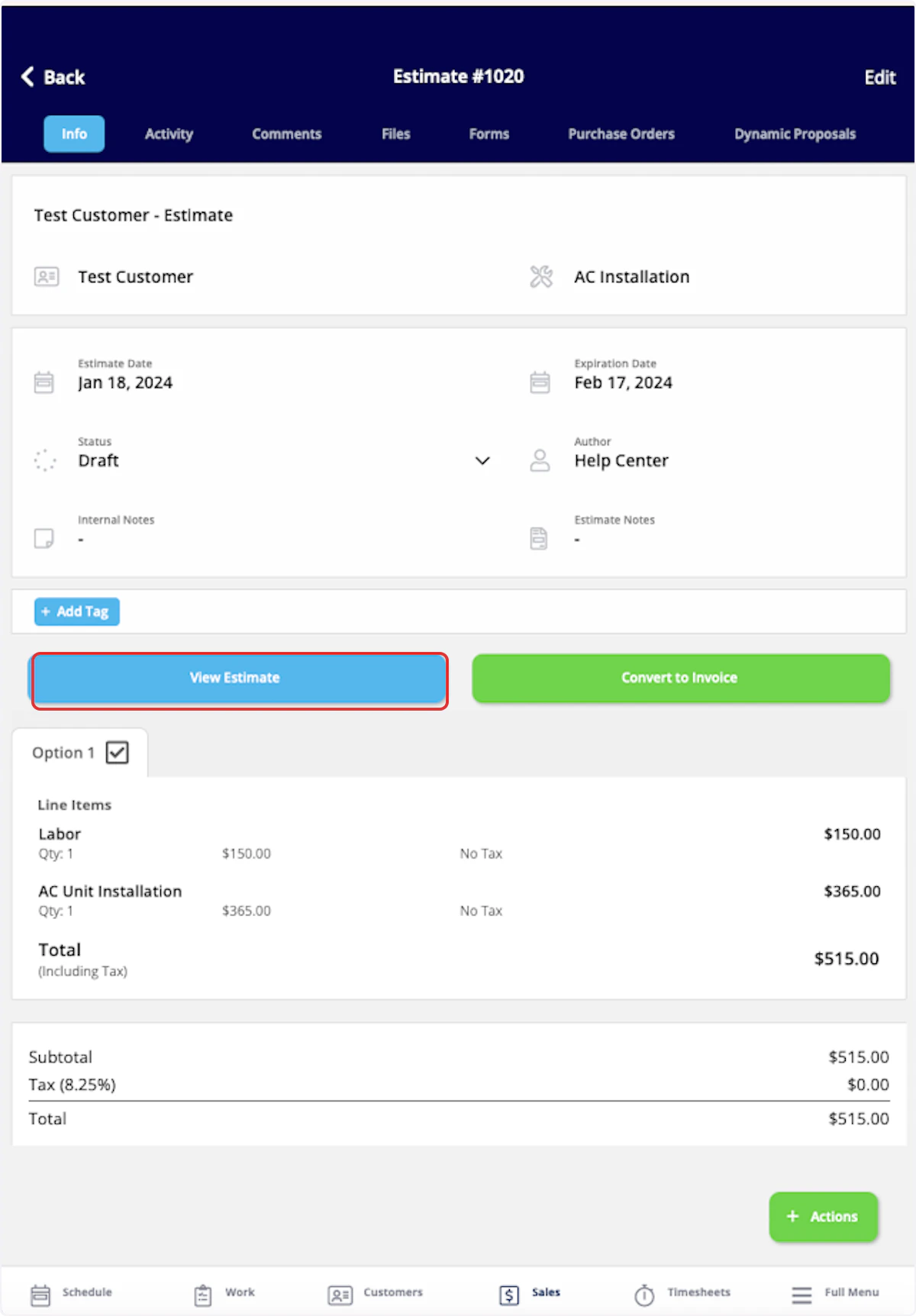
Video Tutorial
Have additional questions? Contact us at support@fieldpulse.com or use the chat feature in the bottom right corner of your screen.