

In this guide, we’ll show you how to send an invoice to a customer. Follow the same steps to send an estimate.Documentation Index
Fetch the complete documentation index at: https://fieldpulse.mintlify.app/llms.txt
Use this file to discover all available pages before exploring further.
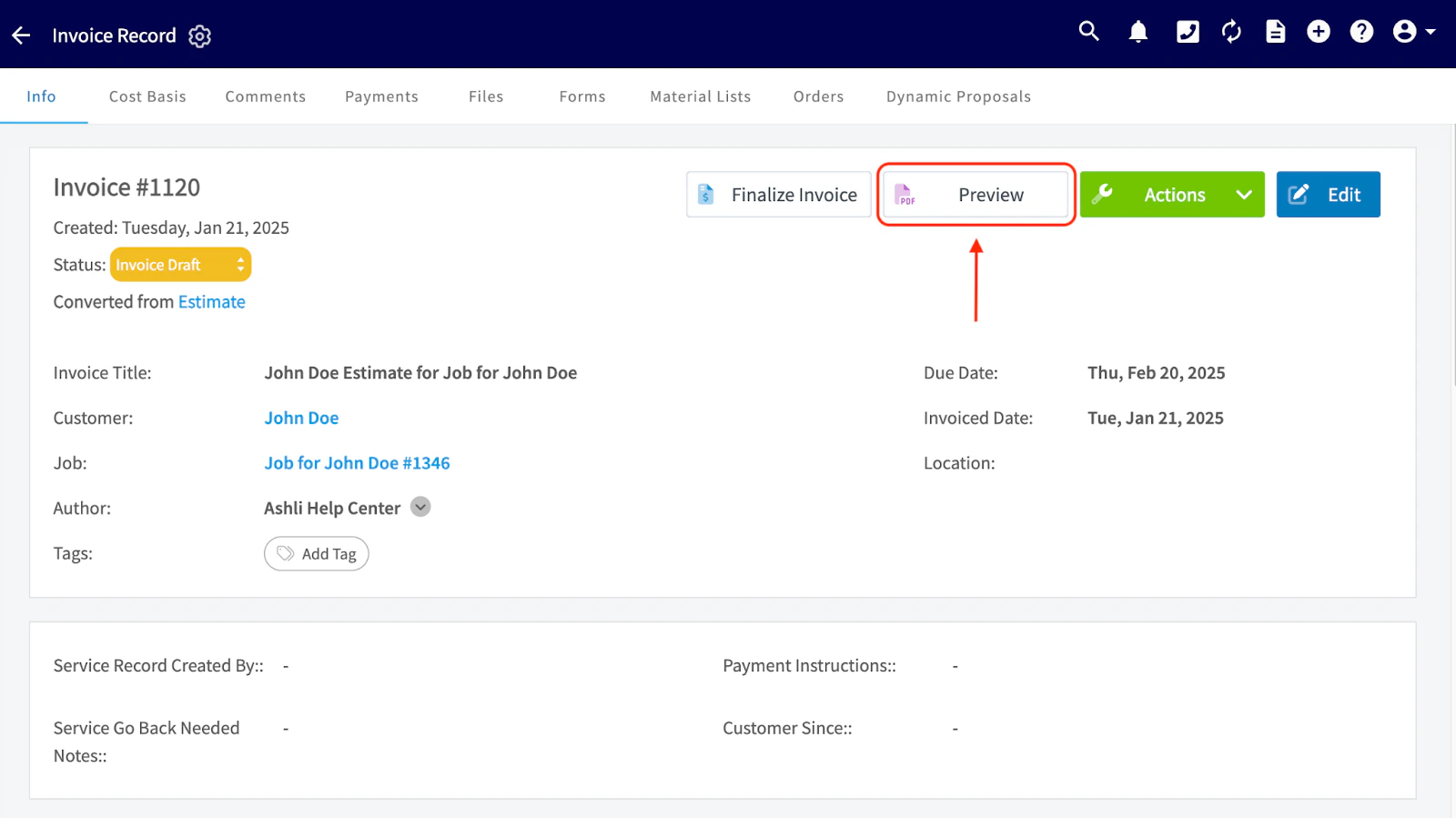
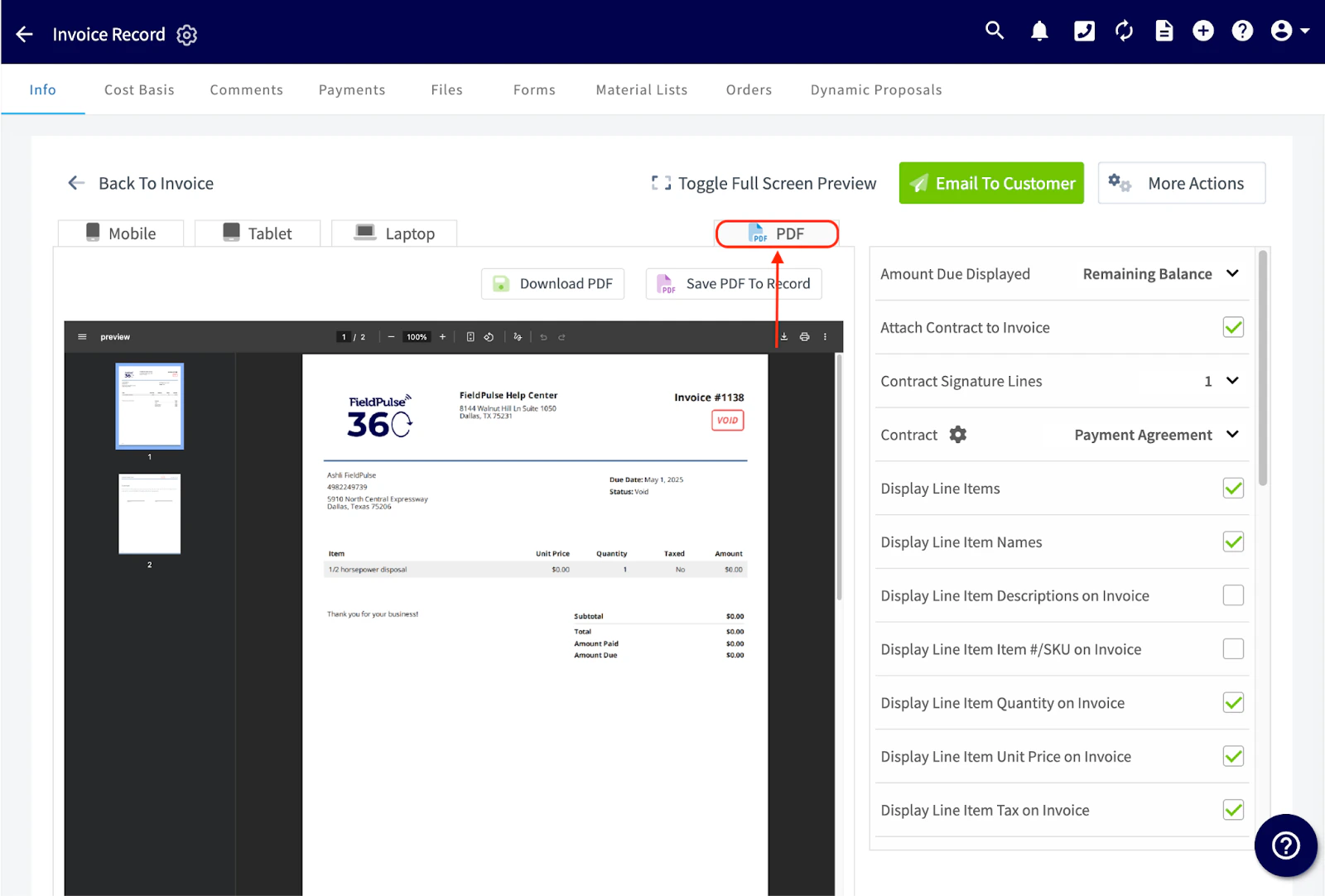
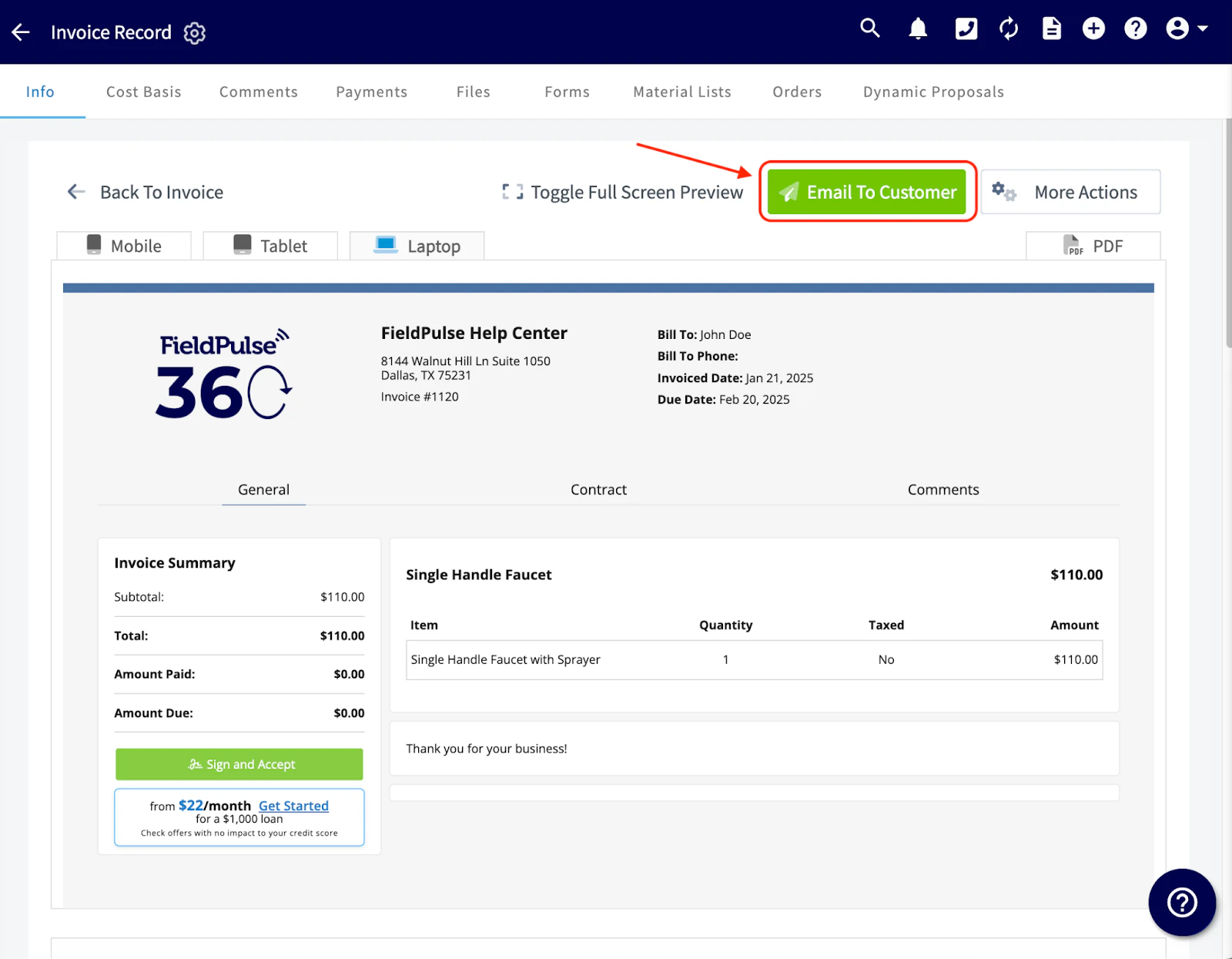
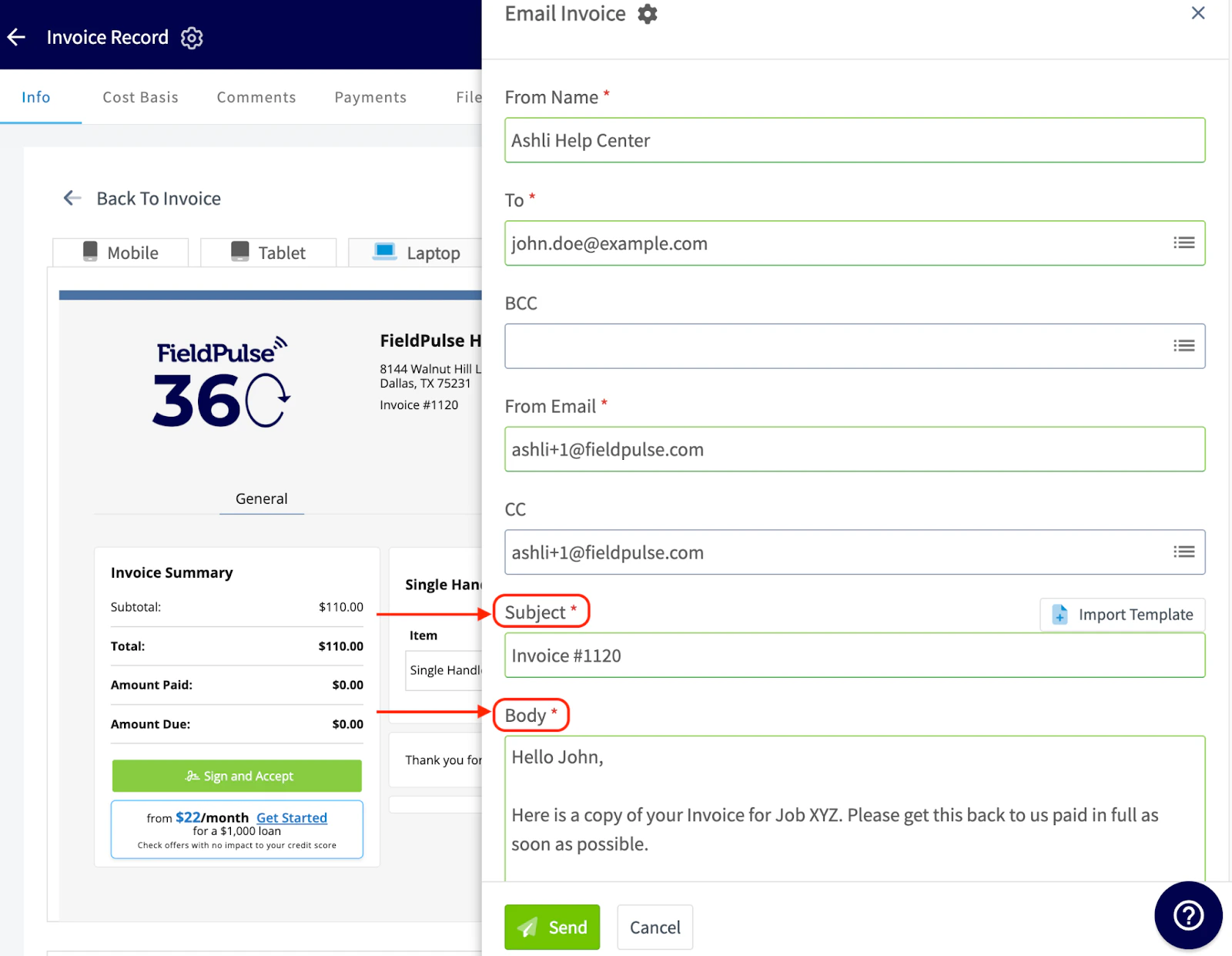
The simplest way to send an estimate or invoice in FieldPulse is directly through the platform. To do this, navigate to the invoice you want to send. On the Invoice record, click Preview.

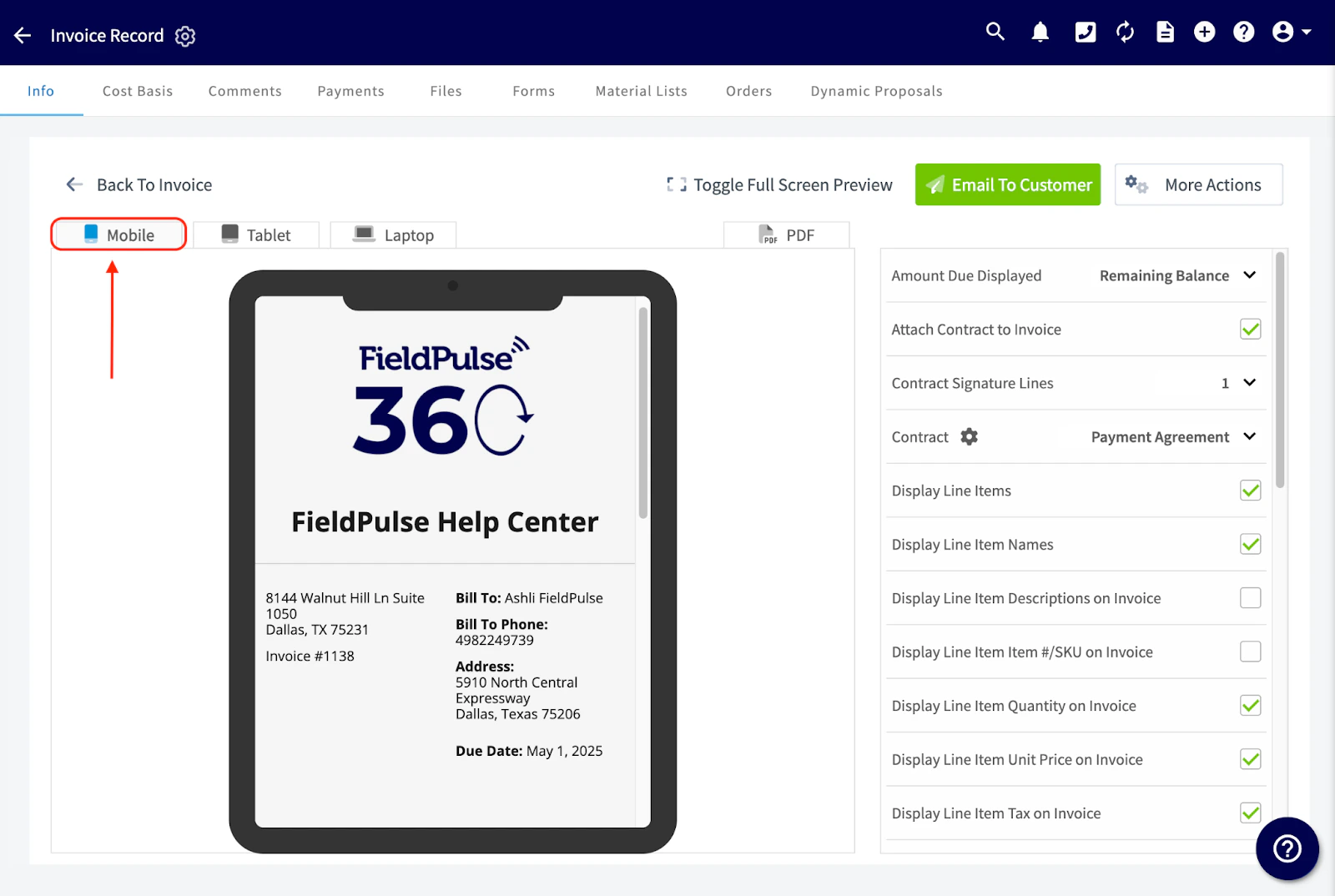
Mobile View:
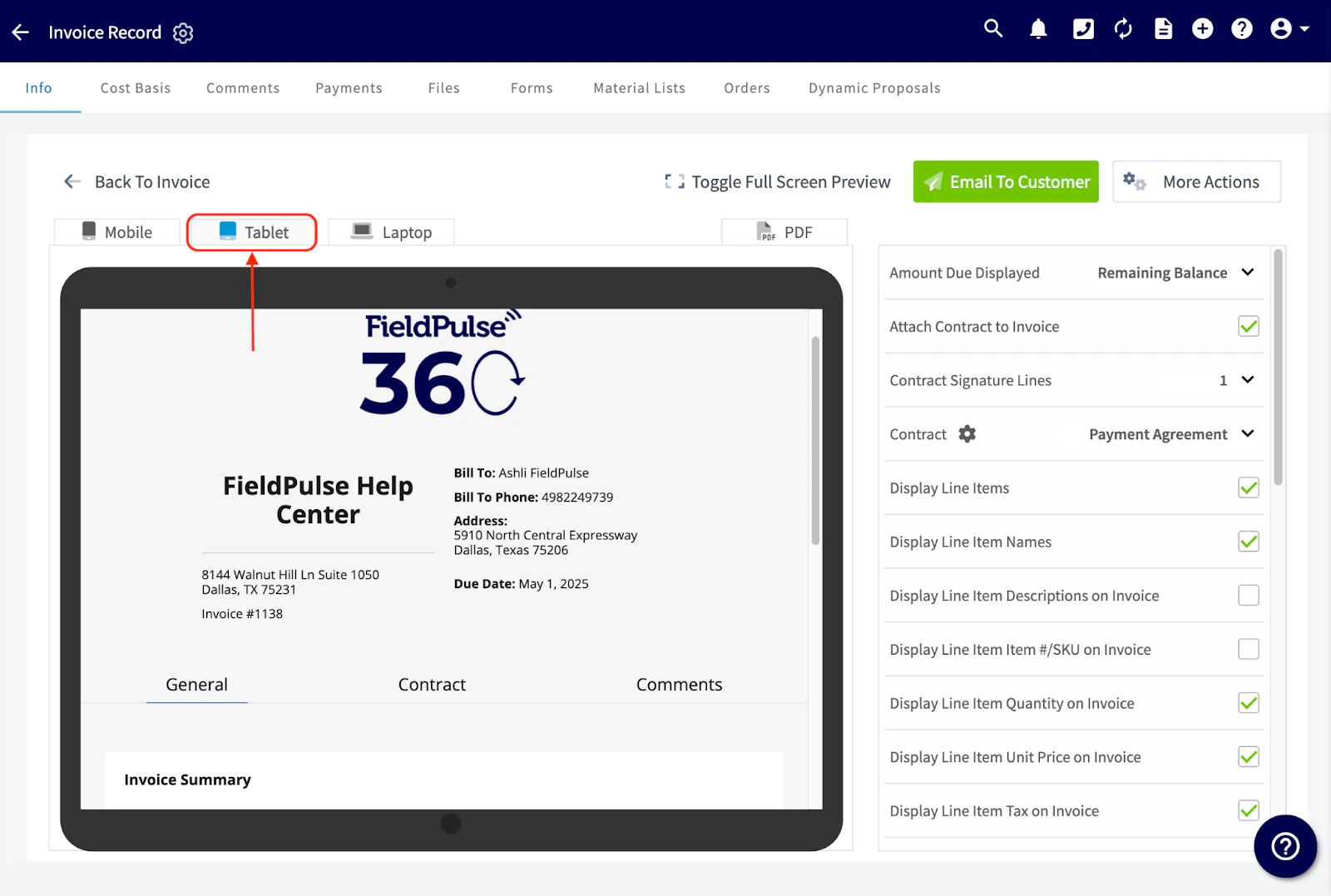
Tablet View:
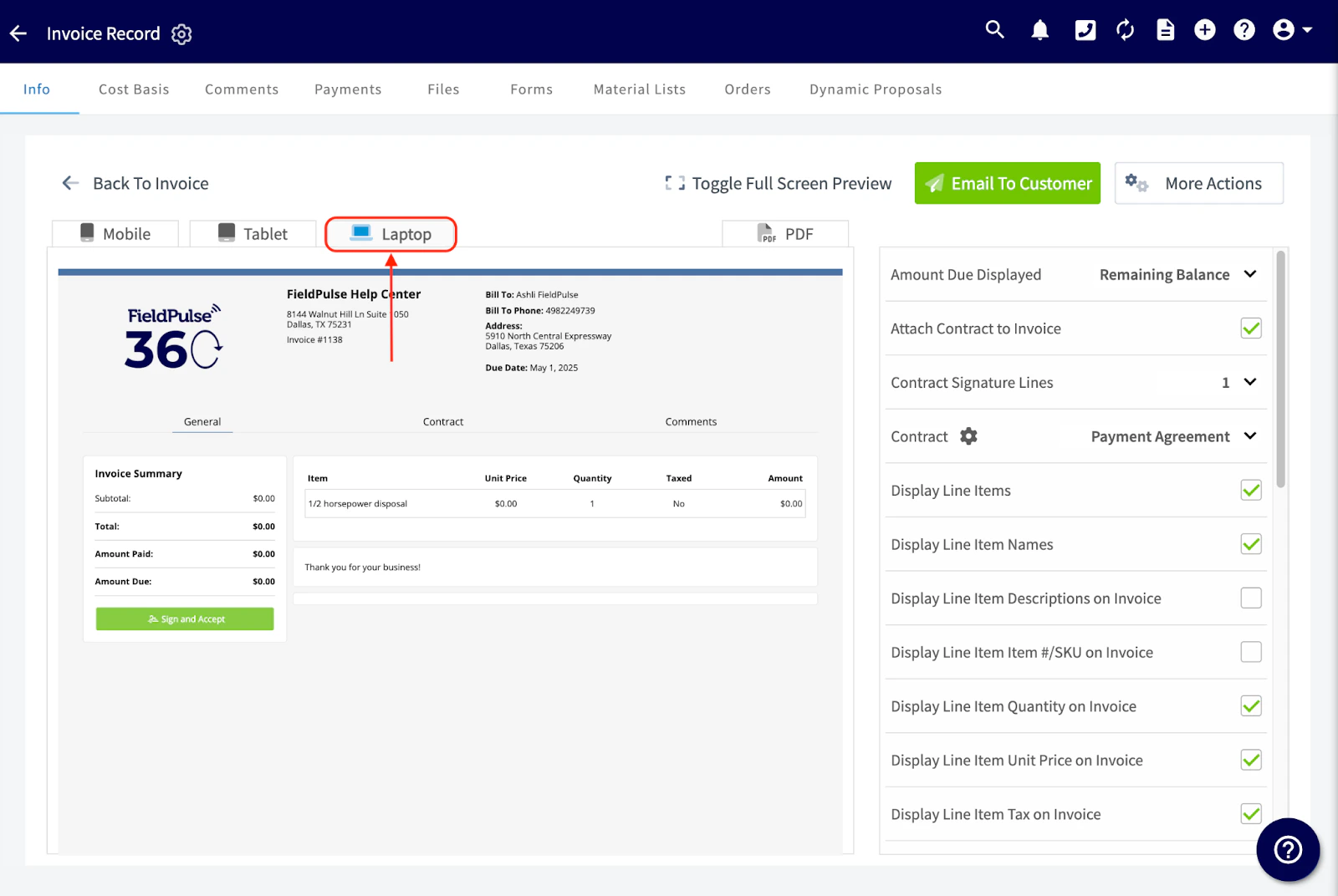
Laptop View:
PDF View:
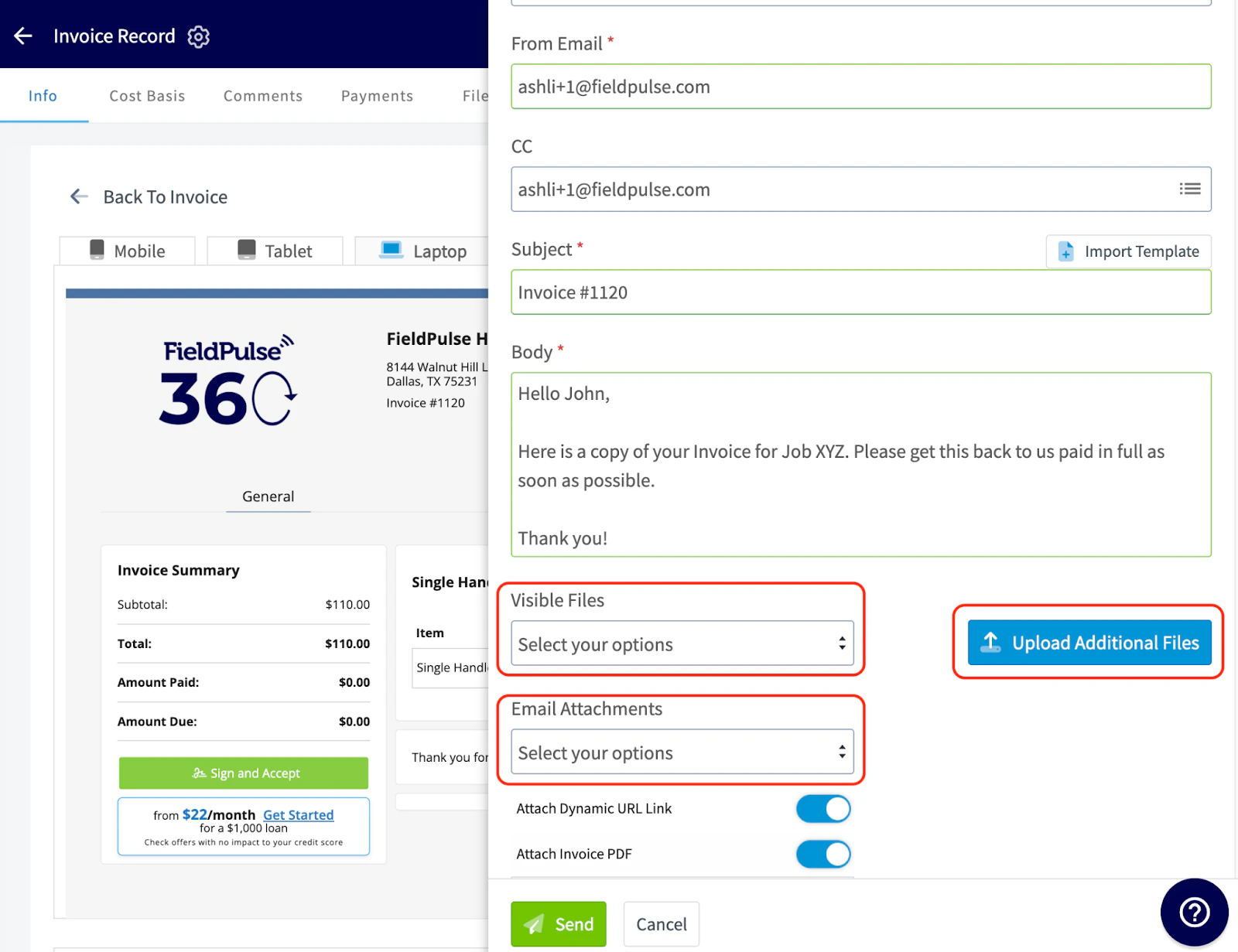
- Visible Files: Select files previously uploaded to the original job or estimate
- Email Attachments: Choose from additional files already on record
- Upload Additional Files: Click the blue button to add new files from your device
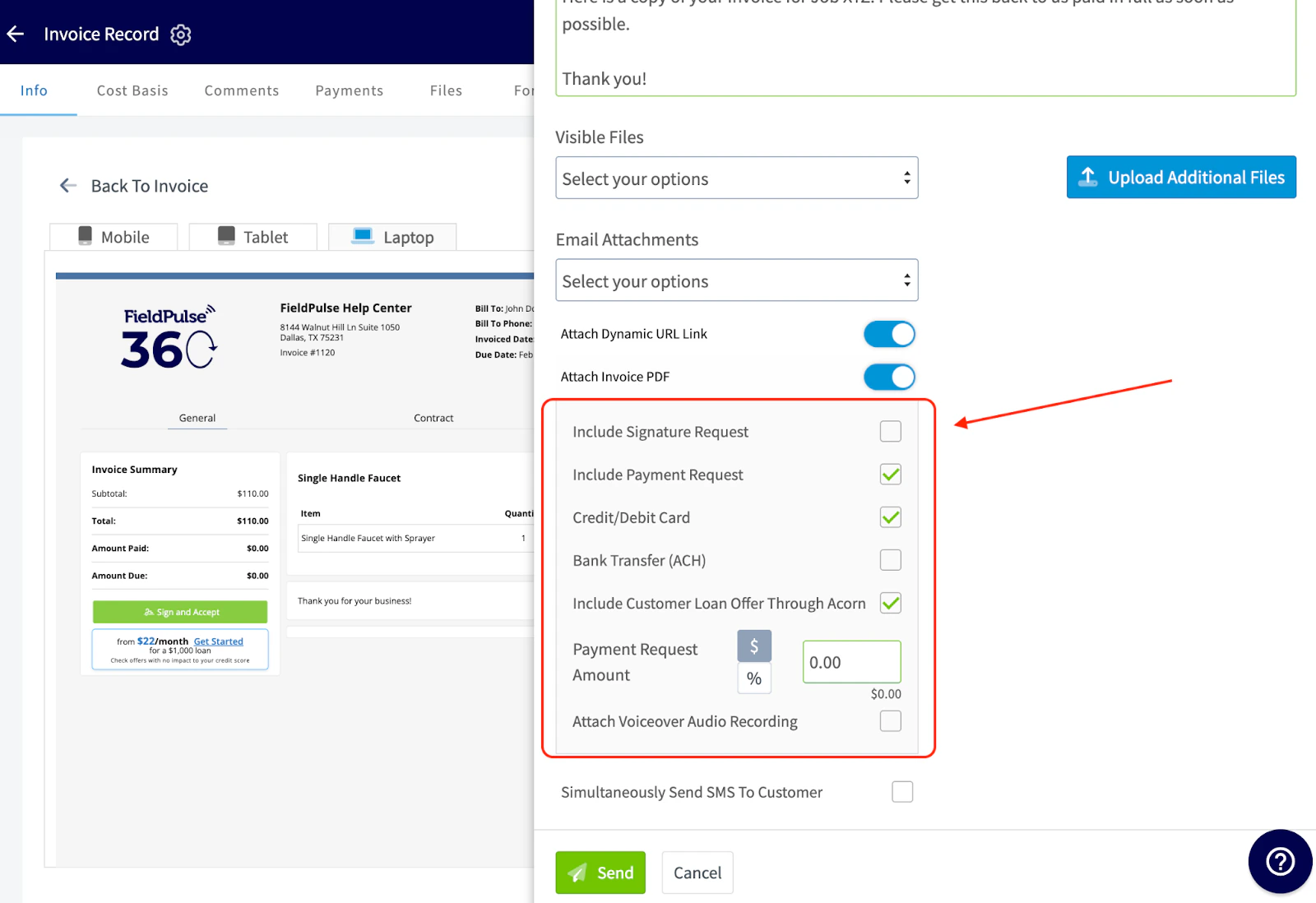
For FieldPulse Payments users only:
Customize how you send and receive payments! You’ll see options to:- Request a signature
- Include a payment request
- Accept specific payment methods, such as credit/debit cards or bank transfers (ACH)
- Offer a customer loan through Acorn Finance
- Adjust the payment request amount by a specific dollar amount or percentage
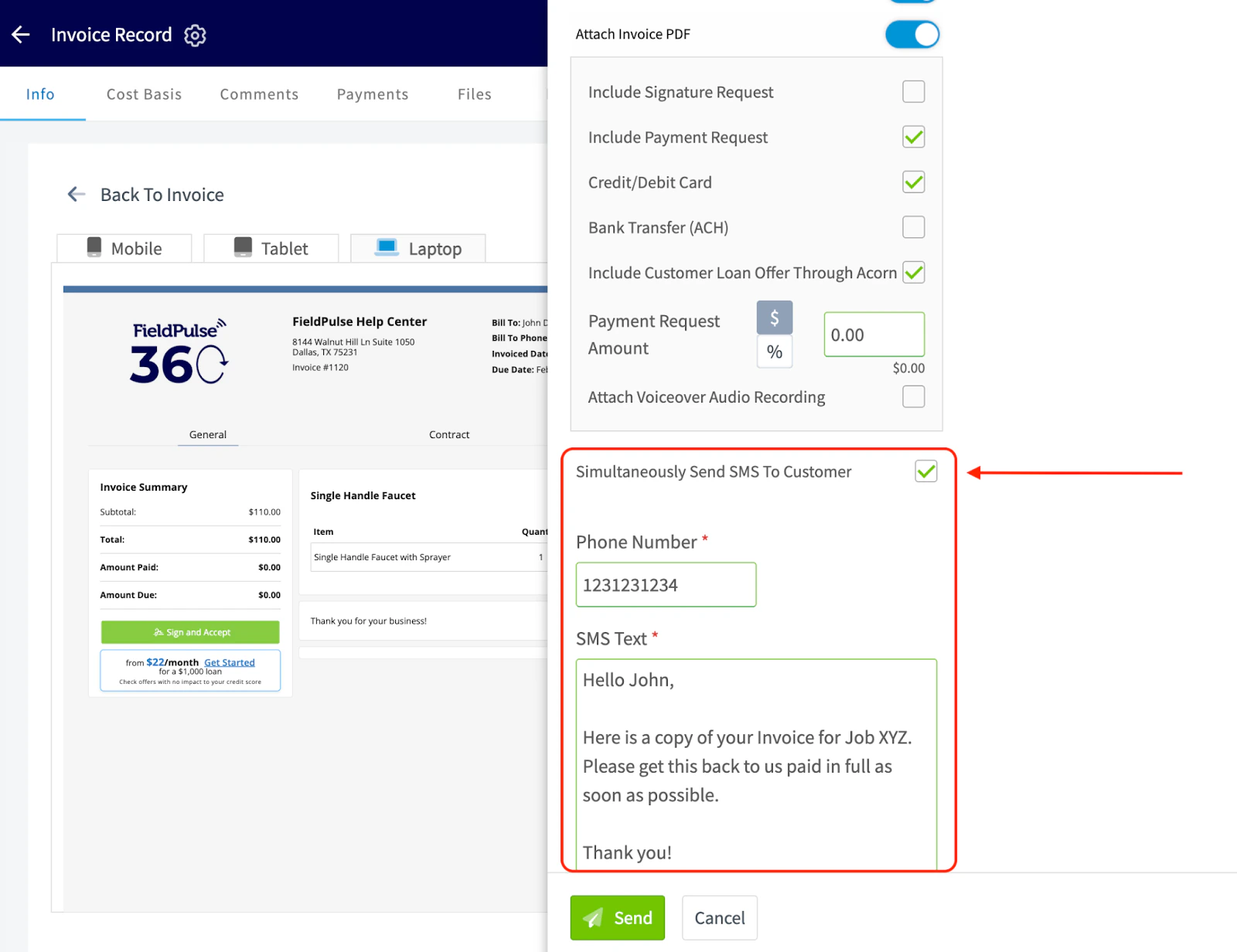
- Attach a voice-over audio recording. This is a great option if you want to guide your customer through the estimate or invoice but don’t have time for an in-person conversation or phone call.
FAQs
Are estimate emails that are sent multiple times always grouped in a thread, or can they be sent as separate emails? To change your email thread (or conversation view) settings so that each message appears as a separate email instead of being grouped into a thread, follow these steps based on your email provider: Gmail (Web):- Open Gmail.
- Click the gear icon in the top right corner and select See all settings.
- Under the General tab, scroll to Conversation View.
- Select “Conversation view off”.
- Scroll to the bottom and click Save Changes.
- Open Outlook.
- Click the gear icon in the top right.
- In the search bar, type “conversation view”.
- Choose “Off” under Conversation view.
- Open Outlook.
- Go to the View tab at the top.
- Uncheck Show as Conversations.
- Choose whether to apply it to just the current folder or all folders.
- Open Mail.
- Go to Mail > Settings (or Preferences).
- Under the Viewing tab, uncheck “Include related messages” or “Organize by conversation”, depending on your macOS version.
Video Tutorial
Have additional questions? Contact us at support@fieldpulse.com or use the chat feature in the bottom right corner of your screen.