

FieldPulse’s Recurring Billing allows you to generate recurring invoices on the fly, and save time by requesting or collecting payments automatically through the FieldPulse mobile or web app. We’ve created this feature specifically for our customers who regularly perform maintenance work, such as landscaping and pool maintenance.Documentation Index
Fetch the complete documentation index at: https://fieldpulse.mintlify.app/llms.txt
Use this file to discover all available pages before exploring further.
Enabling Recurring Billing
To begin using Recurring Billing, you’ll first need to enable it. Start by clicking on Company Settings and selecting Features & Plugins. Navigate to Recurring Billing and select Enable. Now you’re ready to begin utilizing recurring billing!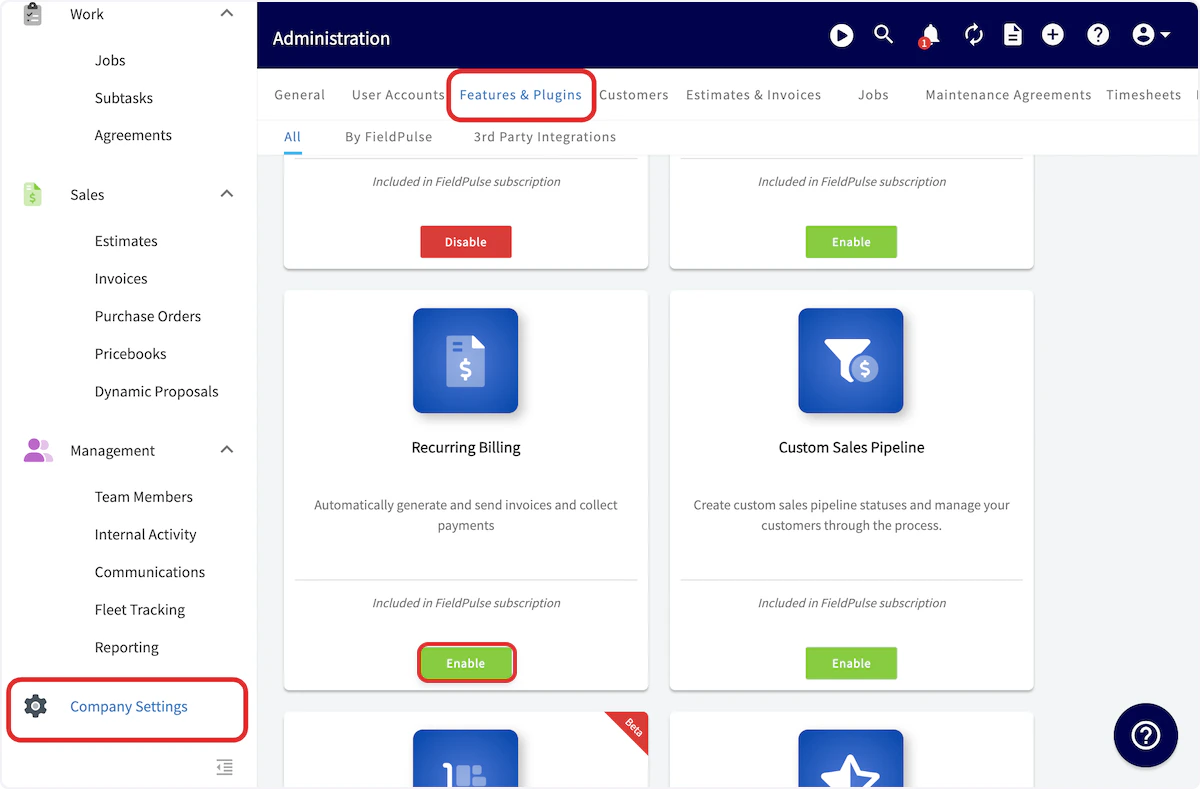
Creating Recurring Billing
To begin creating recurring billing, select Invoices from the left-hand side of your screen.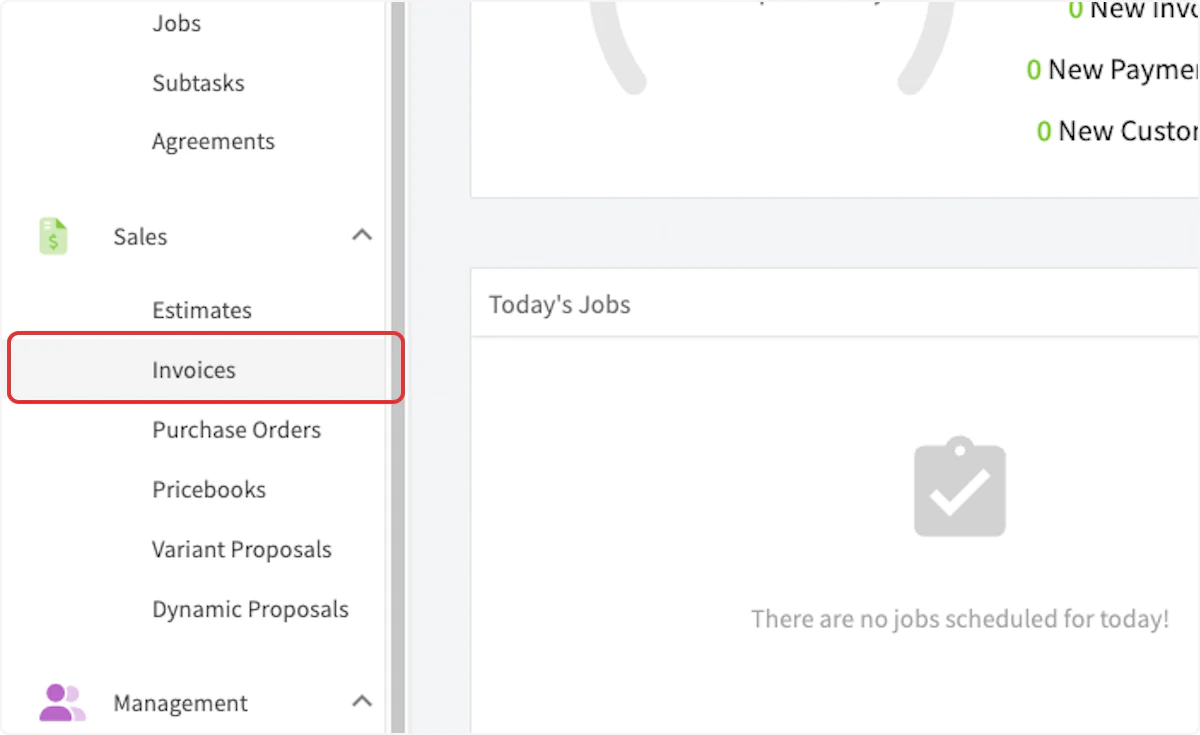

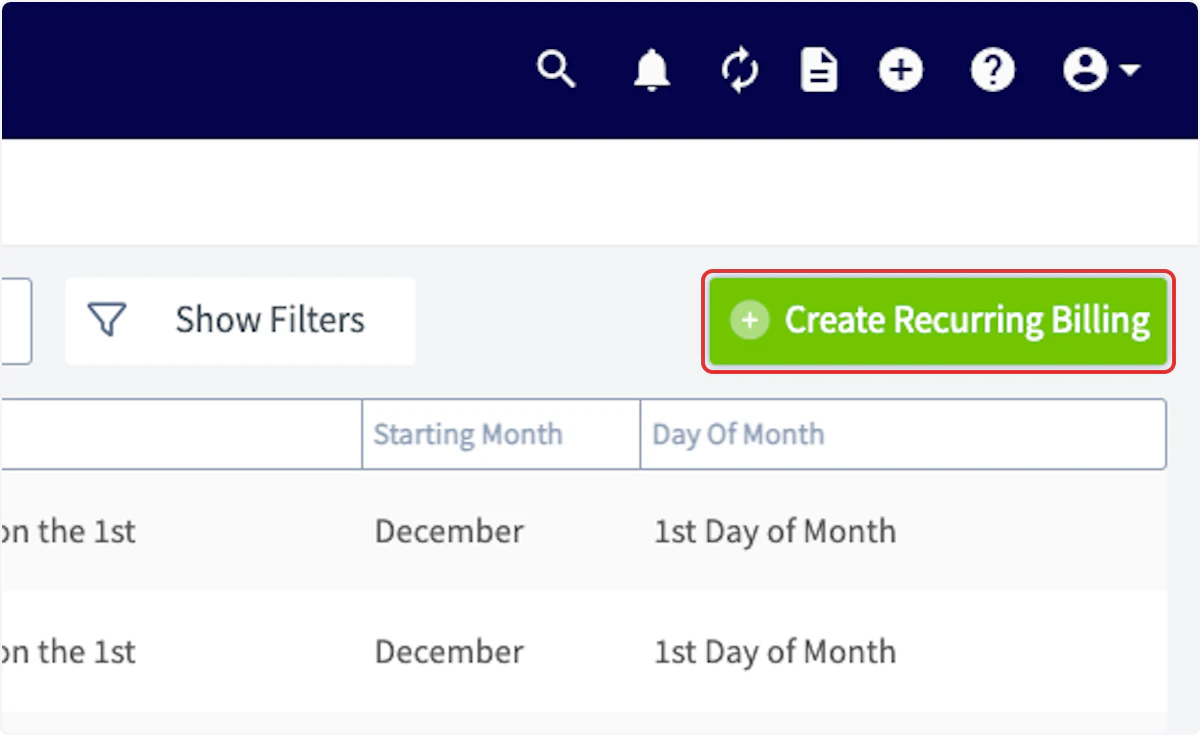
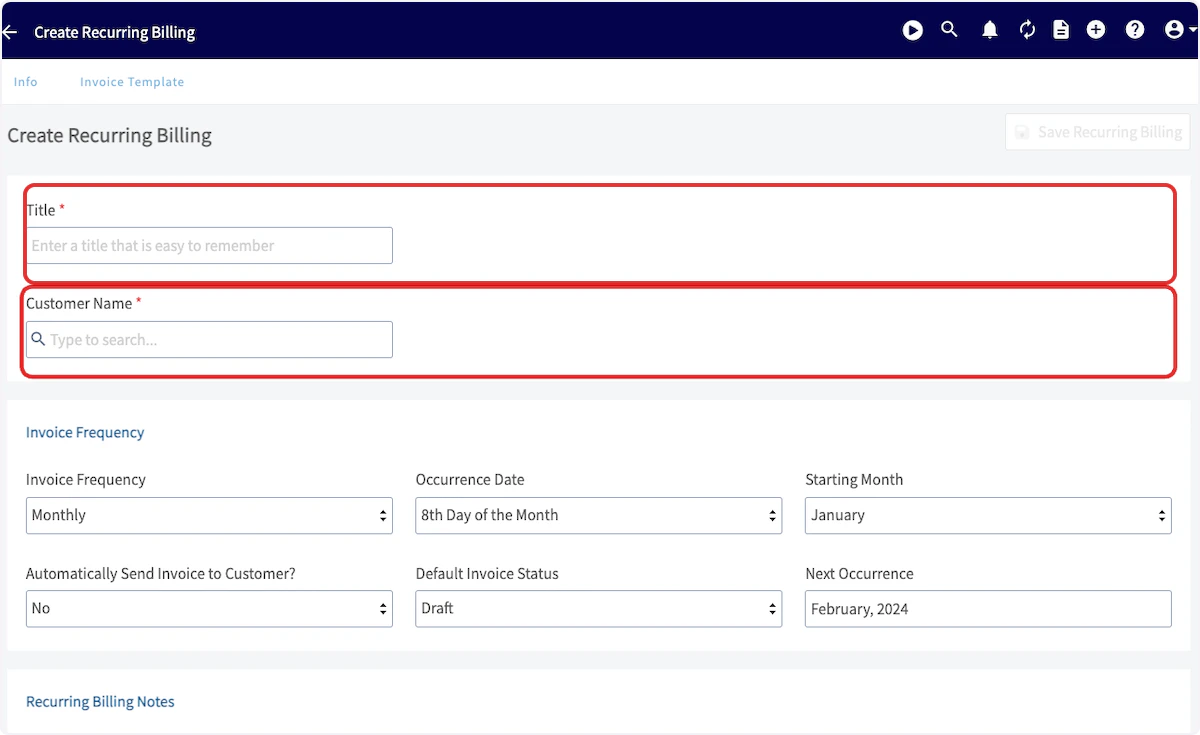
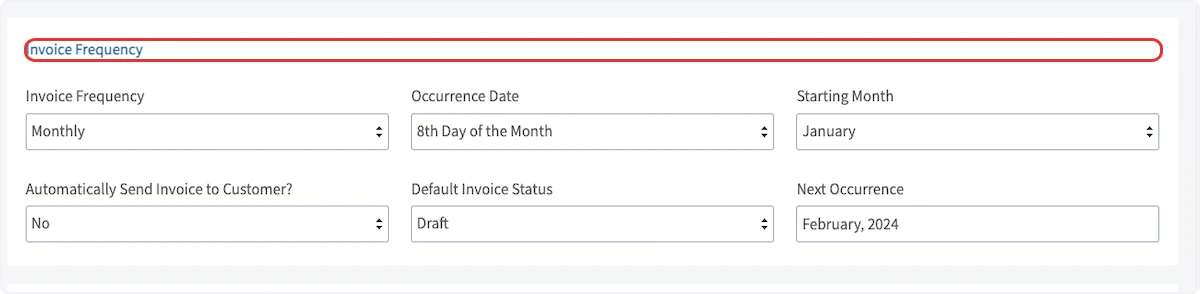
- Invoice Frequency: Select how often to invoice your customer. (Weekly, Monthly, Annually, etc.)
- Occurrence Date: Select which day of the month to invoice your customer.
- Starting Month: Select when you want the invoices to begin.
- Automatically Send Invoice to Customer?: Select whether you want your invoices to be automatically sent to your customer, or if you want to preview them each time before sending.
- Default Invoice Status: Select between Draft or Invoiced status for your recurring billing.
- Next Occurrence: This field will auto-fill with your next invoice occurrence based on the occurrence date and starting month entered above.
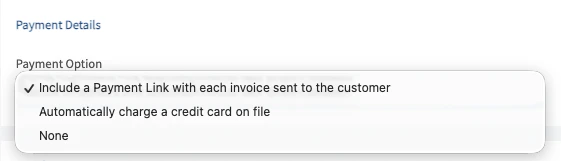
Payment Options
Choose from one of the following payment options:- Include a Payment Link with each Invoice you send to your customer
- Automatically charge the customers credit card that is on file
Notes:
You can also enter internal notes on the recurring billing record.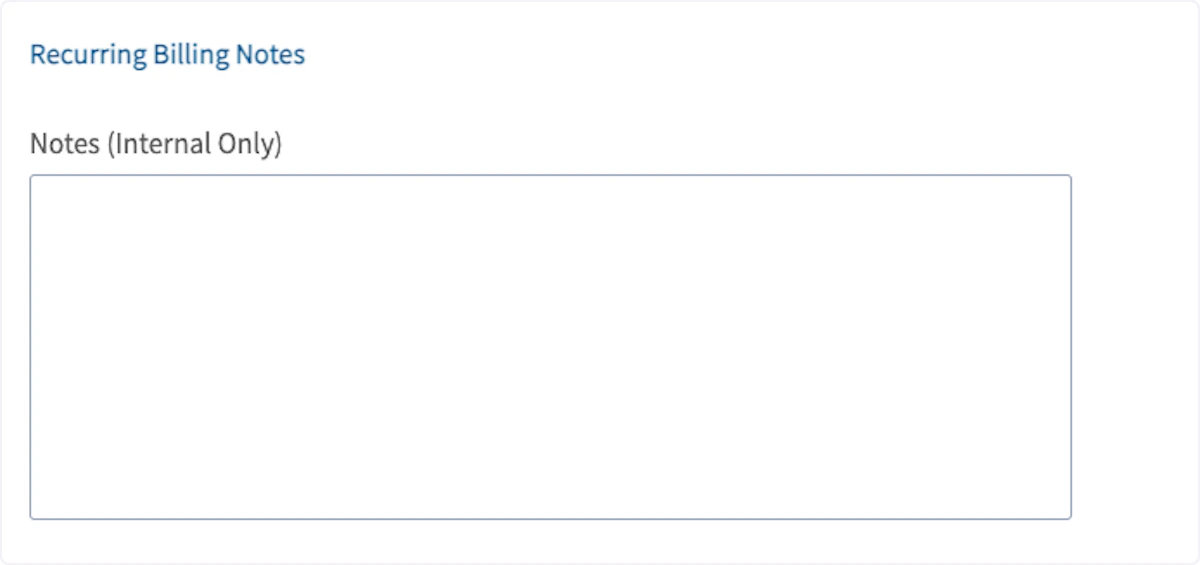
Recurring Billing End Date
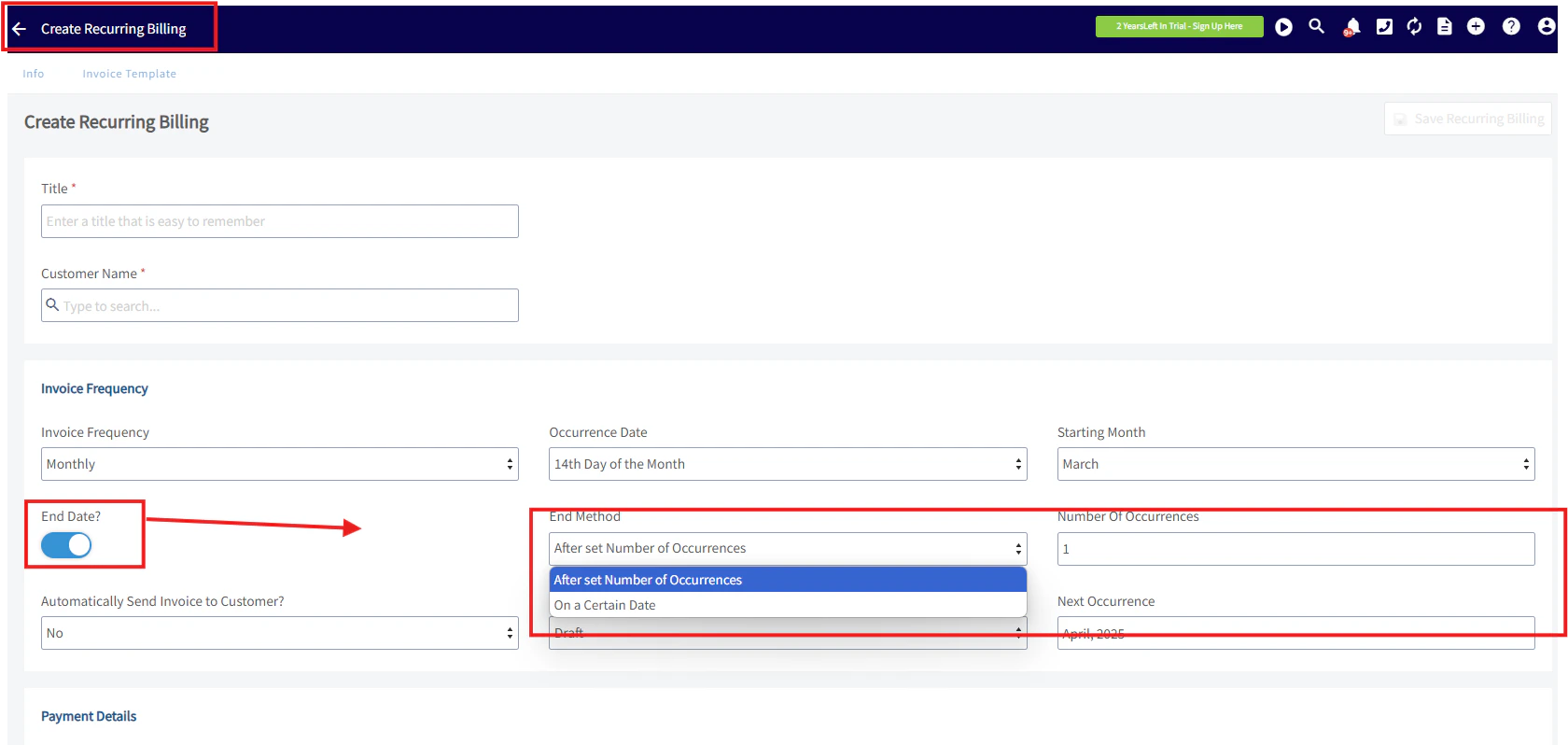
- Plumbing Business: Stops billing after 12 bi-monthly sessions, in line with a one-year contract.
- Landscaping Business: Ends billing after 24 weekly sessions, corresponding with the end of the season.

Adding Recurring Billing to a Recurring Job
To add recurring billing to a recurring job, you’ll first need to create a recurring job by going to Jobs and clicking Create Job.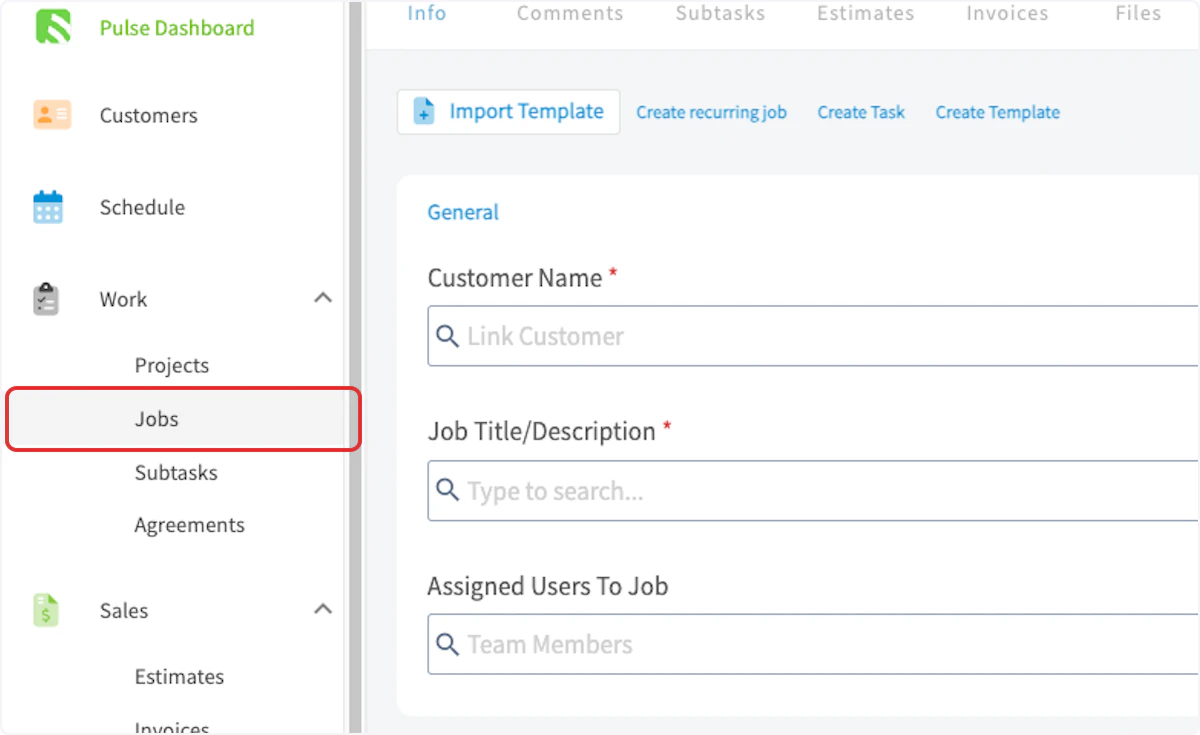

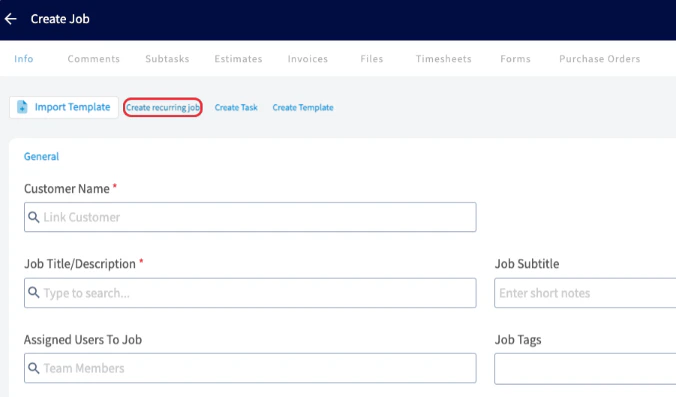
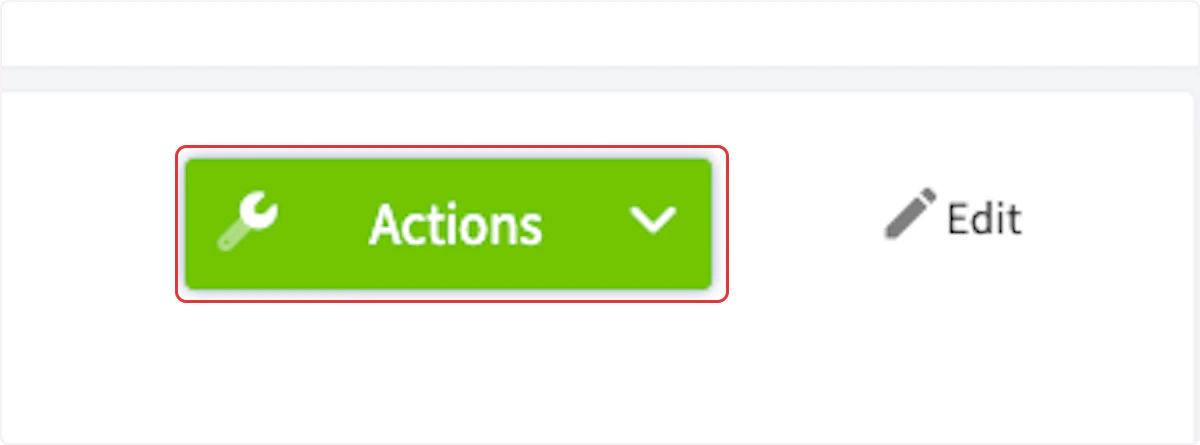
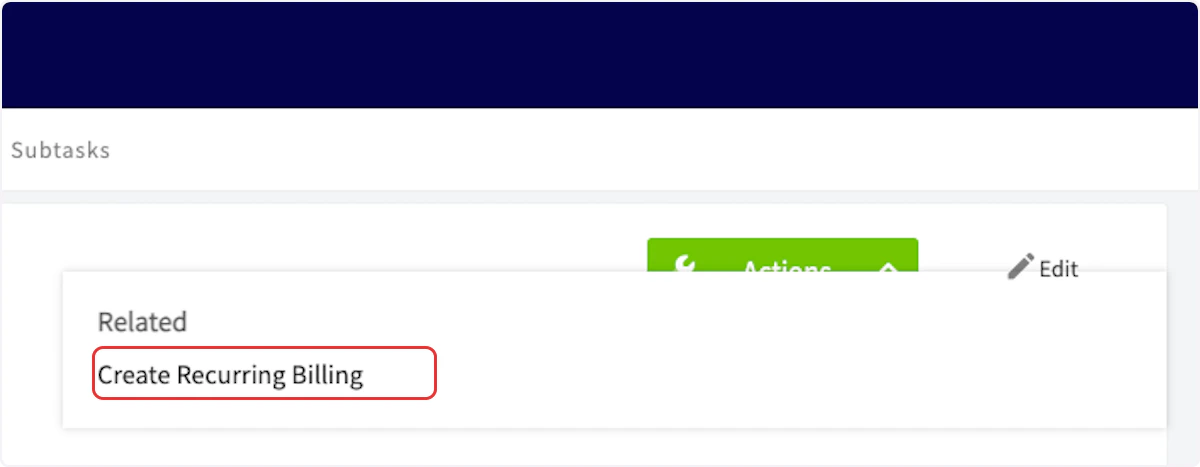
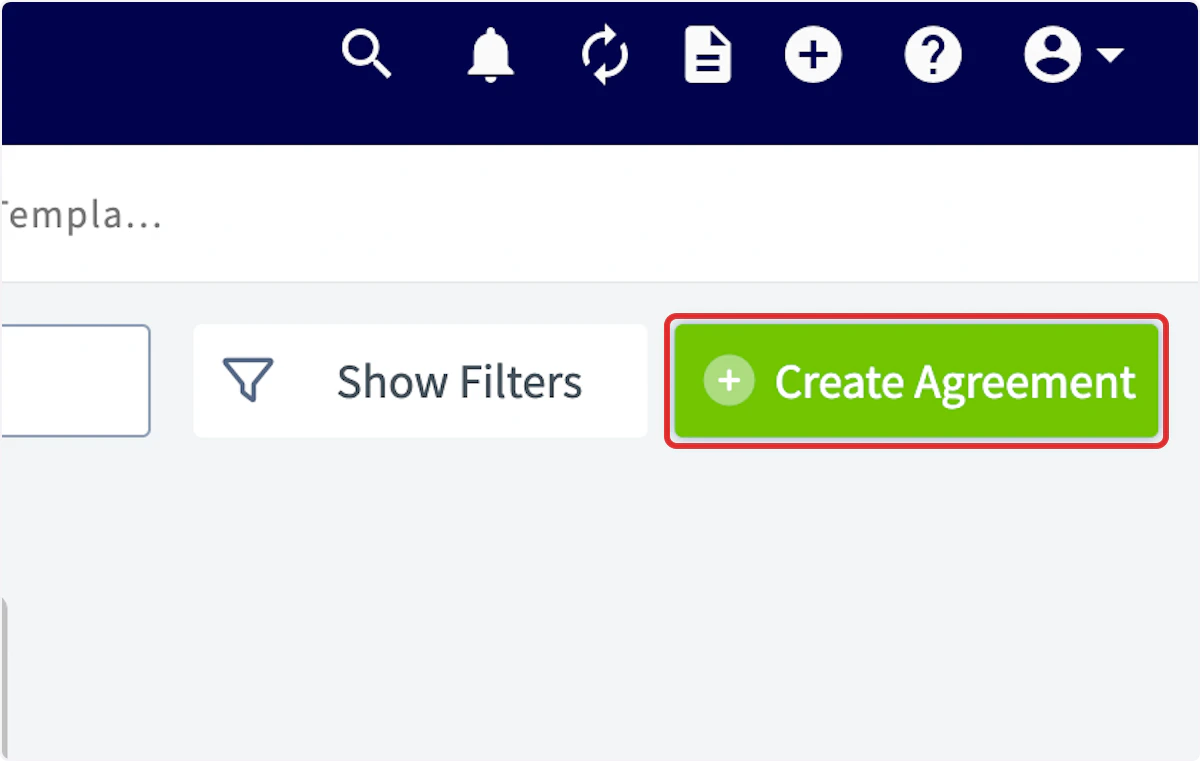
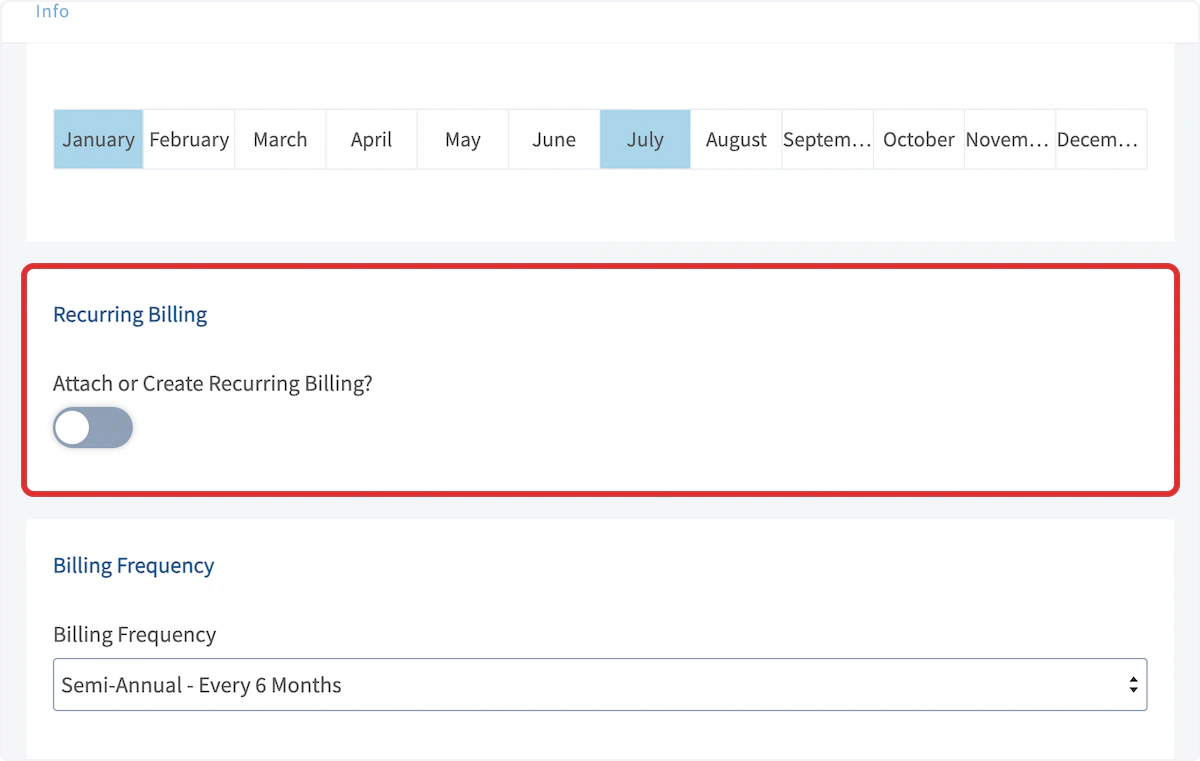
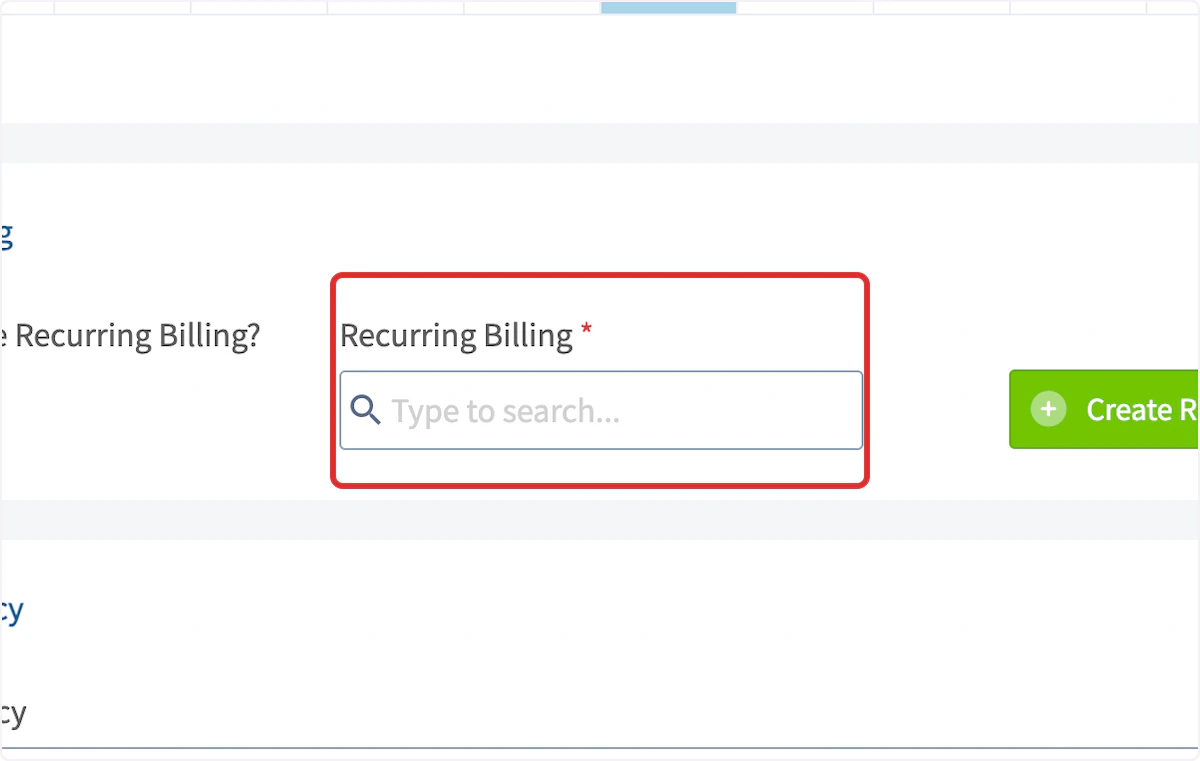
Adding Recurring Billing to a Maintenance Agreement
To add recurring billing to a maintenance agreement, start by clicking on Agreements on the left-side of your screen.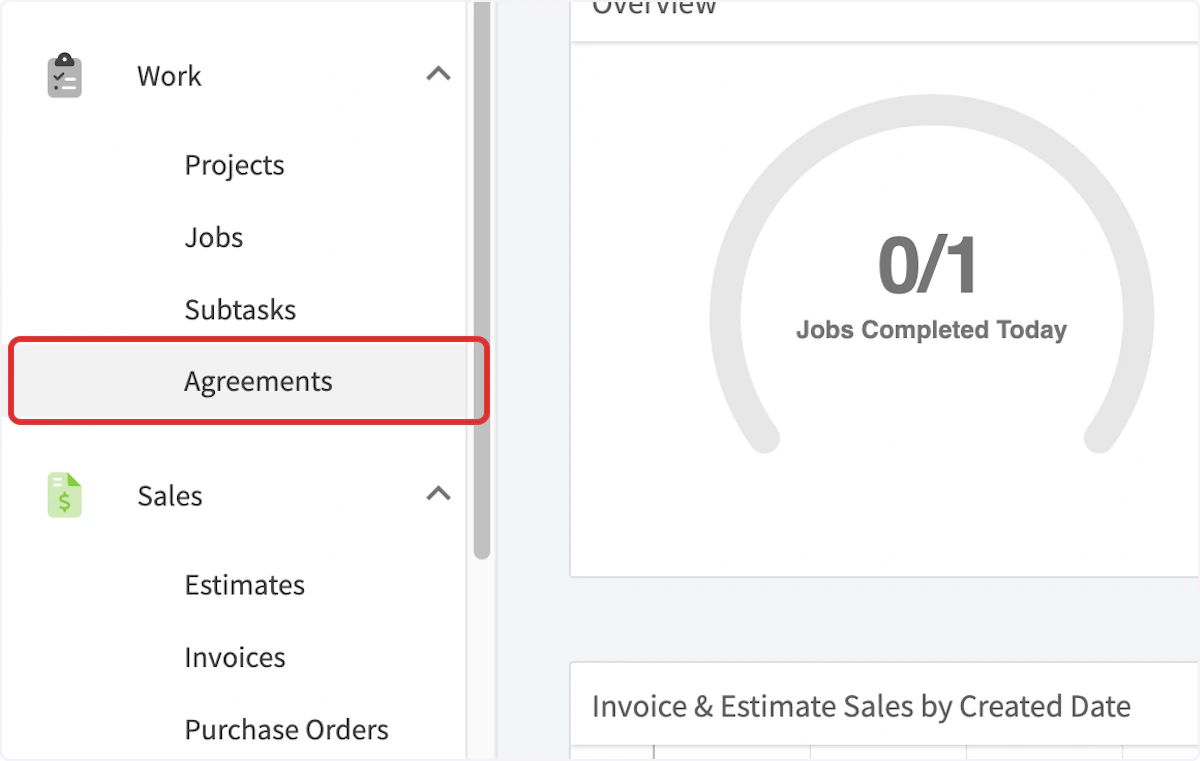
View Your Recurring Billing
View by Customer Record:
Each Customer Record now has a Recurring Billing tab.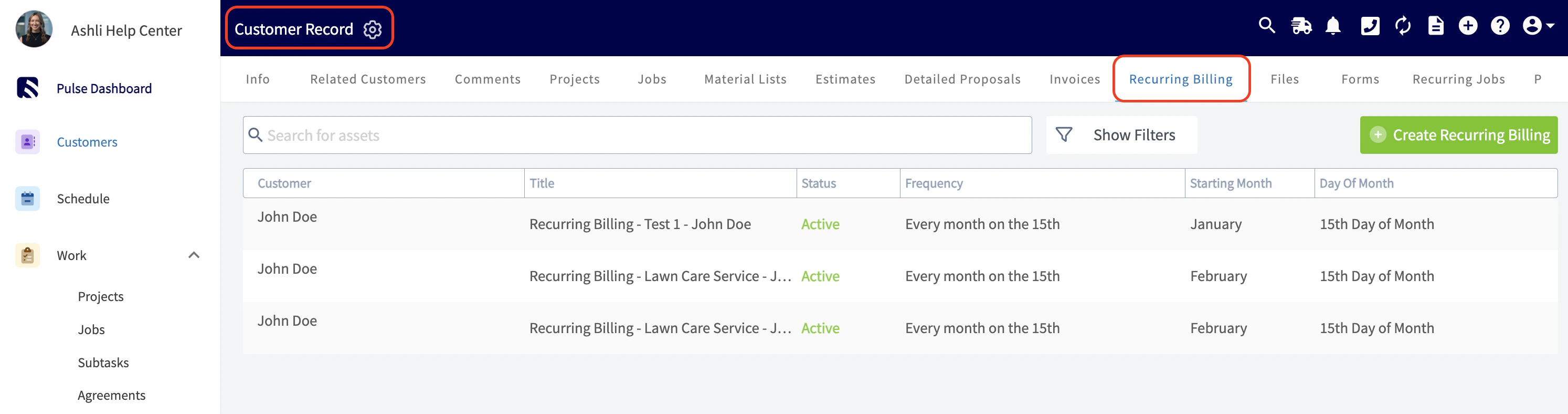
View by Invoices > Recurring Billing tab:
Within the general Recurring Billing list, you now have a Customer filter, allowing you to quickly locate a customer’s recurring billings without needing to scroll through extensive lists or run separate reports.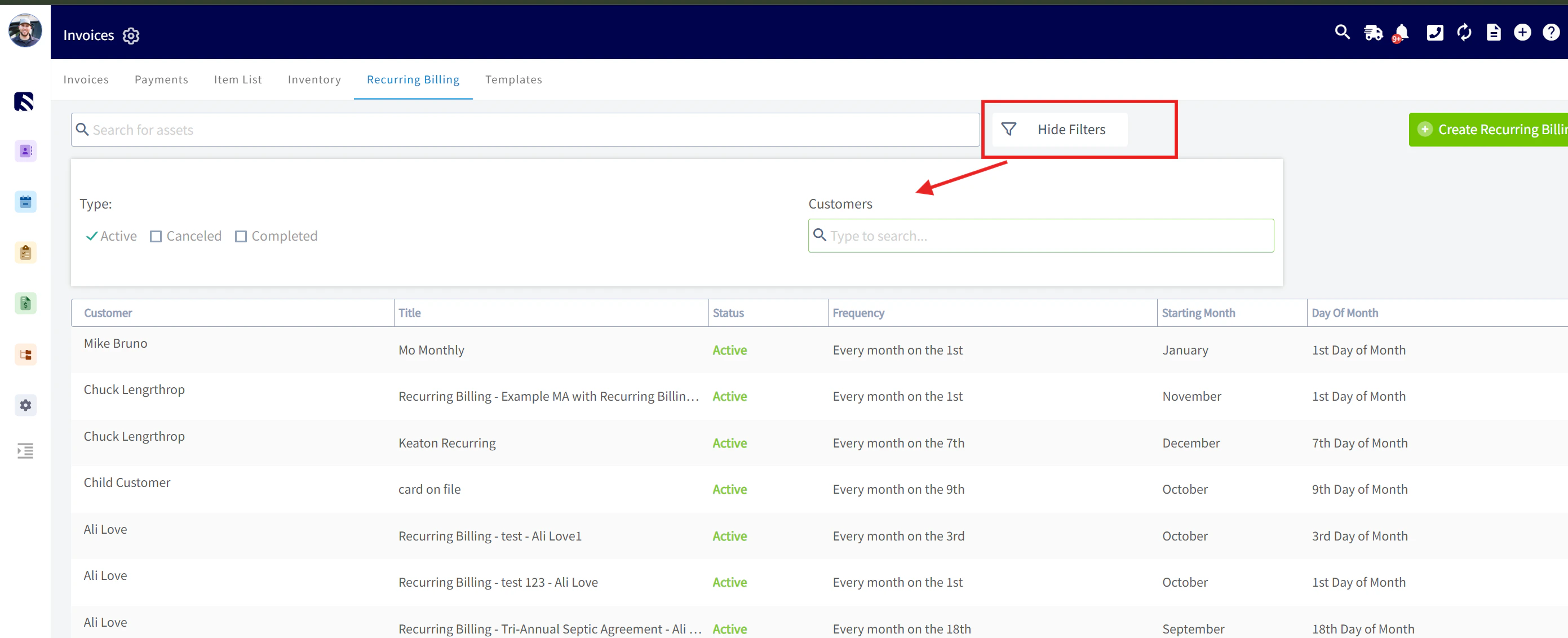
FAQs
If my customer’s credit card declines for a recurring billing I have set up with them, will the recurring billing or invoice continue? Yes, the recurring billing will continue. The invoice will not be marked as paid, and if you have notifications set up (outside of FieldPulse), you should also receive an alert from the payment provider.Video Tutorial
Have additional questions? Contact us at support@fieldpulse.com or use the chat feature in the bottom right corner of your screen.